 | ||
Introduction
The Template Editor toolbar in SCView provides administrators with essential tools for managing form templates. Located at the top of the interface, the toolbar contains the Template dropdown for selecting templates, along with icons and buttons for template creation, modification, saving, deletion, JavaScript management, submission confirmation, import/export, and backup recovery. This article provides detailed instructions on each toolbar feature.
A. Problem Statement
Administrators working with the Template Editor toolbar in SCView often encounter challenges, including:
- Uncertainty about the purpose of each toolbar icon and its associated dialog options
- Confusion about configuration settings such as Document Type, Designer type, Display Mode, and Rendering Engine
- Difficulty configuring JavaScript or submission confirmation messages correctly
- Not understanding the import/export process or how to restore templates from backups
Without proper knowledge of the Template Editor toolbar features, administrators may struggle to create properly configured templates or fail to utilize backup and recovery capabilities.
B. Solution
SCView's Template Editor toolbar provides a centralized location for all essential template management operations. The toolbar offers intuitive icons for saving changes, adding new templates, editing existing configurations, deleting templates, managing JavaScript code, configuring submission confirmations, importing/exporting templates, and accessing backup recovery. By mastering these tools, administrators can efficiently create, modify, and maintain form templates that meet their organization's document management needs.

Template Dropdown
Step 1:
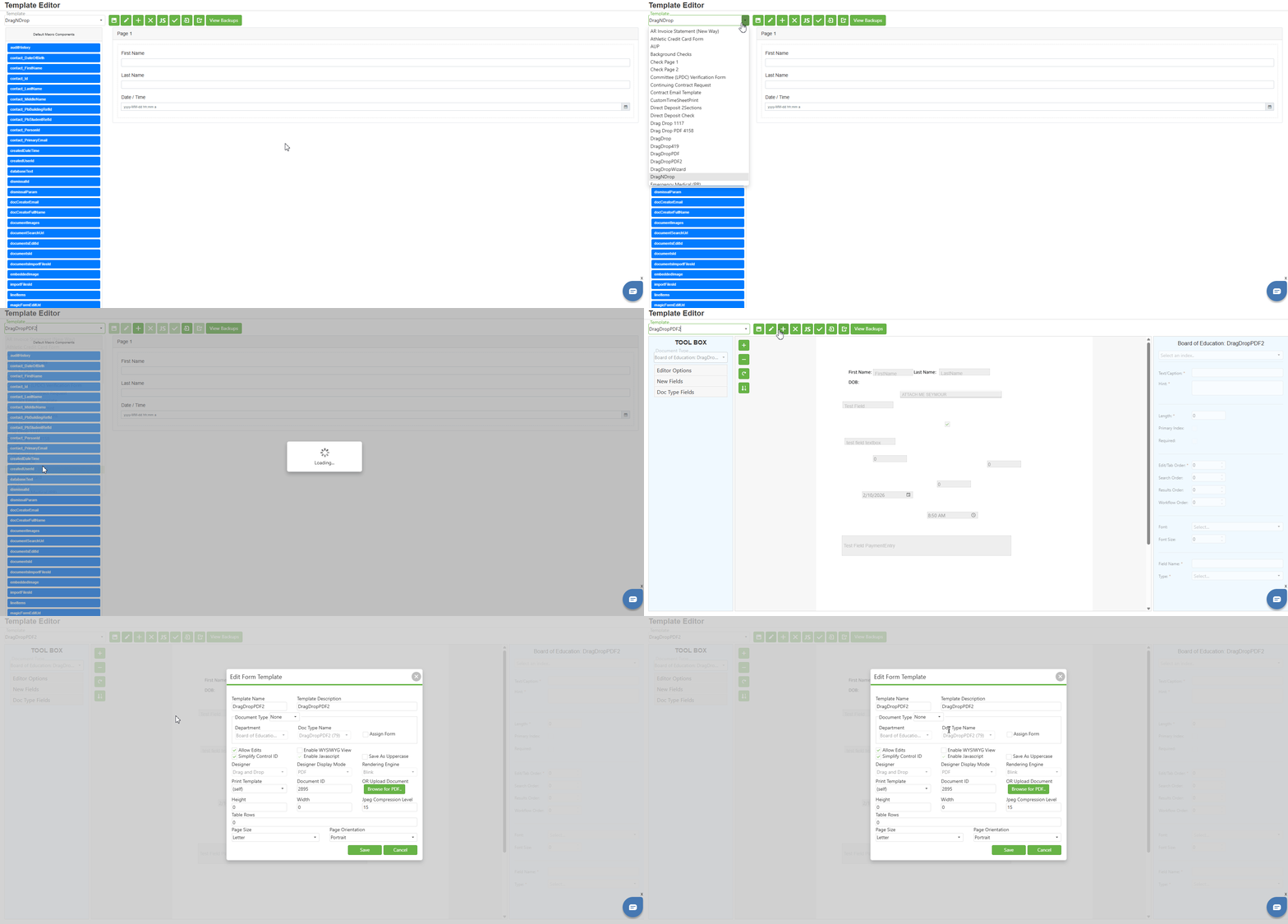
Locate the Template dropdown at the far left of the Template Editor toolbar. This dropdown displays the currently selected template name.
Step 2:
Click on the Template dropdown to expand the list of accessible and available form templates. The dropdown displays all templates that you have permission to view and edit.
Step 3:
Scroll through the list to find the desired template. Templates are listed by name and may be organized alphabetically.
Step 4:
Click on a template name to select it. The Template Editor will load the selected template. The Toolbox panel, Design Area, and Properties Container will update to reflect the selected template's type and configuration.
Save Icon
Step 1:
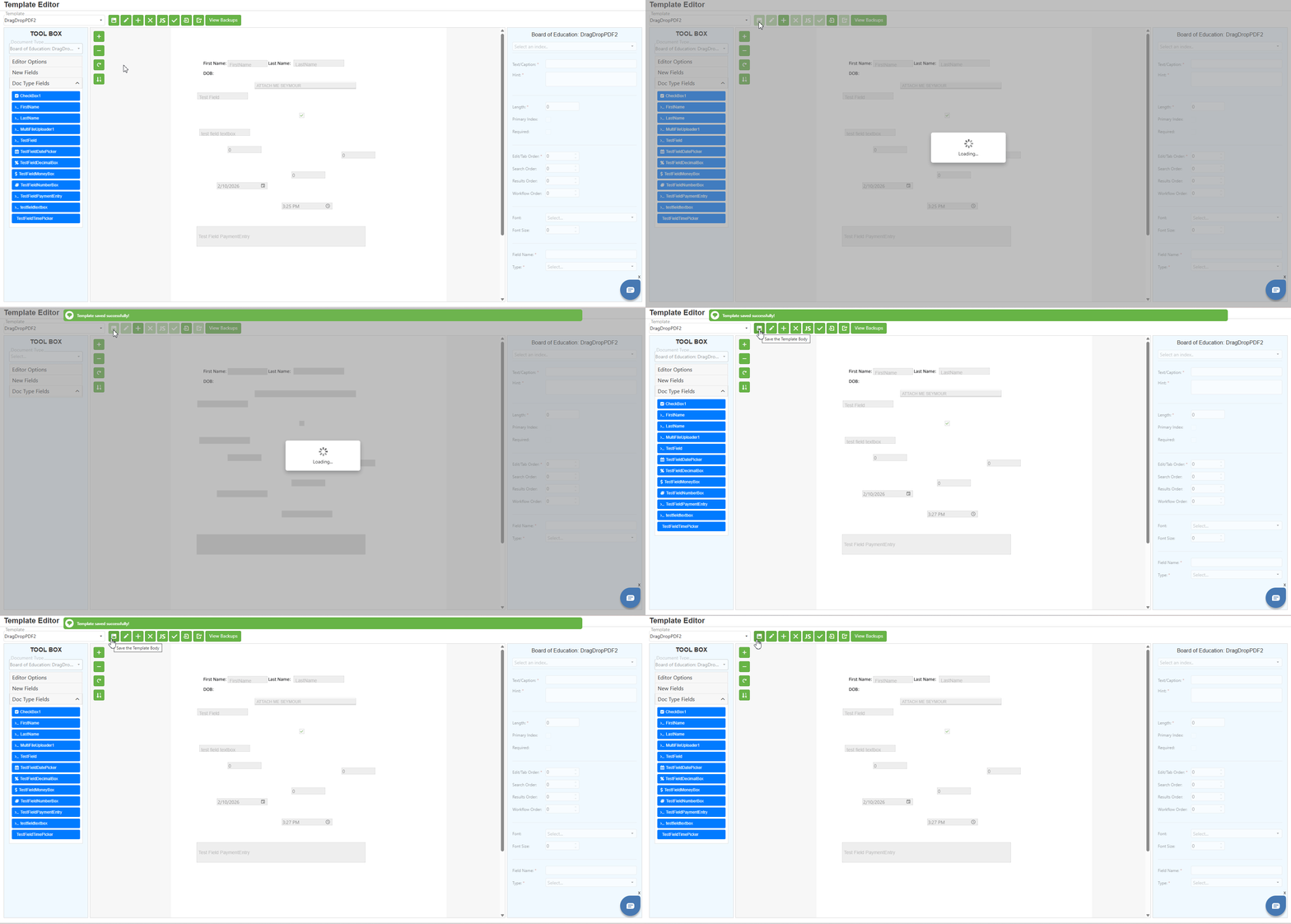
After making changes to the currently selected template in the Design Area, locate the Save icon in the toolbar. This icon appears as a floppy disk symbol.
Step 2:
Click the Save icon to save your template changes. Alternatively, you can use the keyboard shortcut Ctrl + S to save without clicking the icon.
Step 3:
Upon successful save, a green toast notification message will appear at the top of the screen displaying "Template saved successfully!" This confirms that your changes have been preserved.
NOTE: It is recommended to save your work frequently to prevent loss of changes. The Ctrl + S keyboard shortcut provides a quick way to save without interrupting your workflow.
Add Icon (+)
Step 1:
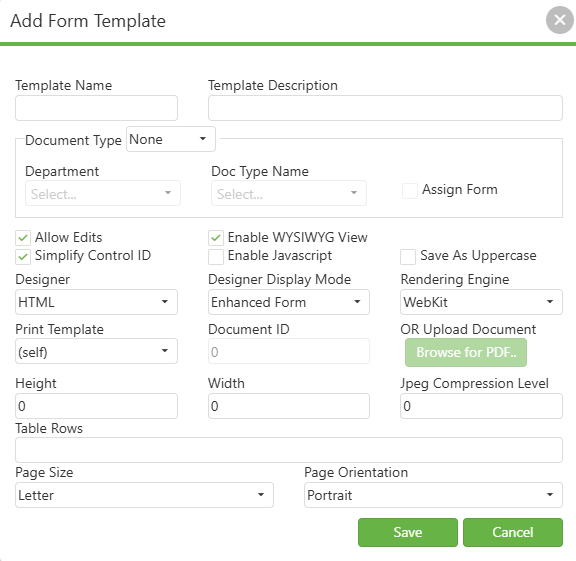
Locate and click the Add icon (+) in the toolbar to open the "Add Form Template" dialog containing all configuration settings for creating a new template.
Step 2:
Configure the Template Name and Template Description fields. The name identifies the template throughout the system and appears on the Document Type screen. The description provides additional details for other administrators.
Step 3:
Configure the Document Type dropdown. This dropdown determines how the template relates to document types in the system. Select one of the following options:
- Existing: Enables the Document Type section; select a Department and existing Doc Type Name from the dropdown; Assign Form is checked by default
- New: Enables the Document Type section; select a Department and enter a new Doc Type Name (defaults to Template Name but can be modified); Assign Form checkbox is available for configuration
- None: Disables all Document Type options; use when creating a template that will not be immediately assigned to a document type
Step 4:
Configure the template behavior checkboxes:
- Allow Edits: When checked, allows users to edit submitted forms
- Simplify Control ID: When checked, simplifies the control identifiers used in the form
- Enable WYSIWYG View: When checked, enables the visual preview mode for the template
- Enable JavaScript: When checked, enables JavaScript functionality for the form
- Save As Uppercase: When checked, saves all field values in uppercase format
Step 5:
Configure the Designer dropdown. This selection determines the template design type:
- HTML: Select this option for code-based form creation using HTML, CSS, and macros
- Drag and Drop: Select this option for visual form design using rasterized images with draggable field controls
Step 6:
Configure the Designer Display Mode dropdown. The available options change based on the Designer selection:
When HTML is selected:
- Enhanced Form: The standard display mode for HTML-based forms
When Drag and Drop is selected:
- Form: Standard form display mode
- Wizard: Wizard-style multi-step form display
- PDF: PDF-based form display mode
Step 7:
Configure the Rendering Engine dropdown. The Rendering Engine dropdown determines which browser engine renders your form. Your selection here affects how the form displays and performs.
Understanding Rendering Engines
The Rendering Engine determines which browser engine renders your form:
- Blink: Google's engine used in Chrome, Edge, and Opera; recommended for modern JavaScript, CSS, and advanced functionality
- WebKit: Apple's engine used in Safari; recommended when targeting Apple devices or Safari users
Designer Selection Impact:
- HTML Designer: Choose between Blink or WebKit based on your primary user base and browser requirements
- Drag and Drop Designer: Automatically set to Blink (cannot be changed) to ensure optimal compatibility
NOTE: If you're unsure which engine to choose, Blink is generally recommended as it supports the widest range of modern web features and has the largest browser market share.
Step 8:
Configure the Print Template dropdown. Select the appropriate print template option for the designer type template. The "(self)" option uses the current template as the print template.
Step 9:
Configure the Document ID field. This option is only available when:
- The Designer is set to "Drag and Drop"
- The Designer Display Mode is set to "PDF"
NOTE: The Document ID is used for PDF-type drag and drop forms to reference the associated document.
Step 10:
Configure the "OR Upload Document" button. This upload functionality is only enabled when:
- The Designer is set to "Drag and Drop"
- The Designer Display Mode is set to "PDF"
Click the "Browse for PDF.." button to upload a PDF document that will serve as the form background.
Step 11:
Configure dimension and page settings:
- Height/Width: Form dimensions in pixels (default is 0)
- Jpeg Compression Level: Compression level for JPEG images
- Table Rows: Delimited list specifying rows for each table
- Page Size: Size when printed (Letter, Legal, A4)
- Page Orientation: Portrait or Landscape
Step 12:
Click Save to create the template or Cancel to discard settings and close the dialog.
Edit Icon
Step 1:
Select a template from the Template dropdown that you want to modify.
Step 2:
Locate the Edit icon in the toolbar. This icon appears as a pencil symbol.
Step 3:
Click the Edit icon to open the "Edit Form Template" dialog. This dialog displays the same configuration options as the Add Form Template dialog, but all fields are pre-filled with the existing template's current settings.
Step 4:
Review and modify the template configuration settings as needed. The dialog contains the same fields as described in the Add Icon section.
Step 5:
After making your changes, click the "Save" button to update the template configuration. Click "Cancel" to discard changes and close the dialog without saving.
Delete Icon (X)
Step 1:
Select the template you want to delete from the Template dropdown.
Step 2:
Locate the Delete icon (X) in the toolbar. This icon appears as an X symbol.
Step 3:
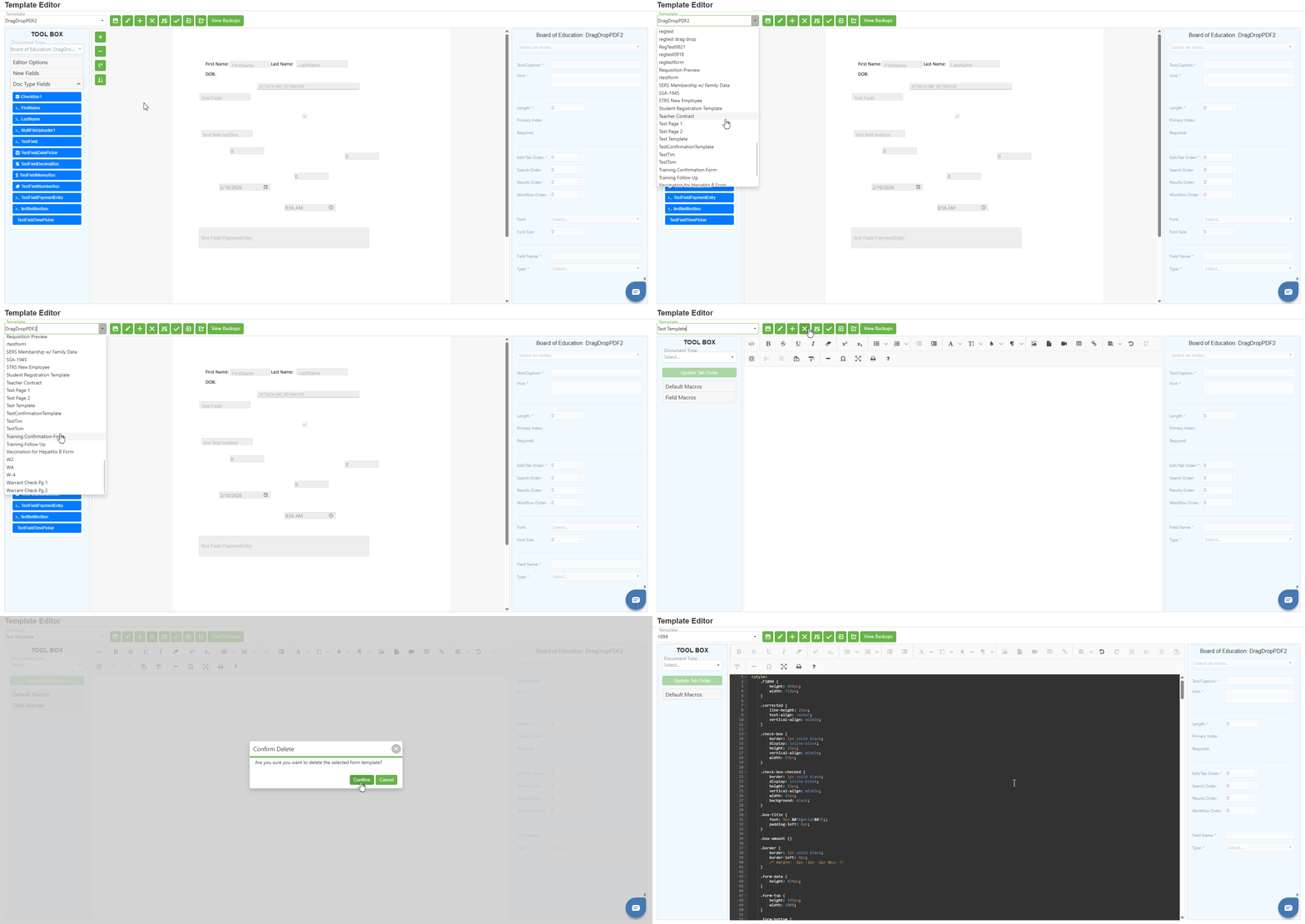
Click the Delete icon. The "Confirm Delete" dialog will appear
Step 4:
Click the "Confirm" button to proceed with the deletion. The selected form template will be permanently removed from the system.
Step 5:
Click the "Cancel" button if you do not want to delete the template. The dialog will close and the template will remain unchanged.
NOTE: Deleting a template is permanent and cannot be undone through the interface. Ensure you have a backup (using Export or View Backups) before deleting important templates.
JS Icon (JavaScript)
Step 1:
Select a template from the Template dropdown for which you want to manage JavaScript code.
Step 2:
Locate the JS icon in the toolbar. This icon displays "JS" and is used to access JavaScript functionality.
Step 3:
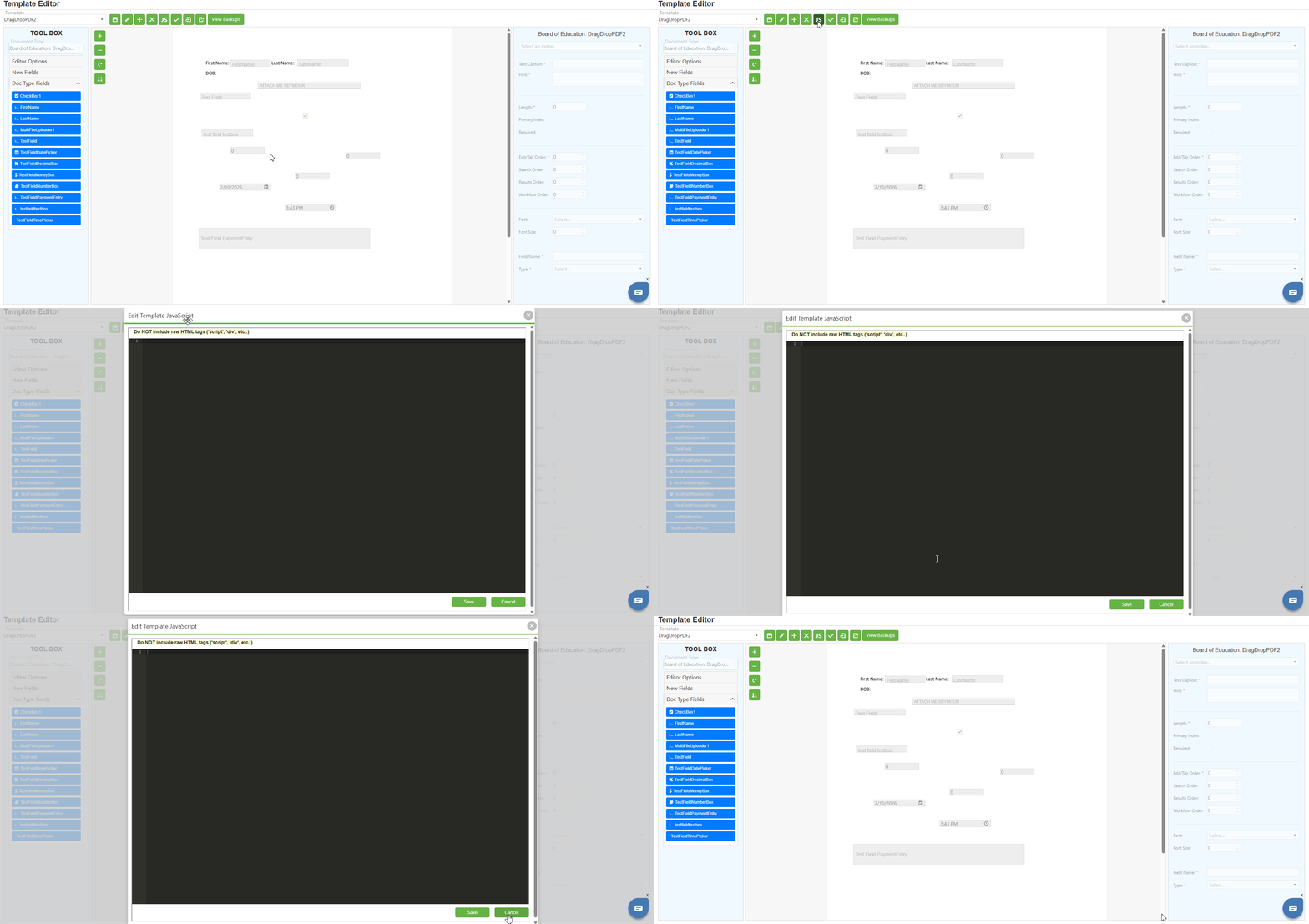
Click the JS icon to open the "Edit Template JavaScript" dialog. This dialog provides a dedicated code editor for maintaining JavaScript implementation separately from the form structure.
Step 4:
Observe the warning message at the top of the dialog: "Do NOT include raw HTML tags ('script', 'div', etc..)". This is important because the JavaScript editor is specifically for JavaScript code only.
Step 5:
Enter or modify your JavaScript code in the code editor.
Step 6:
Click the "Save" button to save your JavaScript code. The code will be associated with the current form template and executed when the form loads.
Step 7:
Click the "Cancel" button to discard any changes and close the dialog without saving.
NOTE: Keeping JavaScript separate from HTML using this feature improves code organization and maintainability. Ensure "Enable Javascript" is checked in the Edit Form Template settings for the JavaScript to execute.
Checkmark Icon (Submission Confirmation)
Step 1:
Select a template from the Template dropdown for which you want to configure submission confirmation content.
Step 2:
Locate the Checkmark icon in the toolbar. This icon appears as a checkmark symbol.
Step 3:
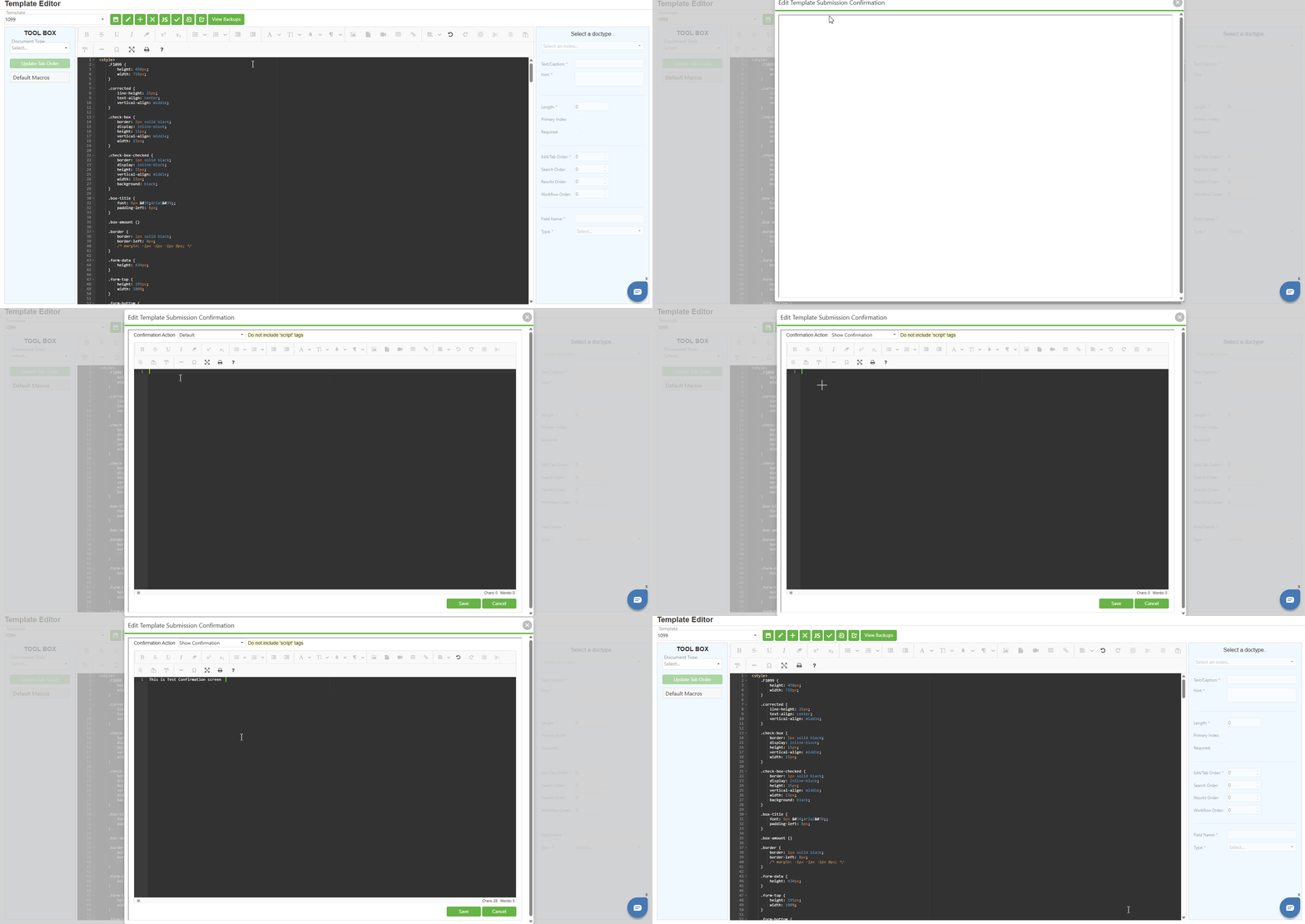
Click the Checkmark icon to open the "Edit Template Submission Confirmation" dialog. This dialog allows you to maintain static confirmation content displayed when users submit the form.
Step 4:
Configure the Confirmation Action dropdown at the top of the dialog. Select from the available options:
- Default: Uses the system default confirmation behavior
- Show Confirmation: Displays the custom confirmation content you create in the editor
To display custom confirmation content, select "Show Confirmation" from the dropdown.
NOTE: Observe the warning message "Do not include 'script' tags". Scripts are not allowed in the confirmation content for security reasons.
Step 5:
You can include macros in your confirmation content to display dynamic values. Macros will be replaced with actual values when the confirmation is displayed to the user after form submission.
Step 6:
Click the "Save" button to save your confirmation content. Click "Cancel" to discard changes and close the dialog.
NOTE: The Checkmark icon feature does not work for form groups or forms with popups. This feature is intended for standard standalone forms only.
Import Icon
Step 1:
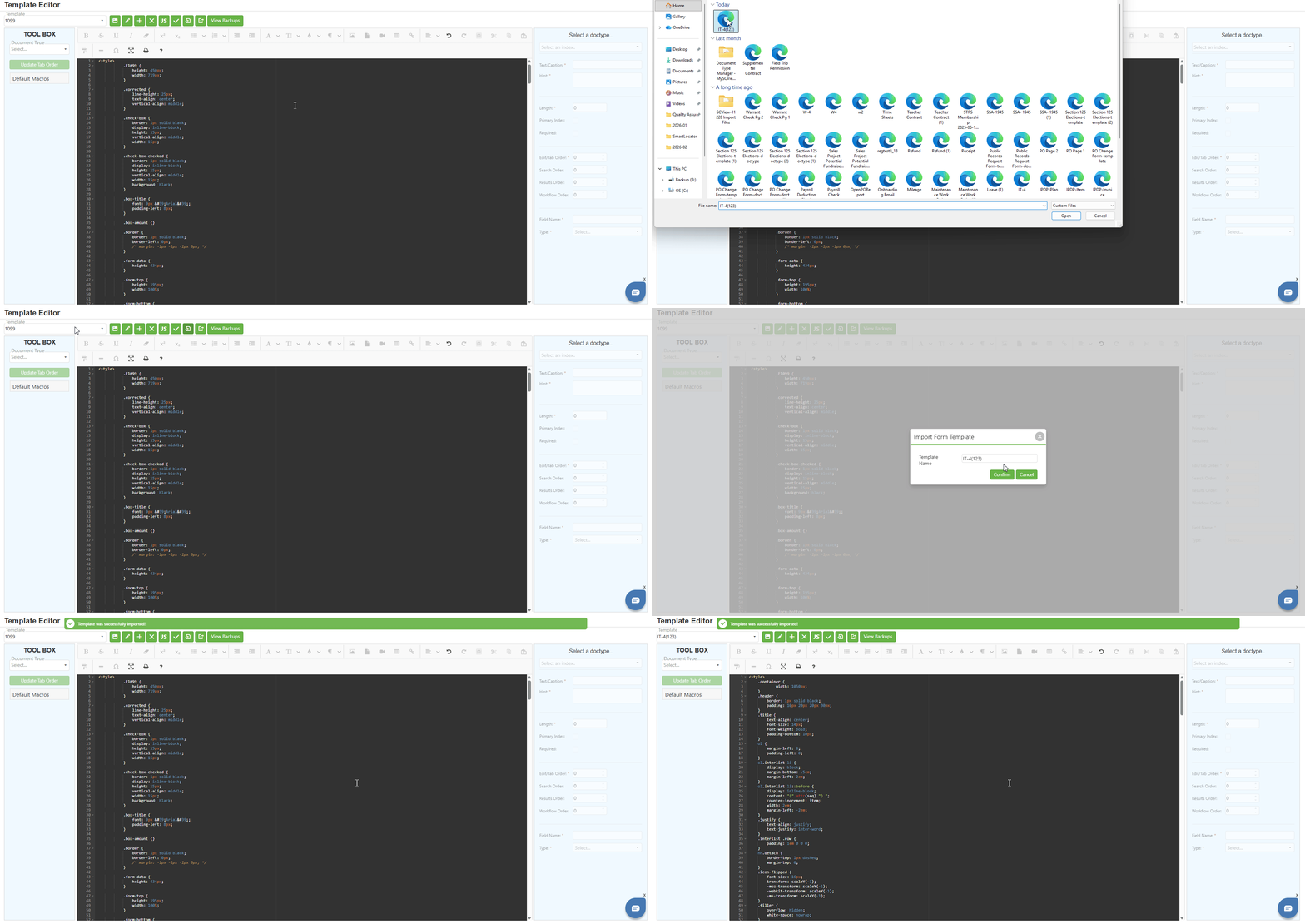
Locate and click the Import icon in the toolbar to initiate the template import process. A file browser dialog will open, allowing you to navigate to and select an XML file containing a template configuration.
Step 2:
Select the XML template file you want to import and click "Open." The system will process the XML file and display the Import Form Template dialog for confirmation.
Step 3:
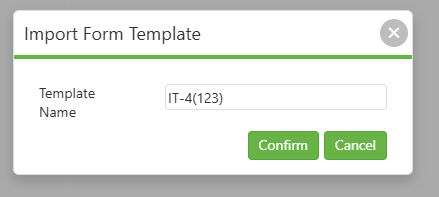
Review the Import Form Template dialog:
- Template Name: Displays the name extracted from the XML file; this field is pre-populated but can be edited if required
- Confirm: Click to complete the import and add the template to your system
- Cancel: Click to abort the import process without saving
Step 4:
Click Confirm to complete the import. The template will now be available in the Template dropdown for selection and use.
NOTE: Use the Import feature to restore templates from backups or transfer templates between different SCView systems. Ensure the XML file format is valid and was originally exported from SCView.
Export Icon
Step 1:
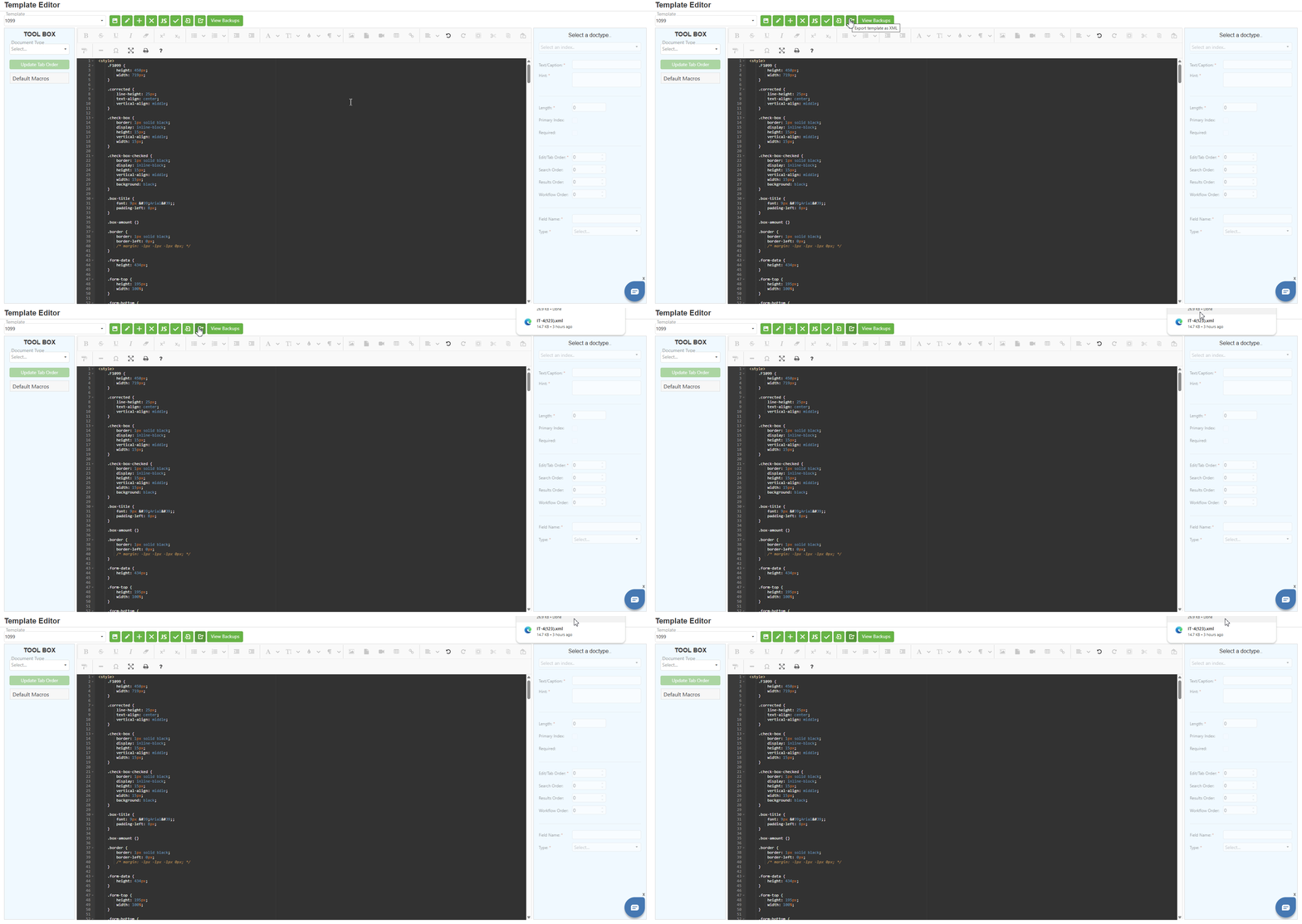
Select the template you want to export from the Template dropdown, then locate and click the Export icon in the toolbar.
Step 3:
The system will generate an XML file containing the complete template configuration. Depending on your browser settings, the file will either download automatically to your default location or prompt you to choose a save location.
Step 4:
Save the XML file in a secure location for backup or transfer purposes.
NOTE: Use the Export feature to create backups before making major changes to templates, or to transfer templates to other SCView systems. The exported XML file contains all template configuration settings and can be imported using the Import icon.
View Backups Button
Step 1:
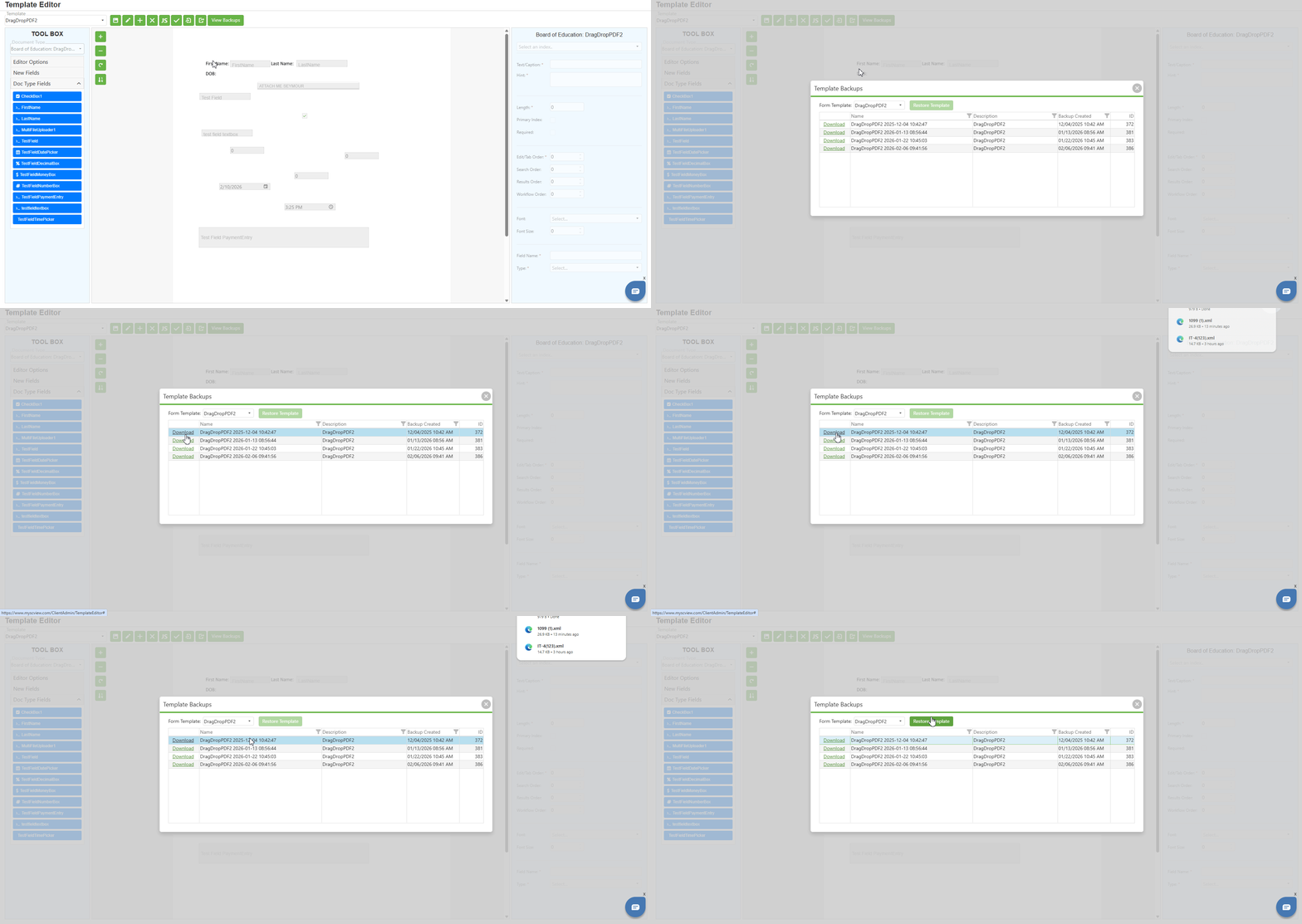
Locate and click the View Backups button (green button at the right end of the toolbar) to open the "Template Backups" dialog, which displays previous versions of templates for recovery purposes.
Step 2:
Use the Form Template dropdown at the top of the dialog to select which template's backups you want to view. The dropdown displays all templates that have backup versions available.
Step 3:
Review the backup list displayed in the grid. The grid contains the following columns:
- A hyperlink to download the backup as an XML file
- Name: The backup name, which includes the template name and timestamp (e.g., "Onboarding Test 2020-04-30 14:43:04")
- Description: The template description at the time of backup
- Backup Created: The date and time when the backup was created
- ID: A unique identifier for the backup record
Step 4:
To download a backup as an XML file, click the "Download" hyperlink in the corresponding row. The XML file will be downloaded to your computer for safekeeping or manual restoration.
Step 5:
To restore a template from a backup dialog:
- Select the backup record you want to restore by clicking on the row
- Click the "Restore Template" button (green button at the top of the dialog)
- The system will restore the template to the selected backup version
Step 6:
Click the X button in the top-right corner to close the Template Backups dialog.
NOTE: Template backups are created automatically when templates are modified. Use this feature to recover from accidental changes or to revert to a previous version of a template. Downloaded backup files can also be used with the Import feature for additional flexibility.
C. Best Practices
Saving
- Save frequently using the Save icon or Ctrl + S and wait for the confirmation message before making additional changes
- If save fails, review error messages and resolve issues before attempting again
Template Creation
- Use clear, descriptive Template Names and Descriptions to help other administrators understand the form's purpose
- Choose the appropriate Designer type (HTML for complex layouts, Drag and Drop for visual design) and configure Document Type settings correctly
JavaScript
- Use the JS icon to keep JavaScript separate from HTML; never include raw HTML tags in the JavaScript editor
- Ensure "Enable Javascript" is checked in template settings and test functionality across different browsers
Submission Confirmation
- Select "Show Confirmation" in Confirmation Action and use macros to display dynamic values; do not include script tags
- This feature does not work for form groups or forms with popups
Backup and Recovery
- Export templates before making major changes and download backup XML files for additional safekeeping
- Regularly check View Backups for recovery points and document significant changes for future reference
Import/Export
- Use Export to create backups before significant modifications and verify XML file integrity before importing
- Use Import to transfer templates between systems or restore from external backups
D. Troubleshooting
- Save not working: Check for validation errors, verify you have permissions to modify the template, and try refreshing the page
- Add Form Template dialog issues: Ensure all required fields are completed, the Template Name is unique, and Designer/Display Mode selections are compatible
- Edit Form Template changes not applying: Click Save after making changes, verify edit permissions, and refresh the page if needed
- Delete not working: Verify delete permissions and check if the template is in use; contact support if deletion consistently fails
- JavaScript not executing: Ensure "Enable Javascript" is checked in settings, verify code has no raw HTML tags, and check browser console for errors
- Submission confirmation not displaying: Ensure "Show Confirmation" is selected; this feature does not work for form groups or forms with popups
- Import failing: Verify the XML file was exported from SCView, is not corrupted, and you have import permissions; contact support if issues persist
- Export not working: Verify a template is selected, check browser popup blocker settings, and ensure you have export permissions
- Backup restore failing: Verify the backup exists and is selected; try downloading the backup and using Import instead; contact support if issues persist
E. Related Articles
TTemplate Editor: Toolbox Panel
Template Editor: Properties Container
Conclusion
The Template Editor toolbar in SCView provides administrators with a comprehensive set of tools for efficient form template management. This article covered all essential toolbar features including the Template dropdown for selection, Save, Add, Edit, Delete, JavaScript, Checkmark, Import, Export, and View Backups functions. Understanding template configuration through the Add and Edit dialogs is fundamental Document Type settings determine template assignment and display, Designer options control the design approach, and Rendering Engine selection affects browser display. The JavaScript icon enables separate code management for better organization, while the Checkmark icon allows custom submission confirmation messages. Import and Export features facilitate template transfer between systems and external backups, while View Backups provides automatic version recovery for protecting against accidental changes. By mastering these toolbar options and implementing the outlined best practices, administrators can efficiently create, modify, and maintain form templates that meet their organization's document management needs within SCView.
Was this article helpful?
That’s Great!
Thank you for your feedback
Sorry! We couldn't be helpful
Thank you for your feedback
Feedback sent
We appreciate your effort and will try to fix the article