 | ||
Introduction
The Auditing page in SCView provides comprehensive logging and tracking of all actions performed within the application. This powerful feature enables administrators and super users to monitor system activity, track user actions, and maintain security compliance through detailed audit trails. This guide explains how to navigate, filter, and export audit logs effectively.
A. Problem Statement
Organizations need to maintain detailed records of all user activities within SCView for security, compliance, and troubleshooting purposes. Without a centralized auditing system, tracking user actions, investigating issues, and meeting compliance requirements becomes challenging. Additionally, different user levels require different visibility into audit logs, particularly regarding super user activities.
B. Solution
SCView's Auditing page provides a comprehensive solution by automatically logging all system activities with detailed information about each action. The system captures user information, timestamps, action details, and related document information, while providing role-based visibility and robust filtering capabilities for efficient audit trail management.
Accessing the Auditing Page
Access the Auditing page through Admin > Auditing from the main navigation menu. The page will load displaying the most recent audit logs.
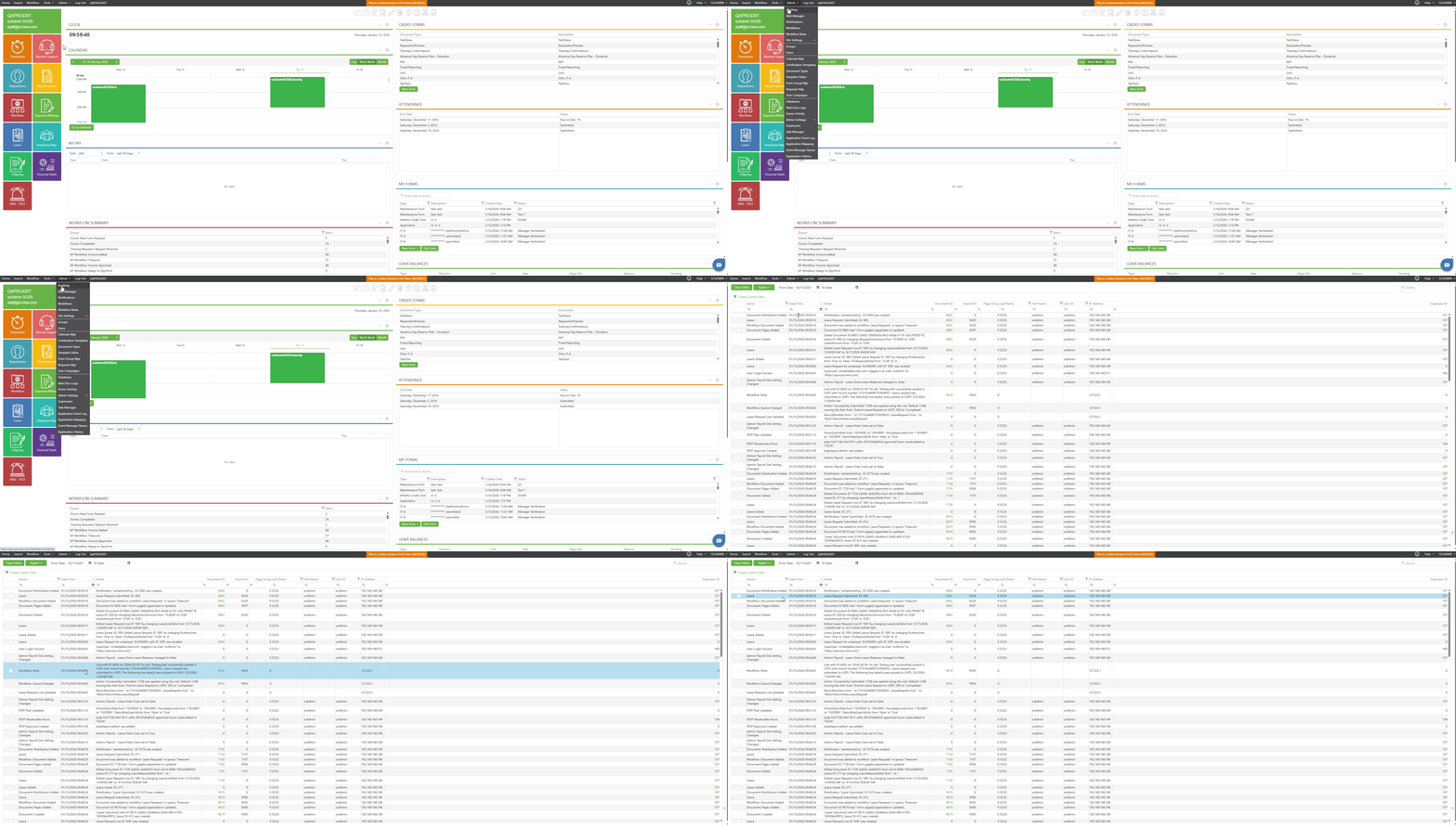
Navigating the Audit Log Page
Clear Filters: Removes all active filters and search criteria, returning to the default unfiltered view of all audit logs.
Export: Downloads audit log data as a file with options to export either selected rows or all rows matching current filters.
From Date: Sets the starting date boundary for filtering audit logs within a specific time range.
To Date: Sets the ending date boundary for filtering audit logs within a specific time range.
Search: Performs text-based searching across multiple columns to find specific actions, users, or details in the audit logs.
Create Custom Filter: Opens a Filter Builder dialog that allows users to build complex, multi-condition filters
The audit log grid displays the following columns:
Action Column:
- Displays the type of action performed (e.g., User Login Success, Document Created, Workflow Note, etc.)
- Each action type represents a specific operation within SCView
Date/Time Column:
- Shows the exact timestamp when the action occurred
- Format: MM/DD/YYYY HH:MM:SS
Detail Column:
- Provides comprehensive information about the action
- Includes contextual messages and specific details about what was modified or accessed
Document ID Column:
- Shows the unique identifier of any document associated with the action
- Displays 0 if no document is involved
Import ID Column:
- Contains the import batch identifier if the action relates to an import process
- Shows 0 for non-import related actions
Page Group Column:
- Indicates the page group identifier when applicable
- Shows 0 for system-level actions
User Information Columns:
- Last Name: Surname of the user who performed the action
- First Name: First name of the user who performed the action
- User ID: System username or identifier
- IP Address: The IP address from which the action was performed
Superuser ID Column (Super Users Only):
- Only visible when logged in as a super user
- Displays the super user's ID when actions are performed by super users
- Shows 0 for actions performed by regular users
Note: This column is completely hidden from non-super user views
C. Best Practices
- Review audit logs daily or weekly to identify unusual activities or potential security issues early
- Use date ranges to narrow down results before applying additional filters for faster performance with large datasets
- Export audit logs regularly for long-term storage and compliance documentation, especially before system maintenance
- Super users should regularly review the Superuser ID column to monitor elevated privilege usage
- Use specific action names or user IDs for precise searches rather than generic terms
- Maintain a reference list of common action types and their meanings for quick interpretation of audit logs
D. Troubleshooting
No Audit Logs Displayed:
- Verify the date range filters aren't too restrictive
- Click "Clear Filters" to reset all filtering
- Check system permissions for audit log access
Missing Superuser ID Column:
- This column only appears for super user accounts
- Regular users cannot view this column by design
- Verify your account has super user privileges if needed
Export Function Not Working:
- Ensure rows are selected when using "Selected Rows" option
- Check browser popup blocker settings
- Verify sufficient permissions for export functionality
Search Returns No Results:
- Check spelling and formatting of search terms
- Broaden date range filters
- Try searching for partial terms instead of full phrases
Performance Issues with Large Date Ranges:
- Narrow the date range to smaller periods
- Export data in batches for analysis
- Consider off-peak hours for extensive audit log reviews
E. Related Articles
Conclusion
The Auditing page in SCView provides essential visibility into all system activities, enabling effective security monitoring, compliance tracking, and issue investigation. By understanding the comprehensive information captured in audit logs and utilizing the filtering and export capabilities, administrators can maintain robust oversight of system usage. The role-based visibility, particularly the Superuser ID column for elevated accounts, ensures appropriate access to sensitive audit information while maintaining system transparency. Regular review and export of audit logs should be incorporated into standard administrative procedures to maintain security and compliance standards.
Was this article helpful?
That’s Great!
Thank you for your feedback
Sorry! We couldn't be helpful
Thank you for your feedback
Feedback sent
We appreciate your effort and will try to fix the article