 | ||
Introduction
The Template Editor in SCView allows administrators to create and manage document templates that control how forms appear and function. It supports two template types: HTML Designer for code-based form creation using HTML, CSS, and macros, and Drag and Drop Designer for visual form design using rasterized images with draggable field controls. This article provides an overview of the Template Editor interface, including the Template dropdown, toolbar icons, Toolbox panel, design area, and Properties container.
A. Problem Statement
Administrators working with the Template Editor in SCView often encounter challenges, including:
- Uncertainty about how to access or navigate the Template Editor interface
- Confusion about the differences between HTML Designer and Drag and Drop Designer templates
- Not understanding the purpose of toolbar icons, Toolbox panel options, or Properties container functions
- Difficulty knowing how to add fields using macros versus drag-and-drop approaches
Without a clear understanding of the Template Editor's layout and template types, administrators may struggle to create functional templates or fail to utilize SCView's full template management capabilities.
B. Solution
SCView's Template Editor provides a comprehensive interface for designing and managing document templates. The editor adapts its interface based on the selected template type, displaying appropriate tools and options for either HTML-based form design or visual drag-and-drop form design. By understanding the Template Editor's components and the distinctions between template types, users can efficiently create, modify, and manage templates that meet their organization's document management needs.
NOTE: Access to the Template Editor requires administrator-level permissions but can be restricted to administrators based on the modules they have access to. If administrators do not see this option, they should contact support.
Accessing the Template Editor
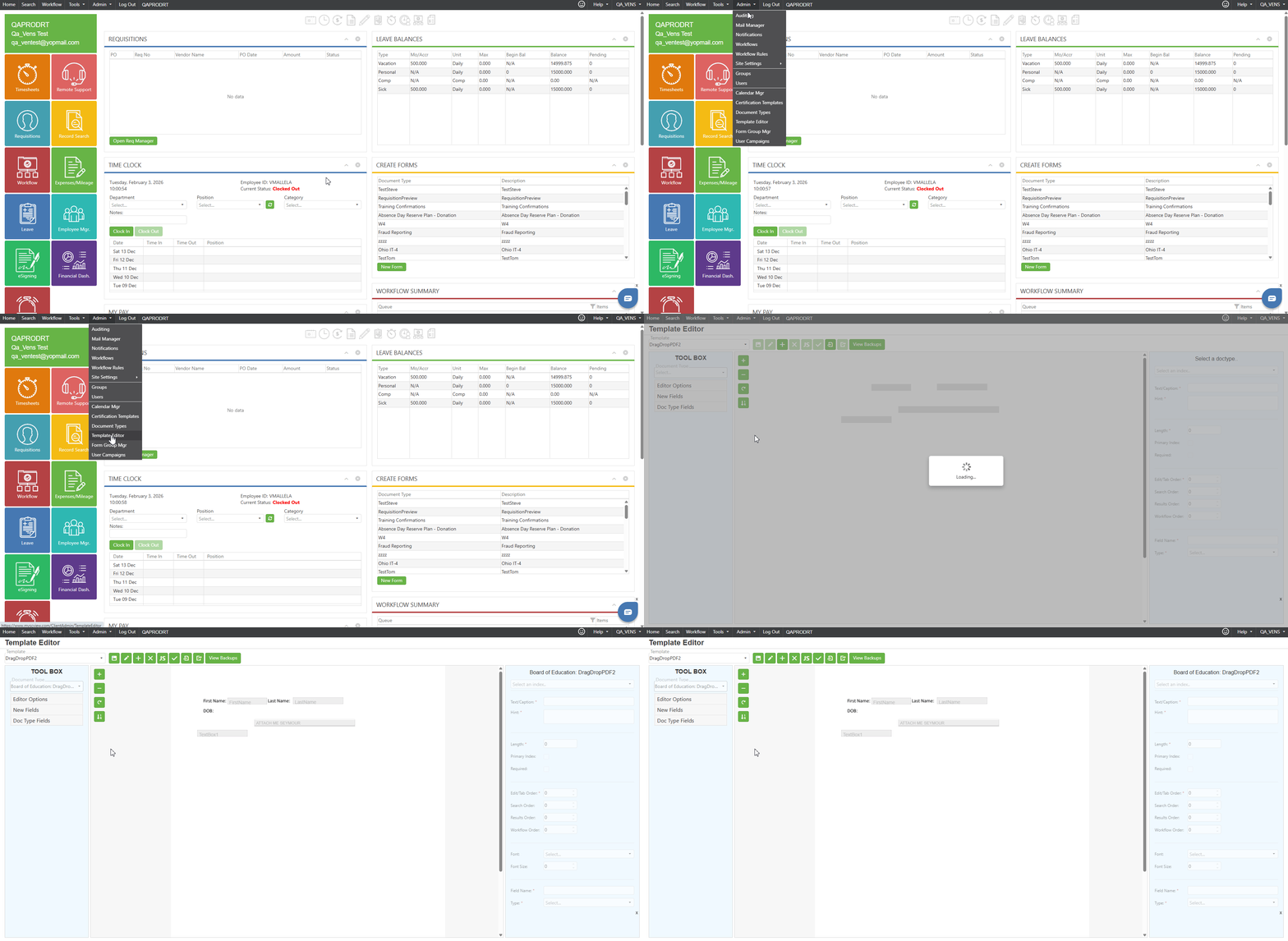
Step 1:
Log in to SCView using your credentials with appropriate administrative access. Navigate to the admin tab of SCView where template management is available.
Step 2:
Locate and click on "Template Editor" to access the template editing interface. The Template Editor will load, displaying the complete template design functionality.
Step 3:
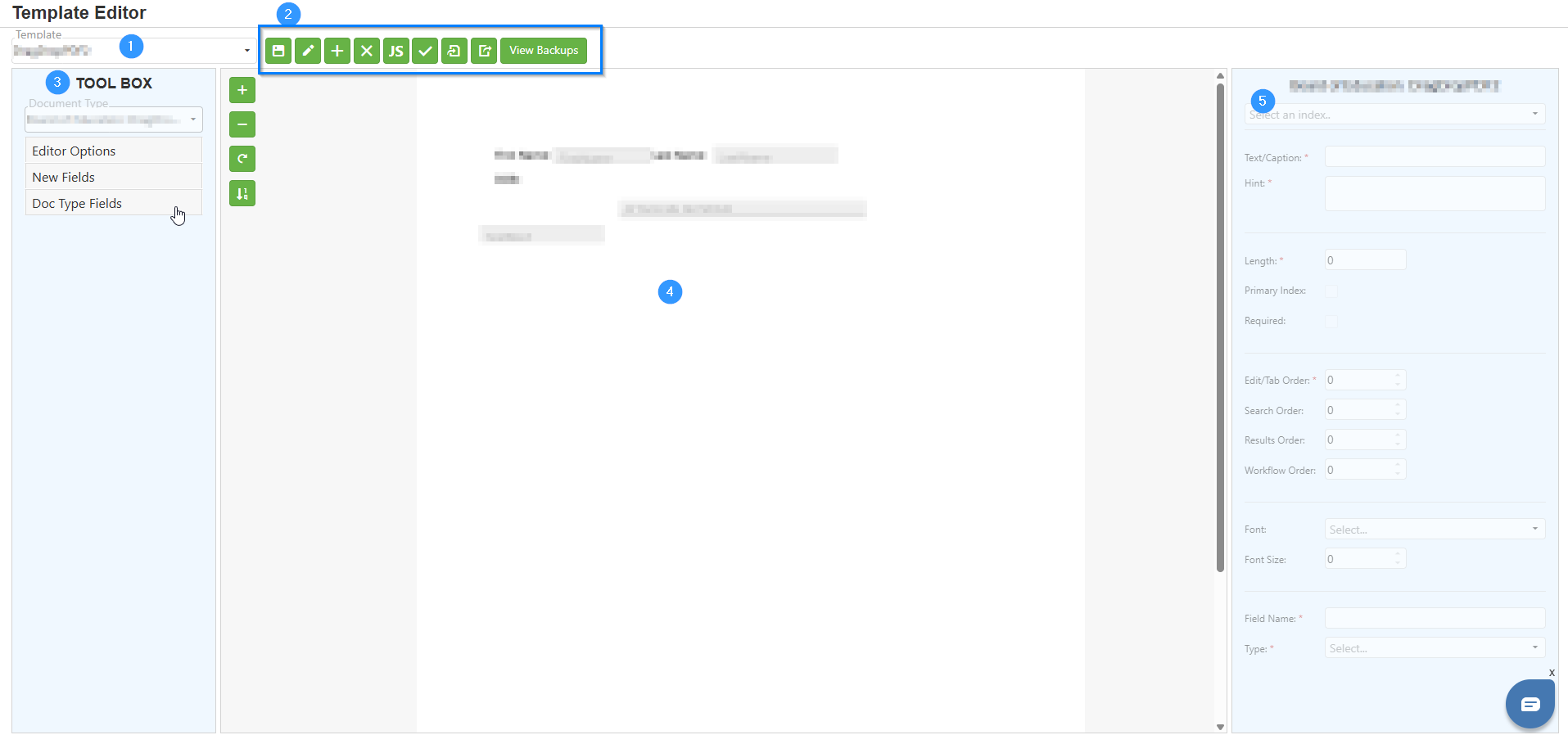
The Template Editor layout consists of five main sections:
 Understanding the Template Editor
1. Template Selection Dropdown: This dropdown displays the currently selected template name and allows you to switch between available templates. Click on the dropdown to view and select from available templates in the system.
2. Toolbar Icons & Buttons: The toolbar contains several icons. These icons provide quick access to common template operations:
- Save Icon: Saves the current modified template changes. Click this icon after making edits to ensure your changes are preserved.
- Edit Icon: Opens the "Edit Form Template" dialog, which allows you to modify the form template configuration settings.
- Add Icon (+): Opens the "Add Form Template" dialog, which allows you to create a new form template with configuration settings.
- Delete Icon (X): Deletes the currently selected form template.
- JS Icon: Opens the "Edit Template JavaScript" dialog, which is used to maintain JavaScript implementation for the current form.
- Checkmark Icon: Opens the "Edit Template Submission Confirmation" dialog, which is used to maintain static confirmation content for the form.
- Import Icon: Imports a template from an XML file. Use this to restore or transfer templates between systems.
- Export Icon: Exports the current template as an XML file. Use this to create backups or transfer templates to other systems.
- View Backups Button: Opens the "Template Backups" dialog, which displays previous versions of the template for recovery purposes.
3. Toolbox Panel (Left Side): Displays tools, macros, or field controls depending on template type
4. Design Area (Center): Shows the code editor or visual designer based on template type
5. Properties Container (Right Side): Displays field properties for configuration
Understanding Template Types
The Template Editor supports two distinct template approaches, each with its own design methodology and use cases:
HTML Designer Templates (Code-Based Approach)
HTML Designer templates use a code-based approach where forms are created using HTML, CSS, and field macros. This approach is ideal for users with web development knowledge who need precise control over form layout and styling.
Drag and Drop Designer Templates (Visual Approach)
Drag and Drop Designer templates use a visual approach where forms are created by placing field controls directly onto a rasterized image or form background. This approach is ideal for users who prefer visual design without coding.
C. Best Practices
Template Selection
- Use HTML Designer for complex layouts requiring precise control; use Drag and Drop Designer for simple layouts, paper forms, or non-technical users
- Use consistent naming conventions and always verify the correct template is selected before editing
Template Design
- Plan your layout and required fields before starting, keeping forms simple with logically grouped fields
- Set appropriate Edit/Tab Order values and test templates thoroughly before deploying to production
Backup and Recovery
- Export XML backups before major changes and document significant changes for reference
- Regularly check View Backups for recovery points and use Import to restore templates when needed
JavaScript
- Use the JS icon to keep JavaScript separate from HTML; do not include raw HTML tags in the JavaScript editor
- Test JavaScript functionality in multiple browsers before deployment
General
- Save frequently and coordinate with other administrators when changes affect existing documents
- Submission confirmations (Checkmark icon) only work for standard forms; contact support if you cannot access the Template Editor
D. Troubleshooting
- Template Editor not accessible: Verify admin permissions; check module access restrictions; contact support if needed
- Template dropdown empty: Verify templates exist; check permissions; refresh the page
- Toolbox showing wrong options: Ensure a template is selected; remember content varies by template type; refresh the page
- Changes not saving: Click Save; check for validation errors; verify internet connection; look for error messages
- JavaScript not working: Ensure "Enable Javascript" is checked in settings; remove raw HTML tags; check browser console; test in other browsers
- Confirmation content not displaying: Only works for standard standalone forms; verify content was saved
- Cannot restore from backup: Verify backups exist; check permissions; download backup to verify contents; contact support
- Import/Export issues: Verify XML format and file integrity; check permissions; contact support
E. Related Articles
Template Editor: Template Toolbar Options
Template Editor: Toolbox Panel
Template Editor: Properties Container
Conclusion
The SCView Template Editor is the main platform for creating and managing document templates which influence the structure and appearance of forms. It includes features like the Template Selection Dropdown, Toolbar Icons and Buttons, and adaptable Toolbox Panel, Design Area, and Properties Container. It has two template creation methods; HTML Designer for code-based design giving precise control, and Drag and Drop Design for a more visual, non-coding approach. With proper understanding and mastering of the Editor's components, administrators can efficiently manage their templates as per their organization's needs. Best practices and further guidance on specific features are available in related articles.
Was this article helpful?
That’s Great!
Thank you for your feedback
Sorry! We couldn't be helpful
Thank you for your feedback
Feedback sent
We appreciate your effort and will try to fix the article