 | ||
Introduction
The Properties Container in SCView's Template Editor is a dynamic configuration panel located on the right side of the interface that allows administrators to view and modify field properties for form templates. This component adapts based on the selected template's Designer type (HTML or Drag and Drop) and Designer Display Mode. For HTML Designer templates, the Properties Container provides access to document index properties for the assigned document type. For Drag and Drop templates in PDF mode, it displays properties for fields placed on the canvas, such as Text/Caption, Field Name, font settings, and order properties. For Drag and Drop templates in Wizard mode, field configuration is handled through component dialogs rather than the Properties Container. This article provides detailed instructions on using the Properties Container for all applicable template types in SCView.
A. Problem Statement
Administrators working with the Properties Container in SCView's Template Editor often encounter challenges, including:
- Confusion about why the Properties Container displays different options for different templates
- Uncertainty about how to select and configure index fields for HTML Designer templates and their relationship to the Document Type dropdown
- Difficulty understanding how to configure properties for Drag and Drop PDF templates, including font settings, order properties, and field types
- Confusion about when the Properties Container applies versus when component dialogs are used (Wizard mode)
Without proper knowledge of the Properties Container functionality for each template type, administrators may struggle to configure fields correctly or fail to properly link form fields to document indexes.
B. Solution
SCView's Template Editor Properties Container provides a context-sensitive interface for configuring field properties based on the template's Designer type and Display Mode. For HTML Designer templates, the Properties Container enables index management with save and delete functionality. For Drag and Drop PDF templates, it provides comprehensive field configuration including visual properties like font settings. For Drag and Drop Wizard templates, field configuration is handled through dedicated component dialogs. By understanding how the Properties Container behaves for each configuration, administrators can efficiently manage field properties and ensure proper form functionality.
NOTE: Access to the Template Editor requires administrator-level permissions. The Properties Container content depends on the template's Designer type and the selected field or index.
Understanding Properties Container Behavior Based on Template Configuration
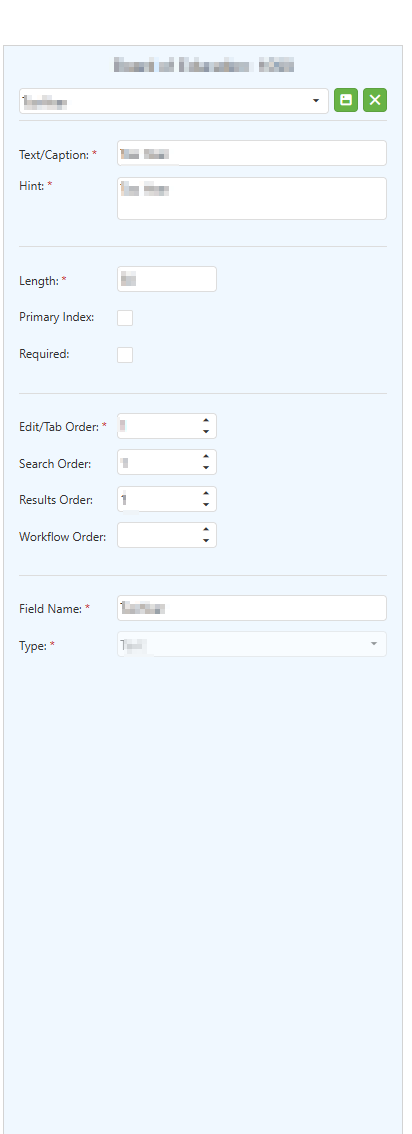
The Properties Container adapts its appearance and functionality based on the template's configuration:
- HTML Designer Templates: Displays document index properties with Save and Delete buttons
- Drag and Drop Designer (PDF Mode): Displays field properties for canvas fields with additional visual options
- Drag and Drop Designer (Wizard Mode): Properties Container does not apply; configuration is handled through component dialogs
Properties Container for HTML Designer Templates
When a form template is configured with Designer: HTML, the Properties Container provides access to document index properties for managing field macros and their associated index configurations.
Understanding the HTML Designer Properties Container Layout
Step 1:
Select a template from the Template dropdown that is configured with HTML as the Designer type. The Properties Container will display on the right side of the Template Editor.
Step 2:
Observe the Properties Container header section:
Document Type Display: The header shows the Department and Document Type name for the current template. This indicates which document type's indexes are available for configuration.
Index Dropdown: Below the header, a dropdown field displays the available document indexes. The indexes shown in this dropdown correspond to the document type selected in the Toolbox's Document Type dropdown.
Action Buttons: Beside the index dropdown, two icon buttons are available:
- Save Icon (Green): Saves changes made to the selected index properties
- Delete Icon (Red X): Deletes the selected index from the document type
Step 3:
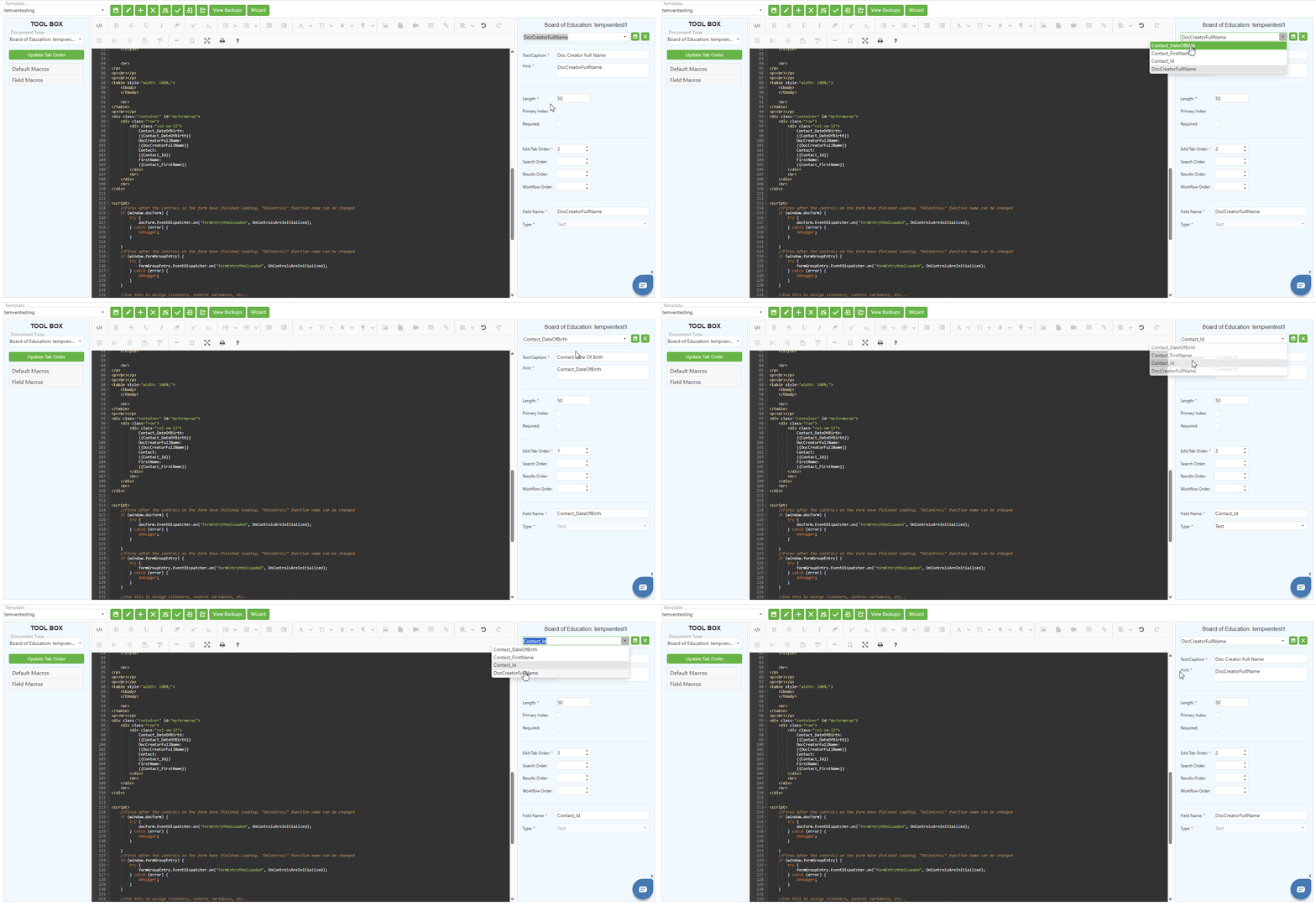
Click on the Index dropdown to view and select from available document indexes. The list includes all field macros defined for the selected document type.
Working with Index Properties (HTML Designer)
Step 1:
Select an index from the dropdown to load its properties into the Properties Container.
Step 2:
Review and configure the available property fields:
Basic Properties Section:
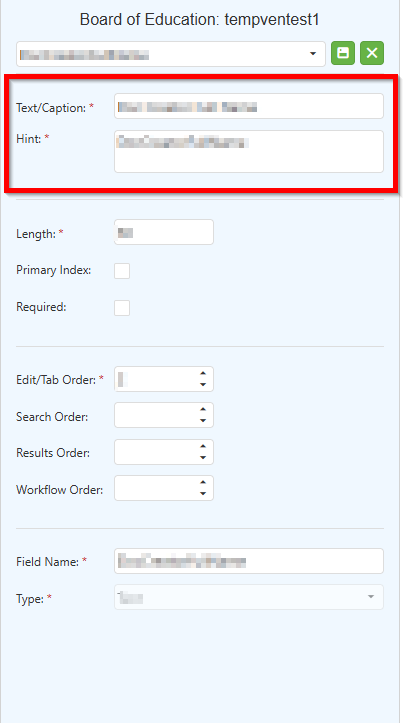
*Text/Caption (Required ): Enter the display label for the field as it appears on the form and in search interfaces. This is the user-friendly name shown to end users.
*Hint (Required ): Enter the tooltip or help text displayed when users hover over the field. This provides additional guidance about what information should be entered.
Field Constraints Section:
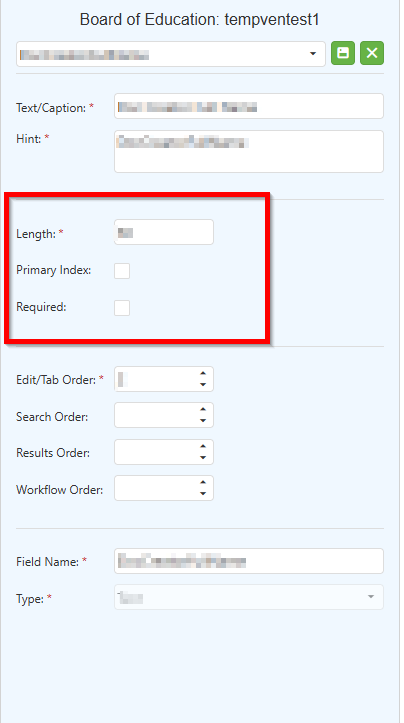
*Length (Required): Enter the maximum character length allowed for the field. This determines how many characters users can enter.
Primary Index: Check this box if the field should be designated as a primary index. Primary indexes are key fields used for document identification and typically have special search behavior.
Required: Check this box if the field must be completed before form submission. Required fields are validated and users cannot submit forms without entering data.
Order Properties Section:
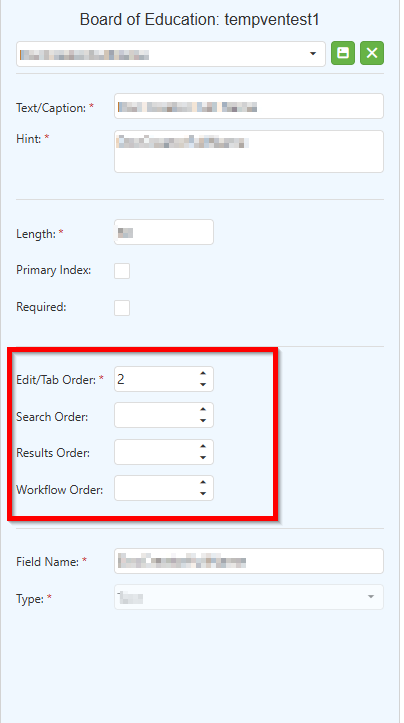
*Edit/Tab Order (Required): Enter the numeric order in which the cursor moves to this field when users press Tab during form editing. Lower numbers receive focus first.
Search Order: Enter the numeric order in which this field appears in search criteria interfaces. This determines the field's position in search forms.
Results Order: Enter the numeric order in which this field appears in search result columns. This determines the column position in search result grids.
Workflow Order: Enter the numeric order in which this field appears in workflow displays. This determines the field's position in workflow interfaces.
Field Identification Section:
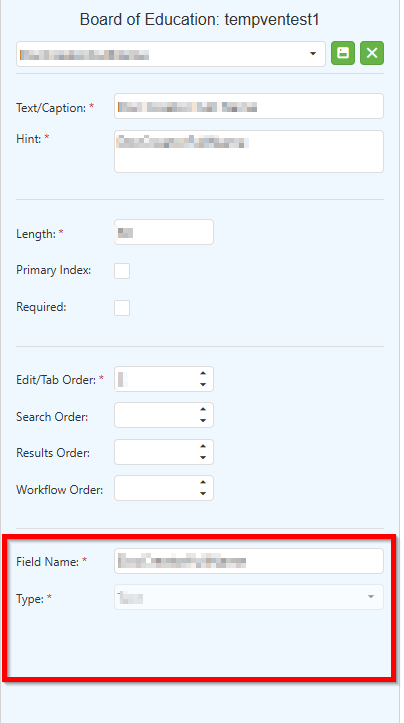
*Field Name (Required ): Enter the internal system name for the field. This name is used in macros, JavaScript, and database operations. It should not contain spaces.
*Type (Required ): Select the data type for the field from the dropdown.
Step 3:
After configuring the index properties, click the Save icon beside the index dropdown to save your changes.
Step 4:
To delete an index, select it from the dropdown and click the Delete icon. Confirm the deletion when prompted.
Document Type and Index Relationship (HTML Designer)
Step 1:
The indexes available in the Properties Container dropdown are determined by the Document Type selected in the Toolbox's Document Type dropdown.
Step 2:
If a template is assigned to multiple document types, switching the Document Type in the Toolbox will change:
- The available Field Macros in the Toolbox
- The available indexes in the Properties Container dropdown
Step 3:
This relationship ensures that you are always configuring indexes for the correct document type when working with templates that serve multiple purposes.
Properties Container for Drag and Drop Designer (PDF Mode)
When a form template is configured with Designer: Drag and Drop and Designer Display Mode: PDF, the Properties Container displays properties for fields that have been placed on the PDF canvas.
Understanding the Drag and Drop PDF Properties Container Layout
Step 1:
Select a template from the Template dropdown that is configured with Drag and Drop as the Designer type and PDF as the Designer Display Mode.
Step 2:
Drag a field from the Toolbox's New Fields section onto the PDF canvas in the Design Area.
Step 3:
Click on the placed field on the canvas to select it. The Properties Container will update to display the properties for the selected field.
Step 4:
Observe the Properties Container header section:
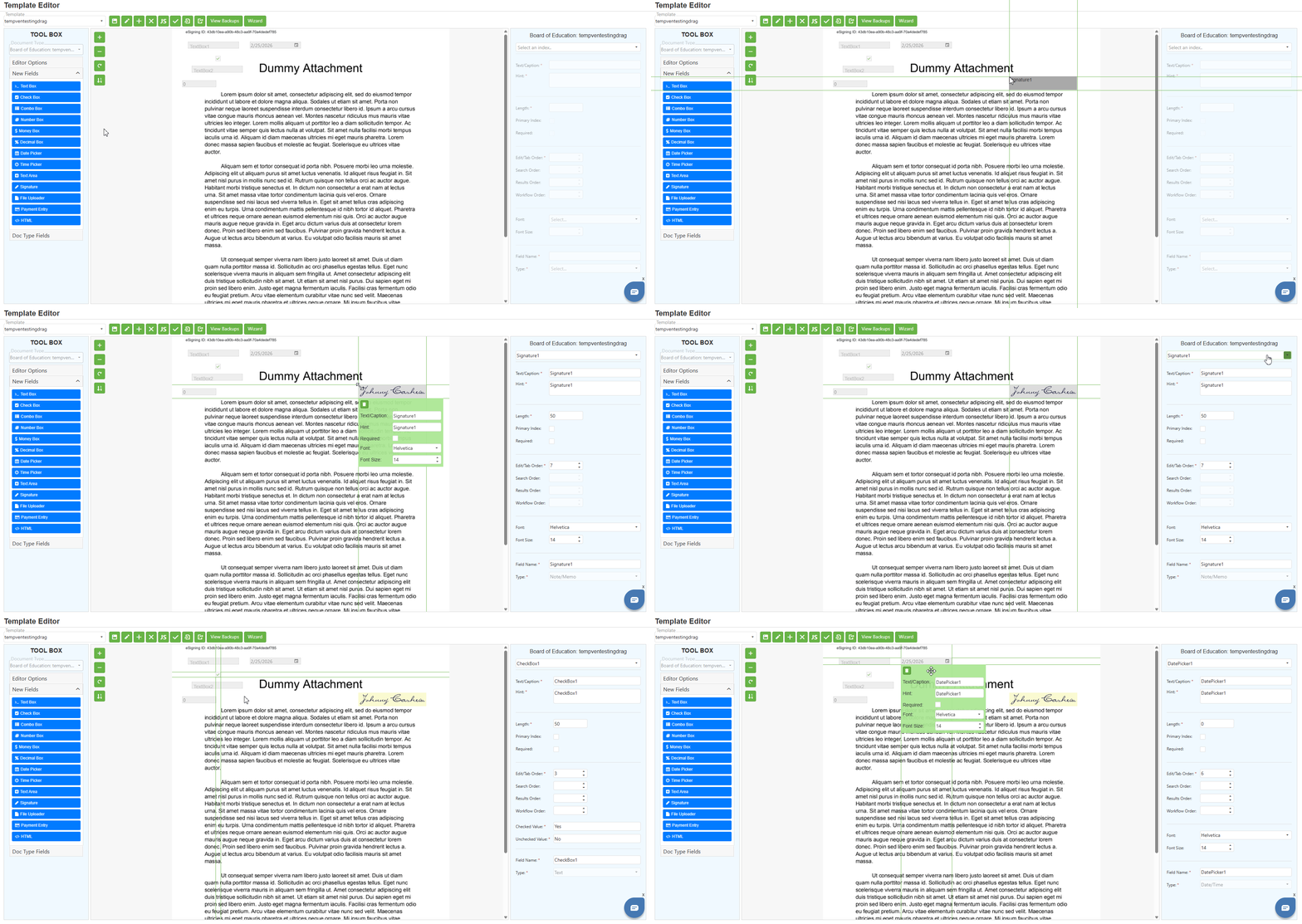
Document Type Display:
The header shows the Department and Document Type name.
Field Dropdown:
Below the header, a dropdown displays the currently selected field and lists all fields placed on the canvas. You can use this dropdown to switch between fields for configuration.
Review and configure the available property fields:
- Working with Field Properties (Drag and Drop PDF Mode)
- Basic Properties Section
- Field Constraints Section
- Order Properties Section
- Visual Properties Section (Drag and Drop Specific)
- Field Identification Section
Configuring Index Properties from Template Editor (Drag and Drop PDF)
Step 1:
The Properties Container in Drag and Drop PDF mode allows you to configure index properties directly, linking form fields to document indexes.
Step 2:
When you configure a field's properties, you are defining how the field data will be stored and indexed in the document management system.
Step 3:
Fields with configured Search Order, Results Order, and Workflow Order properties will appear in their respective interfaces based on the order values specified.
Step 4:
This direct configuration eliminates the need to separately manage index properties in the Document Type Manager for fields created through the Template Editor.
Field Name and Dropdown Synchronization
Step 1:
When you drag a new field onto the PDF canvas or document type's indexes available for configuration onto HTML design area and enter a Field Name in the Properties Container, the name is automatically reflected in the field dropdown.
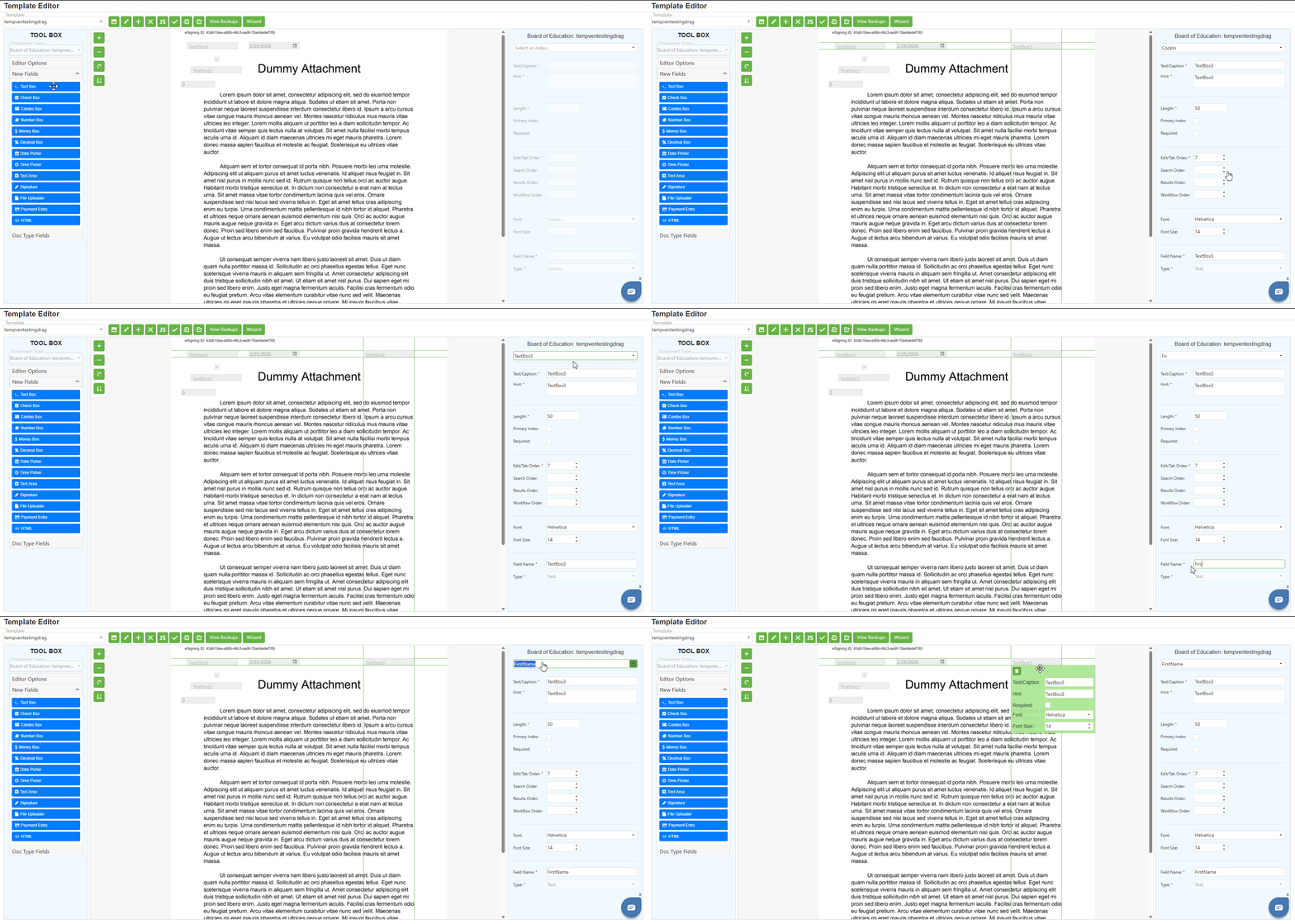
Step 2:
For example, if you drag a field to the canvas or select indexes available and enter "CustomerName" in the Field Name property:
- The field dropdown will update to show "CustomerName"
- The field on the canvas will be associated with this name
- Saving the template preserves this association
Step 3:
To rename a field:
- Select the field on the canvas or from the dropdown
- Modify the Field Name in the Properties Container
- Update the Text/Caption if desired
- Save the template to preserve the changes
Step 4:
After saving, when you click on the field again, the Properties Container will display the updated field name and all associated properties.
Properties Container for Drag and Drop Designer (Wizard Mode)
When a form template is configured with Designer: Drag and Drop and Designer Display Mode: Wizard, the Properties Container behaves differently than other modes.
Understanding Wizard Mode Properties Behavior
Step 1:
Select a template from the Template dropdown that is configured with Drag and Drop as the Designer type and Wizard as the Designer Display Mode.
Step 2:
Observe that the Properties Container does not function in the same way as HTML or PDF modes. In Wizard mode, field configuration is handled through Component Configuration Dialogs rather than the Properties Container.
Step 3:
When you drag a Default Macro Component from the Toolbox onto the Design Area in Wizard mode, a Component Configuration Dialog opens automatically.
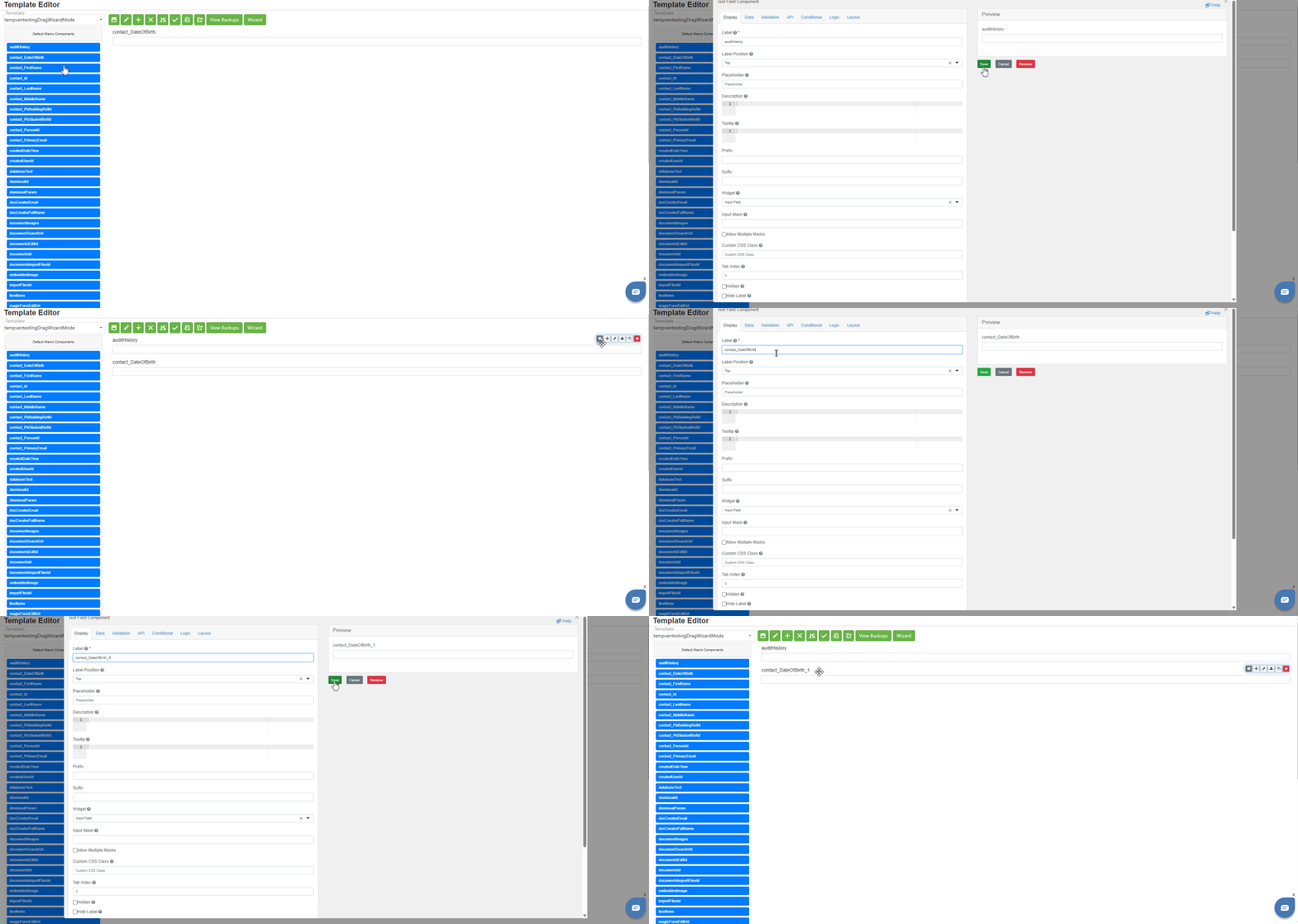
Component Dialog Configuration (Wizard Mode)
Step 1:
The Component Configuration Dialog provides comprehensive field configuration across multiple tabs:
- Display Tab
- Data Tab
- Validation Tab
- API Tab
- Conditional Tab
- Logic Tab
- Layout Tab
Step 2:
The available tabs and options in the Component Dialog vary depending on the component type (index type) being configured. Different field types have different configuration requirements.
Step 3:
Configure all required properties in the Component Dialog and click Save to add the configured component to the form. The Properties Container on the right side of the Template Editor is not used for field configuration in Wizard mode.
C. Best Practices
HTML Designer Properties
- Verify the correct Document Type is selected in the Toolbox before configuring indexes; use descriptive Text/Caption values and concise Field Names without spaces
- Set appropriate Length values to prevent data truncation; configure Search Order and Results Order thoughtfully for optimal user experience
Drag and Drop PDF Properties
- Enter meaningful Field Names immediately after placing fields and keep Text/Caption consistent with the underlying PDF form labels
- Use consistent font settings across related fields, configure tab order to match the visual layout, and save changes frequently
Order Configuration
- Plan Edit/Tab Order to follow the natural reading flow (usually top-to-bottom, left-to-right); set Search Order with lower numbers for frequently used search fields
- Configure Results Order to display the most important fields first; use Workflow Order to prioritize critical fields in workflow interfaces
General Properties Container
- Review all required fields (marked with *) before saving and use the field dropdown to quickly navigate between fields
- Document custom Lookup Sql queries for maintenance purposes and coordinate field naming conventions with other administrators
D. Troubleshooting
- Properties Container not displaying: Verify a template is selected, ensure the Template Editor has fully loaded, and refresh the page; check that you have permissions to access the template
- Index dropdown empty (HTML Designer): Verify a Document Type is assigned to the template and has indexes defined; ensure the correct Document Type is selected in the Toolbox dropdown
- Field properties not showing (Drag and Drop PDF): Ensure you have selected a field on the canvas by clicking on it; use the field dropdown in the Properties Container to select a field or refresh the page
- Save not working: Verify all required fields (marked with *) are completed, check for validation errors, and ensure Field Name does not contain spaces or special characters
- Field Name not reflecting in dropdown: Save the template after entering the Field Name and refresh the Properties Container by clicking away and reselecting the field
- Properties Container shows wrong field: Click directly on the desired field on the canvas or use the field dropdown to explicitly select the correct field
- Order properties not taking effect: Save the template after changing order values, verify values are numeric and positive, and check for duplicate order numbers causing conflicts
- Font and Font Size not appearing: These properties are only available for Drag and Drop PDF mode templates; verify the template configuration
- Lookup Sql not working: Verify SQL syntax is correct and ensure database connectivity is configured; contact support for complex SQL troubleshooting
- Properties Container not applicable (Wizard Mode): This is expected behavior; use the Component Configuration Dialog instead by dragging a component to the Design Area
E. Related Articles
Template Editor: Toolbox Panel
Template Editor: Template Toolbar Options
Conclusion
The Properties Container in SCView's Template Editor adapts based on the template's Designer type and Display Mode, supporting three primary configurations: HTML Designer templates with index management through dropdown selection and Save/Delete controls, Drag and Drop PDF templates with extended visual properties like Font, Font Size, and Lookup SQL, and Drag and Drop Wizard templates which use Component Configuration Dialogs instead of the Properties Container. By mastering the Properties Container functionality for each template type and following the best practices outlined in this article, administrators can efficiently manage field properties and create well-structured form templates in SCView.
Was this article helpful?
That’s Great!
Thank you for your feedback
Sorry! We couldn't be helpful
Thank you for your feedback
Feedback sent
We appreciate your effort and will try to fix the article