 | ||
Introduction
The Mail Manager is a searchable record of all emails the system has queued up and/or sent out to external addresses. As your organization sends dozens or even hundreds of automated emails daily—from notification reminders to workflow summaries to eSigning requests—locating a specific email can become challenging without the right tools. SCView offers powerful filtering and search capabilities within the Mail Manager to help you quickly find, review, and resend any email in the system. This guide will walk you through how these tools function, enabling you to efficiently manage and troubleshoot email communications.
A. Problem Statement
When users report missing emails, or when administrators need to verify that critical communications were sent, manually scrolling through hundreds of email records is inefficient and time-consuming. Without understanding the Mail Manager's filtering system, users may struggle to locate specific emails, verify delivery status, or resend failed communications. This article addresses the challenge of efficiently searching, filtering, and managing emails within the Mail Manager to quickly locate an act upon specific email records.
B. Solution
To follow along with this guide, please use the main navigation bar to navigate to Admin > Mail Manager.
Step 1: Mail Manager Top Section Filters
The Mail Manager is effectively an email outbox for an SCView database, meaning it contains records of all emails sent out by the system. A user can search for, read, and resend any mail sent by the system. Let's go over the various options present on the top section of the Mail Manager to demonstrate the various filters that can be used to tune a search for a target email.
Mail Manager Filters
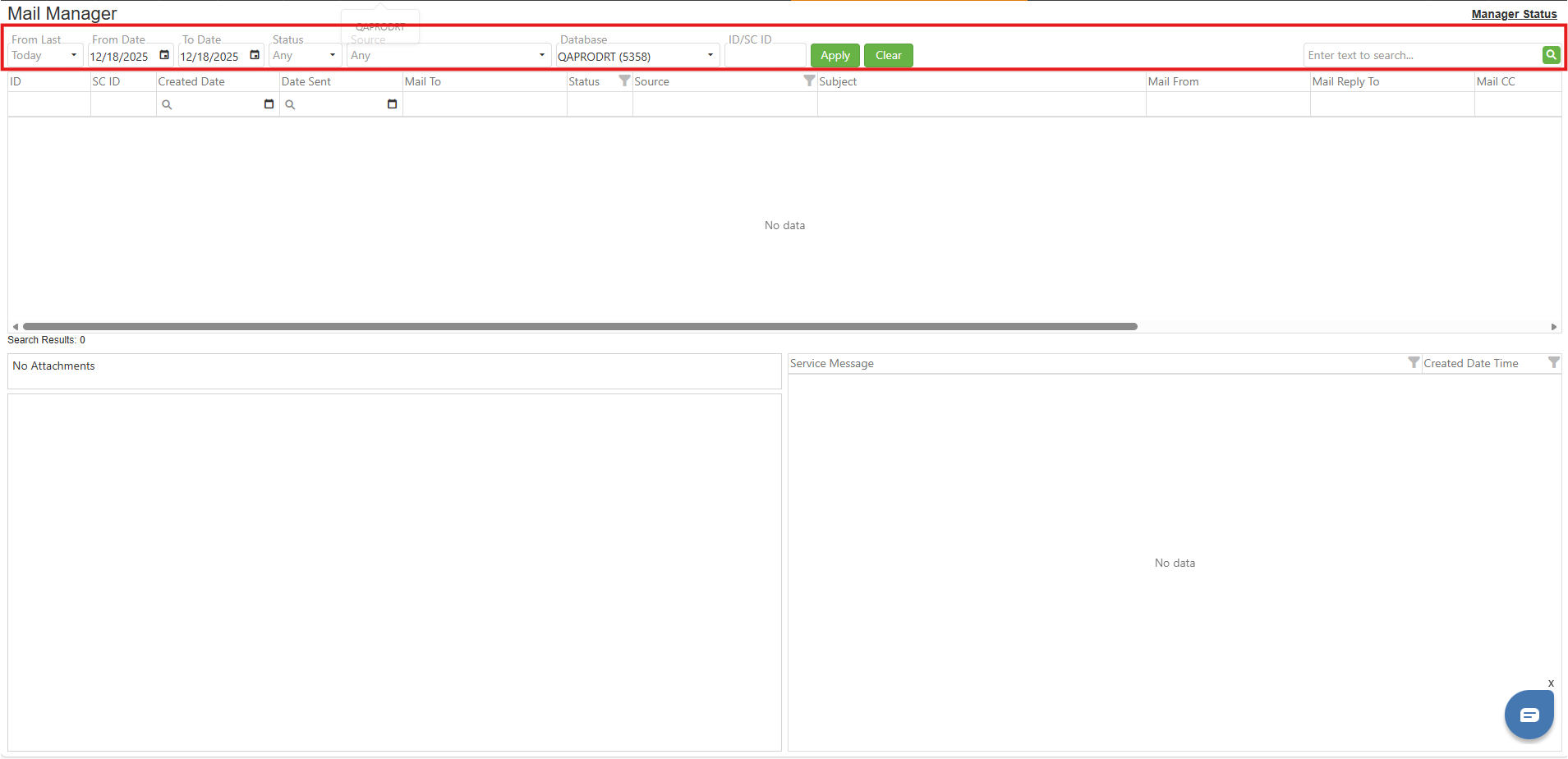
The mail manager filters are presented at the top of the page. From left to right, these are:
From Last - The From Last dropdown is a convenient tool that automatically sets the To Date (see below) to the current day, then sets the From Date to be the listed amount before the To Date. For example, if today is 12/20 and Week is chosen from the dropdown, the From Date will be 12/13, one week before current.
From Date/To Date - Setting the From and To Dates defines a range of dates for the grid below to search against. The user only needs to set these if none of the From Last presets are acceptable for this use case.
Status - The status dropdown has four values, which reflect the current reality of an individual mail.
- Any - Do not filter out any values. Take all mails.
- Sent - The mail has been sent.
- Failed - The mail failed to send.
- Queued - The mail will be sent in the future.
Source - The Source of the mail is the identity of the service that generated that mail.
- Any - Do not filter out any values. Take all mails.
- FinancialDashboardMonitor - The mail was generated by the Financial Dashboard.
- mySCView.AchNotification - The mail has to do with ACH payments.
- mySCView.EmailTaskProcessor - The mail was explicitly sent from one of the various labeled Email options in the application, such as the context menu Email option in Search, or the email is the one automatically generated when an eSigning request is completed.
- mySCView.ESigning - The mail has to do with an eSigning action reminder or notification.
- mySCView.FisQueueMonitor - The email was generated in response to submission of FIS records to a third-party service, such as USAS.
- mySCView.ForgotPassword - The email is regarding a forgotten password.
- mySCView.FormCampaignMonitor - The email is a form packet sent through the Form Campaigns module.
- mySCView.HRISQueueMonitor - The email was generated in response to submission of HRIS records to a third-party service, such as USPS.
- mySCView.Import - The email was generated in response to an import.
- mySCView.Notifier - The email was generated by one of the database's defined Notifications triggering.
- mySCView.ReturnMailService - The email was generated in response to another email being undeliverable.
- mySCView.UsasReviewTask - The email is a PO Report.
- mySCView.WorkflowMonitor - The email is a Workflow Summary Report.
- SCFormsPortal - The email was generated by the SCView Portal.
Database - Filter by the chosen database(s).
ID/SC ID - Filter for an exact match in either the ID column or the SC ID column.
Top Section Action Buttons
Apply - As Mail Manager queries can be fairly heavy, changes that are made to the filters are not immediately reflected in the grid below. Click the Apply button to apply your changes and have the grid update.
Clear - Clicking the Clear button clears all filters, sets From Last to Today, and immediately updates the grid below to reflect the choice.
Search Bar
Located at the far right of the top section, the search bar accepts a term and searches for it in the grid below, returning any matches. This is a good way to tighten filters further if a document number or other characteristic.
Image: Mail Manager Top Section
Step 2: Mail Manager Grid
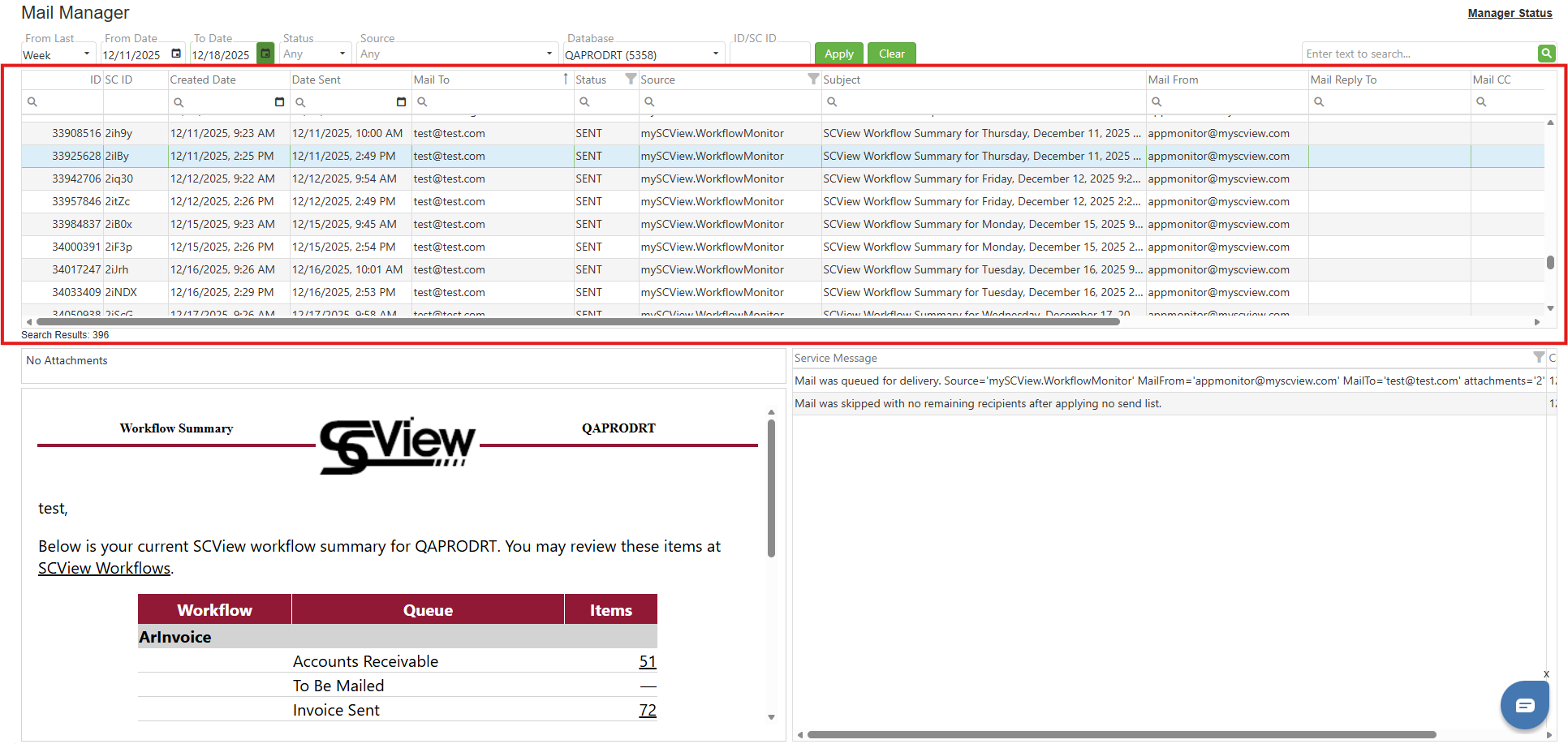
Located below the top section filters is the Mail Manager grid. Here, the records that meet the constraints of the filters set by the user are displayed. The user can right click any individual email in the grid and select to Resend that email if the recipient needs another copy.
Grid Columns
ID - This is a unique identifier for the email.
SC ID - This is another unique identifier for the email.
Created Date - This is the time at which the email entered Mail Manager and became queued.
Date Sent - This is the time at which the email went from queued to sent.
Mail To - This is the recipient of the email.
Status- This matches the Status filter, and is the current status of the email: queued, sent, or failed.
Source -This matches the Source filter, and is the service that generated the email.
Subject - This is the subject line of the email.
Mail From - The email will show this value as the sender in the recipient's inbox.
Mail Reply To - If the email is in response to an external sender, that will be listed here.
Mail CC - Additional email recipients, if any, will be listed here.
Retry No - This is the number of times the email has been resent.
DB Text - This is the name of the database that sent the message.
DB ID - This is the ID number of the database that sent the message.
Source Data - This is a value designating the source of a particular email.
Image: Mail Manager Grid
Step 3: Mail Manager Detail Pane
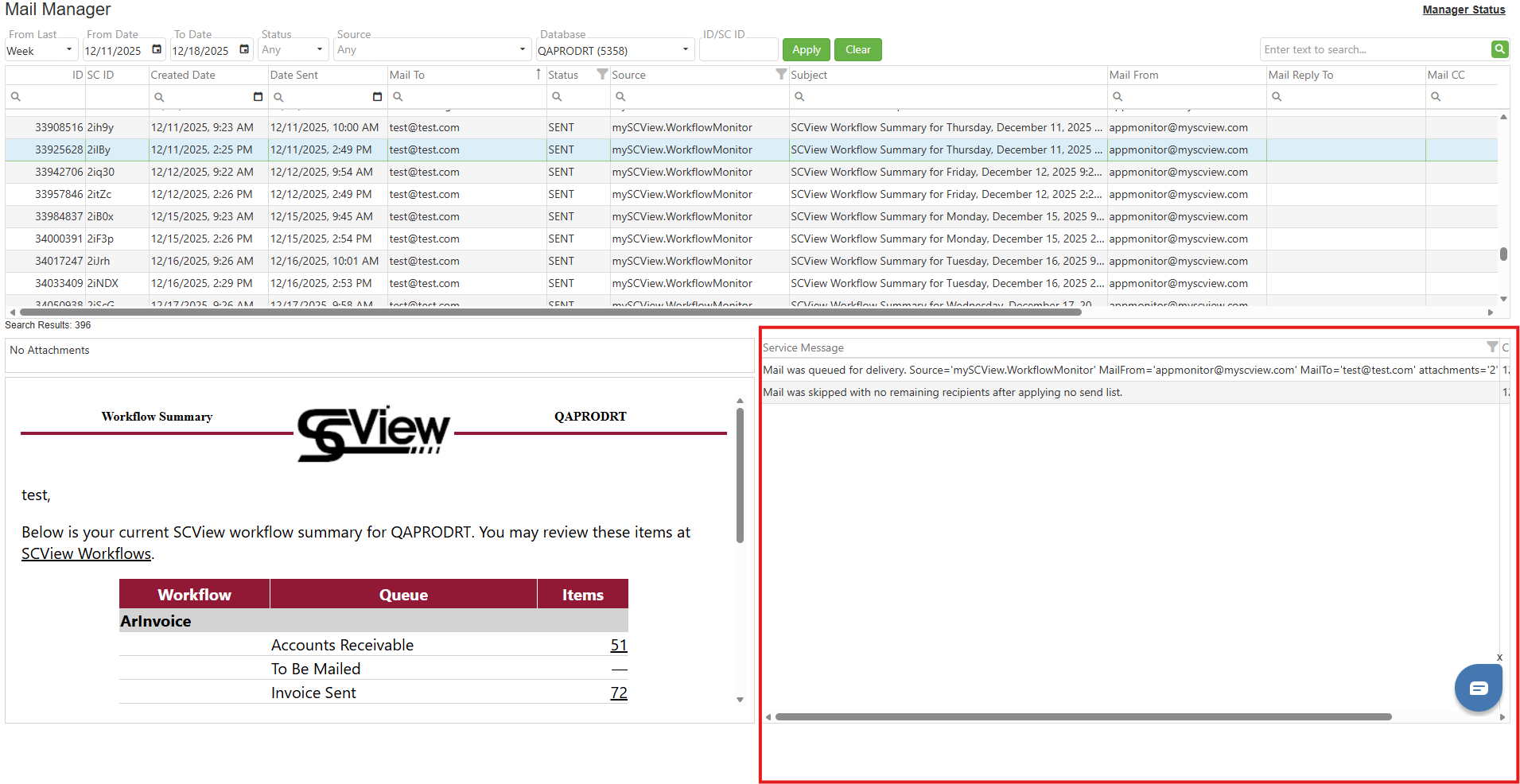
Below the Mail Manager Grid is the Mail Manager Detail Pane. If the user clicks on a record in the Mail Manager grid, the lower pane populates with information about that particular email. Let's break down everything that this section reveals.
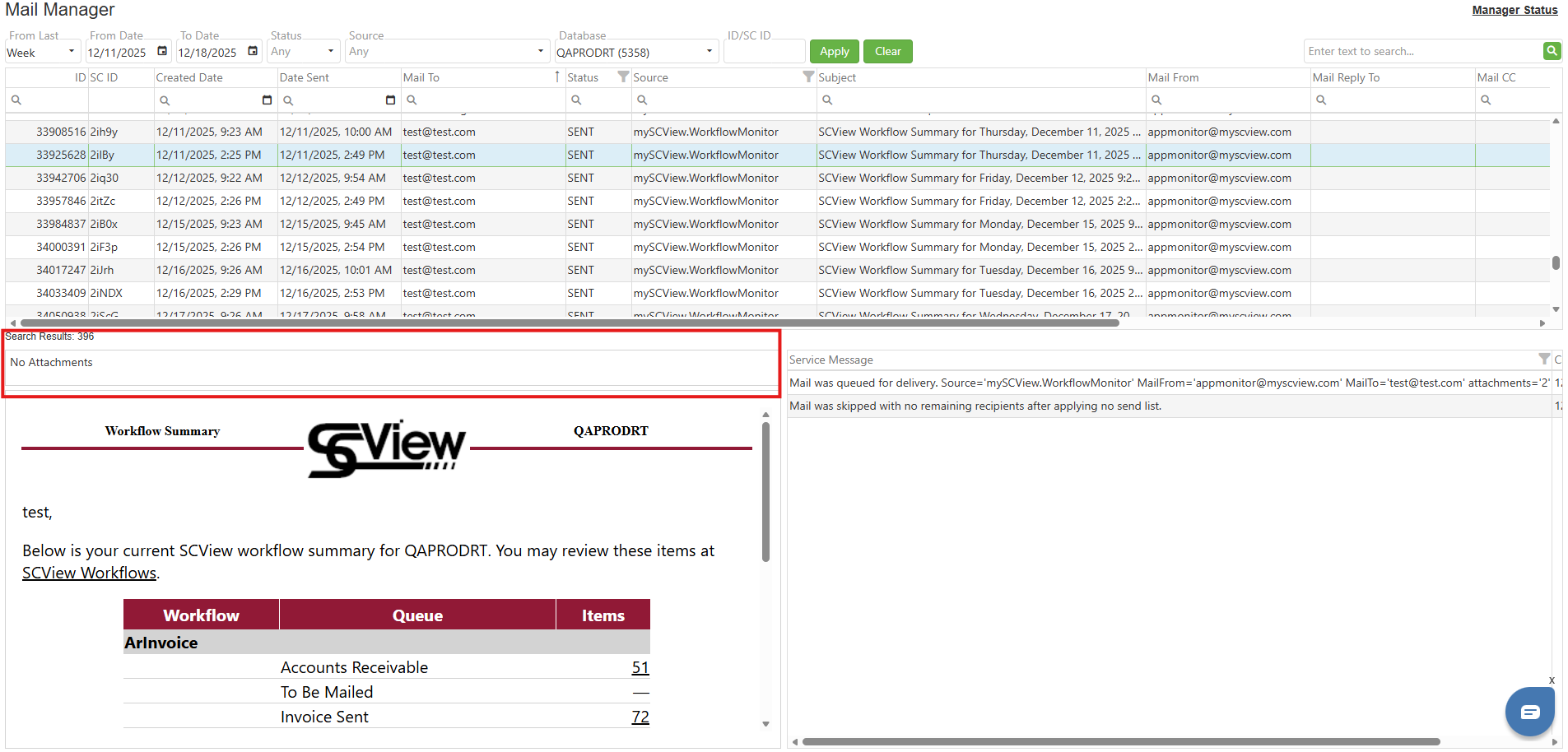
Attachments - If the chosen email has attachments, they will be presented in the box circled in the image below. Simply double-click an attachment to download it.
Image: Mail Manager Detail Pane Attachments
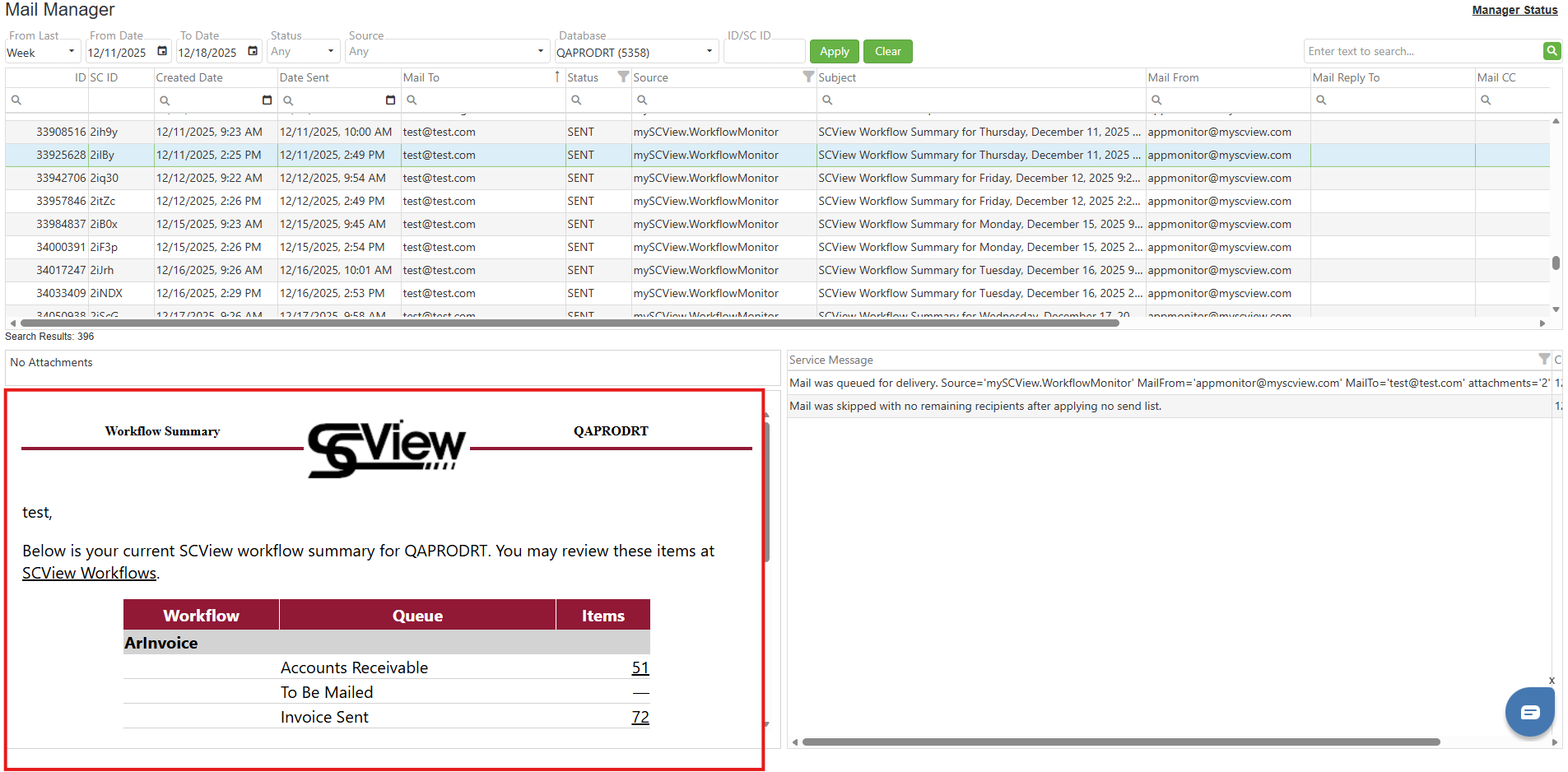
Email Image - Below the attachments box is a document image panel. Here, a copy of the email displays so that the user can see what the outgoing email looks like to the end reader.
Image: Mail Manager Detail Pane Email Image
Service Messages - The right section of the detail pane is reserved for Service Messages. This is effectively a history ticker that records the actions taken with respect to the email in question.
Image: Mail Manager Detail Pane Service Messages
C. Best Practices
- Understand filters that help you get to your goal quickly.
- If looking for a custom-made email, simply knowing its Source will generally be enough to find that email quickly.
- If looking for a notification or summary email, of which hundreds can be sent out per day, it is best to search for the recipient, as each recipient will only receive one of each notification.
- Finally, if looking for an email referencing a particular document number, try searching for that document number using the Search Bar. If the email references the number in its Subject Line, and many do, the search could be over immediately.
D. Troubleshooting
- If a user reports that an expected email never arrived, and it's also not present in the Mail Manager, that strongly suggests that the email never queued up. If the mail can be sent again from the source module, try this; otherwise, make a new mail from scratch or contact Support for assistance.
E. Related Articles
Conclusion
The Mail Manager provides comprehensive tools for tracking, searching, and managing all emails sent through your SCView system. By leveraging the combination of date range filters, status indicators, source identifiers, and the search bar, you can quickly locate any email record. With these tools at your disposal, you can efficiently manage your organization's email communications and respond quickly to user inquiries about missing or failed emails.
Was this article helpful?
That’s Great!
Thank you for your feedback
Sorry! We couldn't be helpful
Thank you for your feedback
Feedback sent
We appreciate your effort and will try to fix the article