
 | ||
Introduction
The Certification Templates module in SCView provides a comprehensive system for managing employee certifications, licenses, and professional credentials. This powerful tool enables administrators to create, track, and assign various certifications to employees while automating renewal notifications and compliance tracking. This guide explains how to navigate the certification templates interface, manage templates, and assign certifications to employees efficiently.
A. Problem Statement
Organizations struggle to track employee certifications, licenses, and training requirements across multiple departments and positions. Without a centralized system, managing expiration dates, renewal cycles, and compliance requirements becomes error-prone and time-consuming. HR departments need an efficient way to create certification templates, assign them to employees, and monitor compliance status while ensuring timely renewals.
B. Solution
SCView's Certification Templates module provides a centralized solution for managing all certification requirements. The system allows administrators to create reusable templates, assign certifications to multiple employees simultaneously, track expiration dates, and automate renewal notifications.
Step 1: Navigate to Certification Templates
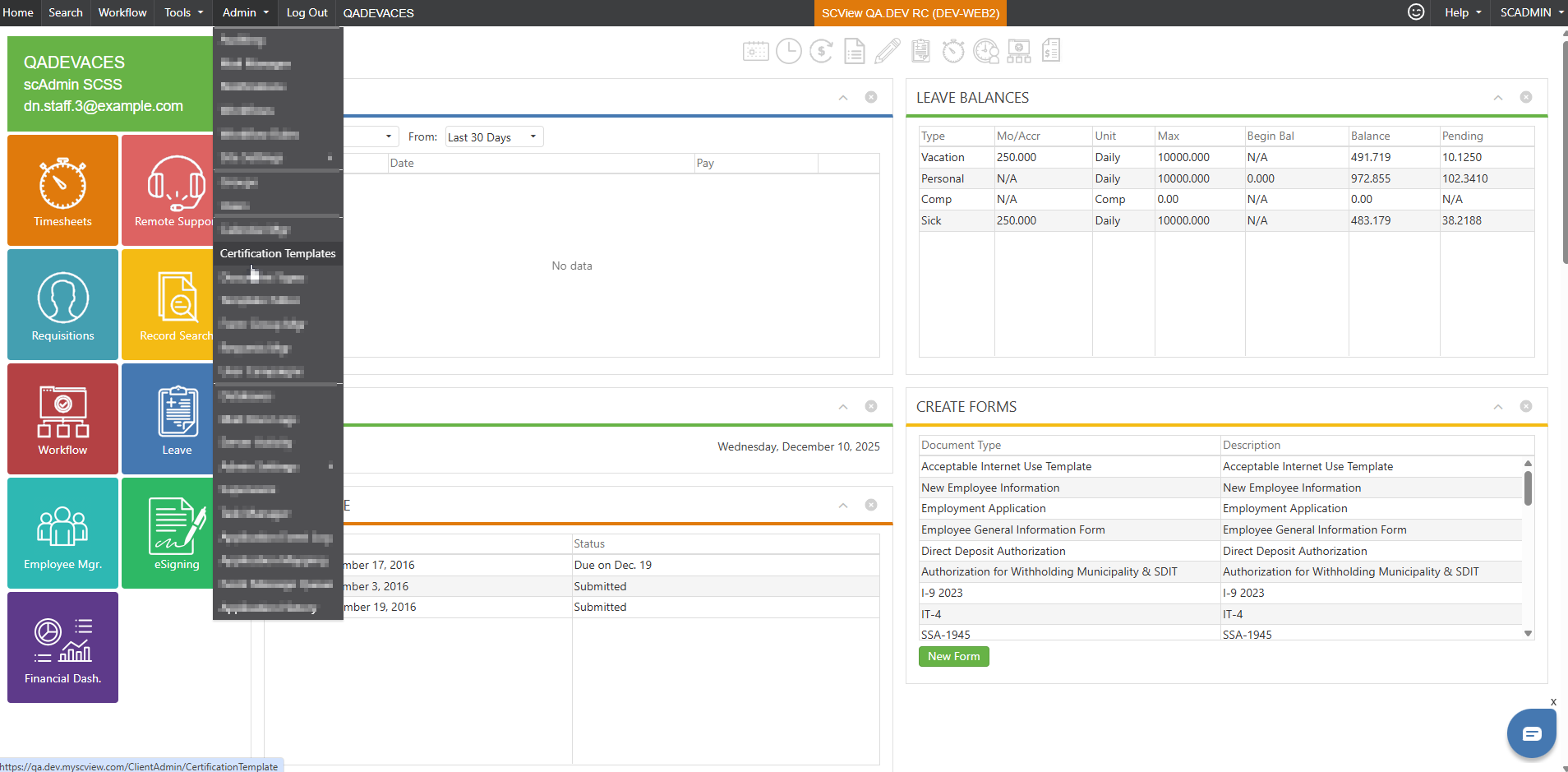
Access the module through Admin > Certification Templates. The Certification/Licensure Templates page will load displaying all existing certification templates.
Step 2: Understanding the Interface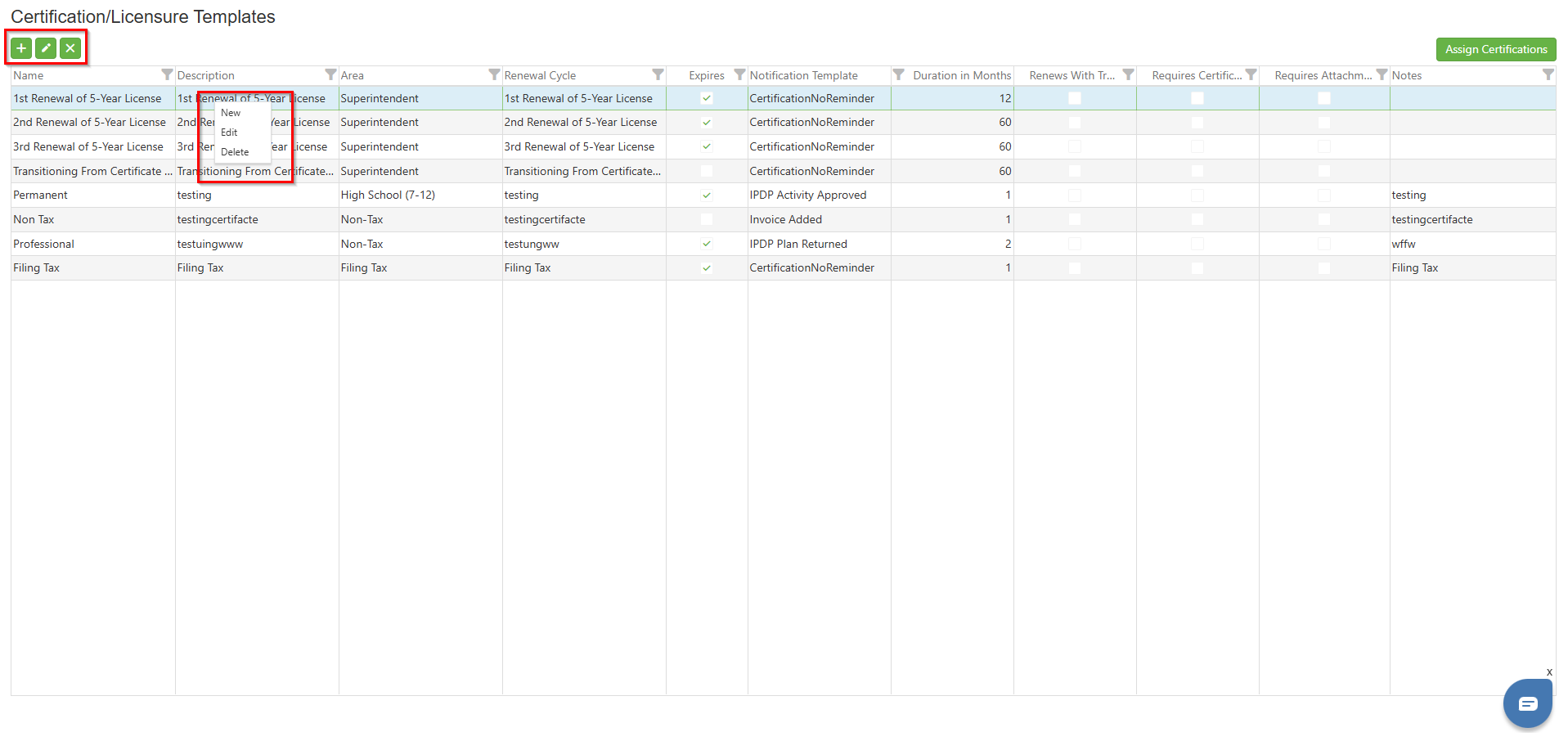
Action Icons (Top Toolbar):
Located at the top-left of the page. When hovering over these icons, helpful tooltips appear to clarify their purpose
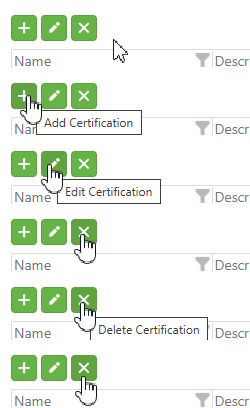
- Plus Icon (+): Creates a new certification template
- Pencil Icon: Edits the selected certification template
- X Icon: Deletes the selected certification template
Context Menu Options:
Right-clicking on any certification row reveals:
- New: Creates a new certification template
- Edit: Modifies the selected template
- Delete: Removes the selected template
Grid Columns:
- Name: Certification template name
- Description: Detailed description of the certification
- Area: Department or area the certification applies to
- Renewal Cycle: Frequency of renewal requirements
- Expires: Checkbox indicating if certification expires
- Notification Template: Email template for renewal notifications
- Duration in Months: Validity period of certification
- Renews With Training: Indicates if training is required for renewal
- Requires Certificate: Whether physical certificate is required
- Requires Attachment: If supporting documents are needed
- Notes: Additional information or requirements
Step 3: Creating a New Certification Template
Click the Plus (+) icon or right-click and select "New" to open the Add Certification dialog: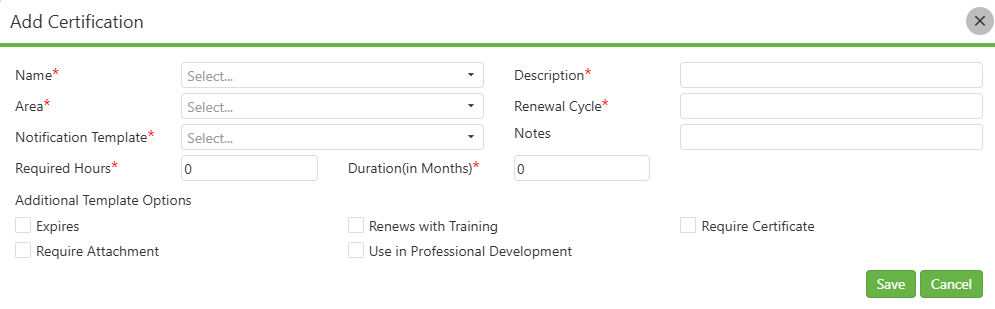
- Name: Enter unique certification name
- Area: Select applicable department/area from dropdown
- Notification Template: Choose email notification template
- Renewal Cycle: Define renewal frequency
- Description: Detailed certification information
- Required Hours: Training hours required (default: 0)
- Duration in Months: Certification validity period (default: 0)
- Notes: Additional requirements or instructions
Additional Template Options (Checkboxes):
- Expires: Enable if certification has expiration date
- Require Attachment: Mandate document upload
- Renews with Training: Link renewal to training completion
- Require Certificate: Physical certificate required
- Use in Professional Development: Include in PD tracking
- Click "Save" to create the template or "Cancel" to abort.
Step 4: Editing Existing Templates
Select a certification and click the Pencil icon or right-click and select "Edit":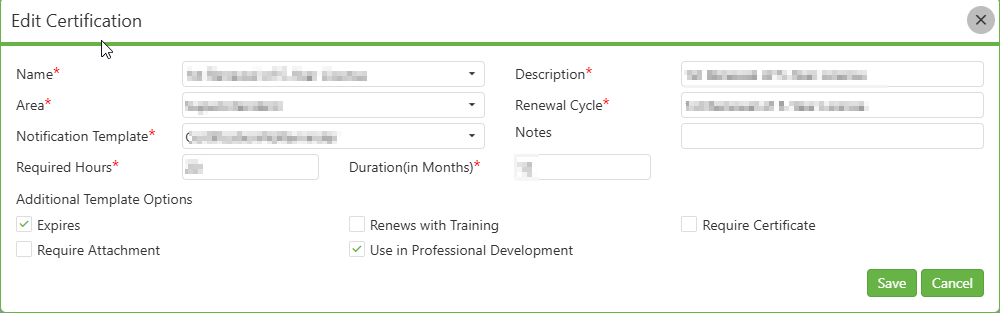
- All fields from the Add Certification dialog are available
- Existing values are pre-populated
- Modify necessary fields
- Click "Save" to update or "Cancel" to discard changes
Step 5: Deleting Templates
Select a certification and click the X icon or right-click and select "Delete" to delete certification
Note: Deleting templates may affect existing employee certifications
Assigning Certifications to Employees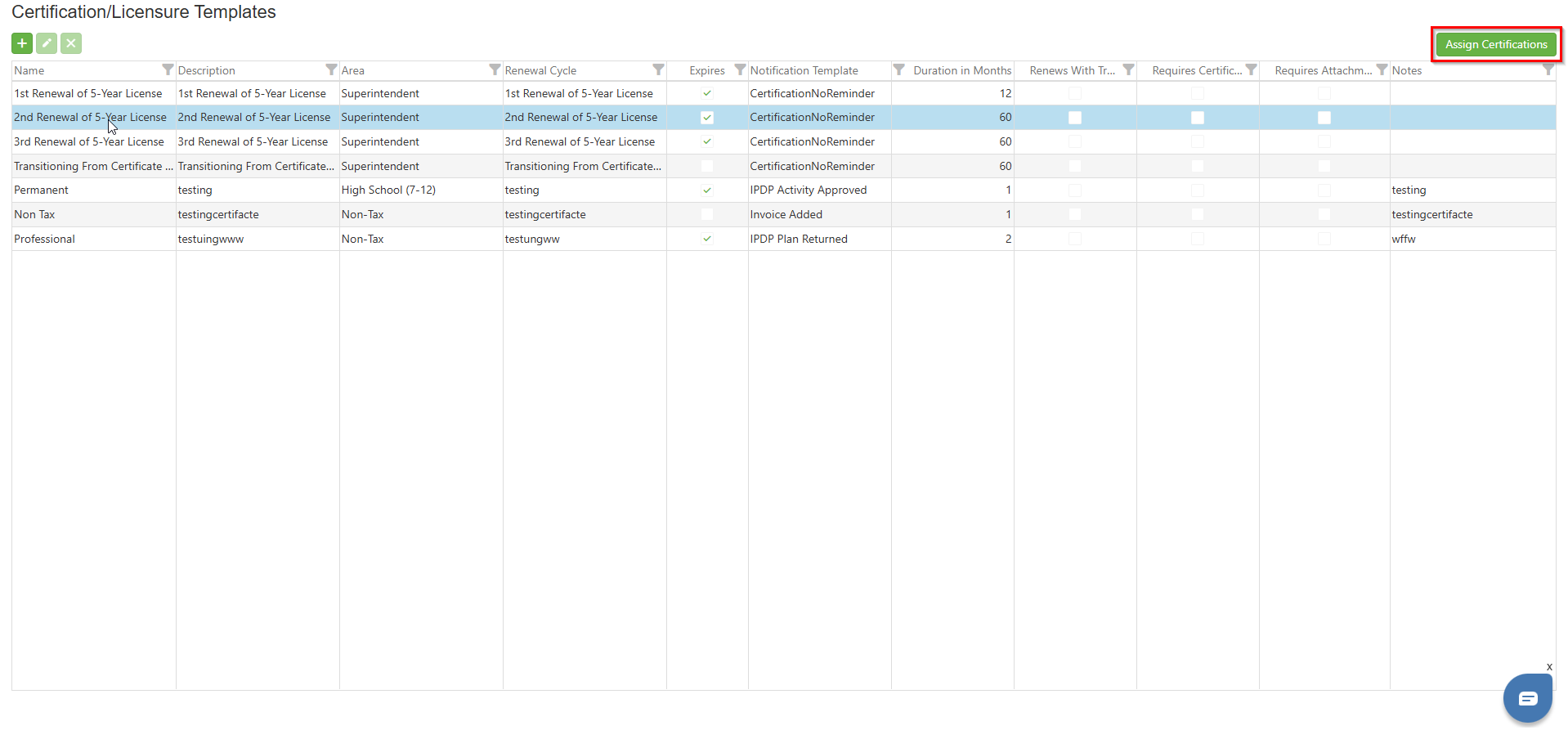
Step 1: Initiate Assignment Process
Click the "Assign Certifications" button in the top-right corner to open the assignment wizard.
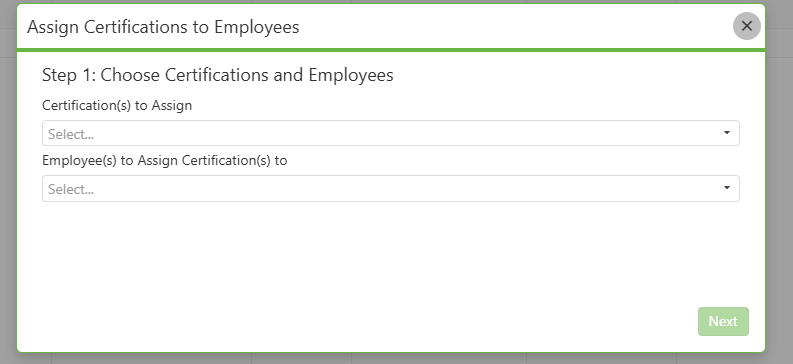
Step 2: Choose Certifications and Employees
Certification(s) to Assign:
- Select one or multiple certification templates from the dropdown
- Multiple selections allow bulk assignment
Employee(s) to Assign Certification(s) to:
- Select target employees from the dropdown
- Supports multiple employee selection for bulk processing
- Click "Next" to proceed to detail entry.
Step 3: Assign Certification Details
For each certification-employee combination, enter:
- Certification: Auto-populated from Step 1
- Activation: Date certification becomes active (MM/DD/YYYY)
- Expiration: Date certification expires (MM/DD/YYYY)
- Certificate #: Unique certificate number or identifier
- Uploaded File: Attach supporting documentation
Step 4: Review Summary
The Summary page displays all certification assignments
C. Best Practices
- Template Standardization: Create consistent naming conventions for certification templates to improve searchability and organization.
- Regular Reviews: Periodically audit certification templates to ensure they align with current regulatory requirements.
- Notification Setup: Configure notification templates with sufficient lead time before expiration dates.
- Documentation Requirements: Clearly define whether attachments are required and what documents are acceptable.
- Bulk Operations: Use bulk assignment features when onboarding multiple employees or implementing new certification requirements.
- Data Validation: Always verify activation and expiration dates are logical (expiration after activation).
D. Troubleshooting
- Templates Not Saving: Ensure all required fields are completed and dropdown selections are valid.
- Assignment Wizard Not Progressing: Verify both certifications and employees are selected in Step 1.
- Missing Employees in Dropdown: Check that employees have proper system access and are active in the database.
- Notification Templates Not Available: Confirm notification templates are created in the system before creating certifications.
- Bulk Assignment Issues: Process smaller batches if system times out with large employee groups.
- Upload Failures: Verify file size limits and acceptable formats for attachments.
E. Related Articles
IPDP: Certifications
IPDP: Site Settings - Import Certifications, Plans, and Activities
Conclusion
The Certification Templates module streamlines the complex task of managing employee certifications and licenses. By utilizing templates, bulk assignments, and automated notifications, organizations can maintain compliance while reducing administrative overhead. The three-step assignment wizard ensures accurate data entry, while the comprehensive tracking grid provides visibility into certification status across the organization. Regular use of this module helps prevent lapses in critical certifications and maintains organizational compliance with regulatory requirements.