 | ||
Introduction
SCScan is designed to regularly update its software to improve functionality, address bugs, and enhance security features. The system is set to automatically check for updates weekly, ensuring that all users have access to the latest features. Understanding how to manually check for and install updates can help users maintain their system effectively.
A. Problem Statement
Users may occasionally choose to decline an automatic update due to various reasons such as being in the middle of a critical task. Subsequently, there might be uncertainty or difficulty in initiating an update manually if needed at a later time.
B. Solution
SCScan offers a straightforward manual updating process through its interface. Users who initially decline an update can easily initiate the update at their convenience by accessing the 'Check for Updates' feature within the application settings. This ensures that all users can update their software even after initially declining automatic updates.
SCScan will automatically check for updates once a week. If you declined an update and would like to later install this, please follow the below steps.
- Click the Options button in the top-left corner of the screen
- Click Check for Updates under Application Updates
- Click Yes on the Update Prompt
(Click to Enlarge)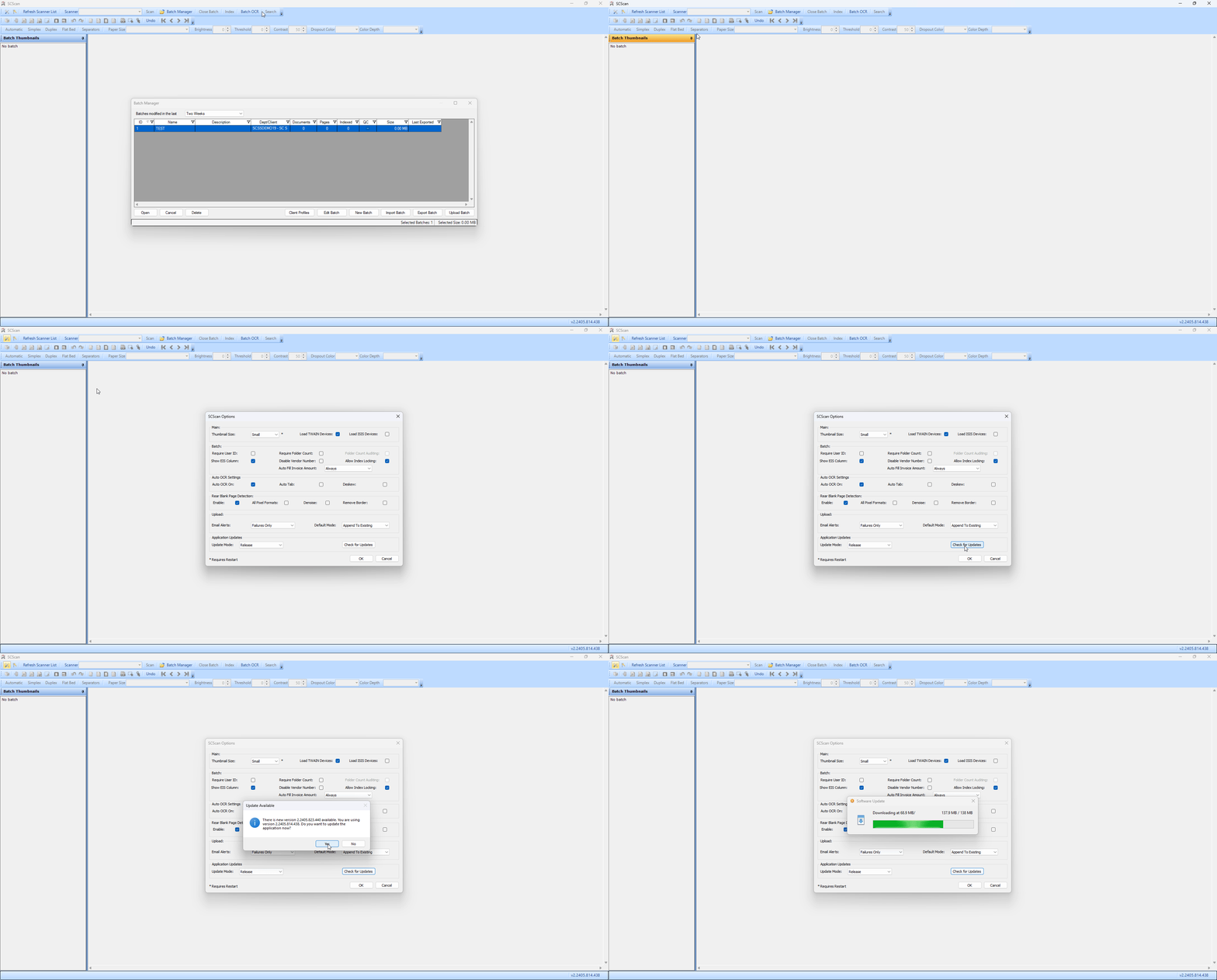
C. Best Practices
- Regular Updates: Regularly allow SCScan to update when prompted, as updates are crucial for the system’s performance and security.
- Scheduled Updates: Plan updates at a time when the system is not in critical use to avoid disruption of ongoing tasks.
- Backup Data: Before updating, ensure that all important data is backed up to prevent any loss during the update process.
D. Troubleshooting
Update Not Initiating: If the update does not start after clicking 'Yes' on the update prompt:
- Check your internet connection to ensure it is stable.
- Restart SCScan and try updating again.
- If the problem persists, check the system’s firewall settings or antivirus, as these might block the connection to the update server.
E. Related Articles
SCScan: Document and Image Manipulation
Conclusion
Keeping SCScan updated is crucial for ensuring that the software runs smoothly and securely. By following the provided steps to manually check for and install updates, users can maintain their system efficiently even if they initially decline automatic updates. Adhering to best practices for updates and knowing how to troubleshoot common issues will help in maximizing the effectiveness of SCScan in your daily operations.
Was this article helpful?
That’s Great!
Thank you for your feedback
Sorry! We couldn't be helpful
Thank you for your feedback
Feedback sent
We appreciate your effort and will try to fix the article