 | ||
Introduction
The SCView Scan module is a crucial tool for managing document uploads and indexing within the platform. This guide provides detailed instructions for addressing common issues related to uploading batches of documents, specifically when documents are unindexed, which is essential for maintaining organization and accessibility within SCView.
A. Problem Statement
Users may encounter situations where they have uploaded a batch of documents but discover that there are more documents than indexed entries. This discrepancy leads to inefficiencies and hinders the proper management of documents within the system.
B. Solution
To resolve this issue, SCView provides a systematic approach to identify and index unindexed documents within a batch. Utilizing the search and index features, users can efficiently locate and fill in the missing indexes, ensuring that all documents in the batch are appropriately catalogued.
If you are trying to upload a batch and find that you have more documents than you have indexed, you'll need to locate the single document that is missing the indexing and fill in the values. In order to easily find the missing document indexes:
- Open the batch missing the indexes.
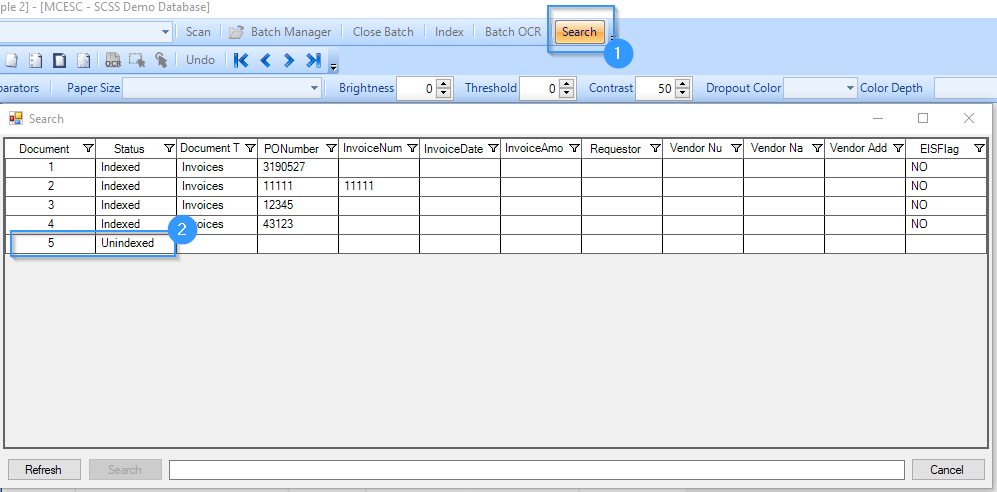
- Click the Search button at the top of the screen (1).
- A popup window will appear. The first column shows the Document number. The second column, Status, shows whether or not a batch has been Indexed. You will need to find any batch that shows a status of "Unindexed". (2) These are the documents that need indexing.
- Close the Search window and click on the Index button. You can jump directly to the document that needs indexed by simply clicking the numbered document header.
C. Best Practices
- Regular Checks: Periodically verify that all uploaded documents within a batch have been correctly indexed to prevent backlogs and ensure data integrity.
- Systematic Indexing: Follow a consistent method for indexing documents as soon as they are uploaded. This practice minimizes the chance of documents remaining unindexed.
- Train Staff: Ensure that all users who manage document uploads are trained on how to use the search and indexing features of the SCView Scan module. Adequate training reduces errors and improves efficiency.
D. Troubleshooting
Finding Unindexed Documents:
- Issue: Difficulty in locating unindexed documents.
- Solution: Use the Search button at the top of the screen to open the popup window. Check the status column for any document labeled as "Unindexed." This label indicates which documents need to be indexed.
Indexing Errors:
- Issue: Errors when trying to index a document.
- Solution: Ensure that you are entering the correct indexing information corresponding to the document’s content. Double-check for any input errors or system restrictions related to index fields.
System Response:
- Issue: Slow system response or failure to save indexed data.
- Solution: Refresh the page. If issues persist, clear your browser cache or attempt to re-login. Contact technical support if the problem continues.
E. Related Articles
Scan: Update MySCView and USAS Password
Scan: Using an Invoice multiple times
Scan: Changing your Index text size
Conclusion
Proper management of document uploads and indexing within the SCView Scan module is vital for efficient document handling and retrieval. By utilizing the provided features to identify and index unindexed documents promptly, users can maintain an organized and reliable document management system. Following the recommended practices and knowing how to troubleshoot common issues will ensure that the SCView platform continues to serve as a robust tool for your document management needs.
Was this article helpful?
That’s Great!
Thank you for your feedback
Sorry! We couldn't be helpful
Thank you for your feedback
Feedback sent
We appreciate your effort and will try to fix the article