 | ||
Introduction
In the SCScan environment, efficiently managing and updating document types is crucial to maintaining seamless document handling and processing. To facilitate these updates, SCScan offers an automated import feature that allows users to add new document types directly through the interface, streamlining the integration of new document types into existing workflows.
A. Problem Statement
As organizations evolve, the need to incorporate new document types into SCScan arises frequently. Manually updating or adding each document type can be time-consuming and prone to errors, potentially disrupting document management processes.
B. Solution
SCScan addresses this challenge with a feature that allows for the automatic import of new document types. This feature enables users to conveniently add multiple document types simultaneously through the Batch Manager, ensuring that the system remains up-to-date and reflective of the organization's current document handling needs.
When a new document type needs to be added to SCScan, it can be done through an automatic import.
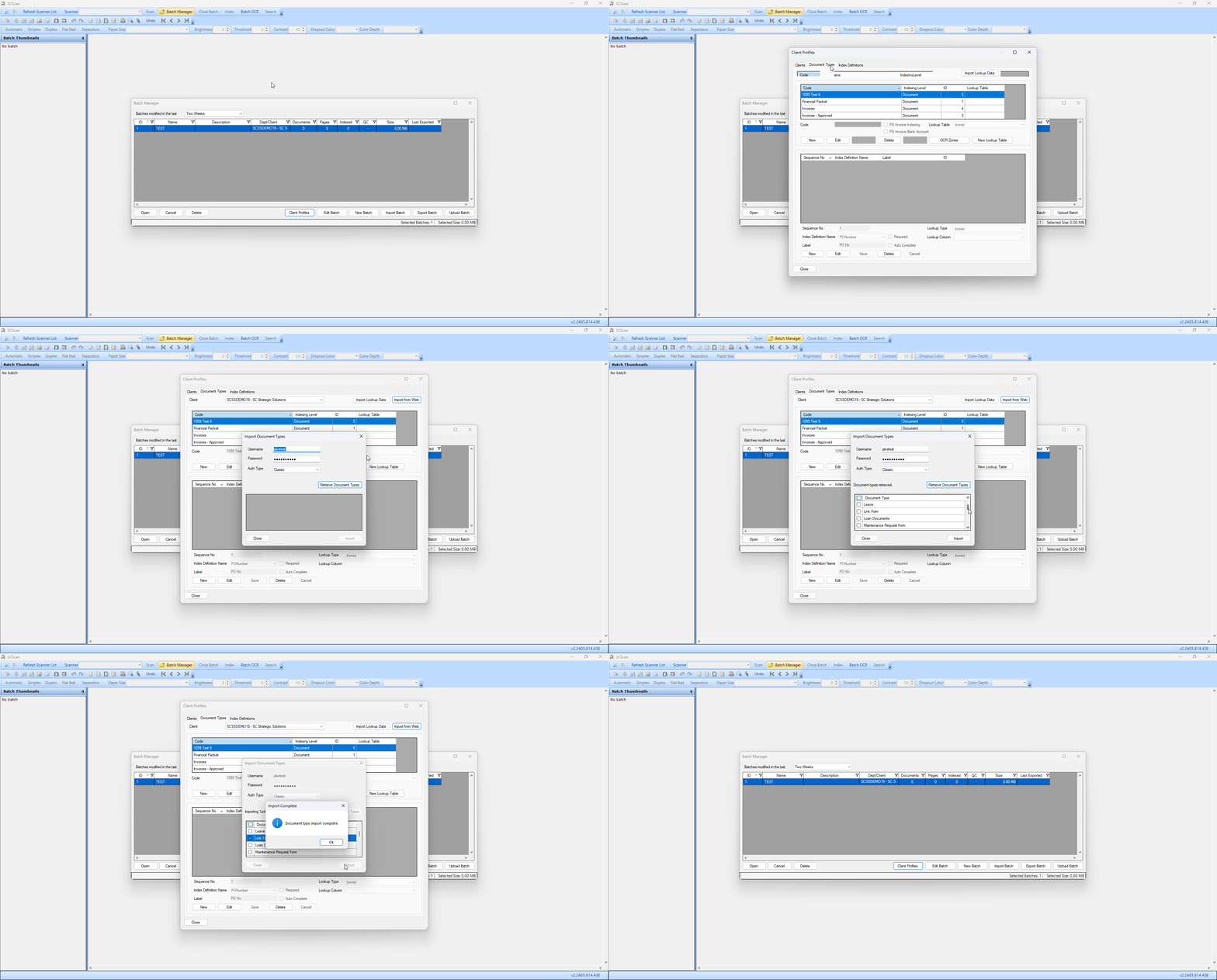
- Open the Batch Manager by clicking the Batch Manager button at the top of the window
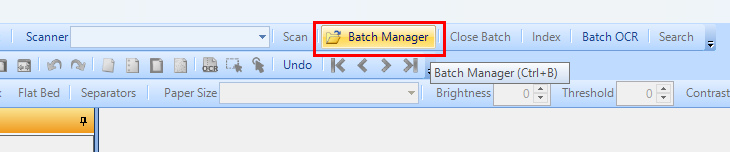
- Click Client Profiles
- Select the Document Types tab
- Click Import from Web
- Click Retrieve Document Types
- Place a checkmark next to each Document Type you would like to add
Note: You can import more than one document type at a time - Click Import
- Click OK
(Click to Enlarge)
C. Best Practices
- Review Before Importing: Carefully review the list of available document types and select only those relevant to your needs to avoid cluttering the system with unnecessary document types.
- Batch Imports: Take advantage of the ability to import multiple document types at once to save time and effort, ensuring consistency across your document management system.
D. Troubleshooting
Import Fails to Execute:
- Ensure you have a stable internet connection, as the import function relies on accessing web-based resources.
- Verify that you have the necessary permissions to update document types in SCScan. Contact your system administrator if you are unsure about your access rights.
Incorrect Document Types Imported:
- If incorrect document types are imported, you can remove them by going to the Document Types tab, selecting the incorrect type, and choosing the option to delete or deactivate.
- Always double-check your selections before confirming the import to prevent this issue.
E. Related Articles
SCScan: Changing your Index text size
SCScan: Using an Invoice multiple times
Conclusion
The automatic import feature in SCScan is a powerful tool designed to enhance efficiency and accuracy in the management of document types. By following the outlined steps and adhering to best practices, users can effectively maintain an up-to-date document type database that supports their organizational needs. Additionally, understanding how to troubleshoot common issues will ensure that the process of adding new document types is as smooth and error-free as possible.
Was this article helpful?
That’s Great!
Thank you for your feedback
Sorry! We couldn't be helpful
Thank you for your feedback
Feedback sent
We appreciate your effort and will try to fix the article