 | ||
Introduction
The Document Type Manager in SCView is a comprehensive administrative interface for organizing and managing the hierarchical structure of departments, document types, and document type indexes within the document management system. This essential tool allows administrators to create and configure departments that serve as organizational containers, define document types that categorize different kinds of documents, and establish document type indexes that determine how document data is stored, searched, and displayed throughout the system. The Document Type Manager interface is divided into two main areas: the Left Panel containing a searchable hierarchical tree of departments and document types, and the Right Side Area displaying detailed information and data tables based on the selected item. Understanding the Document Type Manager's layout, navigation, and the relationships between departments, document types, and indexes is fundamental to effective system administration in SCView. This article provides an overview of the Document Type Manager interface, explaining the key components including the navigation panel, information sections, data tables, and context menu options.
A. Problem Statement
Administrators working with the Document Type Manager in SCView often encounter challenges that can hinder their ability to manage the organizational structure effectively. Common difficulties include:
- Uncertainty about how to access the Document Type Manager or navigate its interface
- Confusion about the hierarchical relationship between Organization, departments, and document types
- Not understanding how to search for specific departments or document types
- Difficulty knowing the difference between the three main tabs (Departments, Document Types, Document Type Indexes)
- Uncertainty about the purpose of each column in the data tables
- Confusion about the various context menu options and when to use them
- Not understanding how to add, edit, or delete departments and document types
- Difficulty configuring document type indexes and their properties
- Uncertainty about the relationship between document types and form templates
- Not knowing how document type indexes affect search, results display, and workflow behavior
Without a clear understanding of the Document Type Manager's layout and functionality, administrators may struggle to organize documents properly, create inconsistent configurations, or fail to utilize the full capabilities of SCView's document management features.
B. Solution
SCView's Document Type Manager provides a centralized interface for managing the complete organizational hierarchy of the document management system. The Left Panel offers a searchable tree view for quick navigation between departments and document types, while the Right Side Area displays relevant information and configuration options based on the selected item. Context menus throughout the interface provide quick access to common operations like adding, editing, deleting, and exporting items. By understanding the Document Type Manager's components and navigation patterns, administrators can efficiently maintain the organizational structure and document configurations.
Note: Access to the Document Type Manager requires administrator-level permissions. The available options and editing capabilities may vary based on your assigned access level and system configuration.
Accessing the Document Type Manager
Step 1:
Log in to SCView using your credentials with appropriate administrative access. Navigate to the administration area of SCView.
Step 2:
Locate and click on "Document Type Manager" to access the interface. The Document Type Manager will load, displaying the complete organizational structure.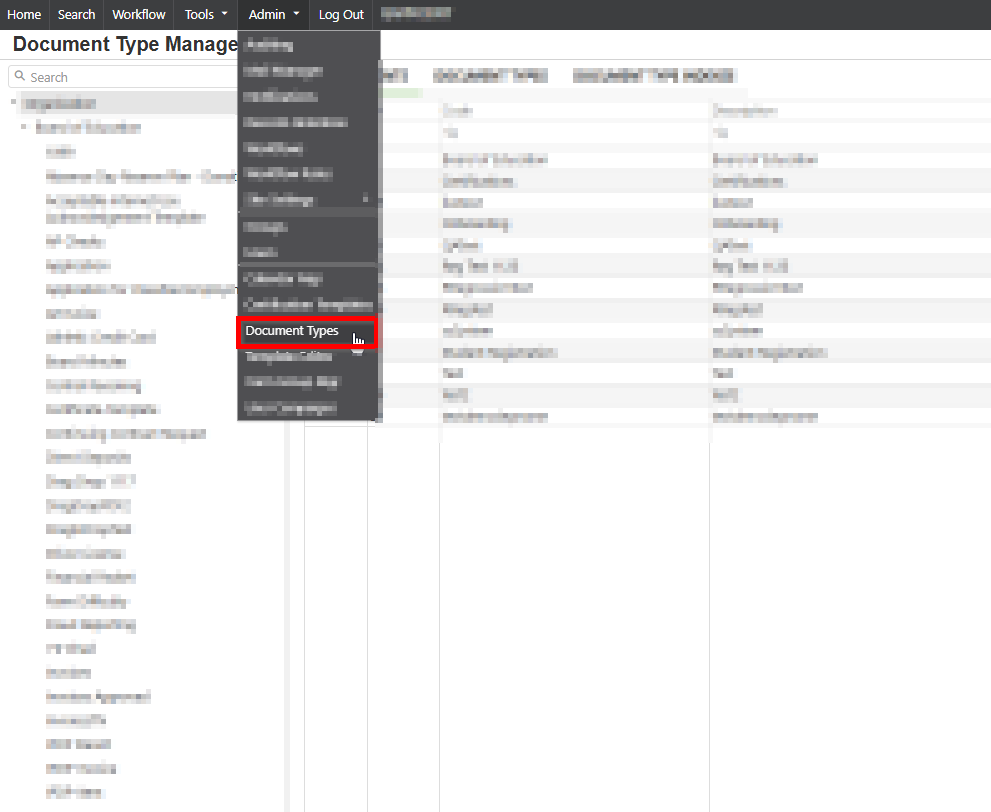
Step 3:
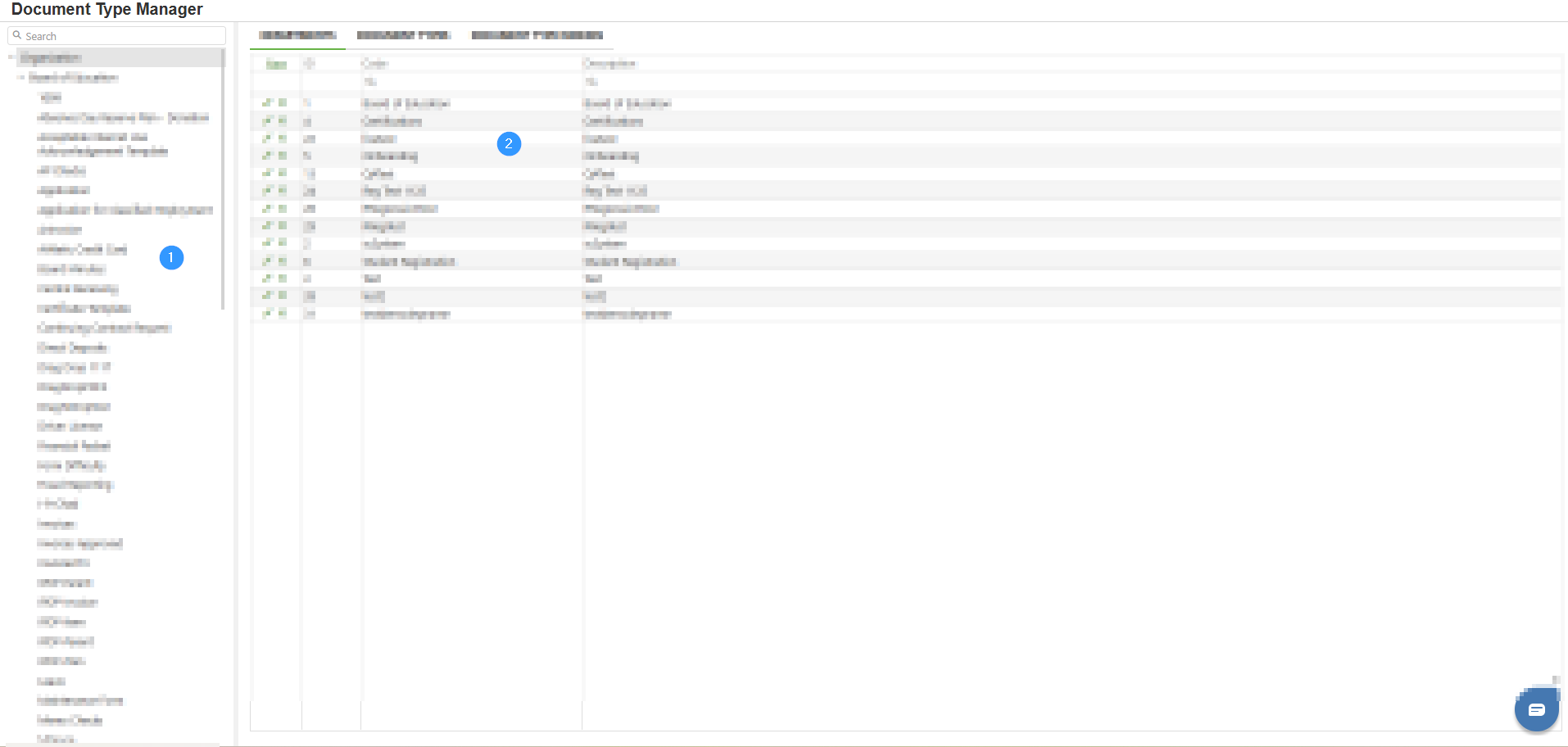
Observe the Document Type Manager layout, which consists of two main sections:
- Left Panel: Navigation hub with search functionality and hierarchical tree structure
- Right Side Area: Contextual display that changes based on the selected item in the Left Panel
Understanding the Interface Layout
Left Panel
The Left Panel serves as the navigation hub for the Document Type Manager. At the top of this panel, you will find a Search field with a magnifying glass icon that allows you to quickly filter and locate specific departments or document types within large organizational structures. As you type in the search field, the hierarchical tree automatically filters to display only matching items.
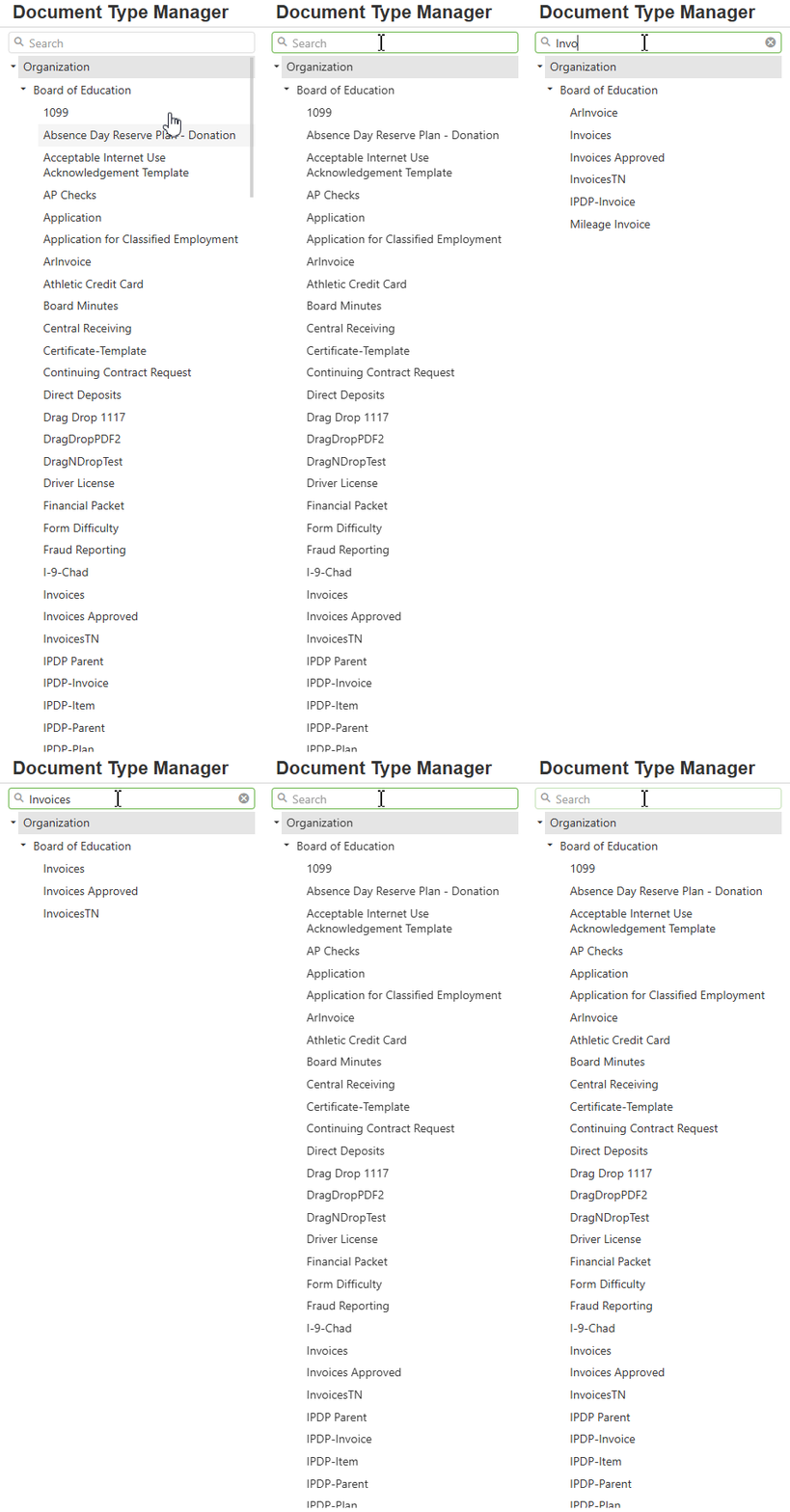
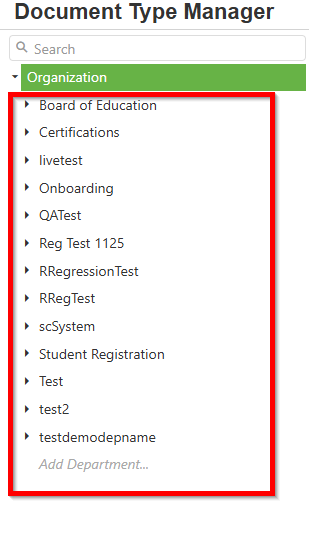
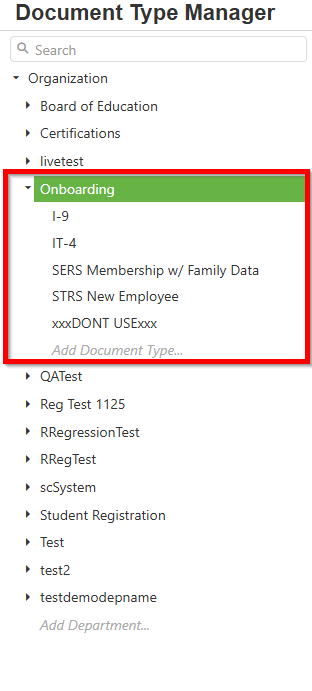
Below the search field, the hierarchical tree displays your entire organizational structure. The tree follows a three-level hierarchy:
- Organization Node: The root level node represents the entire organizational structure. This is the top-most level in the hierarchy and serves as the container for all departments and document types
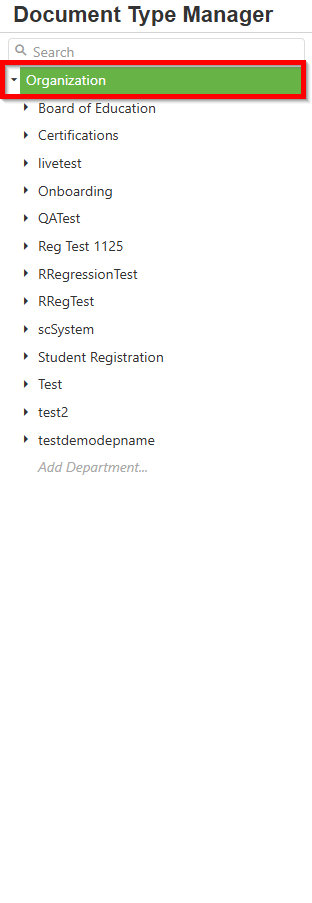
- Departments: Expanding the Organization node reveals all Departments. Departments serve as containers for organizing related document types and help categorize documents
- Document Types: Each Department can be further expanded to reveal its associated Document Types. Document Types represent the different categories of documents managed within that department
Left Panel Context Menus
The Left Panel provides context-sensitive right-click menus based on whether you click on a Department or a Document Type.
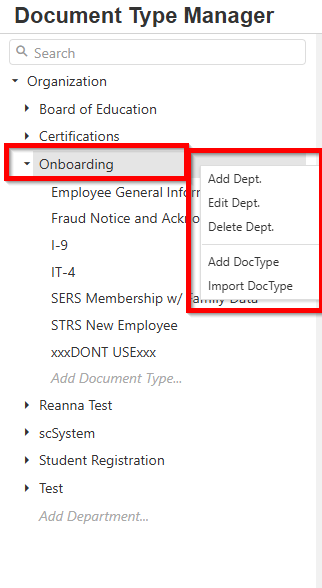
a) Department Context Menu
Right-clicking on a Department in the Left Panel displays a context menu with options for managing the department and its contents, including options to add, edit, and delete the department, as well as options to add or import document types into that department.
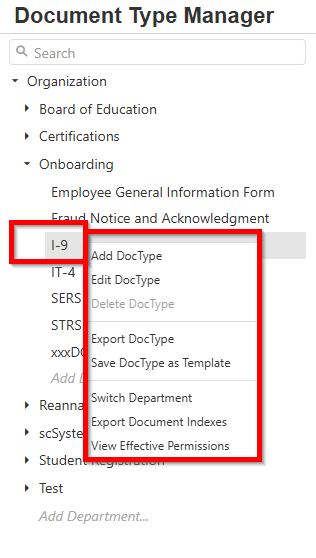
b) Document Type Context Menu
Right-clicking on a Document Type in the Left Panel displays a context menu with options for managing the document type, including options to add, edit, delete, export, and save as template. Additional options allow switching the department, exporting document indexes, migrating documents, and viewing effective permissions.
Right Side Area
The Right Side Area dynamically changes based on what is selected in the Left Panel. This area displays detailed information, configuration options, and management tools appropriate for the selected level in the hierarchy, whether it is the Organization, a Department, or a specific Document Type.
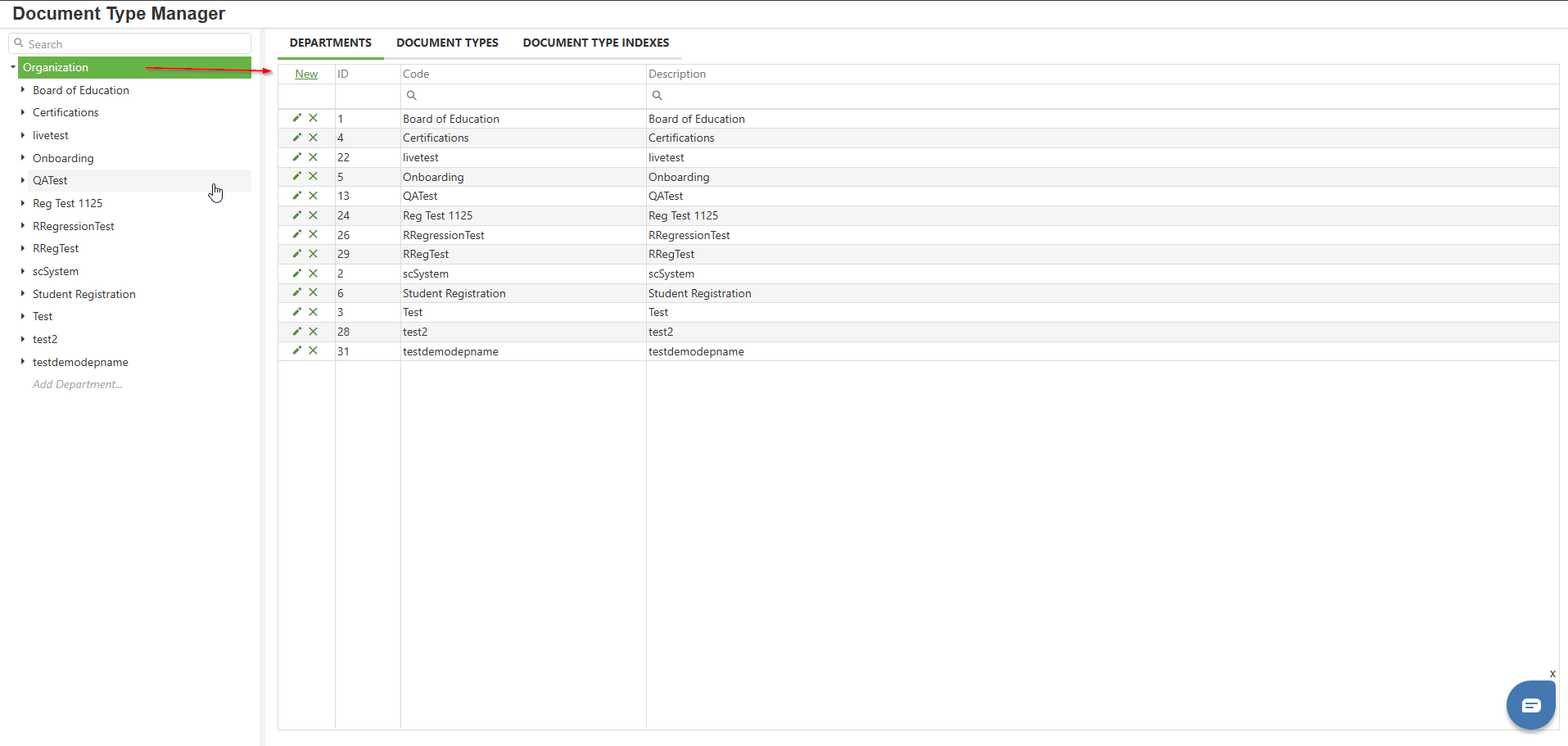
Organization Level View
When you select the Organization node in the Left Panel, the Right Side Area transforms to display a comprehensive overview of your entire system structure. This view presents three main tabs that organize all system data at the organizational level.
a) Departments Tab
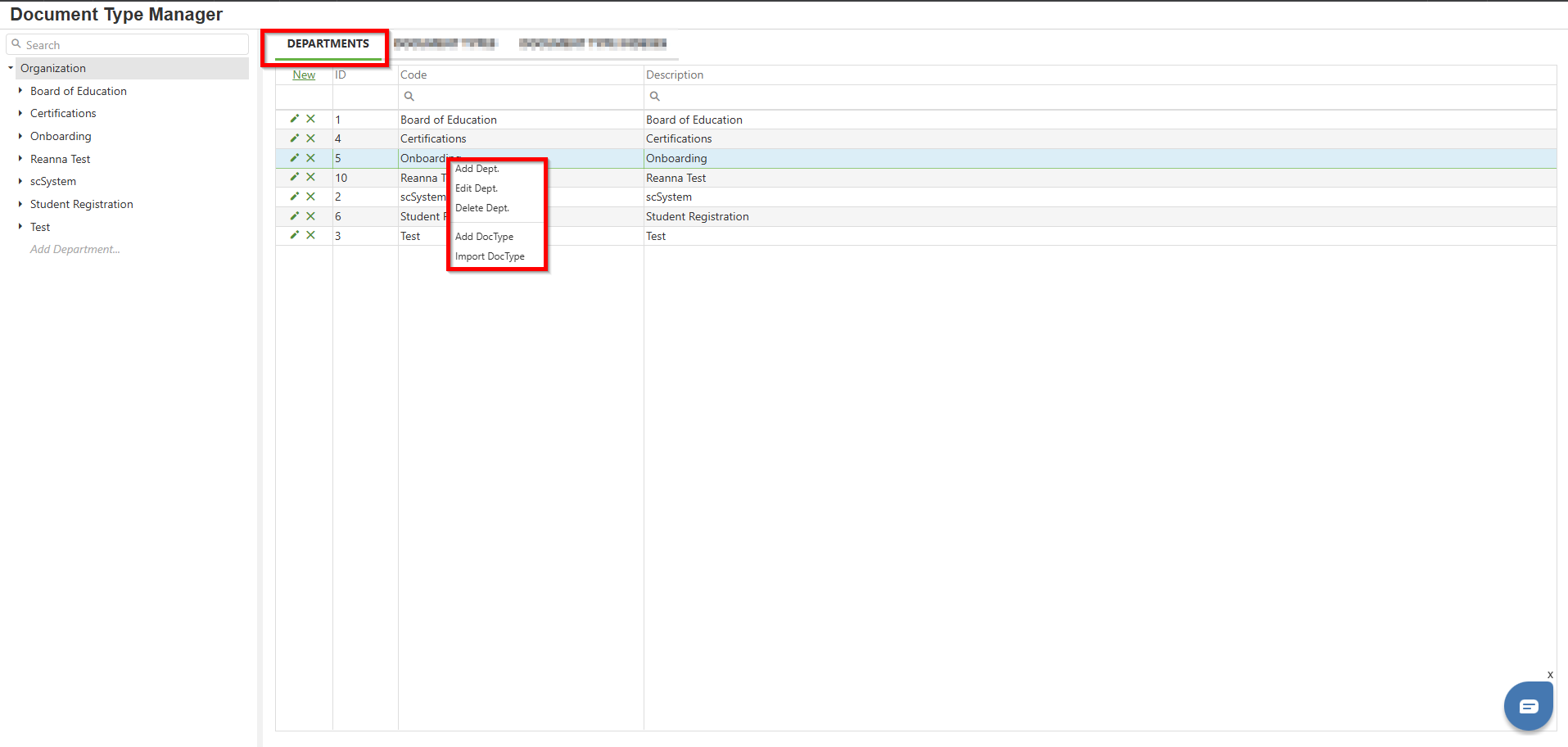
The first tab, Departments, displays all departments configured within the organization. Each department entry shows its ID, Code, and Description. A "New" link at the top of this section allows administrators to create new departments directly from this view.
Right-clicking on a department row displays a context menu with options to add, edit, or delete the department, as well as options to add or import document types.
b) Document Types Tab
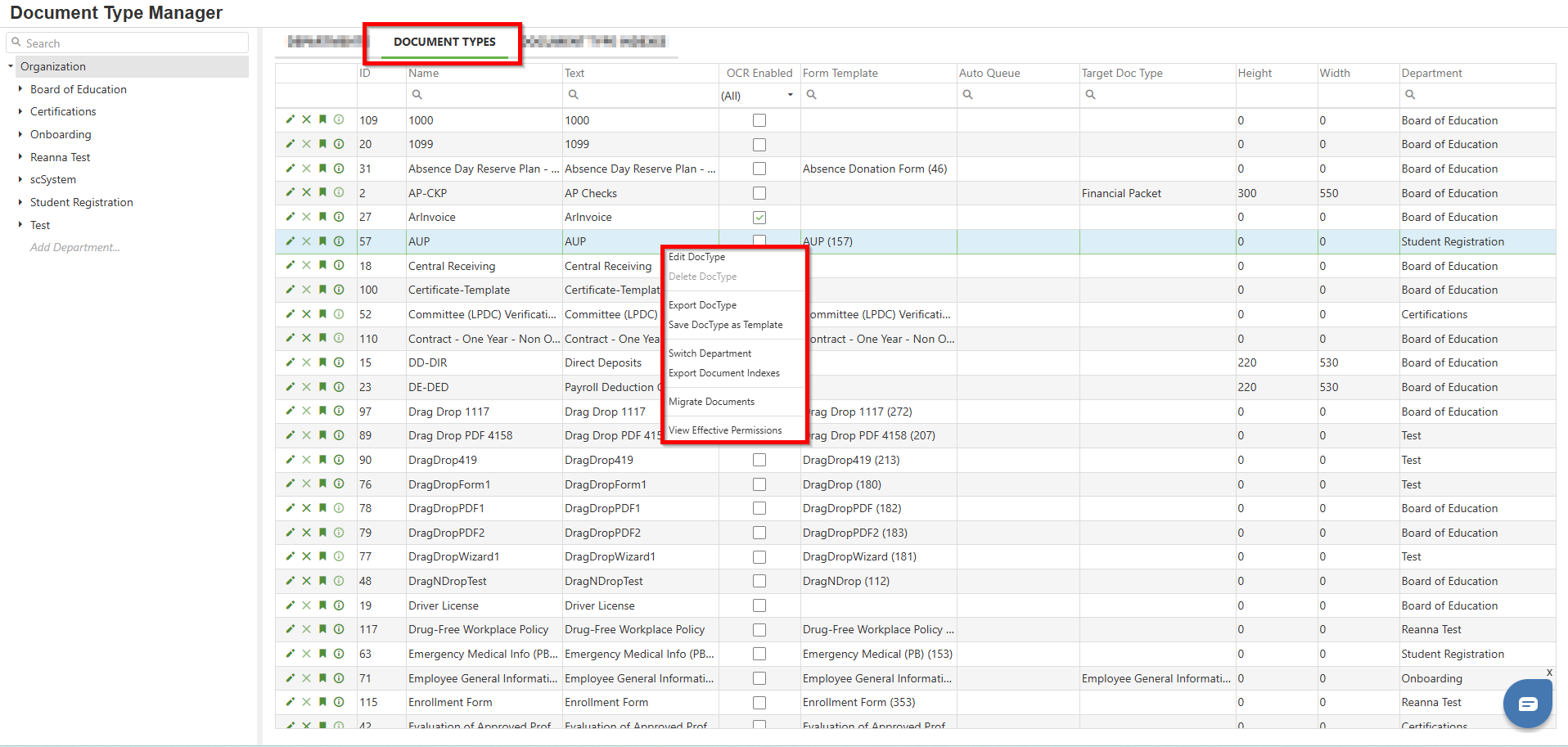
The second tab, Document Types, presents all document types across all departments in the system. This comprehensive listing helps administrators review the complete inventory of document types available in the organization.
Right-clicking on a document type row displays a context menu with options to edit, delete, export, save as template, switch department, export document indexes, migrate documents, and view effective permissions.
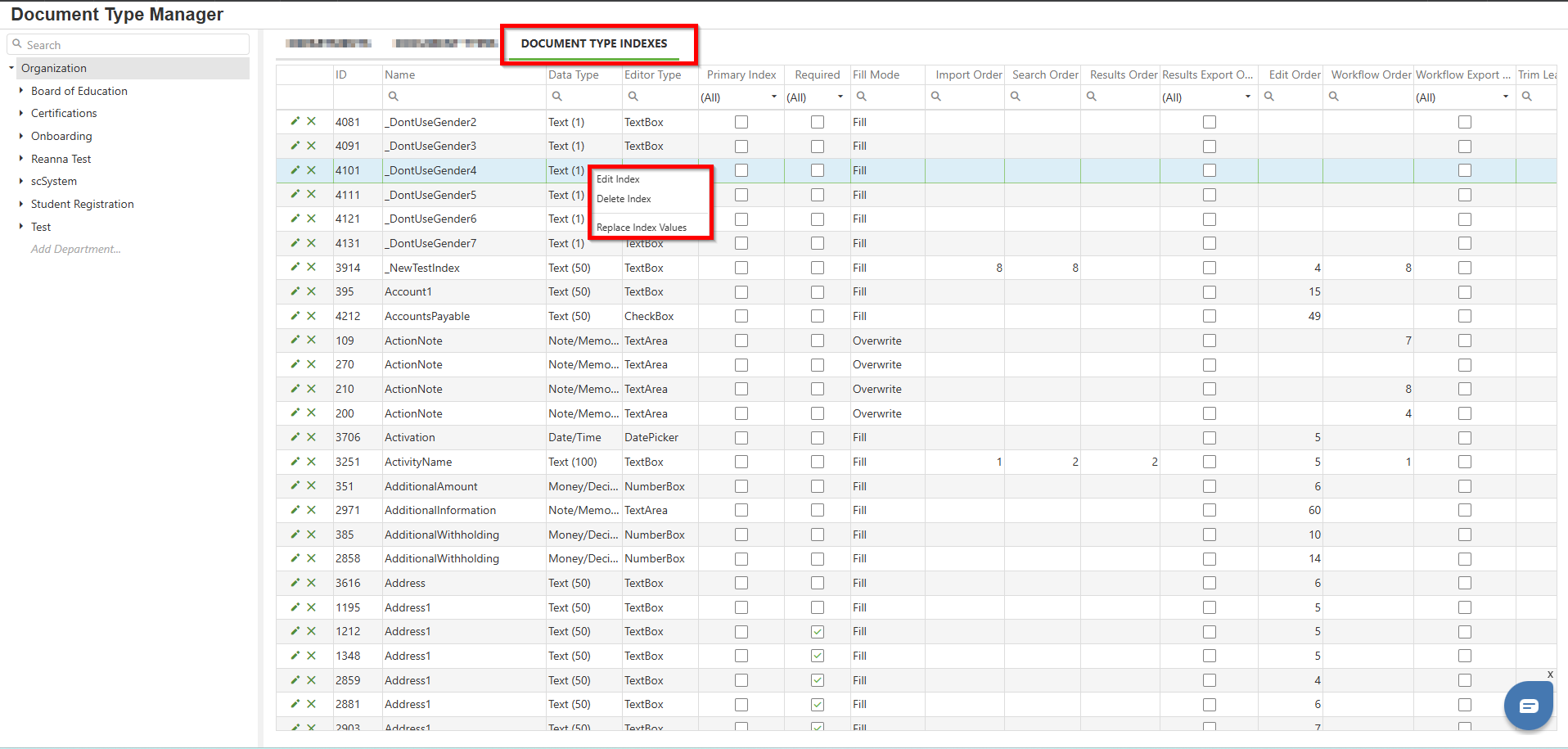
c) Document Type Indexes Tab
The third tab, Document Type Indexes, displays all indexes configured across all document types, providing a system-wide view of how document data is structured for searching and display purposes.
Right-clicking on an index row displays a context menu with options to edit the index, delete the index, or replace index values.
 Department Level View
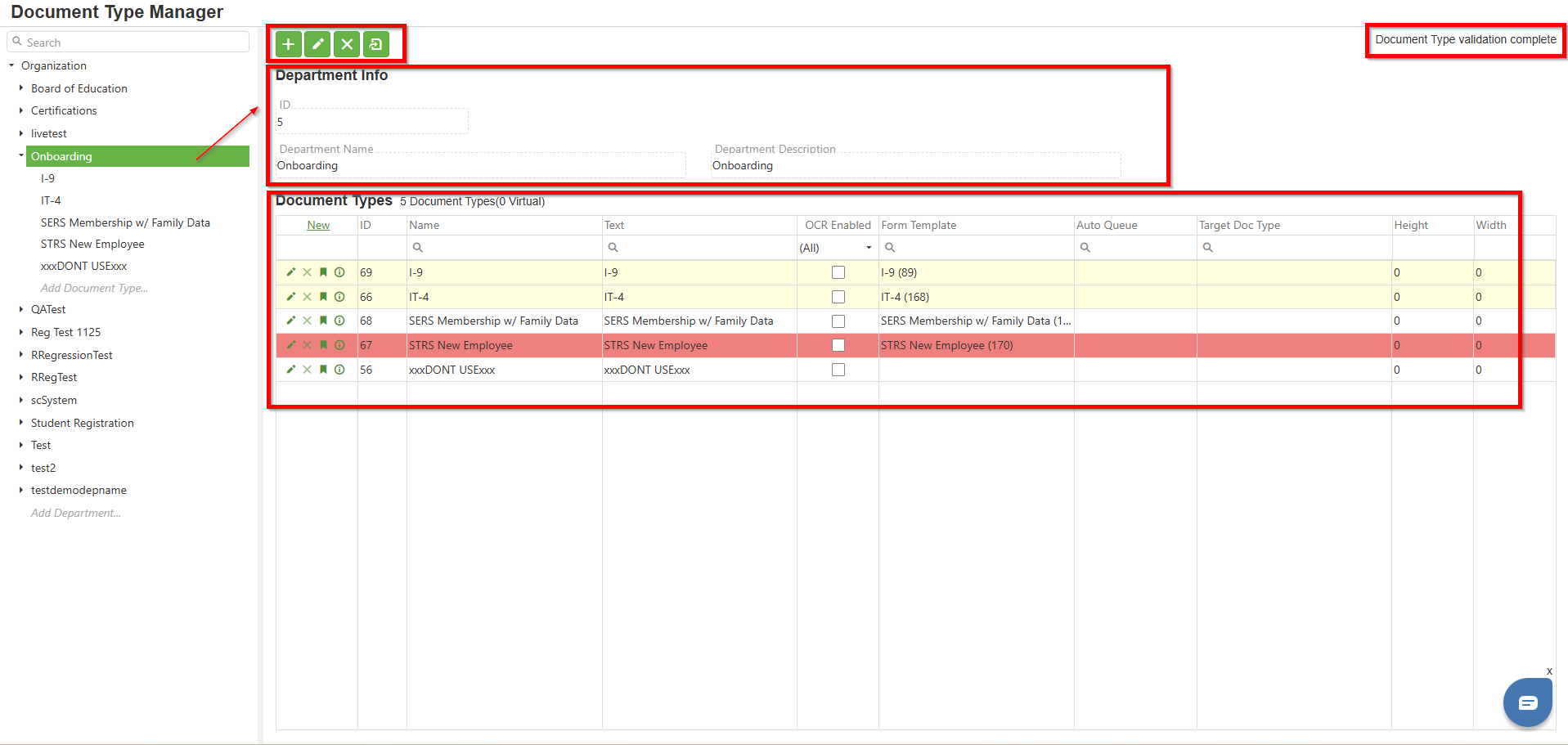
When you click on an existing department in the Left Panel, the Right Side Area updates to display department-specific information and configuration options.
- Department Info Section
- Department Toolbar
- A status indicator may appear in the top right corner showing messages such as "Document Type validation complete" to confirm system status.
- Document Types Section
Document Type Level View
Selecting a specific document type from the Left Panel updates the Right Side Area to show detailed document type configuration information.
- Document Type Info Section
- Document Type Toolbar
- Document Type Indexes Section
At the bottom of each department's document type list, you will notice a grayed link labeled "Add Document Type..." that allows you to quickly add a new document type to that specific department. Similarly, at the very bottom of the Left Panel after all departments are listed, there is an "Add Department..." link that enables you to create new departments directly from the navigation panel.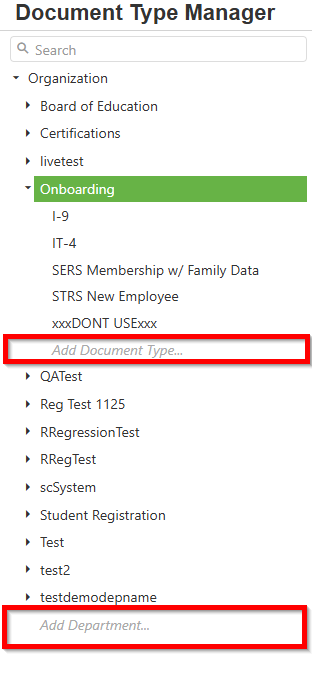
C. Best Practices
Plan Your Hierarchy Before Creating:
Before creating departments and document types, plan your organizational structure on paper or in a diagram. Consider how documents will be categorized and searched to create a logical hierarchy.
Use Descriptive Names and Descriptions:
Always provide clear, descriptive names and descriptions for departments and document types. This helps other administrators understand the purpose of each item and makes searching more effective.
Keep the Structure Manageable:
Avoid creating too many departments or document types. A well-organized structure with fewer, clearly defined categories is easier to maintain than a sprawling hierarchy with overlapping purposes.
Review at Organization Level Regularly:
Periodically select the Organization node and review all departments, document types, and indexes from the system-wide view. This helps identify inconsistencies or unused items.
Use the Search Function:
When working with large organizational structures, use the search field in the Left Panel to quickly locate specific departments or document types rather than manually expanding the tree.
Validate Before Making Changes:
Pay attention to status indicators and validation messages. Address any validation issues before making additional changes to ensure system integrity.
Utilize Context Menus:
Take advantage of the context menus available throughout the interface for quick access to common operations without navigating away from your current view.
D. Troubleshooting
Cannot Access Document Type Manager:
If you cannot see or access the Document Type Manager, verify that you have administrator-level permissions. Contact your system administrator to confirm your access rights.
Search Not Finding Expected Results:
Ensure you are typing the correct name or partial name. The search filters based on the text entered, so check for spelling errors. Clear the search field to restore the full tree view.
Department or Document Type Not Displaying:
Refresh the Document Type Manager interface. If the item still does not appear, verify it was saved correctly. Check the Organization level tabs to see all items across the system.
Validation Errors Appearing:
When you see validation error messages, review the document type configurations for the affected items. Common issues include missing required fields or invalid index configurations.
Context Menu Not Appearing:
Ensure you are right-clicking on a valid item. Refresh the page and try again.
Unable to Delete Department:
Departments containing document types cannot be deleted. You must first move or delete all document types within the department before removing it.
E. Related Articles
Include links to related articles or resources that may be helpful to the reader.
Conclusion
The Document Type Manager is a central administrative tool in SCView that provides a structured interface for managing your organization's document hierarchy. By understanding the two-panel layout, the three-level hierarchy (Organization, Departments, Document Types), and how the Right Side Area changes based on your selection, you can effectively navigate and oversee your document management structure.
The Left Panel provides context menus for both Departments and Document Types, offering quick access to relevant operations. At the Organization level, three tabs (Departments, Document Types, Document Type Indexes) provide system-wide views, each with its own context menu for managing items directly from the grid.
This overview has introduced you to the key components of the Document Type Manager interface, including the searchable Left Panel, the dynamic Right Side Area, the different views available at each hierarchy level, context menu options, and the dialogs for adding departments and document types. For detailed instructions on performing specific tasks, please refer to the related articles.
Was this article helpful?
That’s Great!
Thank you for your feedback
Sorry! We couldn't be helpful
Thank you for your feedback
Feedback sent
We appreciate your effort and will try to fix the article