 | ||
Introduction
The Calendar Manager is a flexible tool that you can use to populate the SCView calendar with items of interest based on the information held within a document type. This guide will go through the steps of assembling a mock filter and demonstrate what it looks like on the calendar itself.
A. Problem Statement
Your organization tracks important dates and events within various document types, but that time-sensitive information remains hidden in individual documents instead of appearing on a centralized calendar where it can be easily viewed and referenced. This article addresses how to bridge that gap by creating calendar filters that surface document type data as calendar entries.
B. Solution
To follow along with this guide, use the main navigation bar to navigate to Admin > Calendar Mgr.
Step 1: Find a Workable Document Type
Calendars care about time, so a document type must record the date- along with, optionally, the time of day- to be of any use as the beating heart of a Calendar Filter. For this guide, we will be using the Board Minutes document type. Board Minutes is an extremely simple document type that records the date of a Board of Education meeting, the topic of that meeting, and also has a spot for attaching a copy of the physical minutes. As there are few moving pieces, it is an excellent example document type.
Once you have your own document type, or you just want to follow along, continue to Step 2.
Step 2: Create a New Filter
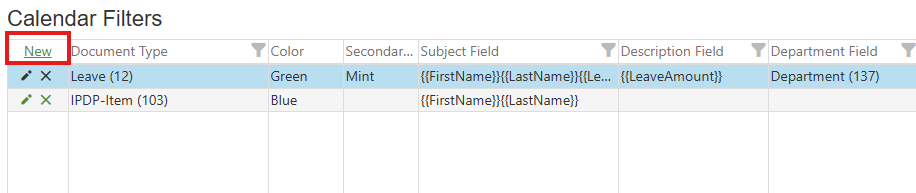
On the Calendar Manager page, click the New button found at the top left corner of the grid to bring up the Create New Filter popup. From there, we will assemble our new filter using the Board Minutes document type.
Image: Calendar Filters New Button
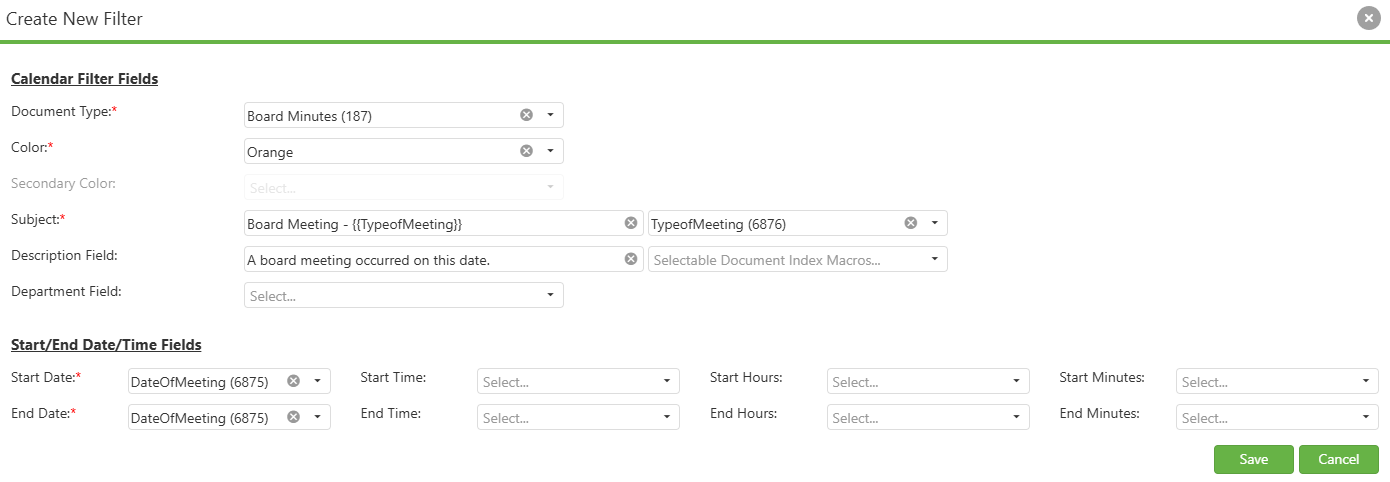
Let's break down the Create New Filter dropdown as we fill it out for our Board Minutes filter.
Document Type - This is the document type that the Calendar Filter will use.
- For our example, we will be using Board Minutes.
Color - Items created in the calendar by this filter will be the selected color.
Subject - The subject field will be shown as the summary information for each item created in the calendar by this filter. The dropdown to the right of the subject field is a list of all usable indices in the chosen document type, and can be used to parameterize the subject line.
- For our example, my Subject line will be "Board Meeting - {{TypeofMeeting}}", which will make the Subject line change to show the value of {{TypeofMeeting}} for each Board Minutes entry. "Board Meeting - Budget", "Board Meeting - New Members", and "Board Meeting - Fiesta" are all possible Subject lines.
Description - The Description field is the same thing as the Subject field, but the text appears as the detail when the subject line is clicked to drill down.
Department Field - If one of the macros for this filter corresponds to a list of departments, select it here. This will allow the user to restrict visibility of this calendar filter to only those in specific departments. If unused, the calendar filter will be for the entire organization.
- For our example, we are not using a Department field, so the Board Minutes will be available to all.
Start Date/End Date - These fields allow the user to assign macros to the date of the event, with optional finetuning to the hour and day of the event.
- For our example, I am using the {{DateOfMeeting}} macro as both the Start Date and the End Date, which will make an entry appear on the day the Board Meeting occurred. As the Minutes are a report for something in the past, I'm not worried about the precise hour and day of the event. Getting the date right is good enough.
With all of that done, this is what the filter looks like for Board Minutes. Let's save it!
Image: Board Minutes Filter
Step 3: Verify on Calendar
Now that we have a new filter, let's test it by using the main navigation bar to go to Tools > Calendar.
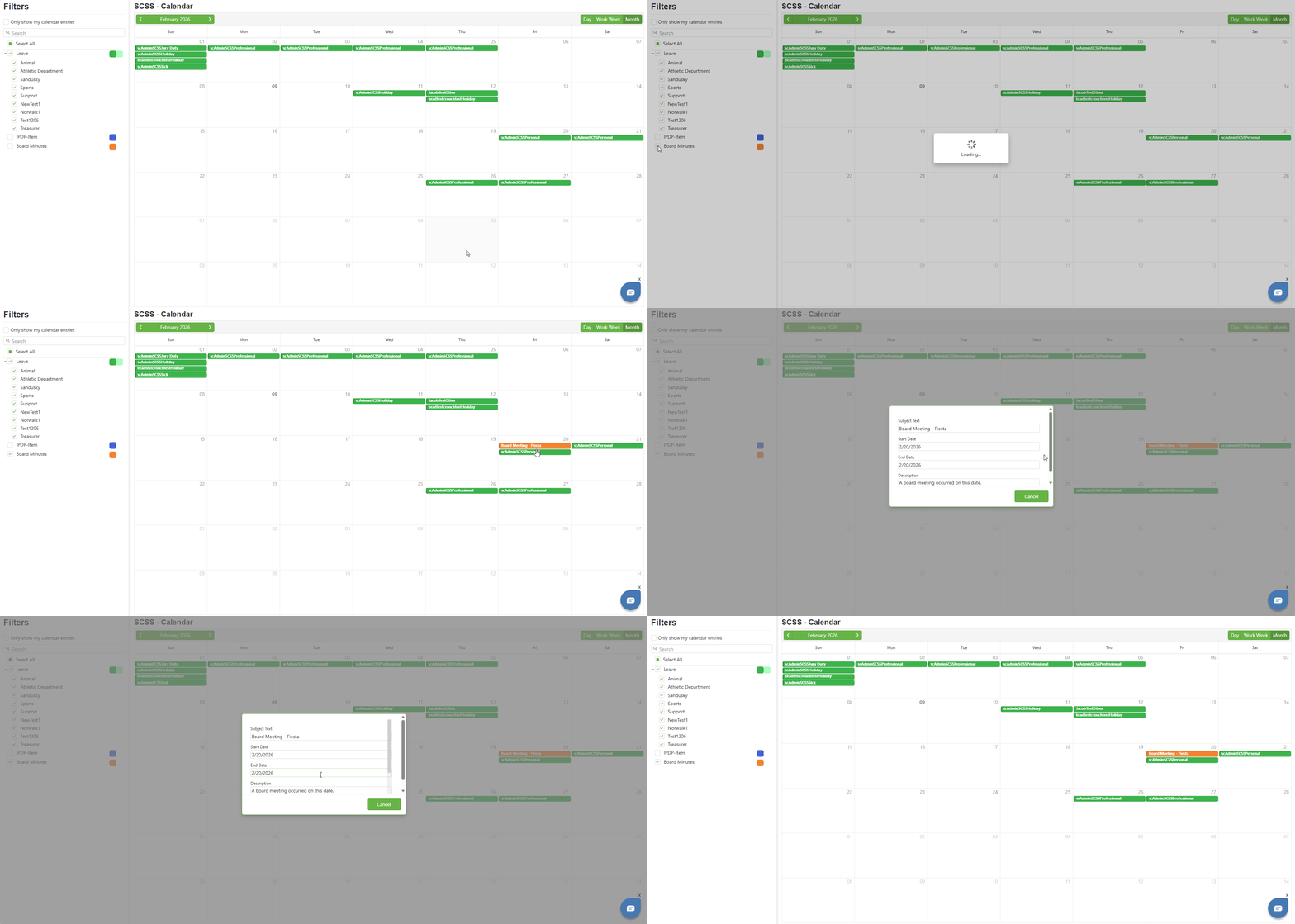
Upon landing on the calendar page, we can see that the new filter is visible, and when checked, it does indeed display the Board Minutes on the day the meeting occurred.
Video: Board Minutes Filter on the Calendar
C. Best Practices
- Document types with good time tracking on their indices is absolutely essential. If a form is meant to go on the calendar, make sure that the document type has a good sense of time.
- If a calendar filter is NOT meant to be universal, make sure the document type that controls it contains an index that contains all of the relevant departments in your organization. That way, you can use Departmental filtering to make it so that only those eyes that need to know can know.
- Choose distinct colors for each filter to help users quickly differentiate between various event types on the calendar at a glance.
D. Troubleshooting
- Having trouble setting the Start Date and End Date? The second field in each row is for a time index, while the third and fourth can work together to record the hour from numeric inputs, like you may see on a contract or formal RSVP document. It's fine to leave some fields blank.
- No entries appearing despite having documents? Ensure that the documents in your document type have the date index populated. Empty date fields will not generate calendar entries.Duplicate entries appearing on the calendar? Check whether multiple filters are referencing the same document type or if documents have been entered more than once.
E. Related Articles
Calendar: What is the calendar module?
Conclusion
Calendar filters bridge the gap between document type data and calendar visibility. Remember these essential elements: choose document types with reliable date tracking, use subject and description fields with macros to create informative calendar entries, and leverage department filtering when appropriate to control visibility. With these fundamentals in place, you can transform scattered date information into an organized, centralized calendar system.
Was this article helpful?
That’s Great!
Thank you for your feedback
Sorry! We couldn't be helpful
Thank you for your feedback
Feedback sent
We appreciate your effort and will try to fix the article