 | ||
Introduction
This guide provides a comprehensive walkthrough of the Form Group Manager interface in MySCView. You'll learn how to navigate the two-pane layout, understand the context-sensitive controls, and efficiently manage form groups and their associated forms.
A. Problem Statement
Reviewing form groups and their constituent forms requires understanding where to look for each type of information. When you don't know how the interface adapts to show group-level versus form-level details, or where to find the controls you need, simple review tasks become time-consuming.
B. Solution
To follow along with this guide, please navigate to Admin > Form Group Mgr.
Step 1: Overview
With the exception of a single button labeled "Form Group Types Manager" at the top right of the page, the Form Group Manager is broken into two panes.
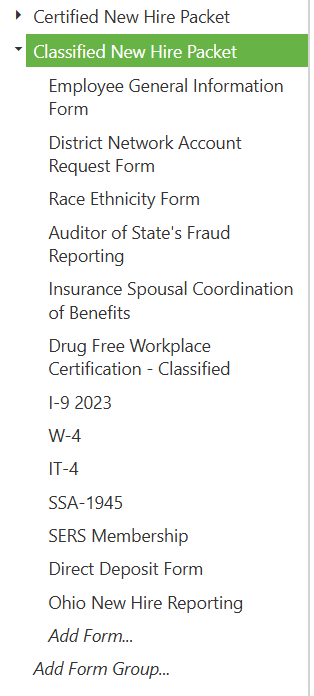
Left Pane - The left pane presents a list of all of an organization's form groups. Each form group features a triangle icon, which can be clicked to expand or collapse a list of all forms present in that form group.
Image: Left Pane Expand/Collapse
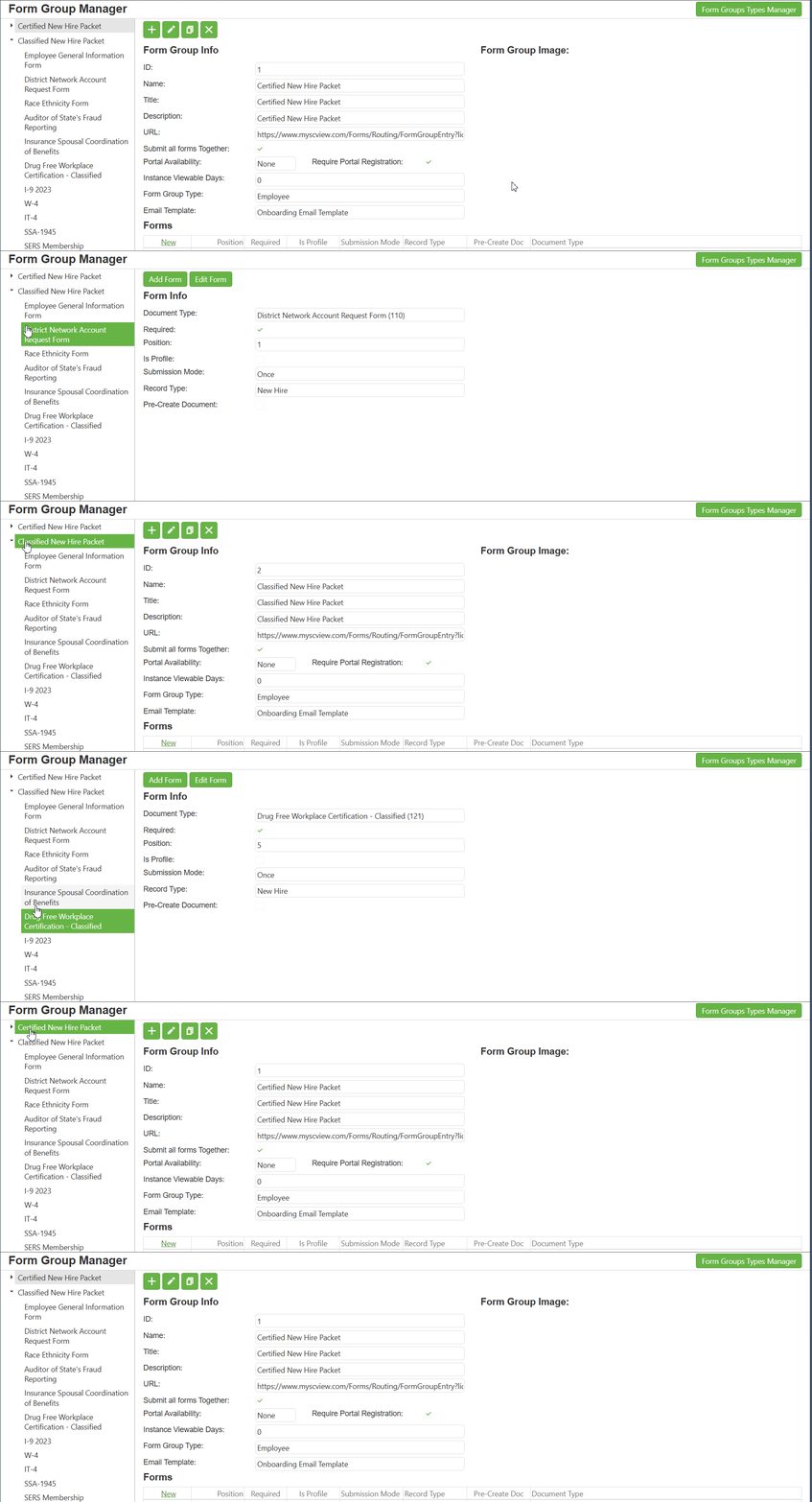
Right Pane - The right pane is context sensitive. If the left pane currently has a form group selected, then the right pane displays information about that form group. Conversely, if the left pane currently has a single form selected, then the right pane displays information about that form.
Video: Right Pane Context Sensitivity
Step 2: Using the Right Pane - Group
To follow along with this section, select a Form Group in the left pane to bring up the Group context for the right pane.
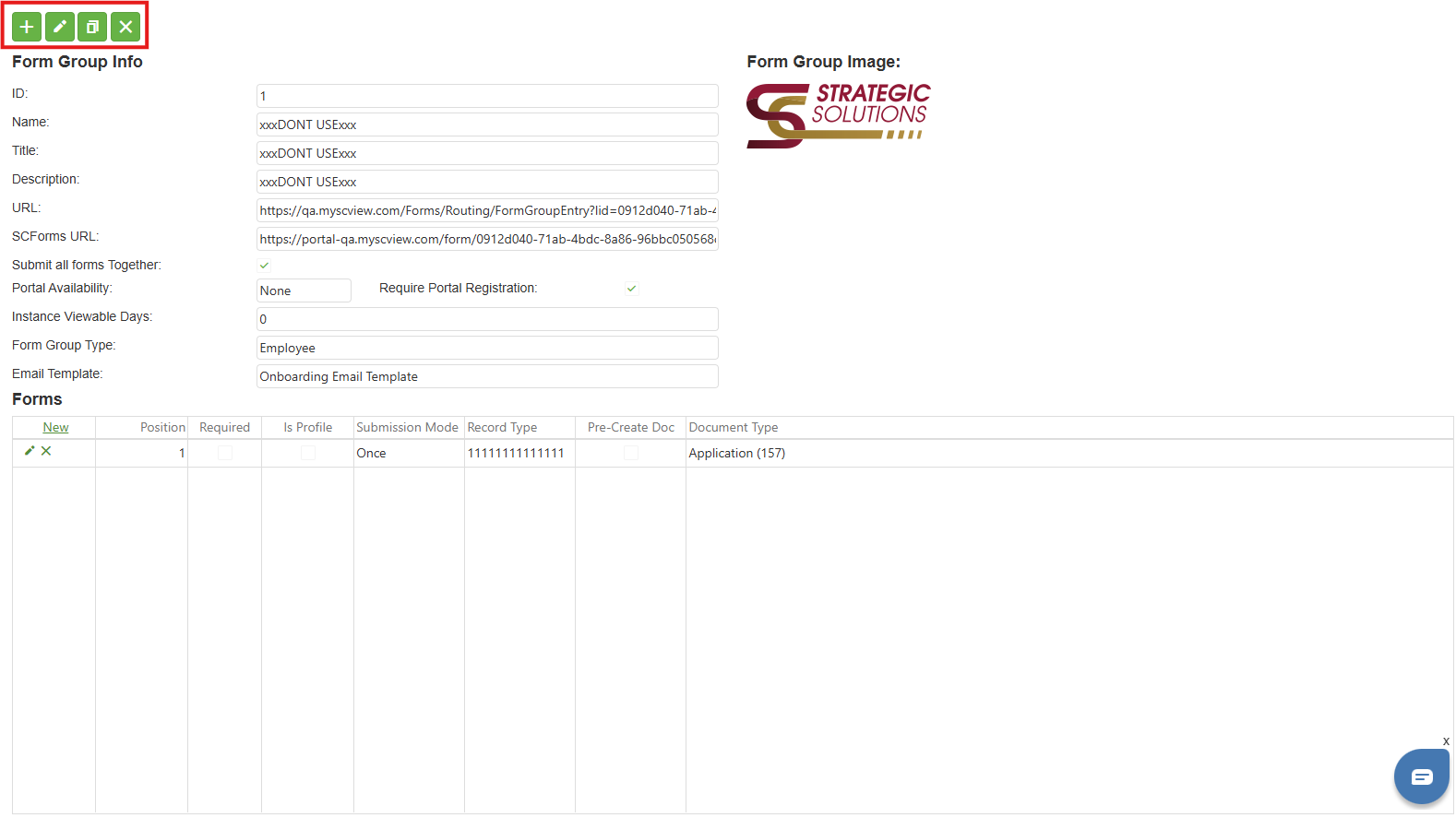
At the top of a Group right pane is a series of icon buttons:
Add (+ icon) - Start the process of adding a new form group.
Edit (pencil icon) - Edit the current form group.
Copy (two stacked rectangles icon) - Make a copy of the current form group.
Delete (X icon) - Delete the current form group.
Image: Group Right Pane Icon Buttons
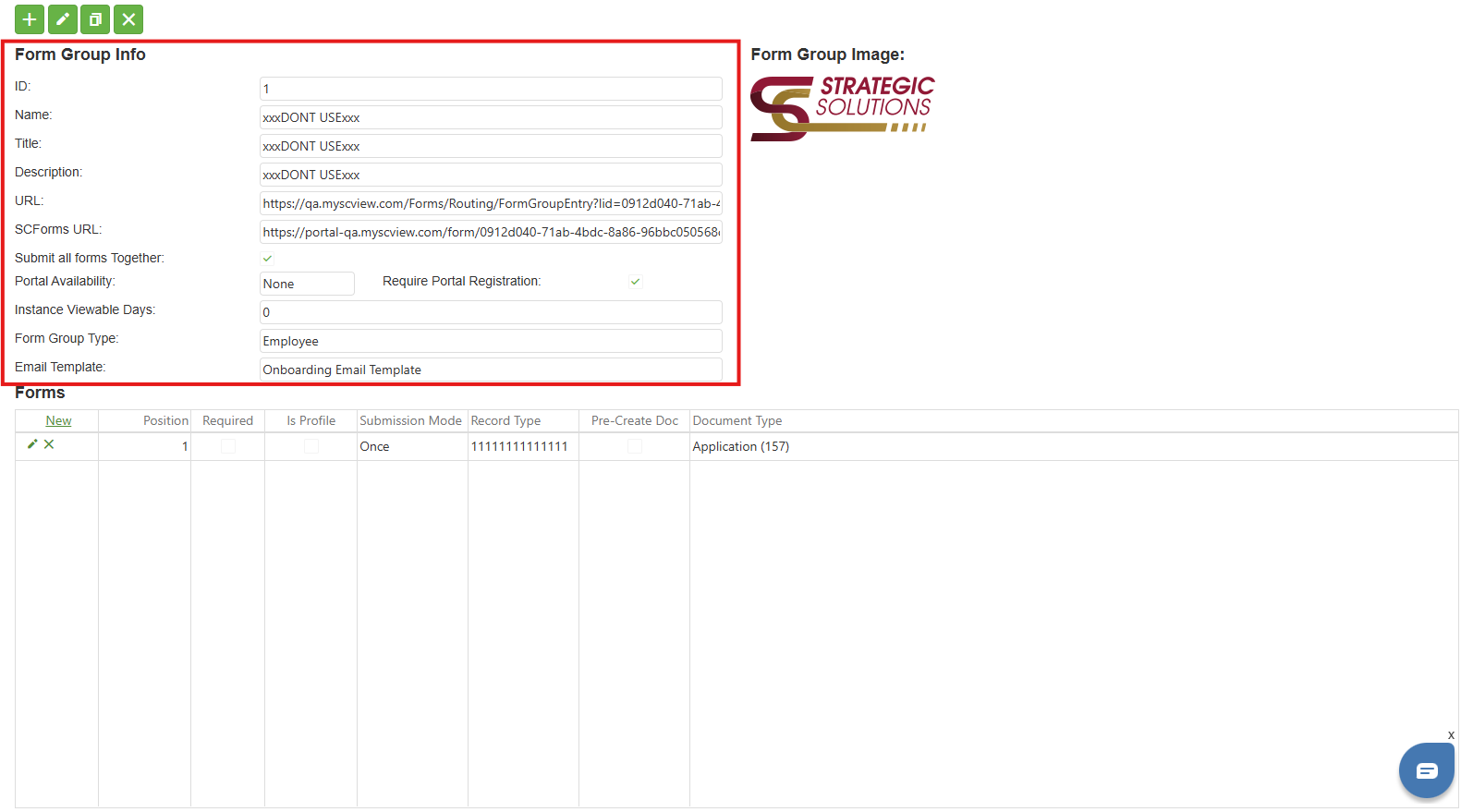
Below the set of button icons is Form Group Info, a series of fields displaying information about the current form group.
ID - The form group's ID number
Name - The form group's assigned name
Title - The form group's title
Description - The form group's description
URL - This URL can be used to fill out a copy of the form group at any time.
SCForms URL - This URL can be used to fill out an SCPortal copy of the form group at any time.
Submit All Forms Together - If checked, all forms in the group must be submitted together. If not, they are checked individually.
Portal Availability - Answers whether SCPortal is closed, open to all, or by invite only for this Form Campaign.
Require Portal Registration - If the portal is available, then checked means that the user must register for an account with the portal to use the form group.
Instance Viewable Days -After submission, the form group will be available for this duration.
Form Group Type - Value set from those made available in the Form Groups Types Manager. Used for organizing form groups.
Email Template - The chosen template is what gets sent out as an email when the Form Group gets sent to somebody.
Image: Group Right Pane Form Group Info
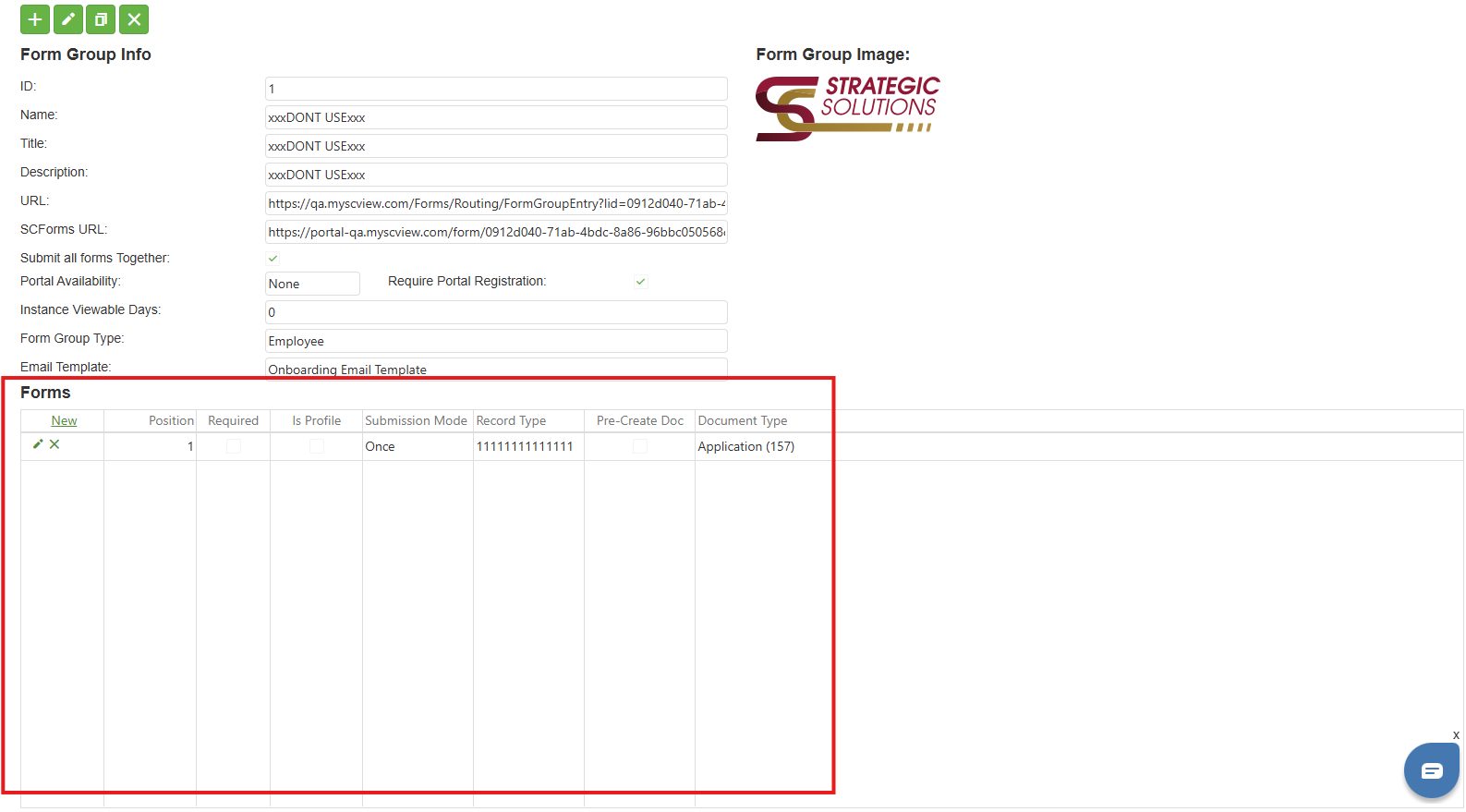
Below Form Group Info is the Forms Grid. Here, a line of information is displayed for each form in the form group.
Buttons
New (top left corner of grid) - Start the process of adding a form to the current form group.
Edit (pencil icon) - Edit the form corresponding to that line of the grid.
Delete (X icon) - Delete the form corresponding to that line of the grid.
Columns
Position - The order the forms are presented in a form group. 1 is first.
Required - If checked, the form is required for the form group to be considered completed.
Is Profile - If checked, the form is a profile form and must be filled out first. Its indices then prepopulate the rest of the form group. There can be only one profile form.
Submission Mode - Displays whether each form can be submitted once, submitted multiple times, or submitted multiple times but each submission beyond the first is an update to the first submission
Record Type - A user-defined text field for each form
Pre-Create doc - If checked, an unfinished form is put into the system as the form group is sent out for submission.
Document Type - The ID number of the document type driving the form's layout
Image: Group Right Pane Forms Grid
Step 3: Using the Right Pane - Form
To follow along with this section, select an individual form in the left pane to bring up the Form context for the right pane.
At the top of the Form right pane is a pair of action buttons.
Add Form - Begin the process of adding a form to the current form's form group.
Edit Form - Edit the current form.
Image: Form Right Pane Action Buttons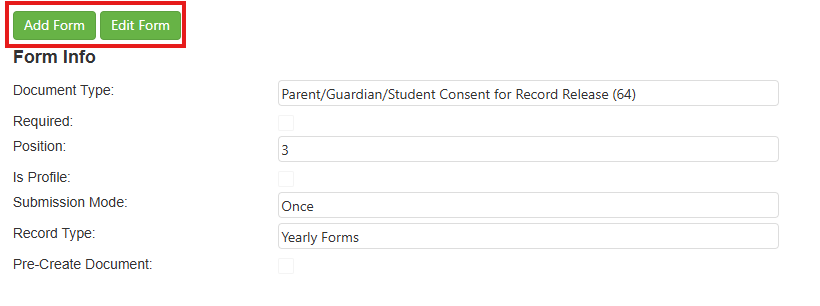
Below the action buttons is the Form Info section.
Document Type - The ID number of the document type driving the form's layout
Required - If checked, the form is required for the form group to be considered completed.
Position - The order the forms are presented in a form group. 1 is first.
Is Profile - If checked, the form is a profile form and must be filled out first. Its indices then prepopulate the rest of the form group. There can be only one profile form.
Submission Mode - Displays whether each form can be submitted once, submitted multiple times, or submitted multiple times but each submission beyond the first is an update to the first submission
Record Type - A user-defined text field for each form
Pre-Create Document - If checked, an unfinished form is put into the system as the form group is sent out for submission.
Image: Form Right Pane Form Info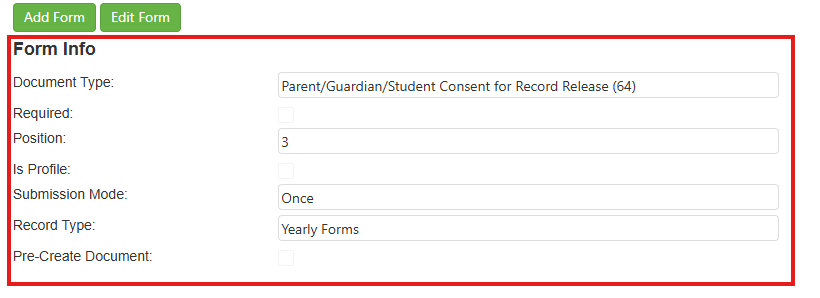
Step 4: Using the Left Pane
Beyond its use as how to select the content to be displayed on the right pane, the left pane can also be used for its context menu capabilities, and to add forms and form groups to the appropriate spots,
At the very bottom of the left pane is the text "Add Form Group..". Click this to begin the process of adding a new form group.
Image: Left Pane "Add Form Group"
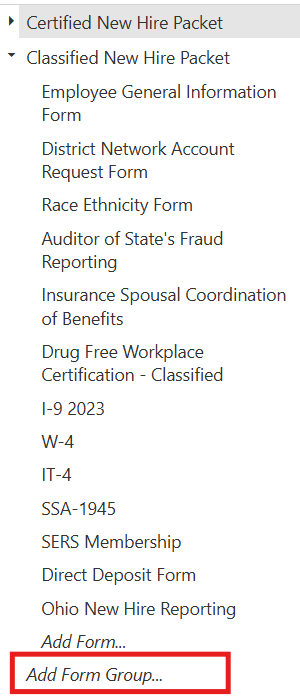
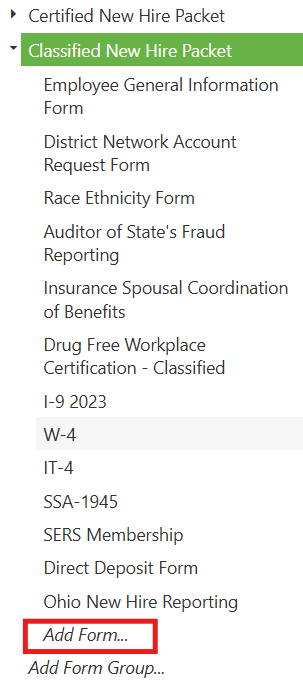
At the bottom of each individual form group is the text "Add Form...". Click this to begin the process of adding a form to the form group whose "Add Form..." you clicked. Remember, unlike the "Add Form Group..." functionality, adding a form via the left pane is sensitive to specific form groups.
Image: Left Pane "Add Form"
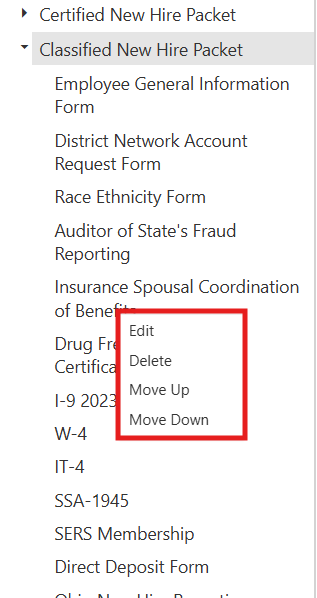
Finally, if the user right clicks an individual form- but not a form group- a context menu appears. The options in this context menu are:
Edit - Edit the selected form.
Delete - Delete the selected form.
Move Up - Reduce the position of the form by 1. Not available if Position is already 1.
Move Down - Increase the position of the form by 1. Not available if Position is already at maximum.
Image: Right Pane Context Menu
C. Best Practices
- Use descriptive names for form groups. Not only does it have to make sense now, but it also has to make sense next year, both to you and to everyone else who shares the job function touched by the form group.
- Setting user-defined Form Group Types allows for a measure of customization over the organization of your form groups. Use it if Form Group use is heavy.
- Once a form has been added to a form group, that form group must have at least one form in it. Deleting the last form will always fail. If looking to remove the last form in a form group, consider deleting the entire form group instead.
D. Troubleshooting
- Unable to delete the last form in a form group - This is expected behavior. Form groups must contain at least one form. To remove the last form, delete the entire form group instead.
- Context menu doesn't appear when right-clicking - The context menu is only available when right-clicking individual forms, not form groups. Verify you're clicking on a form entry beneath a form group.
- Move Up/Move Down options are grayed out - These options are only available when the form can actually move. A form at Position 1 cannot move up, and a form at the maximum position cannot move down.
E. Related Articles
Form Group Manager: Adding Forms
Form Group Manager: Deleting a Form or Form Group
Conclusion
With a clear understanding of the Form Group Manager's dual-pane interface, context-sensitive controls, and navigation options, you're equipped to efficiently view and manage your organization's form groups. Explore the related articles to learn more about adding and deleting forms and form groups.
Was this article helpful?
That’s Great!
Thank you for your feedback
Sorry! We couldn't be helpful
Thank you for your feedback
Feedback sent
We appreciate your effort and will try to fix the article