
 | ||
Introduction
In many districts, administrative staff are responsible for managing multiple document types that require viewing, approval, or submission using systems like USAS or USPS. The SCView Workflow module provides an efficient solution for handling these tasks by offering an organized and simplified interface to manage document workflows effectively. However, users often face challenges in navigating the module effectively due to its complexities and diverse functionalities.
A. Problem Statement
Staff in various districts frequently struggle with efficiently managing and processing a diversity of document types due to the lack of a streamlined system. The existing system often leads to delays and inefficiencies in document approval processes, which can interrupt the smooth operation of administrative functions. Users need a system that allows for quick access, editing, and submitting of documents with minimal complexity.
B. Solution
SCView Mobile's Workflow module addresses these issues by offering a structured approach to managing document workflows. The module provides features like a workflow list for permission-based access, queue browser for document management, and various action buttons for direct document handling. This allows users to edit, approve, and move documents throughout the workflow.
Many districts will have multiple modules and documents needing to be viewed, approved or submitted. An easy way of viewing and separating all of these doc types is the Workflow view. With Workflow, approvers can easily view what modules have documents awaiting approval, easily view the file, edit and move the file.
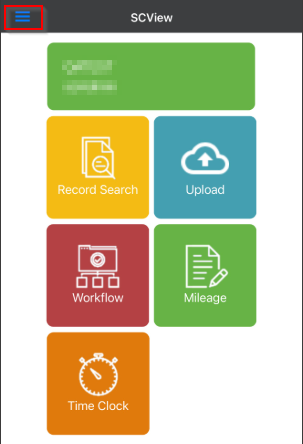
Step 1: Navigate to the Workflow
Tap the hamburger icon in the upper left corner
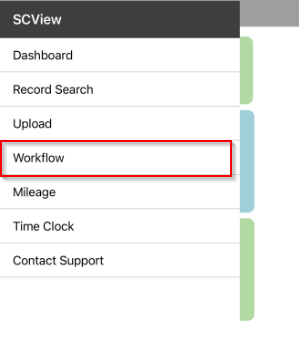
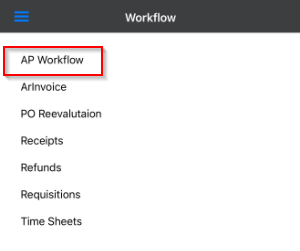
Step 2: Workflow List
Select the workflow
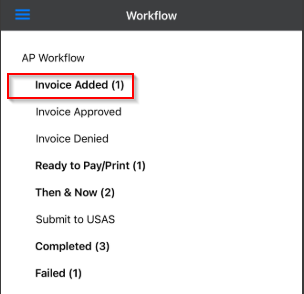
Step 3: Queue List
Select the workflow queue
Step 4: View items in workflow
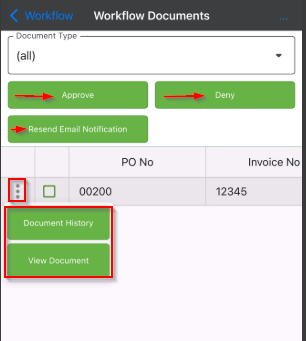
Documents and their history can be viewed by using the 3 vertical dots to the left of the selection box. Items can be selected and moved to other queues using the action buttons at the top.
C. Best Practices
- User Access and Permissions: Ensure that all users have the appropriate permissions set by admins to access necessary workflows and functionalities, which streamlines the process and avoids unauthorized access.
- Navigating the Workflow List: Regularly update and maintain the workflow list to reflect the current needs and ensure that all document queues are properly organized to aid quick access.
D. Troubleshooting
Cannot See Workflow or Certain Documents
Check user permissions: Make sure your permissions are set correctly in the system. If you lack access to specific workflows or document types, contact your administrator.
Refresh the app: Log out and log back in, or use the pull-to-refresh feature to update available workflows and document lists.
Workflows or Queues Not Displaying Correctly
Check Internet connection: A poor or lost connection can cause loading issues. Verify you are connected to Wi-Fi or have a strong cellular signal.
App update needed: Ensure that you are using the latest version of the SCView Mobile app.
Unable to Approve, Edit, or Submit Documents
Review permissions: Confirm that your account has approver or editor rights for the selected workflow.
Verify document status: Certain documents may be locked or pending action from another user before you can proceed.
Action Buttons Missing or Inactive
Check document selection: Make sure you have selected the document(s) you want to act upon in the workflow queue.
Permissions issue: Insufficient permissions may cause action buttons to be hidden or disabled—contact your admin if needed.
Document History or Details Not Loading
Retry loading: Tap the three vertical dots again to attempt reloading the history/details.
Network stability: Check your internet connection as weak connectivity can interrupt loading.
Unable to Move Items to Other Queues
Check if the item is locked: Items currently being edited by another user or in a restricted status may not be moveable.
Permissions check: Only users with sufficient rights can move documents between queues.
General App Performance Issues
Restart the app: Close and reopen SCView Mobile.
Device restart: Power off and restart your device.
Reinstall the app: If problems persist, uninstall and reinstall the app to clear any corrupted data.
E. Related Articles
Conclusion
The SCView Mobile Workflow module significantly enhances document management capabilities for district staff, paving the way for more structured and efficient administrative processes. By adhering to best practices and troubleshooting common issues effectively, users can maximize the benefits of the Workflow module, leading to timely and accurate document processing. With ongoing support and updates, SCView can continue to adapt and meet the evolving needs of its users.