 | ||
Introduction
The Sync functionality ensures your documents and data remain current, enhancing your workflow. This guide provides a quick overview of how to use the Sync feature, best practices, troubleshooting tips, and key takeaways to help you maximize its benefits. Whether you're new to the feature or need a refresher, this resource will help you navigate the sync process with ease.
A. Problem statement
Users are unaware of when the "Sync" function has been activated, leading to confusion about the status of document updates. This lack of visibility affects user experience and workflow efficiency.
B. Solution
To address this issue, we will implement a feature that adds an entry to the document history whenever the "Sync" function is clicked. This entry will include an indicator, such as the last sync date, which will enhance transparency in the workflow. If the Invoice lines table already has a timestamp for the sync, we will utilize and display it; if not, we will consider adding this field and determine the best method for its implementation. Additionally, we will ensure that the line items grid can prompt a refresh of the document history to keep the information current and accurate.
Step 1: Click the Sync Button
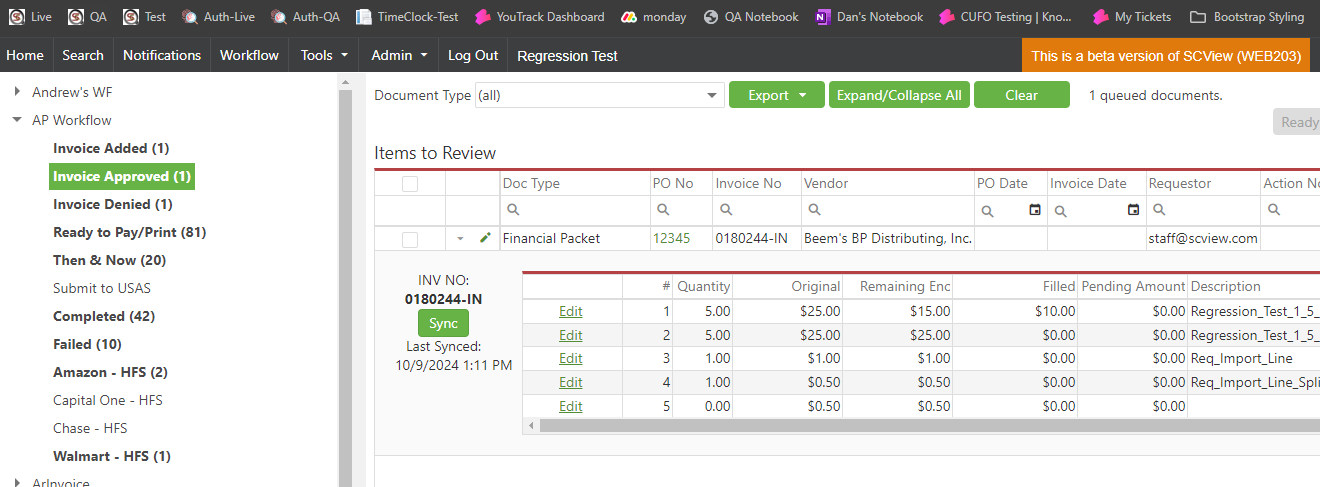
Locate the Sync button on your interface and click it to initiate the synchronization process.
Step 2: View Document Audit Entry
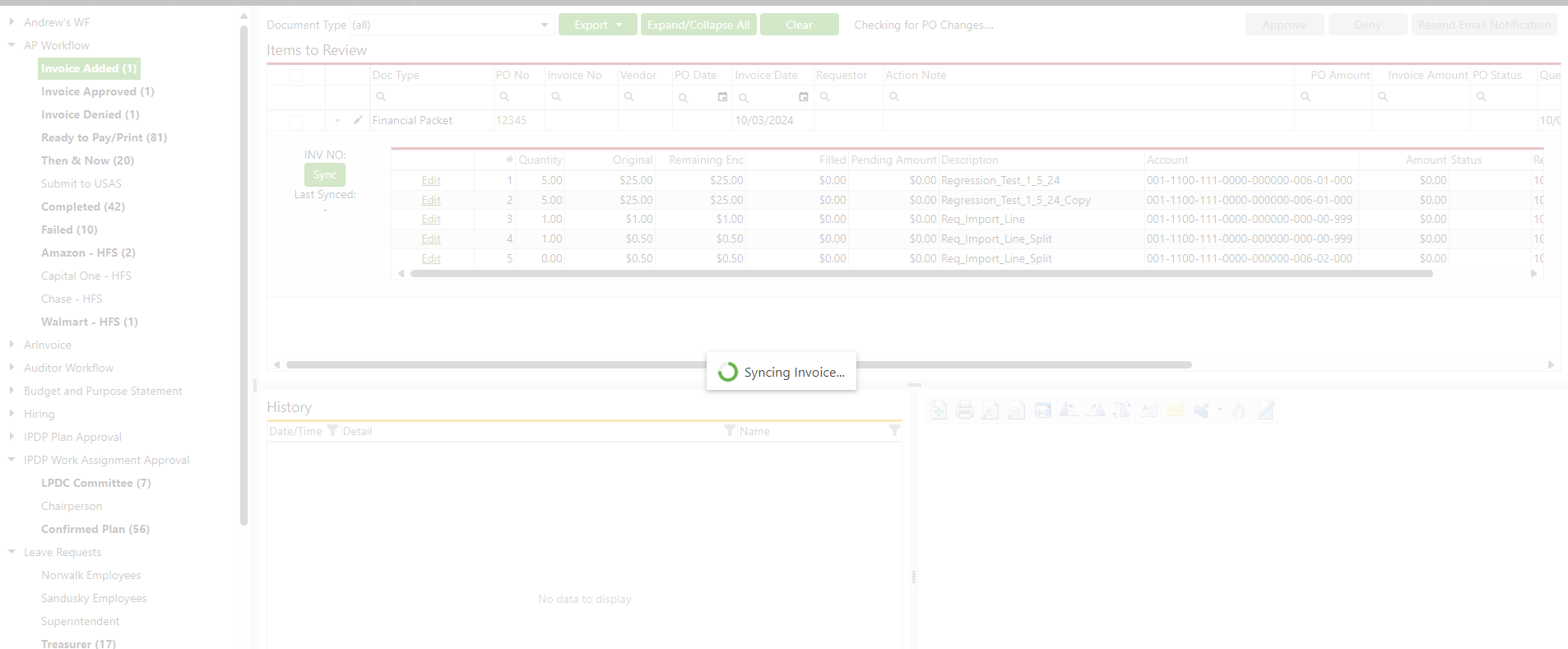
After clicking the Sync button, an entry will be automatically added to the document audit log. This entry records the sync action for your reference.
Step 3: Refresh Document History
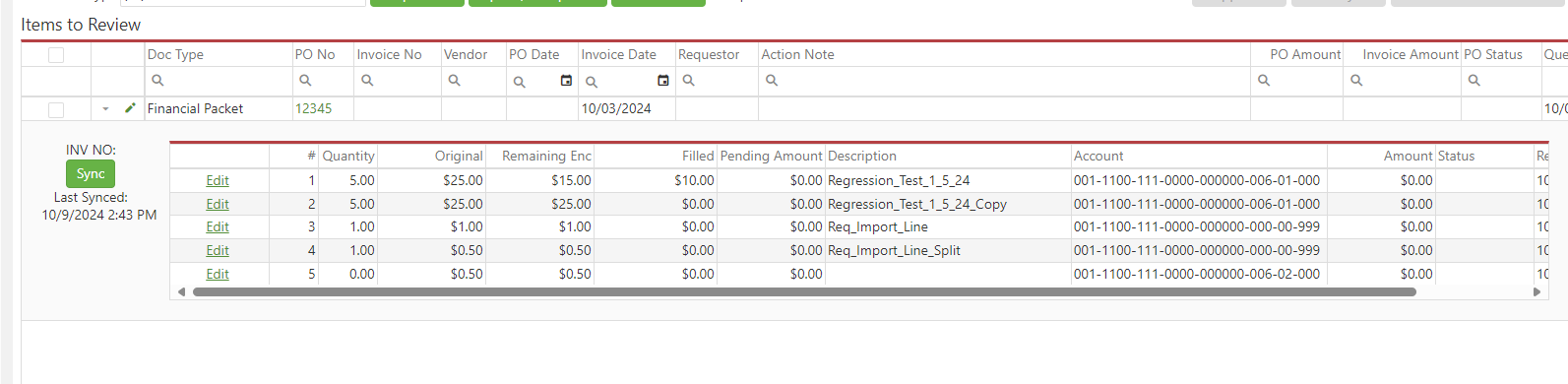
The document history will automatically refresh to show the latest updates. You’ll see the most current information displayed without needing to reload the page manually. You can view the document audit history in the History section on the bottom left of their screen on workflow

Step 4: Check Last Synced Date/Time
Look for the message displayed under the Sync button, which will indicate the last time the sync occurred (e.g., "Last Synced: 01/09/2024 12:10 PM"). This provides you with immediate feedback on when the last update was made.
Step 5: Confirm Updates in Invoice Lines Table (if applicable)
If the Last Sync column is available in the Invoice lines table, it will show the date and time of the last sync. This helps you verify that the information has been updated successfully.
Step 6: Feedback and Support
If you encounter any issues or have questions about the sync process, reach out to your support team for assistance. Your feedback is valuable for improving the functionality.
C. Best Practices
Regularly Sync Your Data
- Make it a habit to click the Sync button periodically to ensure your information is up to date. This will help maintain accuracy in your records and streamline your workflow.
Monitor the Last Synced Date/Time
- Always check the "Last Synced" message displayed under the Sync button. This provides important context about when the last update occurred and helps you determine if you need to sync again.
Utilize the Document Audit Log
- Familiarize yourself with the document audit log. Reviewing the entries can help you track changes and understand the history of your document interactions.
Verify Updates in the Invoice Lines Table
- If your interface includes a Last Sync column in the Invoice lines table, check it after syncing to confirm that your data has been updated correctly.
Report Any Issues Promptly
- If you notice discrepancies or encounter problems during the sync process, report them to your support team as soon as possible. Prompt feedback helps improve the functionality for everyone.
Stay Informed on System Updates
- Keep an eye out for any updates or enhancements related to the sync functionality. Staying informed will help you make the most of the features available to you.
D. Troubleshooting
If you encounter issues with the Sync functionality, here are some steps to help resolve them:
Check Internet Connection: Ensure that you have a stable internet connection, as syncing may fail if connectivity is weak or interrupted.
Refresh the Page: If the document history does not update after syncing, try refreshing the page manually to see if the latest information appears.
Verify Last Synced Date/Time: If the "Last Synced" message does not display or seems incorrect, click the Sync button again and check for any error messages that may appear.
Inspect Document Audit Log: Review the document audit log for any entries related to the sync action. If there are no entries, there may have been an issue with the sync process.
Check Invoice Lines Table: If the Last Sync column in the Invoice lines table does not reflect the recent update, verify that this column is correctly set up and functioning.
Clear Cache: Occasionally, browser cache issues can affect functionality. Clearing your browser's cache may resolve any display problems.
Contact Support: If none of the above steps resolve the issue, reach out to your support team for assistance. Provide them with detailed information about the problem, including any error messages or unusual behavior you observed.
E. Related articles
Sending AP Invoices Back to Workflow
Conclusion
In summary, the Sync functionality enhances your workflow by ensuring that your documents and data are consistently updated. By following best practices—such as regularly syncing your information, monitoring the last synced date, and utilizing the document audit log—you can maintain accuracy and efficiency in your tasks. Should you encounter any issues, troubleshooting steps are available to help resolve them quickly. For any persistent problems or questions, don’t hesitate to reach out to your support team. Embracing this functionality will empower you to work more effectively and stay organized.
Was this article helpful?
That’s Great!
Thank you for your feedback
Sorry! We couldn't be helpful
Thank you for your feedback
Feedback sent
We appreciate your effort and will try to fix the article