 | ||
Introduction
In the fast-paced environment of digital document management, the SCView workflow offers a structured module for the review and handling of documents within an organization. This system not only streamlines the process but also ensures a high level of accountability and efficiency in managing internal workflows.
A. Problem Statement
While the SCView workflow automation brings significant improvements in processing documents, challenges persist in managing the rights and responsibilities associated with actions like approving, returning, and rejecting documents. Mismanagement or misunderstanding of these functions can lead to operational inefficiencies, delays in document processing, and potential data mismanagement.
B. Solution
The solution lies in a robust training and management system that ensures all users understand their roles within the workflow, the implications of their actions, and the best practices for using the SCView workflow system efficiently. Ensuring users are well-trained and aware of the protocol will minimize errors and enhance the productivity of document processing.
Workflow access is a specific privilege that has been assigned to specific users for the purpose of reviewing and taking action on or within certain workflow queues. This privilege includes the ability to review, edit and move items based on your permission settings. This privilege should be used with caution as to best serve your organization.
Logging in and accessing the Workflow screen
1. Log into your mySCView database
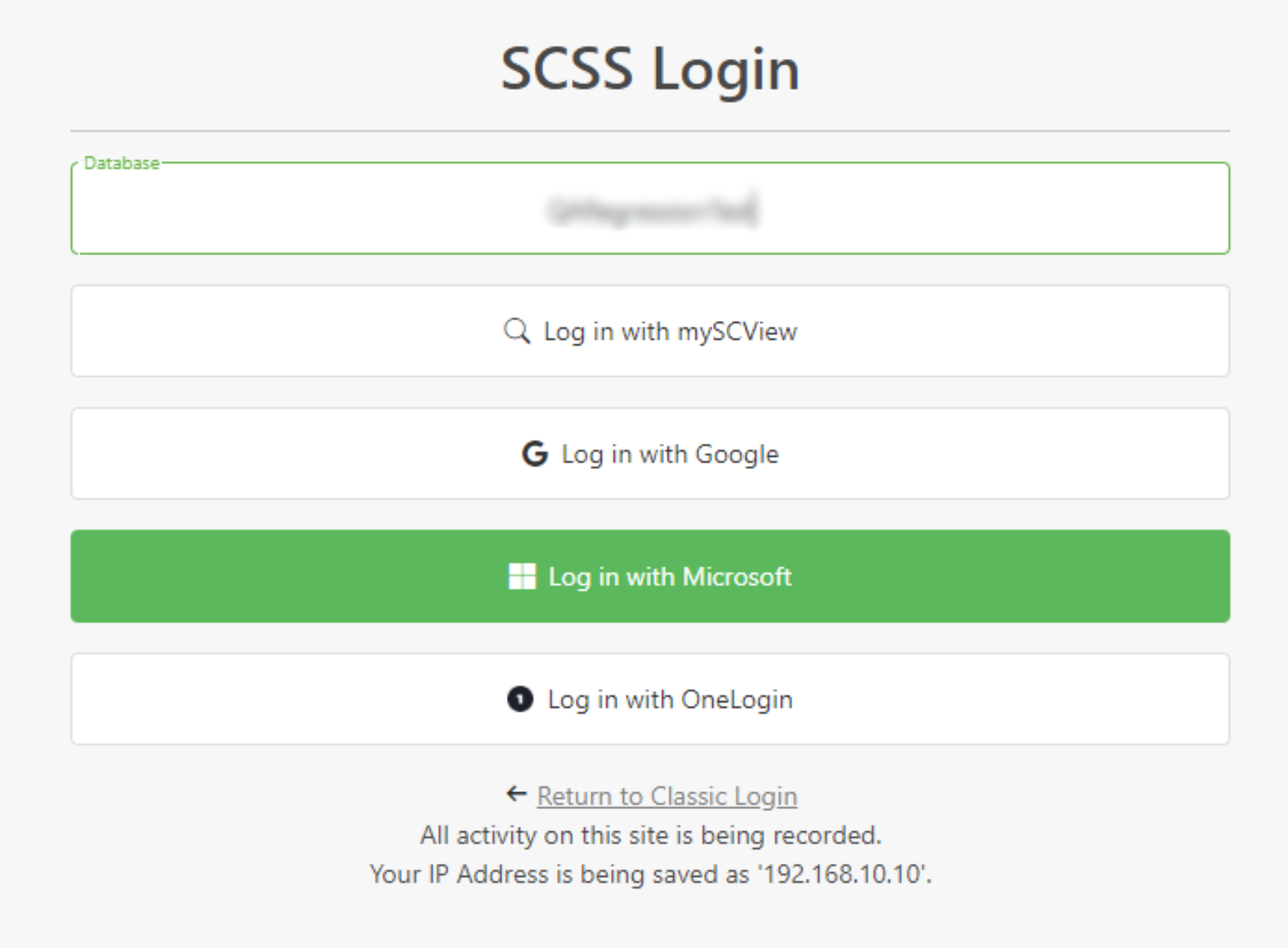
2. Once logged in, navigate and click onto your Workflow tab (up at the top) > Then click on your
available workflow queue name. *If your workflow queue is highlighted [bold] with XX numbers next to it – these is an indication you have XX number of items to review in your workflow queue.

The Workflow screen will populate, within this screen the user has the ability to view, take action and edit the documents listed within their own workflow queue. This guide is designed to walk through each of these processes.
NOTE: It is important to note that some users may see multiple workflow queues
while others may only see one workflow queue. Workflows permissions are rights
given to/for specific users.
3. Once you have clicked on your workflow queue name - a listing of pending items will populate
to the right of your screen.
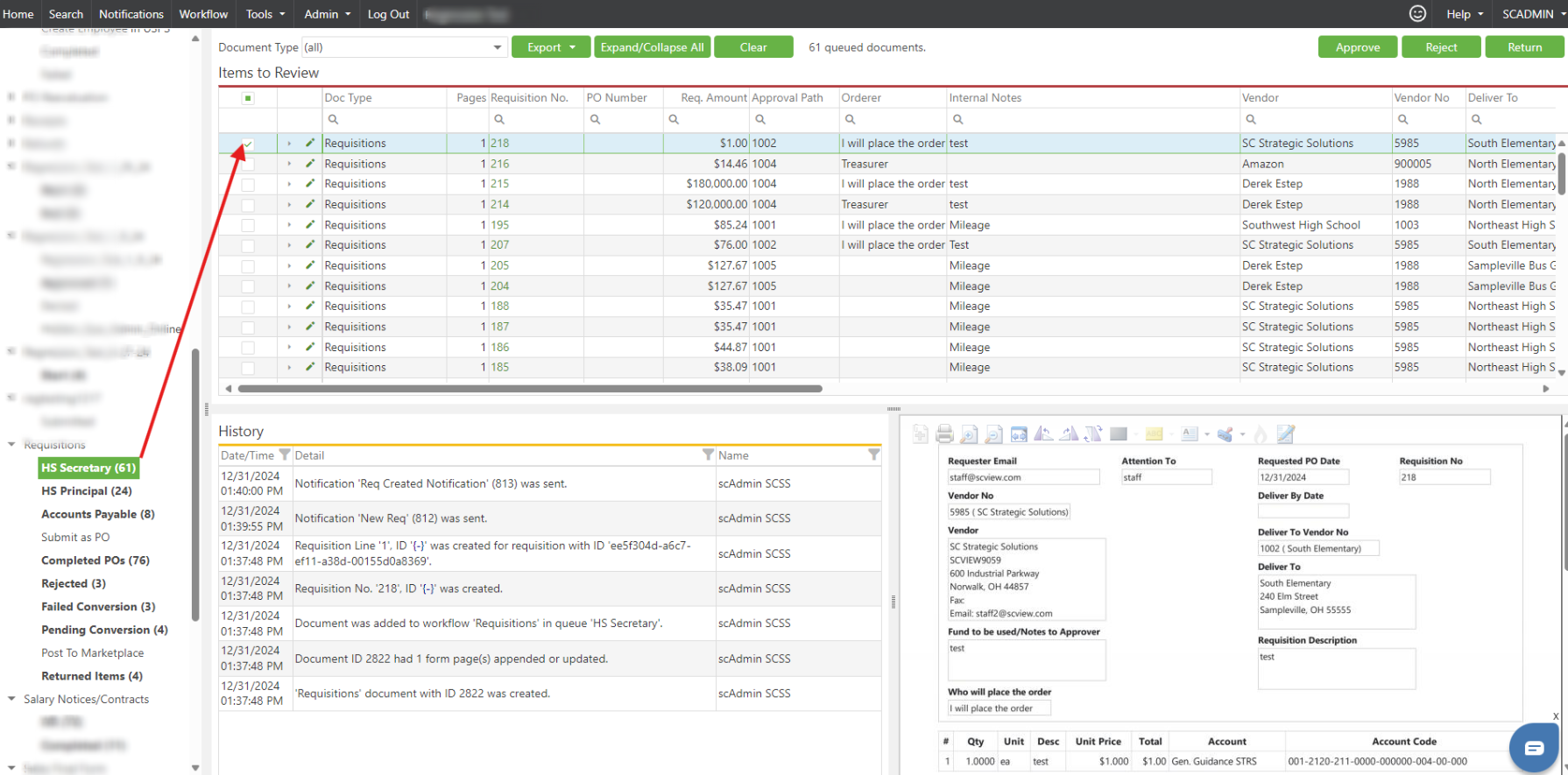
Clicking ON an actual document (highlighted blue line) within your workflow will populate the
following for review [Listed from bottom to top].
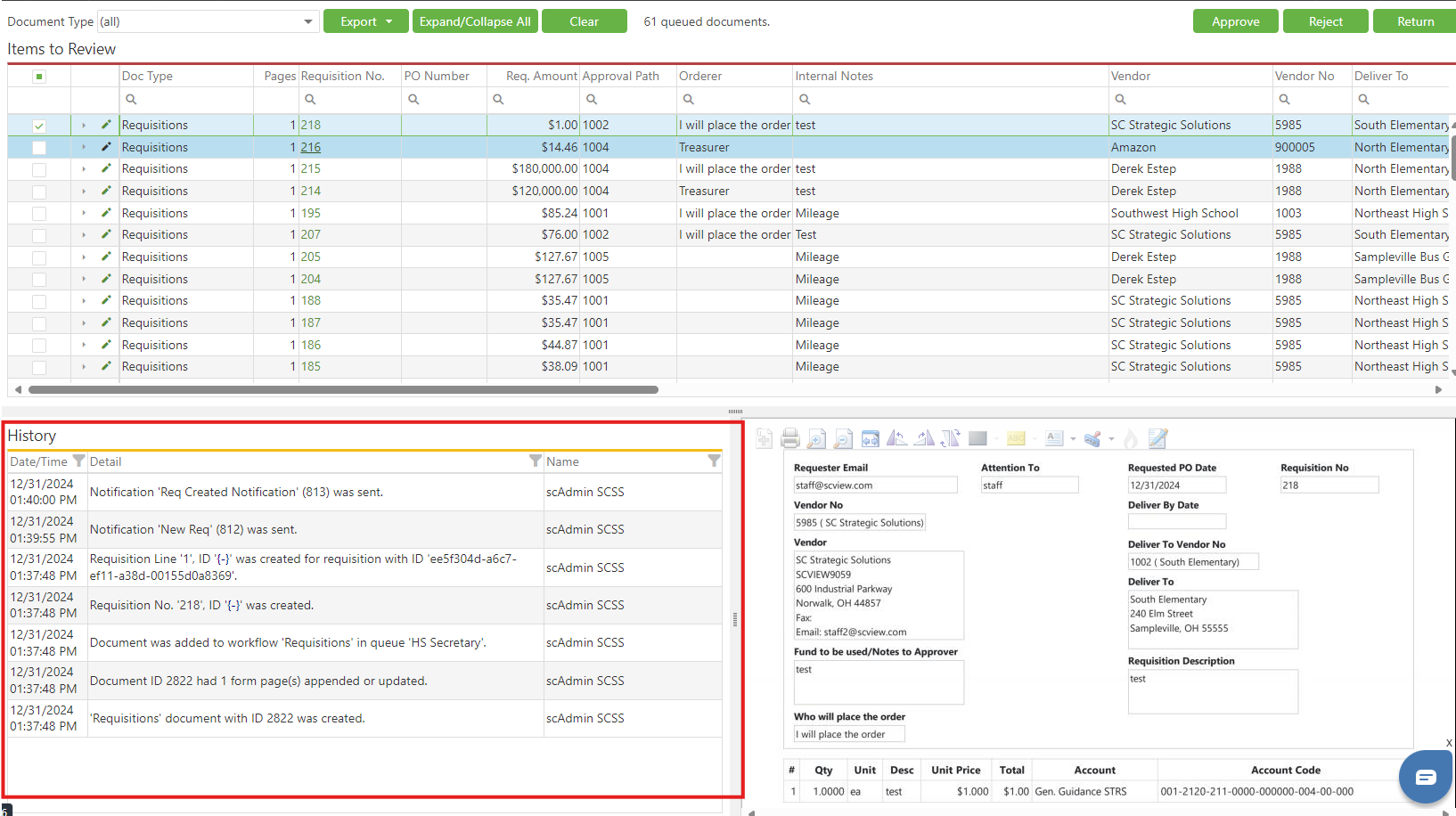
Audit Trail (History) - This will list the path the document took from entry to current placement (including date/time & username stamp)
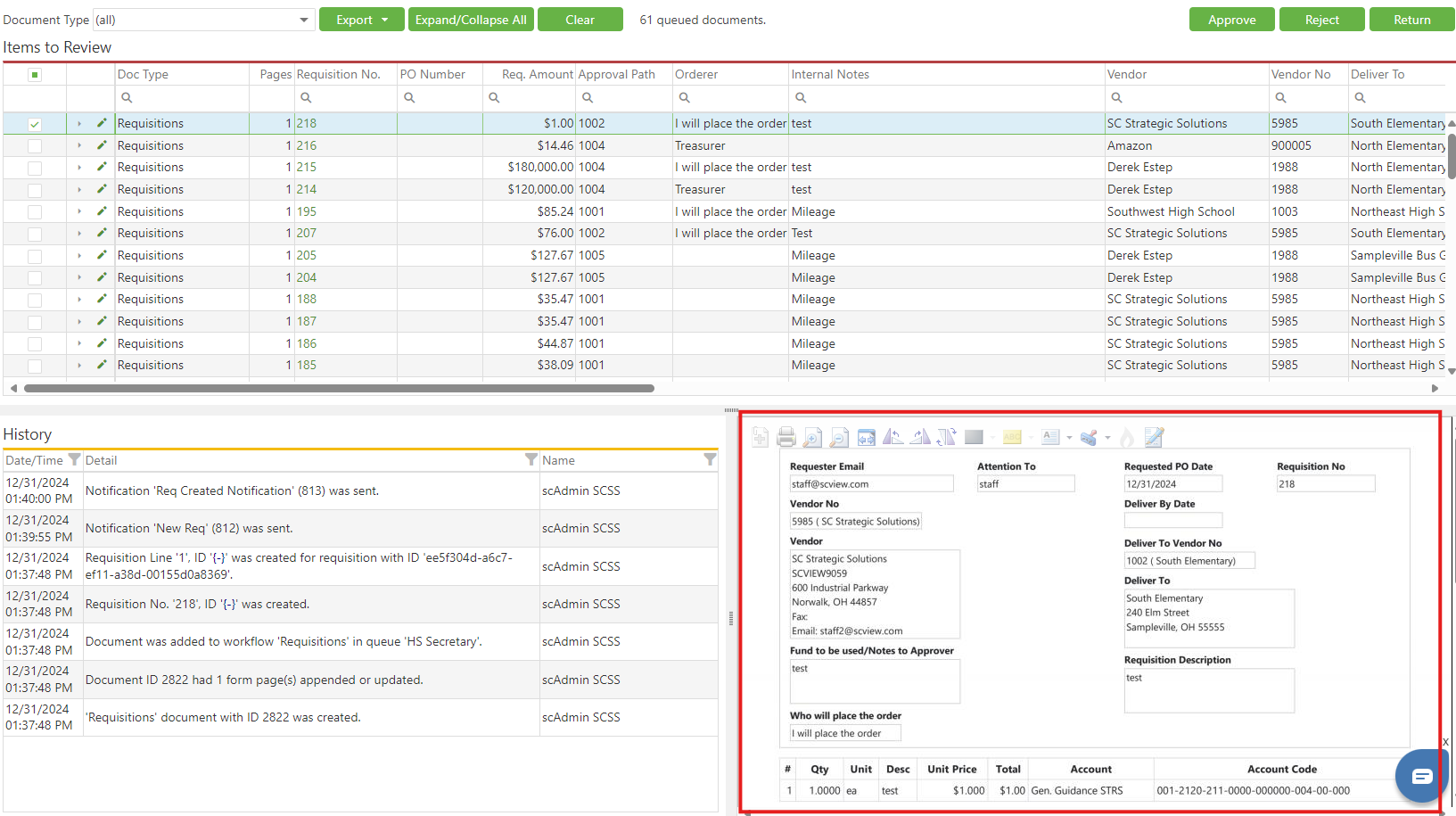
Document Image – Displays the document itself and any attached back-up attached for review (to review additional pages – simply scroll down)
Edit - The edit “link” button [when clicked] will open the document and allow edits for correction and re-submission.
NOTE: re-submission will not force the document back through the path, it will maintain
its current placement (in your workflow queue)

Action Buttons - Action buttons allow the user to take action on the document thus moving that item out of their workflow queue and onto the next phase. To take an action on the document – First click on the small box next to #1

Then click on the action buttons listed at the top right of your workflow queue.
- Approve – Marks your document as reviewed and approved by you – moving this
document onto the next workflow queue. - Reject – Marks your document as rejected and moves the document into a reject
workflow queue. An automated email notification is sent notifying the document
originator you rejected this item. - Return – Marks your document as returned and moves the document out of all
workflow queues. An automated email notification is sent notifying the document
originator you returned this item. - Return/Send to Indexing – Some workflow queues may have this as an option. Learn more about this option here.
*Upon the action of Rejecting or Returning a document – you must notate in the “Notes” box why you are choosing this action. This is to ensure the originator is properly notified and can fix if applicable.
C. Best Practices
- Clear Role Definitions: Ensure that all users know their specific roles and the extent of their privileges within the workflow to prevent unauthorized actions.
- Regular Training: Conduct regular training sessions for all users on how to effectively use the workflow system, focusing on actions like approve, reject, and return.
- Document Trail Monitoring: Regularly review the audit trails to ensure all actions taken on documents are accountable and traceable, enhancing security and compliance.
- Effective Communication: Utilize the notes section effectively when returning or rejecting documents to provide clear, constructive feedback to the originator, facilitating smoother re-submissions.
- Systematic Review Processes: Implement periodic reviews of the workflow settings and permissions adjustments as necessary to adapt to changing organizational needs.
D. Troubleshooting
- Issue with Accessing Documents: If users report issues accessing certain documents or queues, verify their permissions and ensure they are aligned with their current responsibilities.
- Actions Not Processing: If users experience problems with documents not moving correctly through the workflow after an action, check for system updates or server issues, and consult technical support if persistent.
- Miscommunication Errors: If there are frequent misunderstandings or disputes about document rejections or returns, reinforce the use of detailed notation in the notes section and consider additional training or clearer guidelines.
E. Related Articles
Workflow: Send to Online Indexing
Conclusion
The SCView workflow system is an essential tool for organizations to manage their document approval processes efficiently. By adhering to best practices, troubleshooting common issues proactively, and ensuring all users are well-trained, organizations can maximize the benefits of the SCView workflow. This will not only enhance workflow efficiency but also maintain high standards of document management integrity and compliance.
Was this article helpful?
That’s Great!
Thank you for your feedback
Sorry! We couldn't be helpful
Thank you for your feedback
Feedback sent
We appreciate your effort and will try to fix the article