
 | ||
Introduction
This guide provides a comprehensive overview of how to properly submit invoices from SCView directly into the Unified School Accounting System (USAS), covering the necessary steps and fields that need attention during the indexing process.
A. Problem Statement
Many users encounter difficulties in accurately submitting invoices due to the complexity of the indexing process required for integration with USAS. This can lead to errors in invoice submission, delays in processing, and issues with vendor payments.
B. Solution
To streamline the invoice submission process and ensure accuracy, this guide details each step needed to correctly fill out the indexing and PO Line Items windows in SCView. By following specific instructions and understanding the functionalities of each field, users can efficiently manage invoice submissions and integration with USAS.
If invoices are to be submitted from SCView directly into USAS, additional information will need to be entered while indexing. The indexing window will change and a new PO Index Line Items window will open when enabled. A new document will be needed for each invoice. If the invoice is to be used for multiple POs, it will need to be copied or scanned in that many times. View the tips and tricks article here for how to handle these.
Upper Index Values
The standard index values will be similar to what is below:
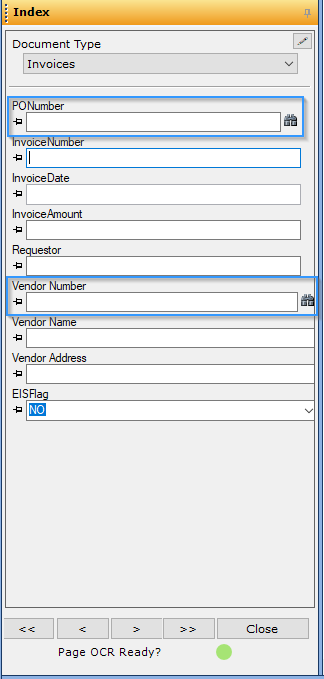
The PO Number and Vendor Number index values will now have binoculars next to their fields. If you aren't sure what values should be listed, you can search for the values by using the dialog that pops up when the binoculars are clicked.
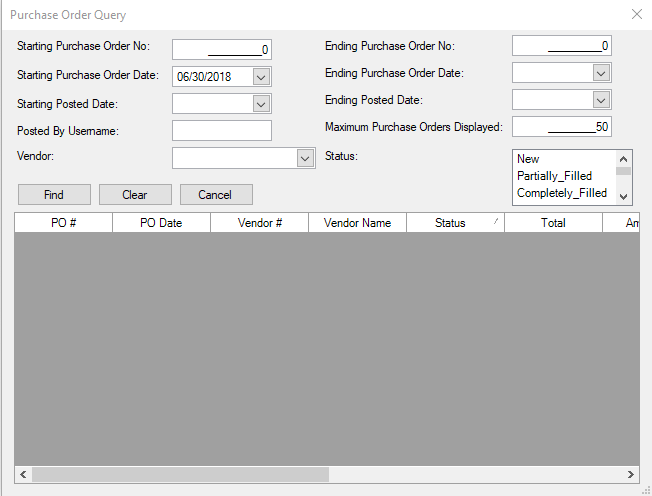
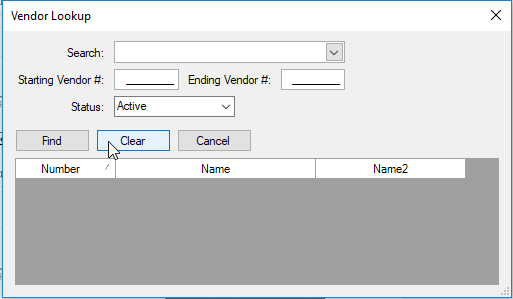
When configured properly, the Requester, Vendor Name, Vendor Number, Vendor Address, (and to a lesser extent the Invoice Amount and AnyEIS flags) will automatically populate.This happens after the PO Number is entered and the cursor is moved to the next field.
- The Invoice Amount and AnyEIS will populate based on values entered in PO Line Items section. If an amount is entered in the Invoice Amount field before the PO Line Items are entered, the PO Index Line items will overwrite the value of the Invoice Amount when they are entered.
- The Requester field will only populate if the original requisition was created in SCView. This field identifies which email to send the invoice approval notification to.
- The vendor information populates based on what is available in USAS, meaning if the PO was created with a multi-vendor, it will populate the multi-vendor.
The value entered for the Invoice Amount index is not what goes into USAS. This is just the total for the invoice.
The value entered for the Invoice Date, Invoice Number, and Vendor Number are submitted to USAS. If the Vendor for the PO is a multi-vendor, this number will need to be updated for the vendor to be paid.
PO Line Items
Once all of the "upper" indexes have been entered that need to be, the next step is to fill out the lower index lines, or PO Line Items. The number of lines that appear in the line item area is equal to the number of line items on the PO.
The lines represent the amount being paid to each line and its particular submission status.

Checkboxes - The checkboxes on the left side of the rows (1) will "auto-fill" a line item. This means that it will mark the status of the line as FULL and put the amount to be paid as the amount of the remaining encumbrance. Checking the box above the rows will check all line items at once.
Line Details - Section (2) is information that is being pulled directly from USAS. If the information in this area looks wrong, verify USAS is showing the correct information. The information in this area cannot be edited.
Invoice Details - Section (3) is where invoice details will be entered.
- The amount entered is the amount to be paid on the line item. If the line is to be given a credit, put a negative amount in the field.
- The status is the status of the line item. If the status is marked as FULL at any time, the line will be closed after submitted to USAS. If the status is PARTIAL, invoices can still be submitted against that line. If the status is CANCEL, the amount must be equal to the remaining encumbrance. This will cancel the remaining available on this line item and unencumber those funds.
- The EIS flag is set to Yes (Y) or No (N). This will set the inventory flag in the inventory system.
- Received date for the invoice. This is generally the same as the invoice date from the upper indexed lines.
Invoice Total - The total shown in the gray box directly below the line item amounts is the total amount of the invoice. Any amount that is inputted on the PO Index Line Items will be calculated into the Invoice Total. Standard configuration takes this amount and automatically enters it into the invoice total in the upper lines after all of the line items are filled in and an area is clicked outside of the PO Line Items. The system automatically checks the upper invoice total to the line item total. If you wish to have the upper total not auto-populate, please let support know when it is being configured.
Once all of the information has been completed, indexing will continue until all documents are indexed.
Do not click the arrows to cycle back through all of the documents - any information that was auto-populated and changed will be reverted back.
Once uploaded, standard procedure is to have all invoices enter workflow for further processing. If an invoice is marked as an "unapproved" invoice, an email will be generated within an hour of uploading to notify the user they need to approve an invoice.
For more information on processing invoices once they've reached the workflow stage, click here.
C. Best Practices
Detailed Indexing:
- Ensure all upper index values are entered accurately, especially essential fields like the PO Number, Invoice Date, and Invoice Number. Utilize the binoculars icon beside fields for searching precise values.
Automation Utilization:
- Leverage checkboxes to auto-fill line items, ensuring the status and amount of each line item are marked correctly based on the remaining encumbrance.
Regular Data Verification:
- Frequently verify that the information pulled from USAS into SCView is correct. If disparities arise, update the records in USAS to reflect accurate details.
Invoice Total Confirmation:
- Confirm that the invoice total is automatically calculated and matches the sum entered in the PO Line Items section before finalizing the indexing process.
D. Troubleshooting
Incorrect Auto-Populated Fields:
- If auto-populated fields display incorrect information, double-check the initial entries in the upper index values or consult the latest data in USAS for accuracy.
Issues with PO Line Items:
- Should there be a problem with line item statuses not updating as intended (e.g., FULL, PARTIAL, CANCEL), manually review each line to ensure the correct status and amounts are entered.
Problems with Invoice Submission:
- If invoices do not process correctly, ensure that all fields have been filled out as required, and no indexing step has been skipped. Consult the system logs or support for specific error messages.
Data Reversion During Navigation:
- Avoid using navigation arrows that cycle back through documents once changes have been made, as this may revert any manual adjustments.
E. Related Articles
Conclusion
Effectively managing the invoice submission process through SCView to USAS requires meticulous attention to the indexing details and proper use of the system's functionalities. By adhering to the guidelines outlined in this document, users can ensure that invoices are processed accurately and timely, minimizing potential errors and enhancing overall efficiency. Always keep communication lines open with the support team for any configuration needs or troubleshooting assistance to maintain smooth operations.