
 | ||
Introduction
Organizations often need to process invoices swiftly to maintain their financial workflows. SCScan is a tool that allows for the digital handling of invoicing, which can then be transferred seamlessly to the Uniform School Accounting System (USAS). To ensure accuracy and efficiency, there are specific steps and best practices to follow when uploading invoices from the AP Workflow to USAS. The ability to do this correctly prevents delays and errors, contributing to an optimized accounting process.
A. Problem Statement
Users must submit invoices to USAS for payment, but the process includes multiple steps that are crucial for successful submission. Missteps or incorrect data entry can lead to invoices failing to post in USAS, causing disruptions in the payments lifecycle of a business.
B. Solution
To properly submit invoices to USAS after they have been scanned and indexed in SCScan, follow the series of steps outlined below:
Step 1:
Process invoices as usual until they reach the submission queue, often labeled Ready to Pay/Print. If you're unsure about the queue name, contact SC Support staff for confirmation.
Step 2:
Review the invoices in the submission queue by:
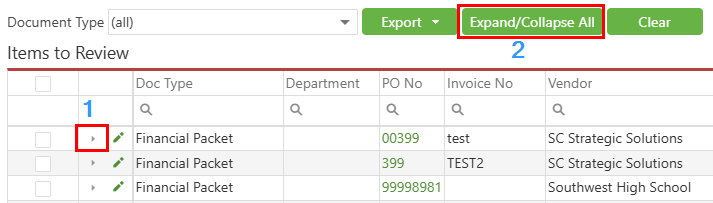
- Expanding each invoice using the arrows on the left (1) for detailed inspection. Utilize the Expand/Collapse All button (2) for handling multiple items.
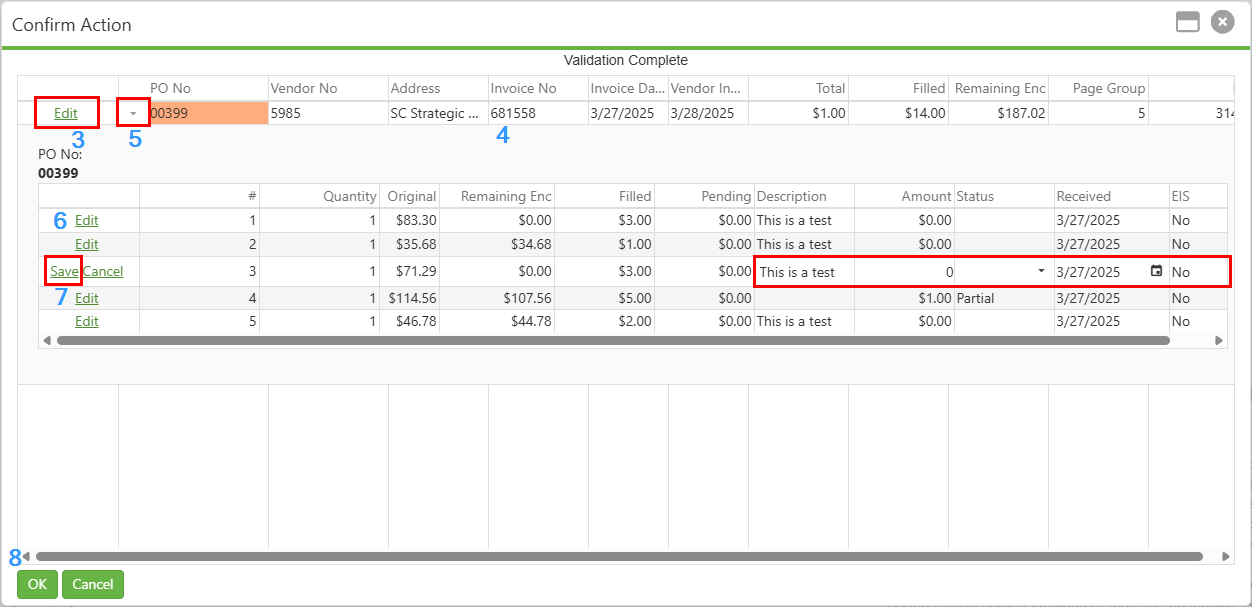
- Assessing and editing the invoice on the confirmation screen just before submission. This screen allows for specific edits to the upper lines (vendor number, invoice number) with an edit button (3) and, after clicking, inputs for editing (4). Lower lines can also be adjusted by expanding (5), editing (6), and saving (7). After confirming details and edits, click OK (8) to submit to USAS.
Updating Multiple Invoices at Once
Multiple invoices can be updated at once. This can be useful if you have several invoices that were not approved before the month had closed in USAS, as the invoice dates will need changed before they can be submitted. To do this:
- Edit and update the Invoice Date on the first line item on the Confirm Action popup.
- Once updated, right click the line and select "Apply Invoice Date to End".
- Click "OK" to submit the invoices to USAS.
Submitting Invoice from Previous Fiscal Year
At times, you may need to handle invoices dated from the previous fiscal year. Due to system restrictions in USAS, directly submitting an invoice that has an invoice date in the prior fiscal year is not possible. However, you can navigate around this issue with a simple workaround. Here's how to update your invoice dates correctly:
- Expand Invoice Details: Locate the invoice in question in Workflow and click the arrow to the left of its row to reveal the lower line items associated with that invoice.
- Adjust Invoice Date: Click the 'edit' button on the top line near the checkbox. In the 'Invoice Date' column, double click and input a date of 7/1 or later. Save your changes by clicking 'Save' at the bottom left.
- Edit Lower Line Items: For every line you're invoicing, click 'Edit' to activate the line for adjustments. The 'Edit' button will switch to 'Update' to indicate editing is in progress.
- Set Vendor Invoice Date: In the 'Received Date' field, enter the vendor's invoice date. Confirm the change by clicking 'Update'.
- Finalize Invoice Submission: After all necessary lines have been updated, the invoice is prepared and can be submitted to USAS for processing.
Keep in mind that this method ensures alignment with USAS's fiscal date constraints and allows for accurate financial reporting.
C. Best Practices
- Ensure non-monetary lines ($0) do not have a status, as this can cause submission failures.
- Every line with a monetary value must have an appropriate status; otherwise, the system will reject the invoice.
- When adjusting monetary values, always modify the Amount field in the lower line for accuracy in USAS.
D. Troubleshooting
- If an invoice is directed to the Failed queue, reference the audit history to understand the failure reason. Remediate issues according to the failure reasons and their solutions, which can typically be found in the support documentation or by contacting SC Support staff.
- If the warning "Invoice Amount does not equal the Line Item total." appears in the Confirm Action, this means that the sum of all non-cancel lower lines does not equal the invoice amount. (i.e. The Invoice Amount is $3 and the sum of all non-cancel line amounts is $1. Having $2 on a line with a status of "Partial_Cancel" does not count towards this total.)
- My invoice in USAS is different than what I submitted through SCView. What happened?
When using SCView to submit invoices to USAS, only particular fields are used to submit information to USAS. The screenshot below includes the fields that are submitted to USAS. The remaining fields do not submit to USAS in this particular process. If your invoice amount is different, it is because the "upper" amount is not the amount submitted. The lower line amount is what is actually submitted, and submits on a per-line basis.
Common Failed Invoice Errors - Submission failed: Invoice error, purchase order does not exist on purchase order history file
The purchase order being submitted against might be in FUTURE status or SCView may not have access to it (or it no longer exists). If the purchase order can be located in USAS and is not in FUTURE status, you will need to contact your ITC to inquire about the submission issue.
Submission Failed: Invoice for PO already on file
The invoice number has already been used for this specific purchase order. Confirm in USAS web if the invoice already exists. If it's a duplicate then remove it from workflow. If not, either use a different invoice number or add additional characters to the original.
Submission Failed: Invoice error, purchase order item is completely filled
USAS indicates that an item line you are attempting to post against has already been marked as fulfilled. If you're trying to submit a line with a $0 amount that still retains a status and is against a line marked as full, the invoice will fail. Submitted lines must be new or partial.
Submission Failed: Vendor number ###### is a Multi-Vendor and may not be used to post invoices or checks.
Correct the invoice submission by updating the vendor number index to the specific vendor number that should be paid and then resubmit.
Submission Failed: Invoice number exceeds the max length of 30.
Invoice numbers character limit in USAS is 30 characters. Correct your invoice number and be sure it's 30 characters or less.
Submission Failed: Invoice date not in proper range or is invalid.
Check and correct the invoice date to ensure it's accurate and falls within the current fiscal year.
Submission Failed: Vendor number cannot be different from vendor on PO file!
Ensure the vendor number in SCView matches that on the USAS PO. Correct any discrepancies and resubmit, double-checking that vendor numbers don't revert to old incorrect values.
Submission Failed: Invalid invoice status, must be 'P', 'F' or 'C'
Each line submitted with a nonzero amount must have a status of either partial (P), full (F), or cancel (C). Confirm and edit the status of each line before submitting.
Submission Failed: Vendor number ###### not on file.
The vendor might no longer be active or is invalid. Verify the vendor status in USAS and resubmit once the vendor has been reinstated as a valid entity.
Submission Failed: org.exolab.castor.xml.MarshalException:
This represents a USAS-related error. Contact SC Support or your ITC for further help.
Submission Failed: Unexpected response. Invoice element not returned.
If invoice lower line items are not being read, re-scan and index or use the SYNC button to add them. Edit lower line items on the confirmation screen before confirming submission.
Submission failed: PO Item(s)# X are not invoiceable!
The line indicated is marked as Full in USAS, which prevents invoicing.
Submission failed: Error: Invoice XXXX with date XX/XX/XXXX cannot contain full invoice items with a date prior to any partial invoice item dates for all associated Invoices from Rule 'Require full invoice items to be after partials'
You cannot mark an invoice line as Full if it precedes any Partial dates. Adjust the full line date to come after any partial line dates.
Invoice.postingPeriod: may not be null (Value: 'null')
The invoice date provided is not within the current open month. Adjust the invoice date so it falls within the current and active month in USAS.
E. Related Articles
Invoices: How do I use the Invoice Manager (Invoices Tab) to Approve Invoices?
Conclusion
When moving invoices from SCScan to SCView to USAS, meticulousness is key. Following the outlined steps, adhering to best practices, and understanding how to troubleshoot common issues will lead to successful invoice submissions. This process ensures prompt payments and maintains the financial integrity of the organization, benefitting both the business and its suppliers.