 | ||
Introduction
Batch printing is a highly efficient feature that enables the consolidation of multiple documents into a single PDF file. This functionality can be particularly useful in environments where large document handling and paper reduction are priorities. The PDF generated can either be immediately printed or saved for future use.
A. Problem Statement
Users may encounter difficulties in utilizing the batch print feature effectively due to the complexity of the selection process and potential system timeouts during the document conversion, particularly with large files.
B. Solution
Improving the user interface to simplify the selection process and enhancing server capacity or optimizing the PDF generation process can address these issues. Providing clear instructions and troubleshooting tips will also aid users in navigating and utilizing batch printing more effectively.
Batch printing allows you to combine multiple documents into a single PDF. This PDF can be printed immediately or downloaded and used later.
To batch print:
1. Navigate to the Search tab
2. Search for the document type you'd like to batch print. You can click Search without any criteria specified to get a count of how many documents exist versus how many you can see. 3. This number is listed above the search fields once the search is complete.
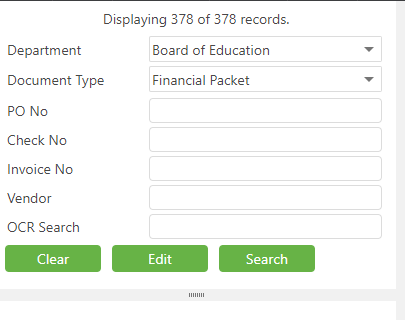
- Once the records that need batch printing are pulled up, they must be selected in the lower left corner. There are a few different ways to select.
- Single selection - simply left-click an item to select it as the only item (will not batch print with a single item)
- Single multi-select - Similar to the single selection, this allows one additional selection each click. To perform this type of selection, hold down CTRL+Left-click
- Range select - To select a range, first select one end of the range of items. Then, hold down Shift+Left-click on the other "end" item to select it and all values in between the two ends.
After selecting the items that need batch printed, right-click and choose the option for Batch Print.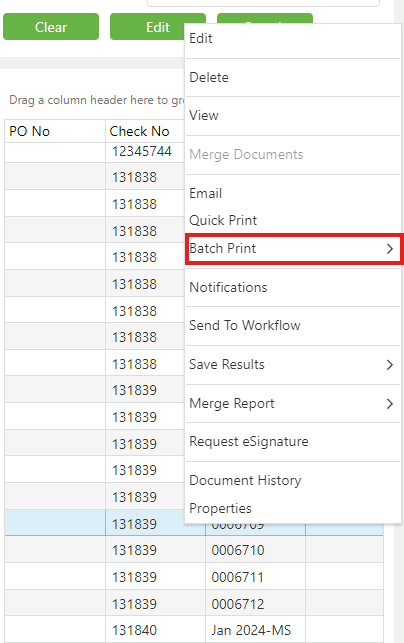
- To print all the rows displayed in your search results, simply hover over the 'Batch Print' option. This action will trigger an extended menu to appear, providing you with two choices: you can either print the rows you have specifically selected or opt to print all rows shown in your search.
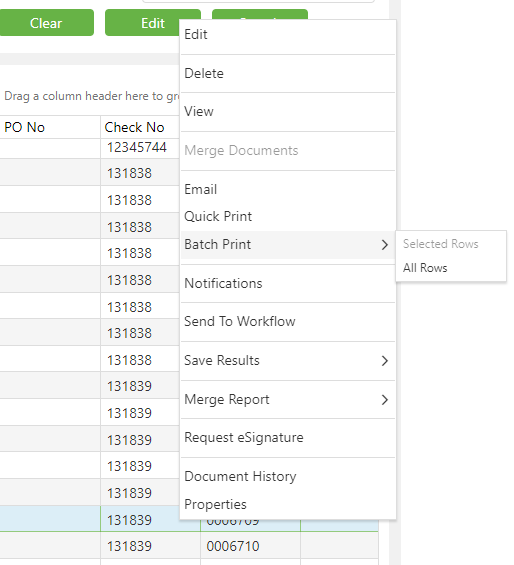
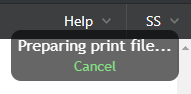
4. After choosing Batch Print, a popup will appear in the upper right corner that notifies you the print file is getting ready.
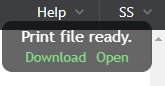
5. Once the print file is ready, you'll be presented with a dialog to Download or Open the file. Downloading the file will save all documents in one combined PDF file. Opening will open the PDF in the browser for printing.
6. You may encounter an error after step 5 if the conversion times out. The message will ask to Retry or Close. Simply click Retry until the file generates. This just means that the file is too big to generate in a single pass.

C. Best Practices
- Preparation: Before initiating batch printing, ensure all documents needed are correctly filed and accessible.
- Efficient Selection: Familiarize yourself with the selection shortcuts like single selection, multi-select, and range select to streamline the process.
- Monitor System Performance: Keep an eye on system performance, especially when dealing with large files, to anticipate and mitigate potential timeouts.
D. Troubleshooting
- Selection Issues: If you are unable to select documents as intended, check to ensure that you are using the correct key commands for your operating system.
- Conversion Timeouts: If the PDF conversion process times out, use the 'Retry' option as suggested, or consider reducing the number of documents in each batch.
- Download or Open Failures: Ensure your browser permits pop-ups from the site and check your internet connection if the PDF fails to download or open.
E. Related Articles
Search: OCR Search Functionality
Search: Paste Document to a New Document
Conclusion
Batch printing is a powerful tool designed to facilitate effective document management and reduce paper usage. By following best practices and utilizing the troubleshooting tips provided, users can enhance their experience and make the most out of this functionality. Ongoing user feedback and system upgrades are essential to ensuring that the batch printing feature meets the evolving needs of its users.
Was this article helpful?
That’s Great!
Thank you for your feedback
Sorry! We couldn't be helpful
Thank you for your feedback
Feedback sent
We appreciate your effort and will try to fix the article