 | ||
1. Introduction
This guide provides instructions for using the Document Warehousing Request System, designed to help clients request physical copies of digital documents stored in our warehouse. The system allows you to submit new requests, track existing requests, and filter through previous submissions to monitor their processing status. Whether you need to retrieve specific employee documents or track the status of pending requests, this platform streamlines the entire document retrieval process with automated notifications and comprehensive tracking capabilities.
2. Setup Instructions
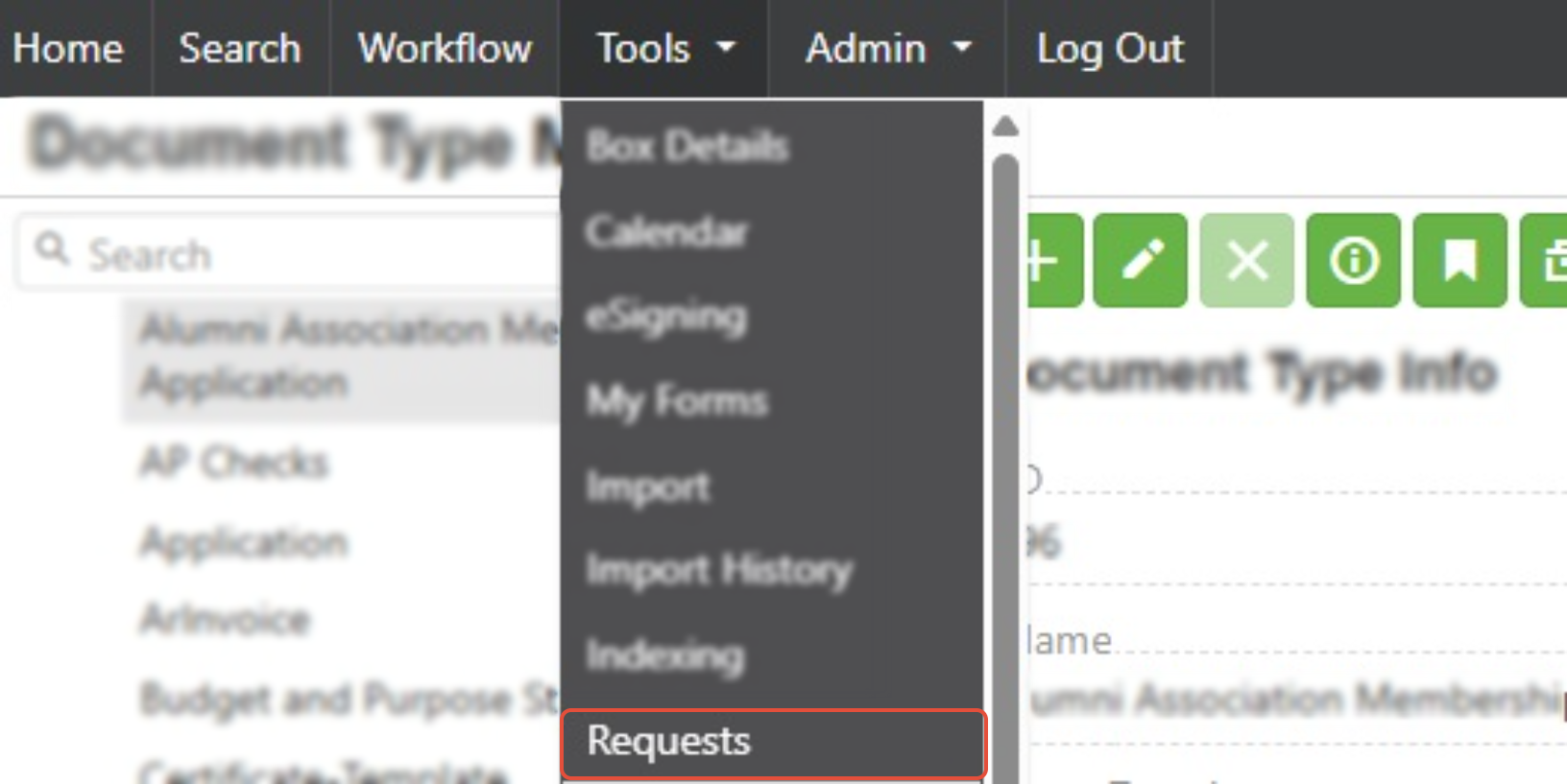
1. Access the Page: Log into SCView and locate the page from Tools > Requests
2. Familiarize Yourself with the Interface:
- The left pane displays document types organized by department
- The main area shows your request list with filtering options at the top
- "Processed" drop down enables user to filter by current requests, processed requests, or all requests for a given document type
- "User" drop down enables selection of filtering by user
- The "Add Request" button is located prominently for new submissions
3. Add Requests
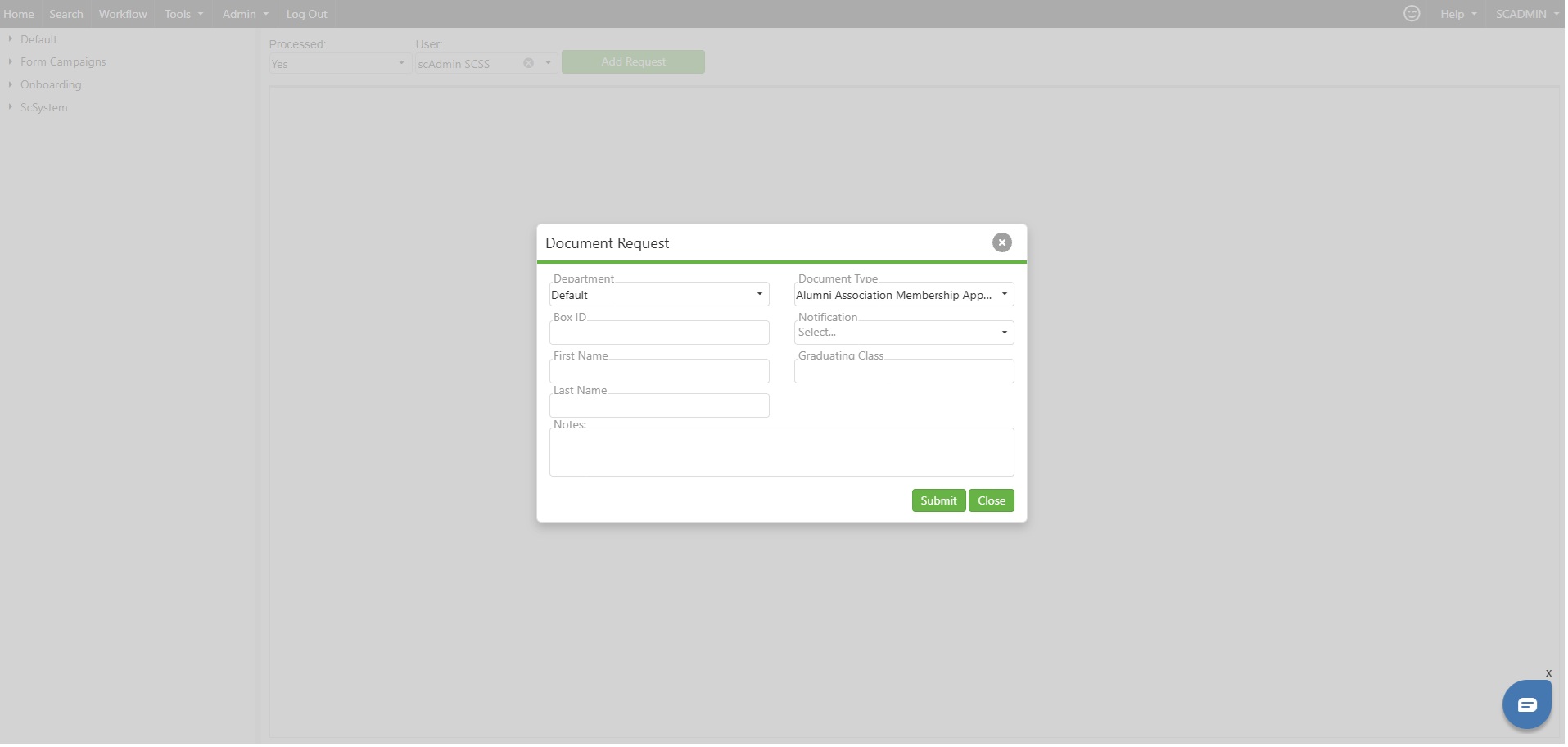
- Department Selection: Choose the department where your desired document is categorized
- Document Type: Select the specific type of document you need from the available options within your chosen department
- Primary Index Fields: Complete the required search criteria fields (only primary indexes are displayed for simplified submission)
- Details Section: Provide additional information about your specific document requirements
- Notes Field: Add any special instructions or contextual information for processing staff
- Notification Options: Configure how you want to be notified of status updates
3. Key Features
- Department-Based Document Browser: Navigate through document types organized by department in the left panel for easy selection and viewing
- Advanced Filtering System: Use dropdown menus to filter requests by processing status (all, processed, unprocessed) and by specific users
- Comprehensive Request Tracking: View detailed information including box ID, employee ID, requestor name, document details, notes, request date, processing status, and unique request ID numbers
- Streamlined Request Submission: Add new requests through an intuitive popup interface that guides you through department and document type selection, displaying only primary indexes for simplified data entry
- Primary Index Integration: The system automatically displays only the indexes flagged as primary in the document type manager, ensuring you see only the most relevant search criteria
- Automated Notification System: Configure notifications to alert users of status changes and request updates, keeping all stakeholders informed throughout the processing workflow
- Integrated Notes Management: Add and view contextual notes on requests for better communication and tracking of special instructions or additional details
- Real-Time Status Updates: Monitor the processing status of all submitted requests in one centralized location with optional push notifications
- User-Specific Views: Filter and view requests by specific users for better organization and tracking
4. Troubleshooting
Issue: Cannot see any documents in the left pane
Fix: Ensure you have proper permissions for the departments you're trying to access. Contact your administrator if departments appear empty.
Issue: Not receiving notification updates
Fix: Check your notification preferences in your user settings. Verify your email address is correct and check spam/junk folders. Ensure browser notifications are enabled if using web-based alerts.
Issue: Limited or missing index options when submitting a request
Fix: Only primary indexes are displayed during request submission. If you need additional search criteria, contact your administrator to verify primary index configuration in the document type manager.
Issue: Cannot add or edit notes on requests
Fix: Verify you have appropriate permissions to modify request details. Some requests may be locked for editing once processing begins.
Issue: Filters not working properly
Fix: Clear your browser cache and refresh the page. Try resetting filters to "All" before applying specific criteria.
Issue: Add Request popup won't open
Fix: Disable popup blockers for this website and ensure JavaScript is enabled in your browser.
Issue: Request submission fails
Fix: Verify all required fields are completed, especially department and document type selections. Ensure you've filled in all primary index fields. Check your internet connection and try again.
Issue: Processing status not updating
Fix: Refresh the page to see the latest status updates. Processing times may vary depending on document complexity and warehouse workload. Check if notifications are properly configured for real-time updates.
Issue: Cannot find a specific request
Fix: Use the user dropdown filter and check both processed and unprocessed categories. Verify the request was submitted successfully by checking your confirmation details and notification history.
5. Conclusion
The Document Warehousing Request System is built to simplify and optimize the retrieval of physical copies of digital documents for all clients. By leveraging user-friendly navigation, advanced filtering, and automated notification features, the system ensures transparency and efficiency in managing your document requests. With department-based organization, real-time status updates, and integrated notes for seamless communication, you can easily track and manage all submissions from a single interface.
Should you encounter any challenges, refer to the troubleshooting section for quick resolutions or reach out to your administrator for additional support. By following the outlined procedures and utilizing the available features, you can enhance your document management experience and streamline your workflow with confidence.
Was this article helpful?
That’s Great!
Thank you for your feedback
Sorry! We couldn't be helpful
Thank you for your feedback
Feedback sent
We appreciate your effort and will try to fix the article