
 | ||
Introduction
Welcome to the updated eSigning Dashboard! We've streamlined your document signing process with new features to enhance user experience. A new "Sign Request" option has been added to the signers grid, directly below "Resend Request," separated by a line for easy navigation. This option is available when the signer’s email matches the email of the signed-in user, allowing for quick access to the eSign app in a new tab with the right signing credentials. Additionally, a handy "Sign Request" button next to the Dashboard button activates under similar conditions, ensuring a smoother and more efficient signing process directly from your dashboard.
A. Problem statement
Navigating the digital signing process can often be cumbersome, particularly in systems that do not align user interfaces with user needs effectively. Signatories on our eSigning Dashboard previously encountered challenges in efficiently accessing signing requests due to a lack of intuitive user interface elements. This resulted in delays and a less-than-optimal user experience, as signers struggled to locate and initiate signing processes directly associated with their accounts.
B. Solution
To address these challenges and enhance the overall user experience, we've upgraded our eSigning Dashboard with strategic improvements aimed at simplifying interactions and streamlining signing processes. A significant update is the addition of a "Sign Request" option in the context menu on the signers grid, positioned intuitively below the "Resend Request" option and delineated by a separator for clarity. This feature activates when a signer’s email matches the signed-in user, and directly opens the eSign app in a new tab with the relevant signing IDs ready, facilitating a more seamless sign-in process. Further enhancing accessibility, a "Sign Request" button—now stationed next to the Dashboard button—becomes active under similar email match conditions, ensuring immediate access. These innovations work together to create a smoother, faster, and more integrated signing experience right from the dashboard.
Step 1: Log In and Access the eSigning Dashboard
- Navigate to the dashboard which can be found under the Tools tab.

Step 2: New Request
- Locate one of the two New Requests buttons.

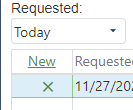
Step 3: Fill Out the Request
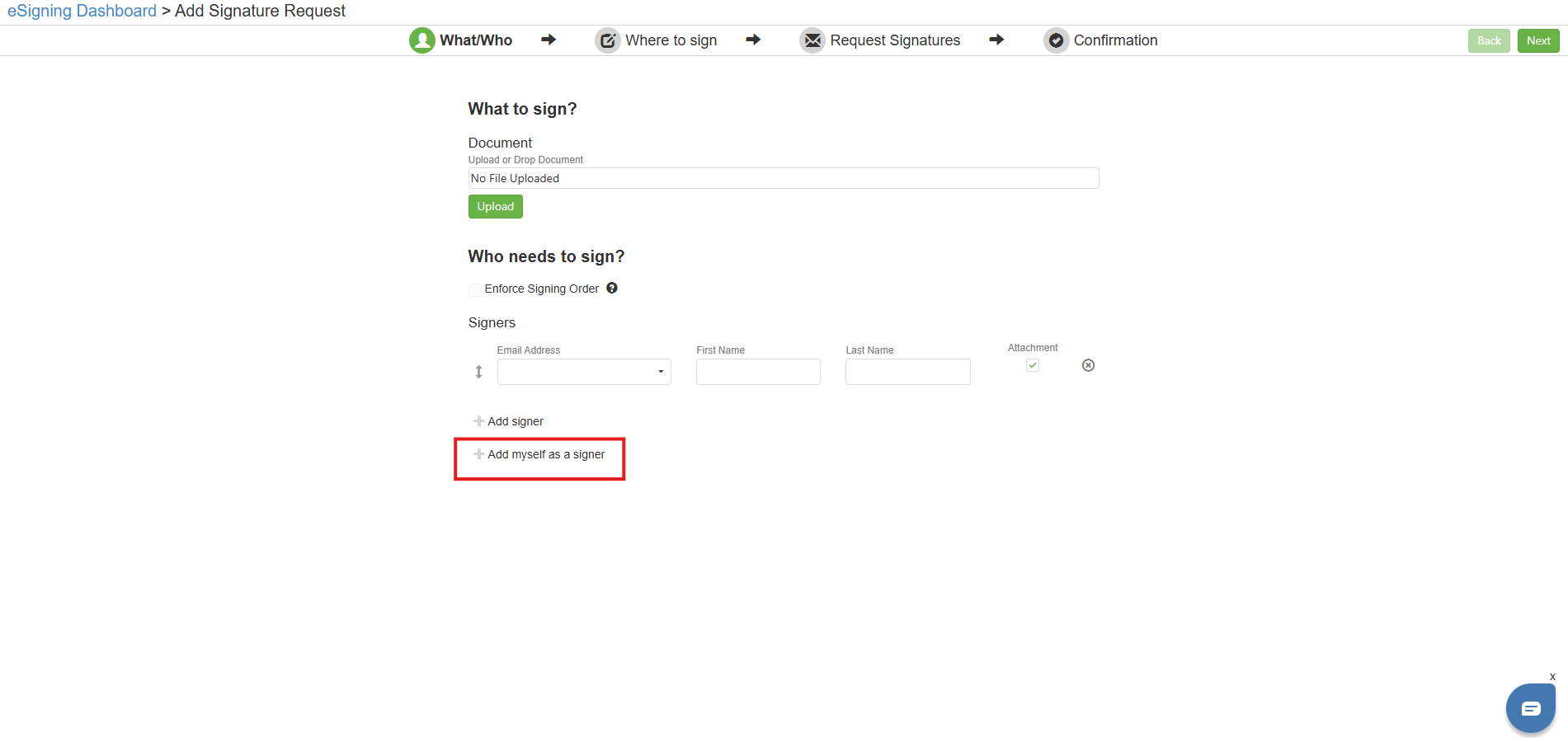
- Upload the document you wish to sign
- Once uploaded, click the add myself as a signer button
- Note * you can remove the signer box that is already there if you want to be the only one to sign the document
Step 4: Initiate Signing
- Click on “Next” in the top right. This action will open the document and allow you to drag and drop any fields you need or want to be filled out on the document.

Step 5: Signing document
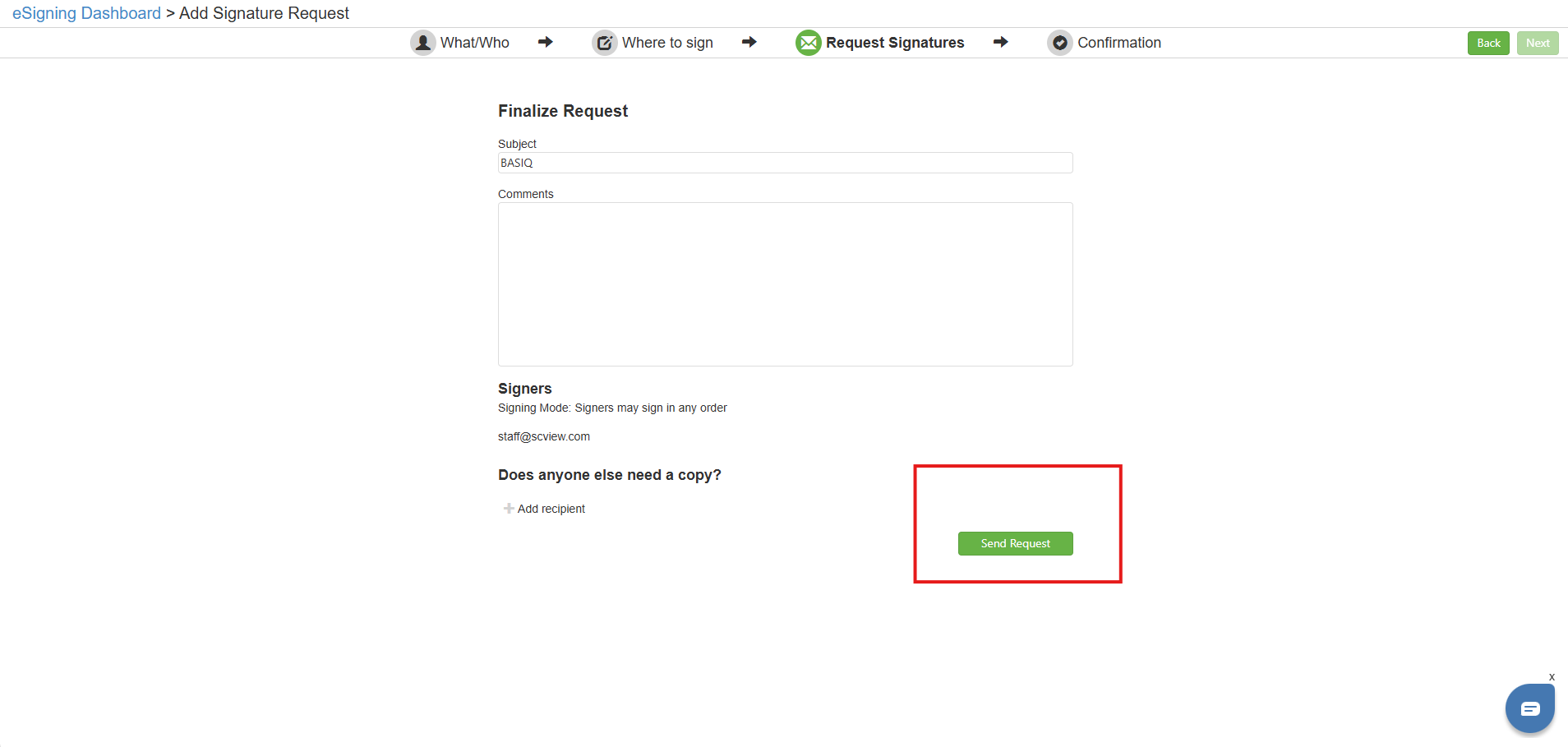
- Once you entered all your fields hit "Next" again, it will take you to the confirmation screen. From here you will be able to sign your request or send it out to have it signed.
C. Best Practices
Leverage Quick Access: Use the "Sign Request" button next to the Dashboard button on your main screen for faster access. This is particularly helpful when managing multiple documents, allowing for quicker transitions and responses.
D. Troubleshooting
Browser Compatibility Issues: Should features not display correctly, try accessing the dashboard through a different browser or update your current browser to the latest version. Sometimes, clearing the browser cache can also resolve display issues.
E. Related Articles
eSigning: View Audit of a Request
Conclusion
The updated eSigning Dashboard is designed to enhance your document signing experience by making the process more integrated and accessible directly from your dashboard. Whether you are initiating a new sign request or managing multiple documents, these changes ensure a smoother and more efficient workflow, helping you save time and enhance productivity. If you encounter any difficulties or have questions, our support team is always ready to assist you.