
 | ||
Introduction
In SCView, the By User dropdown control on the My Forms page provides advanced filtering capabilities for accessing forms created by different users. This feature dynamically enables and disables based on document type selection and user permissions, ensuring secure and controlled access to form data. This document details the functionality, requirements, and configuration guidelines for effectively using the By User dropdown control in My Forms.
A. Problem Statement
Users accessing the My Forms page face challenges in filtering forms by different users due to complex interaction requirements between document type selection and permission settings. The By User dropdown control's dynamic behavior enabling only under specific conditions and disabling when filters are cleared or permissions are restricted can cause confusion and workflow disruptions if not properly understood and configured.
B. Solution
To effectively utilize the By User dropdown control, users must understand its conditional enabling logic and search functionality. The solution involves understanding the relationship between document type selection, filter states, and user permissions, along with proper search techniques for finding specific users within the dropdown.
Understanding the By User Dropdown Behavior
The By User dropdown control operates with the following conditions:
- Disabled by default when "All Doc Types" is selected
- Disabled when filters are cleared using the "Clear Filter" button
- Enabled when a specific document type is selected (other than "All Doc Types")
- Automatically disabled when selecting a document type for which the user lacks unrestricted permissions

Step 1:
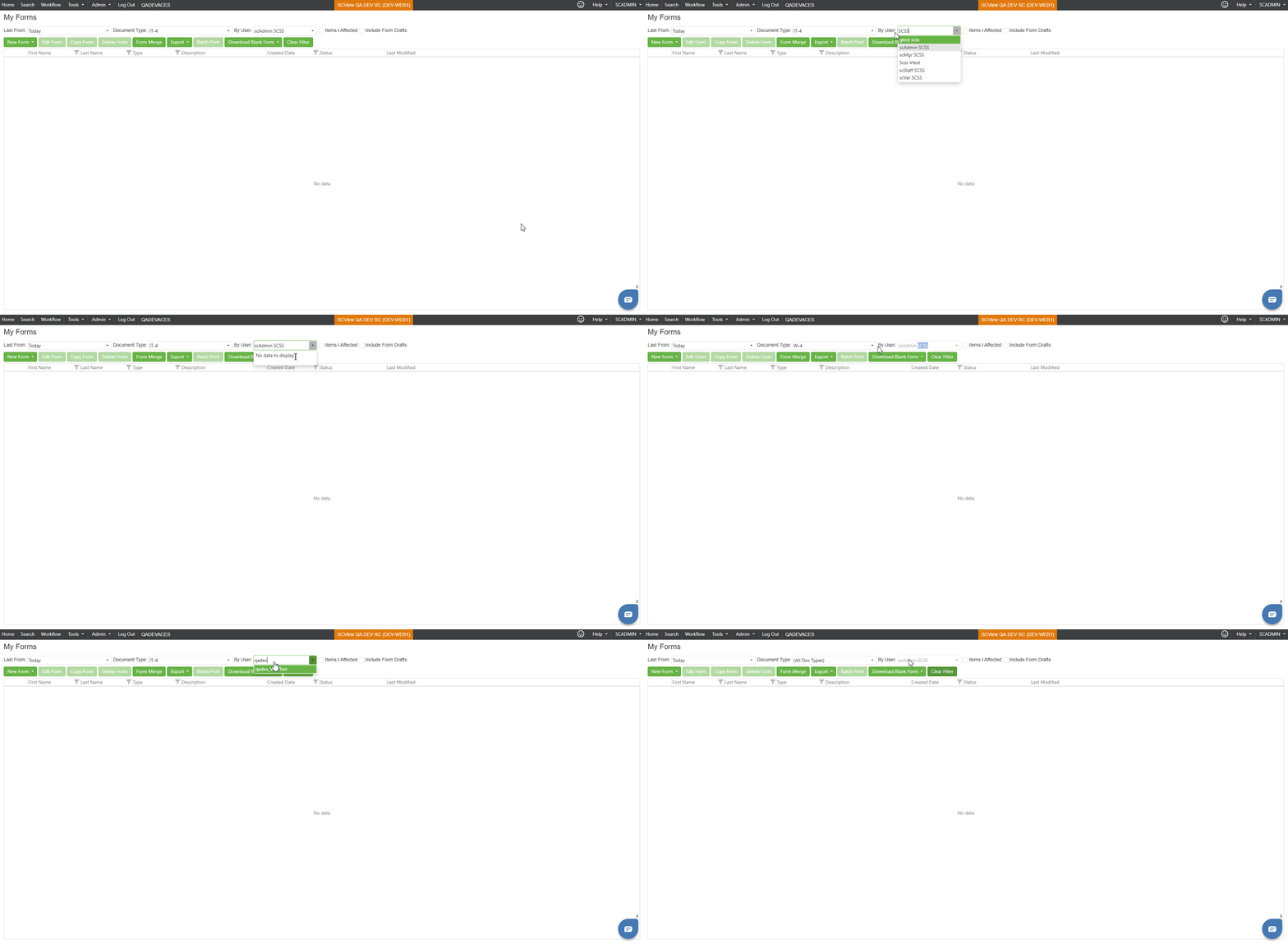
Access the My Forms page through Tools > My Forms. Change the document type dropdown from "All Doc Types" to any specific document type. This action will enable the By User dropdown control, provided you have unrestricted permissions for the selected document type.
Step 2:
Once enabled, click on the By User dropdown to view available users. The dropdown will display the currently logged-in user by default.
Step 3:
To search for a specific user:
- Type either the first name OR the last name in the search field
- Do not enter both first and last names together (this will return no results)
- Select the desired user from the filtered dropdown results
Step 4:
Click on the desired user from the dropdown list to apply the filter. The forms grid will update to show forms created by the selected user.
Step 5:
- Previously set filters remain visible when navigating to the My Forms page
- If you type a name but don't select it and click elsewhere, the dropdown reverts to the previously selected user
- Clicking "Clear Filter" resets all filters to default and disables the By User dropdown
Permission-Based Behavior
When Document Type Lacks Unrestricted Permission:
If you select a document type for which you don't have unrestricted permission: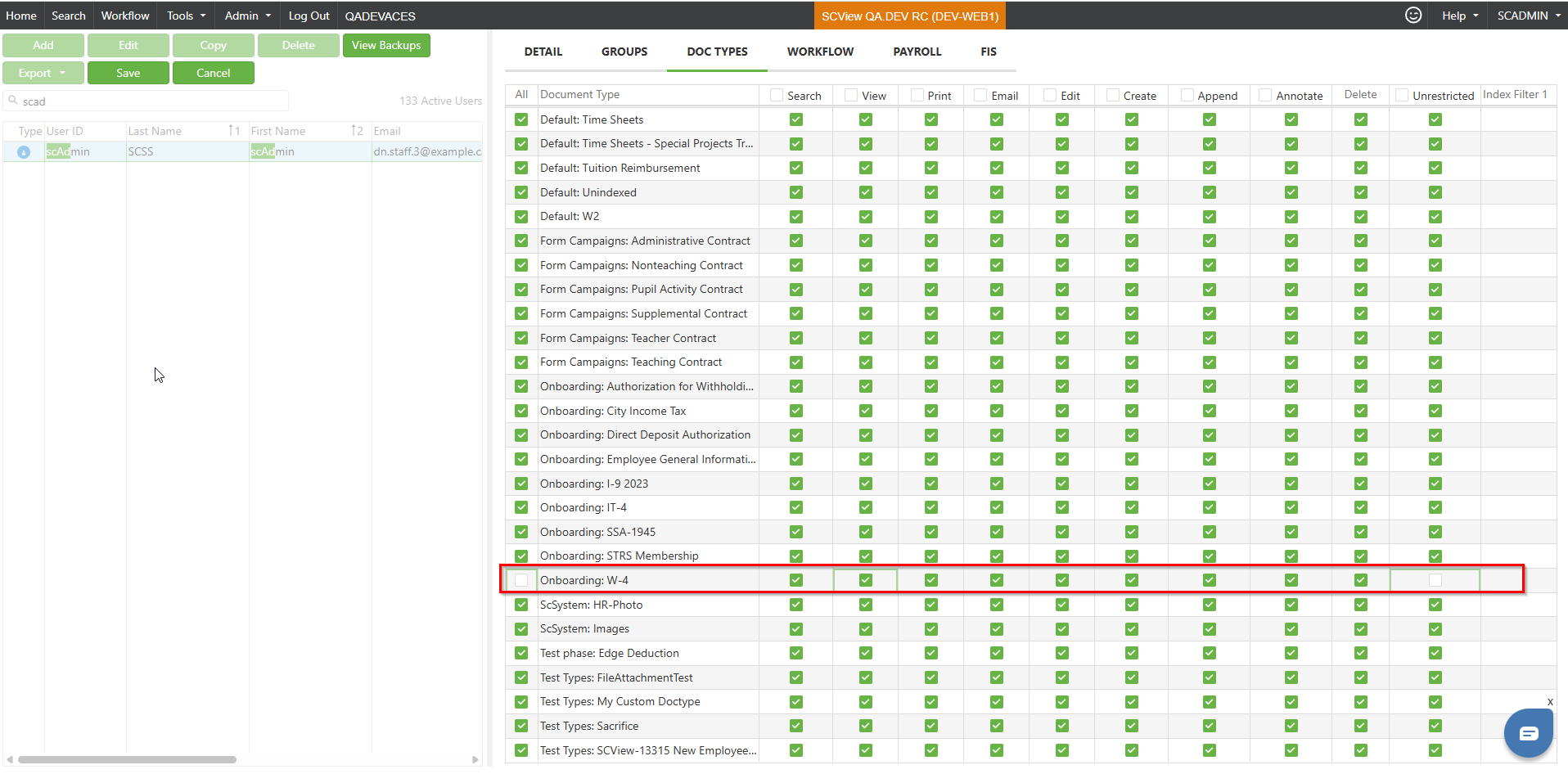
- The By User dropdown automatically reverts to showing the logged-in user
- The dropdown becomes disabled and cannot be changed
- Switching to a different document type with proper permissions re-enables the control

Search Functionality Guidelines
Valid Search Methods:
- Search by first name only (e.g., "John")
- Search by last name only (e.g., "Smith")
Invalid Search Methods:
- Searching by both first and last names together (e.g., "John Smith") - returns no results
C. Best Practices
- Always select a specific document type before attempting to use the By User dropdown, as it remains disabled for "All Doc Types" selection.
- When searching for users, use either first name or last name exclusively for optimal results. Maintain a reference list of usernames if needed for quick searching.
- Regularly verify that users have unrestricted permissions for document types they need to filter by other users. Coordinate with administrators to ensure proper permission assignments.
- Be aware that clearing filters will disable the By User dropdown, requiring re-selection of a document type to re-enable it.
- Always select a user from the dropdown list rather than just typing and clicking away to ensure the filter is properly applied.
D. Troubleshooting
- Problem: By User dropdown is disabled and cannot be clicked
- Verify that a specific document type is selected (not "All Doc Types")
- Check if filters were recently cleared using "Clear Filter" button
- Confirm you have unrestricted permissions for the selected document type
- Problem: No search results appear when typing in the By User dropdown
- Ensure you're searching by either first name OR last name, not both
- Verify the user exists in the system and has created forms for the selected document type
- Check spelling and try alternative search terms
- Problem: Selected user reverts to previous selection after typing
- This occurs when typing a name without selecting from the dropdown
- Always click on the user from the dropdown list to apply the selection
- Problem: By User dropdown automatically resets to logged-in user
- This indicates lack of unrestricted permission for the selected document type
- Contact administrator to verify and update Doc Type User Settings permissions
- Problem: Unable to find a specific user in the dropdown
- Avoid entering both first and last names together
- Try searching with partial names or different name variations
E. Related Articles
Custom Forms: How Do I Enter a Custom Form?
Custom Forms: Filling Out Sensitivity Levels
Custom Forms: Document Type Manager Effective Permissions Report
Conclusion
The By User dropdown control in My Forms provides powerful filtering capabilities when properly understood and configured. By following the documented behavior patterns and ensuring appropriate permissions are in place, users can efficiently filter and access forms created by different users. Remember that the control's dynamic enabling/disabling behavior is designed to maintain security while providing flexibility. Understanding the relationship between document type selection, permissions, and the By User dropdown ensures smooth workflow operations and effective form management within SCView.