 | ||
Introduction
This article provides comprehensive guidance on working with file attachments in SCView's custom forms. You'll learn how to upload, manage, and troubleshoot file attachments, including understanding the differences between template and non-template form validation rules.
A. Problem Statement
Users working with SCView custom forms need to understand how to properly upload and manage file attachments within their form submissions. This includes knowing which file types are accepted, how to handle multiple attachments, and understanding validation requirements that differ between template and non-template forms.
B. Solution
SCView offers a robust file attachment feature that allows users to upload supporting documents directly to form submissions. Follow these steps to successfully work with attachments:
Step 1: Locate the Attachment Field
Navigate to your custom form and identify the attachment area, which displays with clearly marked controls for file management.
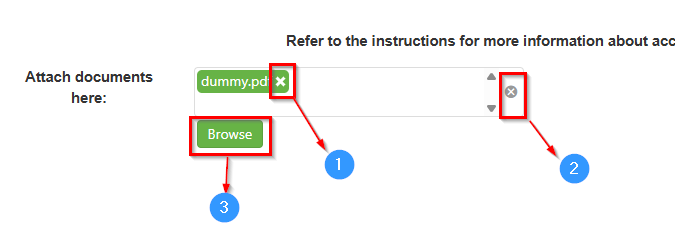
The attachment interface showing Browse button (3), file display area with dummy.pdf (1), and Clear All button (2)
Step 2: Upload Files Using the Browse Button
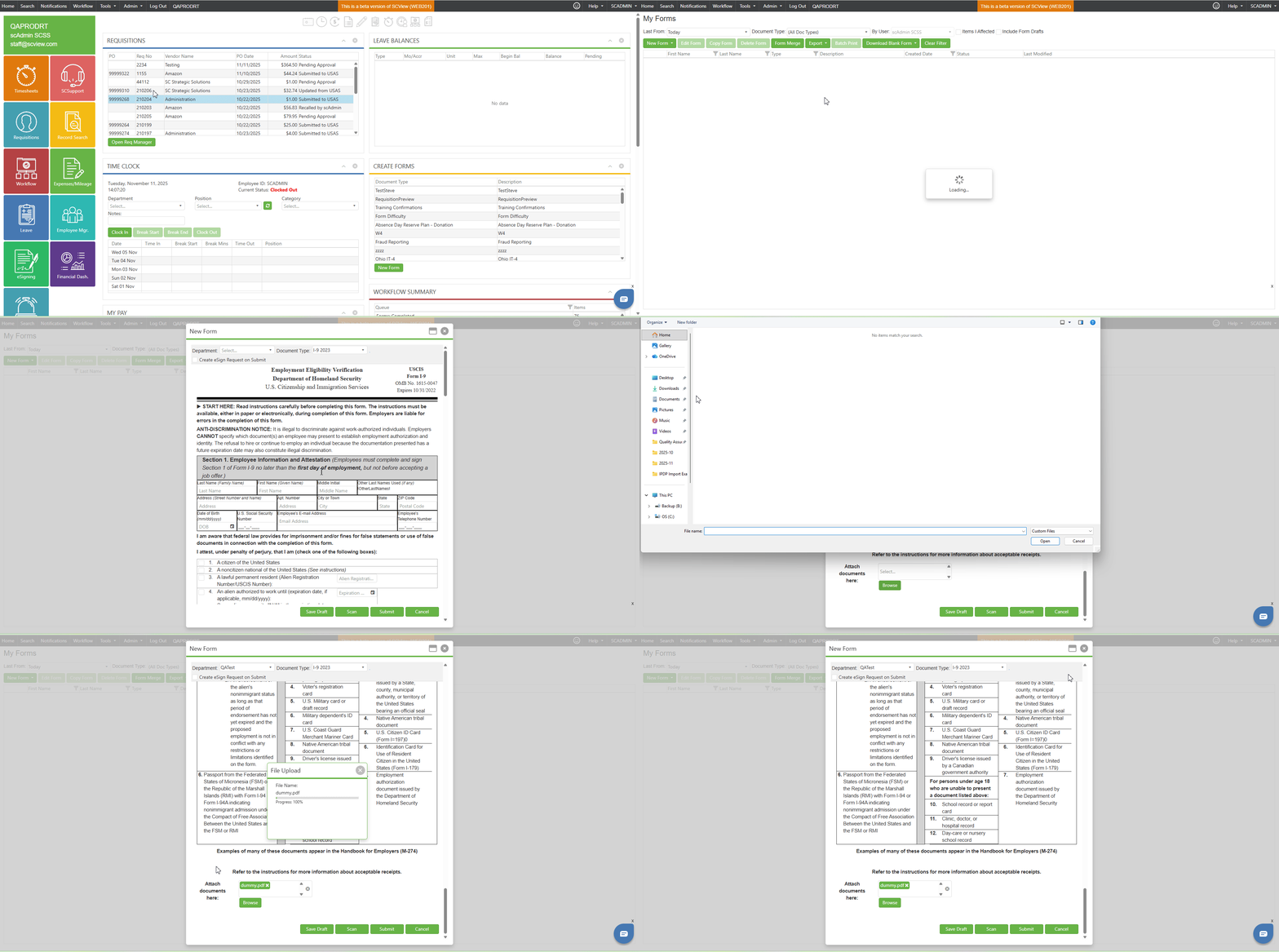
Click the Browse Button (3) to open the file selection dialog. You can select one or multiple files to attach to your form.
Step 3: Review Uploaded Files
After selection, your files will appear in the attachment display area. Each file shows:
- File name (e.g., "dummy.pdf")
- Individual delete button (X) for removing single files
- Files are validated immediately upon selection (for template forms)
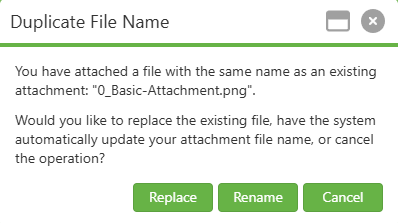
In case of duplicate file names:
- A Duplicate File Name dialog appears, giving the user options to deal with the duplicate filename:
- Replace: Selecting Replace will replace the older file with the newer file of the same name.
Rename: Selecting Rename will attach the newer file with a number appended to it to give it a unique filename.
Cancel: Cancel simply cancels the operation. The new file is not attached.
Step 4: Manage Your Attachments
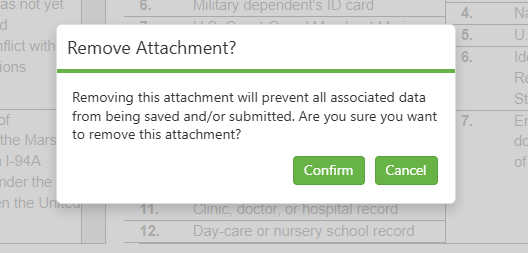
To remove a single file:
- Click the individual X button (1) next to the specific file
- Confirm deletion when the popup appears
To remove all files:
- Click the grey Clear All button (2)
- Confirm deletion when prompted
Step 5: Understand File Validation Rules
For Template Forms (Restricted):
- Upload only: PDF, JPG, PNG, and other image formats
- Avoid: DOC, DOCX, Excel files, videos, XML, HTML
- Invalid files trigger immediate error messages
For Non-Template Forms:
- All file types accepted
- No validation restrictions
C. Best Practices
- Check Form Type First: Determine whether you're working with a template or non-template form before uploading files
- Use Appropriate Formats: For template forms, convert documents to PDF format before uploading to avoid validation errors
- Review Before Submission: Always verify that all intended attachments are displayed before submitting the form
- Handle Duplicates Carefully: Remember that uploading a file with the same name will replace the existing file
- Batch Operations: Use the Clear All button when you need to remove multiple attachments and start fresh
D. Troubleshooting
- Attempting to upload restricted file types to a template form: Convert the file to an accepted format (PDF or image) and try again
- File failed validation and was rejected: Check the error message and ensure file meets format requirements
- Clicked delete button by mistake: Use the Cancel button in the confirmation dialog, or re-upload the file if already deleted
- Browser or system limitations: Upload files one at a time using the Browse button repeatedly
- Uploaded file with same name as existing attachment: Rename the new file before uploading to keep both attachments
E. Related Articles
Custom Forms: How Do I Enter a Custom Form?
Custom Forms: Filling Out as Anonymous
Conclusion
Successfully managing file attachments in SCView custom forms requires understanding the validation rules that apply to your specific form type. Template forms enforce strict file type restrictions (PDF and images only), while non-template forms accept all file types. By following the step-by-step process outlined above and adhering to best practices, you can efficiently upload, manage, and submit attachments with your forms. Remember to always verify your attachments before final submission and use the appropriate file formats to avoid validation errors.
Was this article helpful?
That’s Great!
Thank you for your feedback
Sorry! We couldn't be helpful
Thank you for your feedback
Feedback sent
We appreciate your effort and will try to fix the article