
 | ||
Introduction
In the process of managing requisitions in USAS (Uniform School Accounting System), accuracy and efficiency are crucial. Users often need to verify or edit details before submitting purchase orders (POs) or invoices. One common situation is updating the PO date for multiple requisitions within the Confirm Action screen. If handled manually, this can be tedious and subject to error. USAS includes a helpful feature in the context menu to streamline this task.
A. Problem Statement
When submitting a requisition as a purchase order (PO) or invoice to USAS, users are prompted with a Confirm Action screen to verify details. Occasionally, users find that the PO Date is incorrect for multiple requisitions. Manually updating each PO Date one at a time is inefficient and increases the risk of mistakes, especially during high-volume periods.
B. Solution
USAS provides a context menu feature that allows users to quickly change the PO Date for multiple requisitions at once. This guide walks you through the process of updating PO Dates in bulk using the "Apply PO Date to End" option.
Step 1:
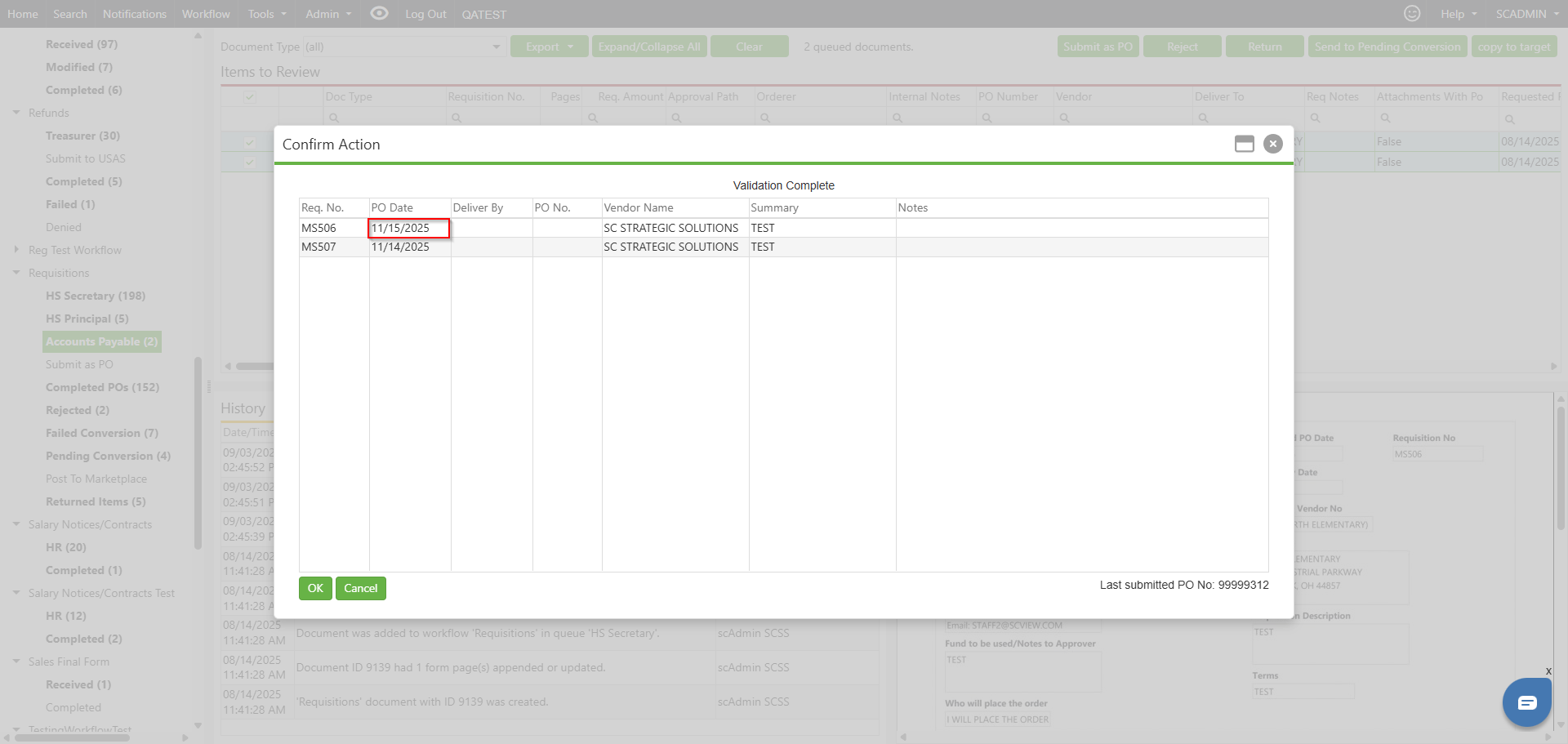
Update the PO Date on the first requisition that needs a change.
Step 2:
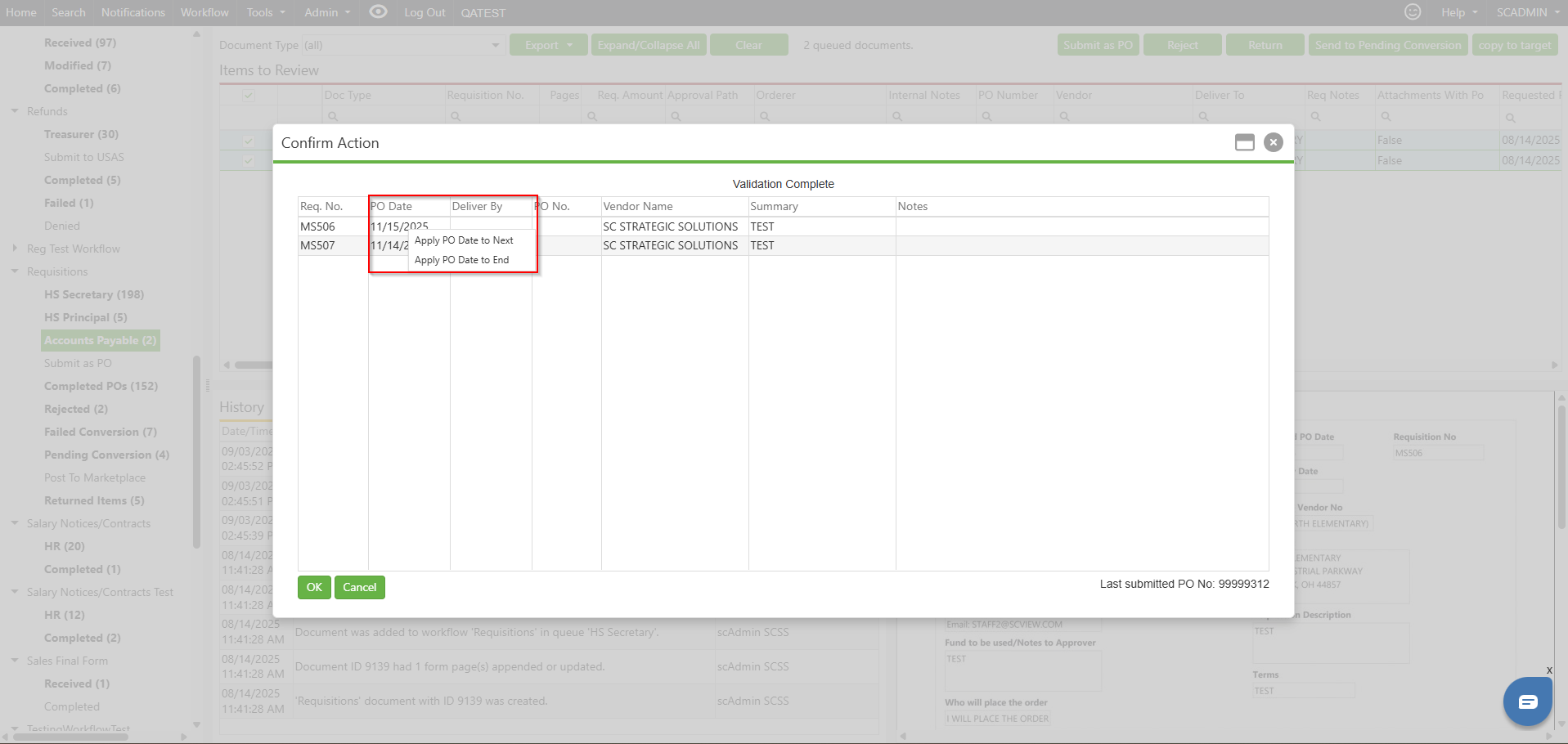
Right-click in the PO Date field on the first requisition.
Step 3:
From the context menu, select Apply PO Date to End. This action will copy the updated PO Date from the first requisition to all subsequent requisitions in the Confirm Action screen.
Step 4:
The date you selected will now be applied to all requisitions on the Confirm Action screen.
C. Best Practices
Double-check entries: Always review the PO Dates before applying changes to all items to prevent accidental errors.
Batch changes thoughtfully: Only use "Apply PO Date to End" when you're certain all selected requisitions require the same PO Date.
Save frequently: If your system allows saving drafts, do so after significant changes.
Stay updated: Review USAS release notes for any changes to context menu options or workflow.
D. Troubleshooting
Changes not applied: If the PO Date does not update on all requisitions, ensure you started with the correct row and that you right-clicked directly in the PO Date field.
Context menu not appearing: Make sure you have the correct permissions and that your browser supports context menus in USAS.
Accidentally applied the wrong date: Repeat the steps with the correct date, or manually correct the affected rows as needed.
E. Related Articles
Requisitions: Create a Requisition
Conclusion
Accurately updating PO Dates for multiple requisitions is essential for efficient workflow in USAS. Using the context menu to "Apply PO Date to End" allows users to make bulk changes easily, reducing manual effort and the potential for mistakes. By following these steps and best practices, you can improve your processes and ensure data integrity. Try this method the next time you’re working with multiple requisitions to save time and avoid errors.