
 | ||
Introduction
This article provides a comprehensive guide for efficiently updating multiple invoice dates simultaneously when submitting to USAS. You'll learn how to handle situations where invoices cannot be submitted due to closed month restrictions and discover the mass update feature that saves time when processing multiple invoices. This process is essential for maintaining invoice processing workflows when month-end closures prevent individual invoice submissions.
A. Problem Statement
When invoices are not approved before a month closes in USAS, they become stuck with outdated invoice dates that prevent submission to the current open period. Processing these invoices individually by changing each date one by one is time-consuming and inefficient, especially when dealing with large batches of invoices. Users need a streamlined method to update multiple invoice dates simultaneously to ensure timely processing and prevent payment delays caused by month-end restrictions.
B. Solution
SCView provides a mass update feature that allows you to change multiple invoice dates efficiently through the submission confirmation screen. This process leverages right-click functionality to apply date changes across multiple invoices at once.
Step 1: Select Invoices for Submission
Under "Items to Review," select all the invoices you wish to submit by checking the appropriate boxes or using multi-select methods. Once you've selected your invoices, click the "Submit to USAS" button located above the invoice list.

Step 2: Access the Confirmation Screen
The system will display a confirmation screen showing all selected invoices ready for submission. This screen provides editing capabilities for invoice details before final submission to USAS.
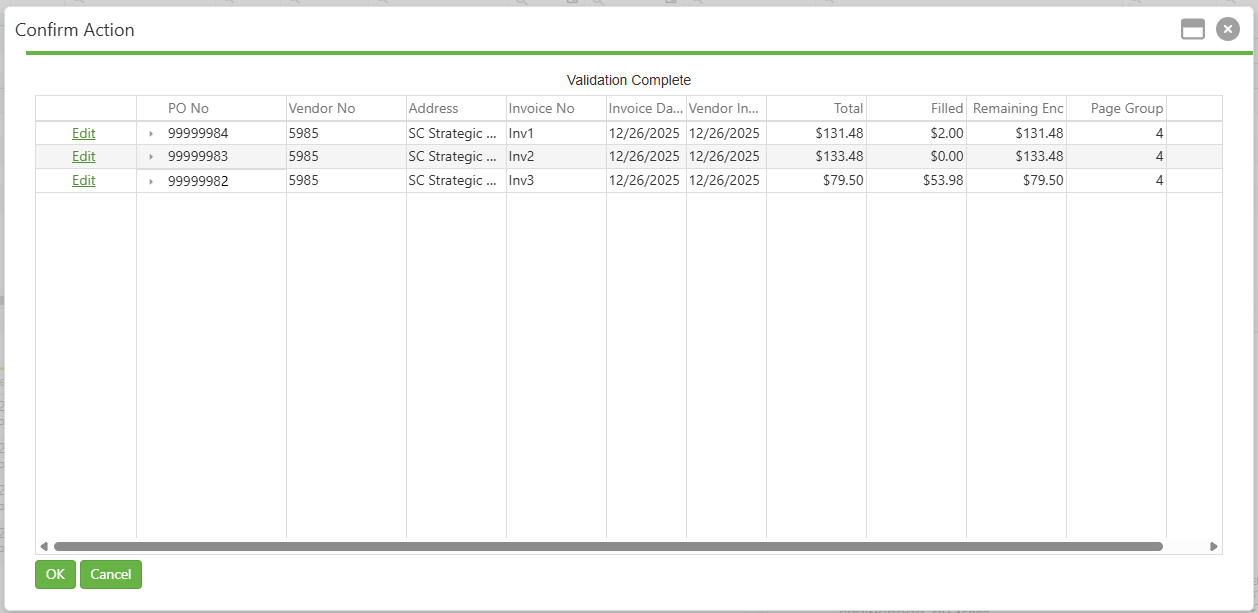
Step 3: Edit the First Invoice Date
Click on the first line of the invoice you want to change. In the left-most column, click "Edit" to enable editing mode for that specific invoice line.

Step 4: Update the Invoice Date
Change the invoice date to fall within the current open month or to correct it to the proper date. You can either type the date directly into the field or use the dropdown arrow to select the date from a calendar interface. Once you've entered the correct date, click "Update" in the left-most column to apply the change.
Step 5: Apply Date to Multiple Invoices
Right-click on your newly updated invoice date to access the mass update options.

- Apply Invoice Date to Next: Changes the invoice date of the invoice directly below this one
- Apply Invoice Date to End: Changes the invoice date of all invoices below this one in the list
Step 6: Verify Changes and Submit
After applying the date changes, verify that all invoice dates have been updated accordingly. All affected invoices should now display the new date. Click "OK" at the bottom of the confirmation screen to submit all invoices to USAS.
C. Best Practices
- Group Similar Invoices: Select invoices that need the same date change to maximize efficiency of the mass update feature
- Verify Month Status: Confirm the current open month in USAS before beginning the update process
- Sort by Date: Organize your invoice list by date to easily identify which invoices need updating
- Process in Batches: Handle large numbers of invoices in manageable groups to avoid system performance issues
D. Troubleshooting
- Submission Still Failing: Confirm all invoices now have dates within the current open month before final submission
- Right-Click Menu Not Appearing: Ensure you're right-clicking directly on the updated date field, not adjacent areas
E. Related Articles
Invoices: Posting Errors - What do they mean?
Conclusion
Mass updating invoice dates through SCView's submission confirmation screen provides an efficient solution for handling multiple invoices that require date corrections due to USAS month-end restrictions. By following the step-by-step process of selecting invoices, editing the first date, and using the right-click apply functions, you can quickly update entire batches of invoices to the current open month. Implement this streamlined approach whenever you encounter month-end date issues to maintain efficient invoice processing workflows and prevent payment delays.