 | ||
Introduction
Sometimes an employee needs a hand getting their time sheet started; they might be out, overwhelmed, or simply new to the process. This article covers how to fill out and submit a Time Sheet on behalf of another user so their hours get logged without unnecessary delays. By the end of this guide, you'll know how to access another user's time sheet, what conditions need to be met to do so, and how ownership transfers back to them once the sheet is submitted.
A. Problem Statement
Marcus just started last week and has no idea how to fill out his time sheet. His onboarding is still in progress, and he's already anxious about missing his first payroll deadline. Previously, organizations in this situation had two options: walk the new hire through the process in real time or, alternatively, let their hours go unsubmitted until they figured it out themselves. Now, with the ability to fill out Time Sheets for other users, provisioned users can step in and submit a Time Sheet on someone else's behalf.
B. Solution
To follow along with this guide, please navigate to Tools > Time Sheets
Step 1: Click Add Sheet
To begin the process, click the Add Sheet button in the top left section of the Time Sheets Manager. This will open up the Edit Sheet popup.
Video: Opening the Edit Sheet Popup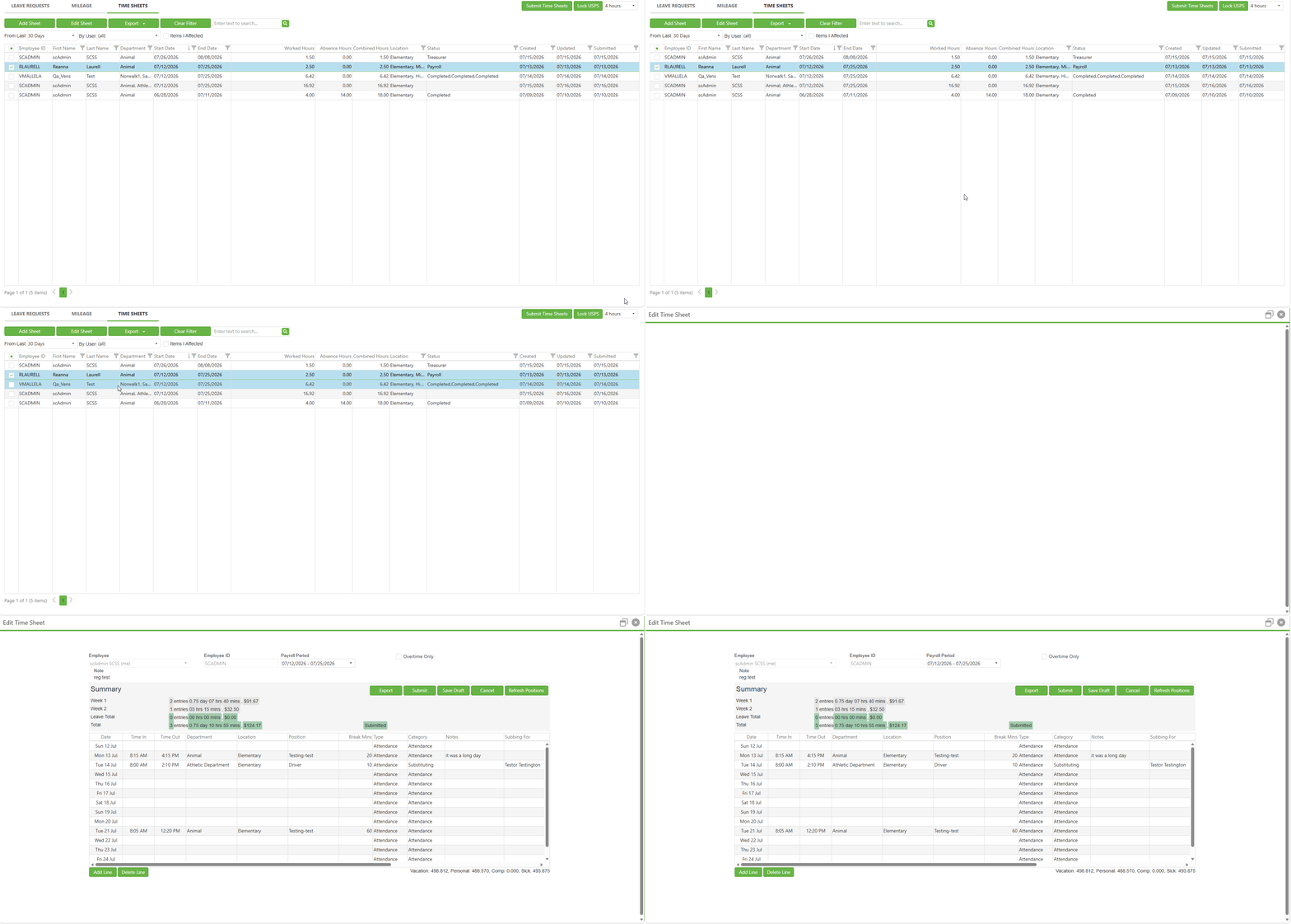
Step 2: Select Another User
In order to select another user and begin to fill out their time sheet, three things must be true:
- You must have been provisioned Report View access to at least one department.
- That other user must have an Employee ID.
- You cannot be looking at a time sheet that you have already started or submitted for yourself.
In the video below, we demonstrate how to control for #2. Simply select a payroll period for which you do not have a time sheet. The most likely candidate for this will be the time sheet at the bottom of the list, which represents the next, future pay period.
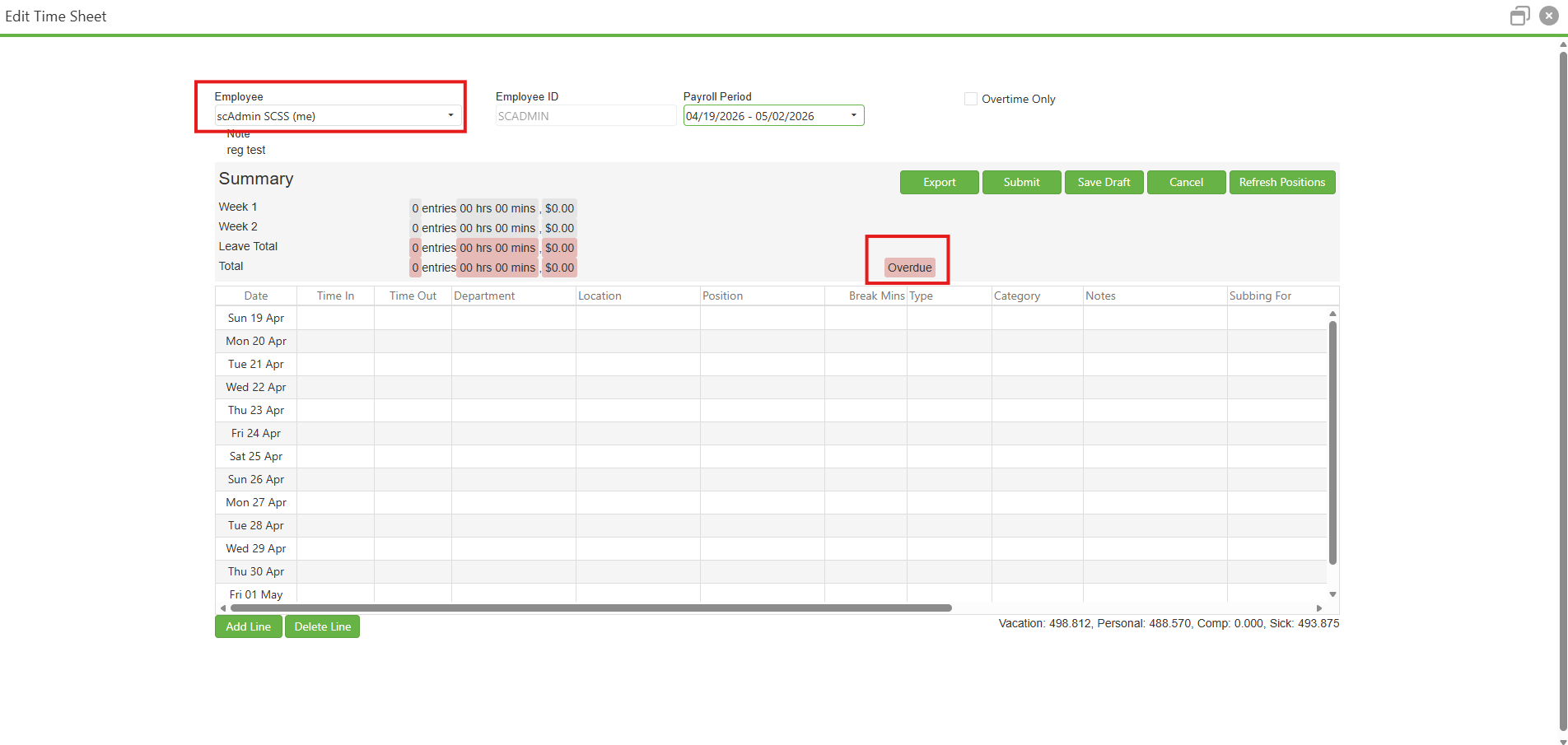
Once you find a blank time sheet, if you have Report View access to one or more departments, then the Employee dropdown will enable. Simply select the desired user from the Employee dropdown list and confirm the employee change in the subsequent dialog box.
From here, you can fill out and submit a time sheet like normal. When submitted, an ownership change will give the time sheet to the named employee so they can continue editing the sheet.
Video: Selecting Another User and Submitting a Time Sheet in Their Name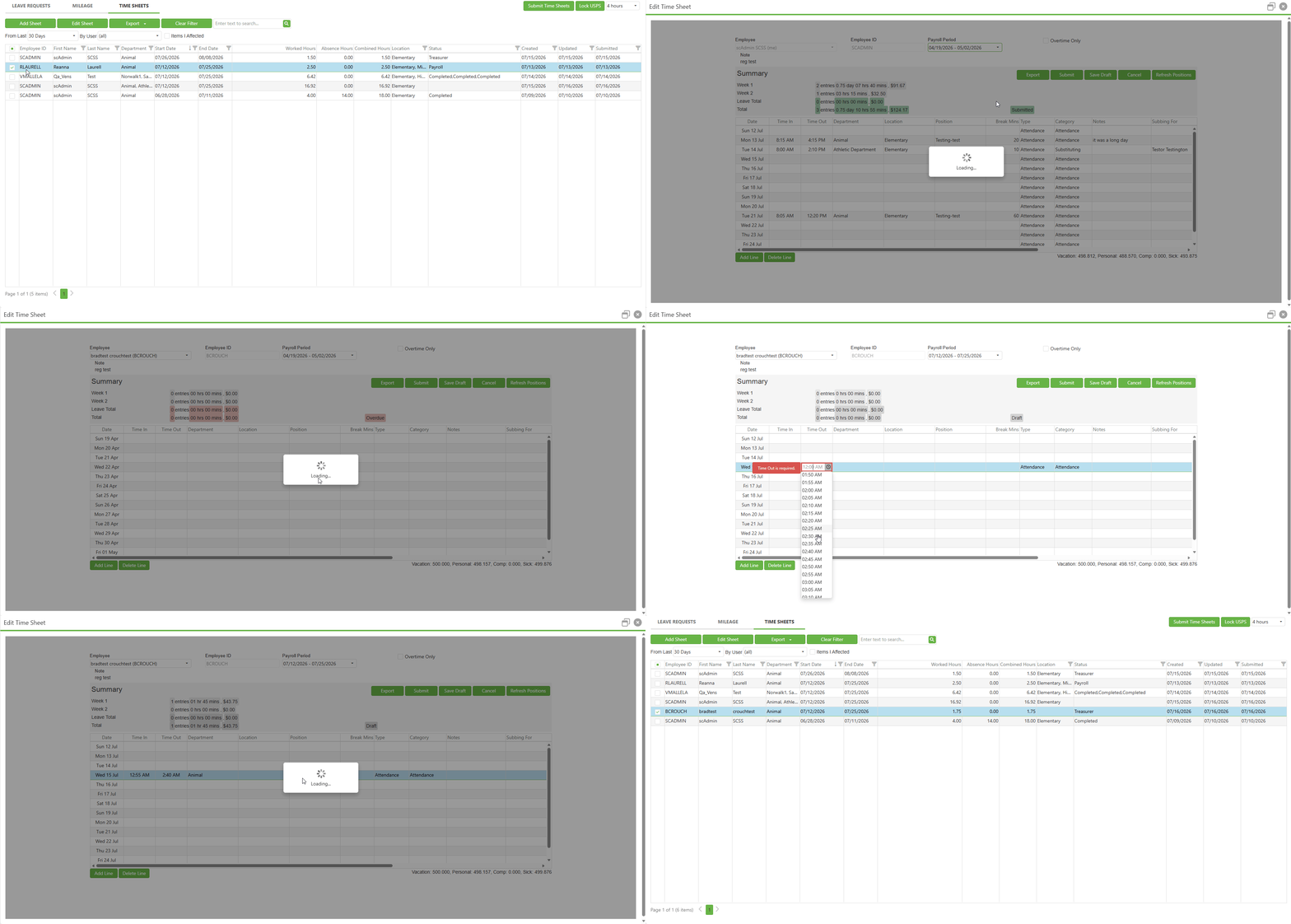
Image: Employee Dropdown Enables When Time Sheet on Display is Fresh
C. Best Practices
Properly Encapsulate Report Viewers - Time Sheets for Others is a powerful feature. Please use its inclusion as a cue to doublecheck your organization's permissions scheme. Are all users who can use this feature individuals who should have access to this feature? Conversely, are there individuals who would benefit from being given it?
Try to Avoid Future Pay Submissions on Report Viewers - As an individual who can use this feature must navigate to a blank sheet to add a sheet for another user, it is best not to fill out the future pay period so that this feature remains accessible.
D. Troubleshooting
Dropdown Disabled? - Remember, if your own personal time sheet data is currently displaying, you cannot change users. Find a time sheet with no data submitted to be able to change users.
E. Related Articles
Time Sheets: Submitting Time Sheets for Approval
Conclusion
With Report View access and a blank pay period to work from, you can select another user from the Employee dropdown, complete their Time Sheet, and submit it on their behalf. This provides a necessary guard against long vacations, lapses in judgement, and mistakes made by new hires.
Was this article helpful?
That’s Great!
Thank you for your feedback
Sorry! We couldn't be helpful
Thank you for your feedback
Feedback sent
We appreciate your effort and will try to fix the article