
 | ||
Introduction
Welcome to the detailed guide on managing Time Sheet User Settings within MySCView. This manual is designed to assist administrators by offering an in-depth look at various settings that play a crucial role in customizing and optimizing Time Sheets for all users within the organization.
A. Problem Statement
Navigating and configuring the extensive Time Sheet settings in MySCView can be overwhelming for administrators, particularly in terms of understanding the functionality and implications of each setting. This can lead to potential errors in time-tracking and payroll management.
B. Solution
To address these challenges, our guide outlines each Time Sheet setting found within the Admin > Users module with explanations of their functions and impacts. By understanding these settings, administrators can effectively configure the system to meet the organization's specific needs, ensuring accurate and efficient time management.
Please be sure to use this guide in conjunction with the Time Sheets: Site Settings guide for the full breadth of the module's settings.
Time Sheet User Settings
Navigate here by going to Admin > Users > Detail
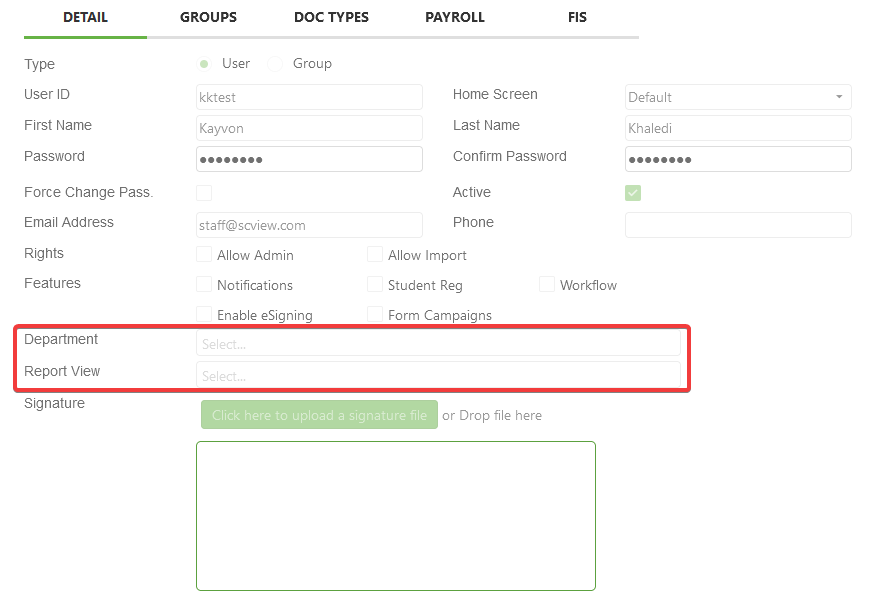
Department - Used to determine which workflow to send the Leave, Time Sheet, or Mileage Request. This option is selected on each request form. User may have multiple departments.
Report View - Users with department Report View permissions can view all time sheets submitted for that department in the Time Sheet Manager.
Navigate here by going to Admin > Users > Payroll
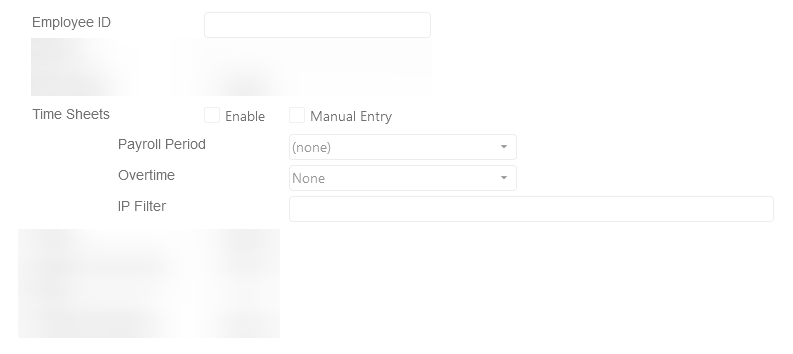
Employee ID - USPS User ID to pull the user's USPS positions.
Time Sheets Enable - Allows user to submit Time Sheets.
Time Sheets Manual Entry - Allows user to submit Time Sheets using the Time Sheet form.
Payroll Period - Choose the payroll period for this user based off of what was created. Choosing nothing will use the Default setting.
Overtime - Choose the Overtime period for this user based on user's overtime needs. If set to none, user will not get overtime.
IP Filter - Enter an IP address for the location of where the employee should be when clocking in and out. If the IPs don't match, the employee will not be able to log in.
Multiple IP addresses are formatted with a comma in between and no spaces.
192.168.1.2,192.168.1.3
C. Best Practices
Balanced Configuration:
- Strive for a balance between flexibility for users and controls necessary for accurate time reporting.
D. Troubleshooting
- If all settings within SCView appear to be correct, check back with your HRIS system to make sure that settings are as desired there, as well. Many values, such as hourly wages or the expected hours worked per day, are drawn from the HRIS system as the ultimate source.
E. Related Articles
Time Sheets - Submitting Time Sheets for Approval
Time Sheets - Adding Custom Pay Periods
Time Sheets - Automatic Dock Pay Lines: Configuration and Use
Conclusion
Effective management of Time Sheet settings in MySCView is crucial for ensuring that time tracking and payroll processes are both accurate and compliant with organizational standards. By following the guidelines and practices outlined in this guide, administrators can confidently manage settings, ensuring that all employees' time sheets are handled efficiently and securely. Remember, ongoing education, documentation, and adherence to best practices are your best tools for successful Time Sheet management within MySCView.