
 | ||
Introduction
OneLogin SSO is different than Google's. Below are the steps needed to generate client id, client secret, and URL. Once these steps have been gathered, need to email to support@scview.com
A. Problem statement
Enhancing accessibility to SCView by integrating OneLogin as the authentication method.
B. Solution
Developing a comprehensive step-by-step guide to streamline the setup process for OneLogin authentication in SCView.
If you do not see the following, means you do not have admin permissions in OneLogin.
1. Click "Administration". This will open a new tab.

2. Click "APPS" -> "Company Apps"
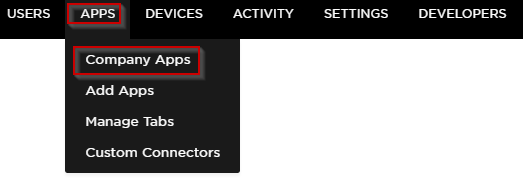
3. Click "ADD APP"

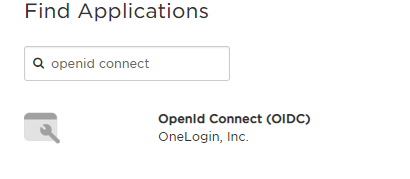
4. Search for "openid connect". Once found, click the app.
5. Edit information as needed and click "SAVE".
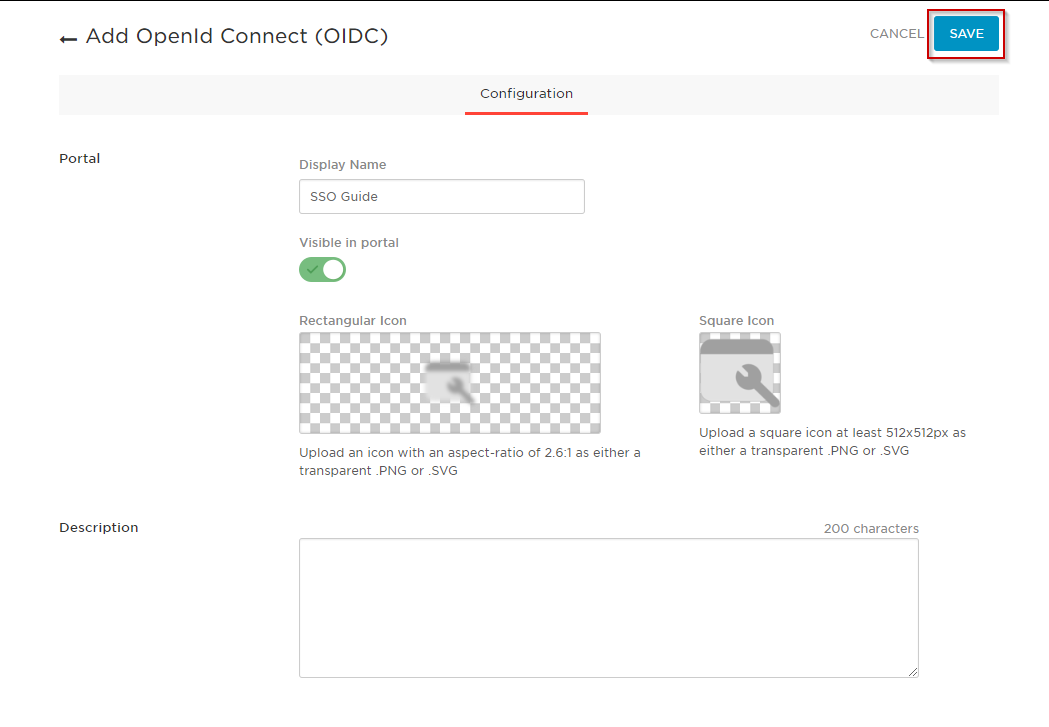
6. Fill in tabs as desired.
- Info: Self explanatory.
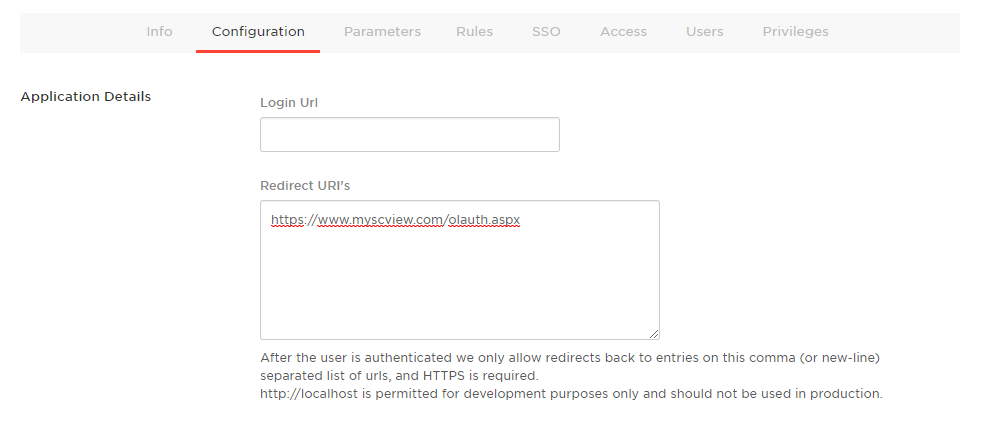
- Configuration: Add Classic https://www.myscview.com/olauth.aspx or AUTH https://auth.myscview.com/callback/login/onelogin to "Redirect URl's"
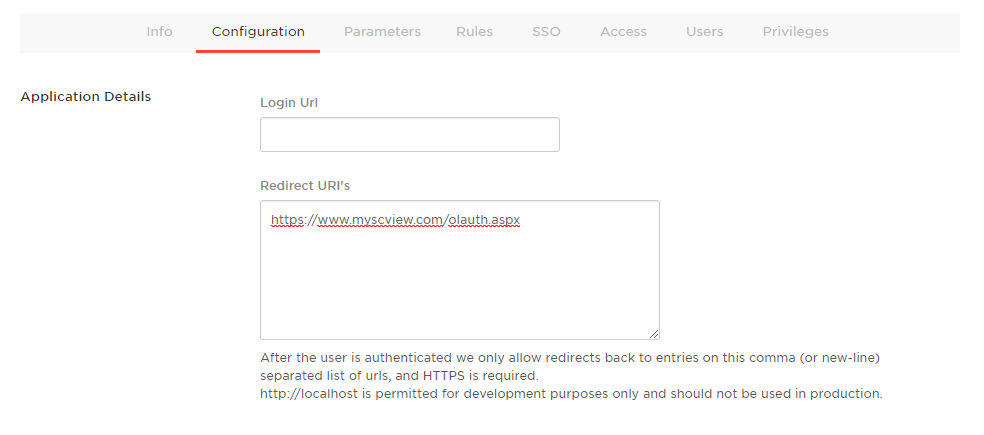
- Parameters: No changes needed for our side.
- Rules: No changes needed for our side.
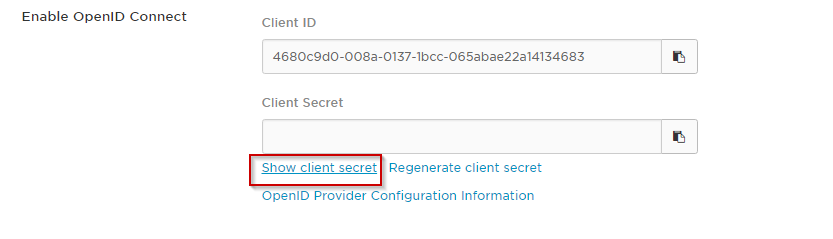
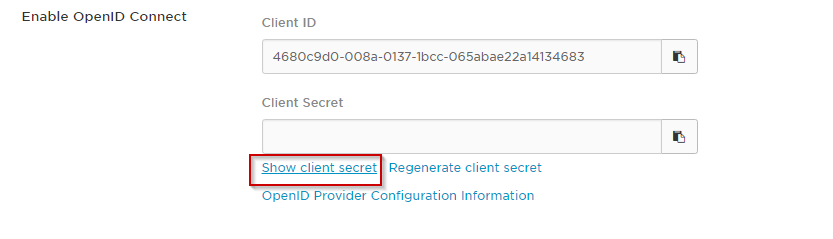
- SSO: Click "Show client secret". Copy Client ID and Client Secret fields. These will be needed later.
- Access: No changes needed for our side.
- Users: If they wish to add us, this is where they would add.
- Privileges: If added us as user, would add her for app admin
7. Click "SAVE"
8. Click "SETTINGS" -> and then click "Account Settings"
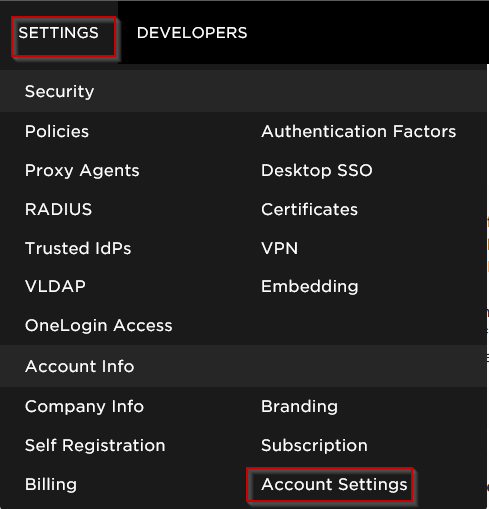
9. In the "Basic" tab, you will see your subdomain. Please copy this.
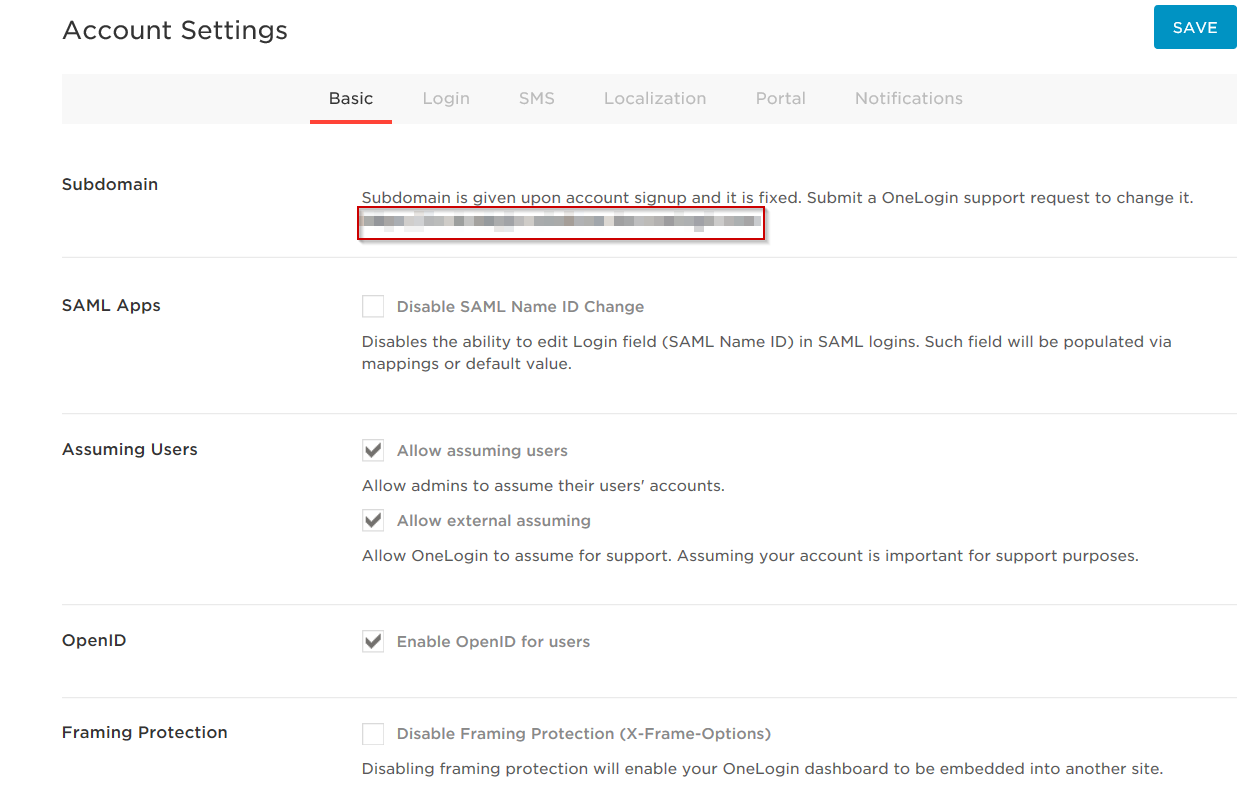
10. If you already have a ticket open, please send the information you copied from Step #5 & #10. If you do not have a ticket open, please send an email to support@scview.com with this information.
C. Best Practices
To ensure a seamless integration of SCView with OneLogin, please follow these best practices carefully. Adherence to these guidelines will ensure efficient setup and avoid common pitfalls associated with permission errors and configuration settings.
1. Confirm Administrative Access
- Before proceeding, confirm that you have administrative privileges in OneLogin. Only users with admin rights can access and modify crucial settings. If you do not see options such as 'Administration', 'APPS', or 'ADD APP', please contact your system administrator to get the necessary permissions.
2. Navigate to Administration Panel
- Log in to OneLogin and click on "Administration" to open a new tab for further settings.
3. Application Setup
- Within the administration panel, navigate to "APPS", then "Company Apps".
- Click "ADD APP" and search for "openid connect". Select the appropriate app when it appears in the search results.
4. Configure Application
- Edit the necessary information within the application setup to tailor it to your organisation's needs and click "SAVE".
- Under the "Configuration" tab, add the specific Redirect URL, `https://auth.myscview.com/callback/login/onelogin`, to the "Redirect URLs" section.
5. Secure Application Details
- Go to the "SSO" section and click "Show client secret".
- Carefully copy the Client ID and Client Secret fields as these credentials will be critical for subsequent steps.
6. Save and Finalize Configuration
- After completing all tabs with the desired settings, click "SAVE" to apply the configurations.
7. Account Settings Adjustment
- Click "SETTINGS", then "Account Settings". In the "Basic" tab, note your subdomain as it will be important for troubleshooting and support.
8. Communicate with Support
- If you have an open ticket related to this setup, update it with the information obtained from Steps #5 and #10.
- If no ticket is open, document the setup progress and any notable configurations or issues, and email these details to support@scview.com for further assistance.
General Tips:
- Regularly update your security settings to align with best practices.
- Ensure that any modifications to user roles or privileges are documented and done in accordance with organizational policies.
- Test the integration thoroughly in a controlled setting before rolling it out across the organization to minimize disruptions.
By following the above steps and tips, you should be able to effectively manage the integration of OneLogin with SCView, ensuring a secure and efficient authentication system for your users.
D. Troubleshooting
Reach out to support of any issues regarding OneLogin
E. Related articles
Conclusion
In conclusion, following these best practices for integrating SCView with OneLogin will not only streamline the setup process but also ensure that your system is secure and effectively managed. By verifying administrative permissions, accurately configuring the application, and maintaining clear communication with support, you can enhance your organization's operational efficiency and data security. Remember, thorough testing and adherence to these guidelines are key to a successful implementation of OneLogin authentication in SCView.