
 | ||
Introduction
This article provides a comprehensive guide for resolving invoice submission errors caused by USAS fiscal year restrictions. You'll learn how to identify and correct invoice dates that fall in the previous fiscal year, update line item received dates, and ensure successful invoice processing. Following these procedures will help you avoid submission delays and maintain proper fiscal year accounting compliance.
A. Problem Statement
USAS system restrictions prevent processing of invoices with dates outside the current fiscal year, creating delays in payment workflows and requiring manual date corrections before submission can proceed. Without proper date adjustment procedures, invoices submission will fail, impacting vendor payments and financial processing timelines.
B. Solution
The solution involves systematically updating both the main invoice date and individual line item received dates to comply with current fiscal year requirements. This process ensures USAS will accept the invoice submission while maintaining proper documentation of vendor invoice information.
Step 1: Edit the Main Invoice Date
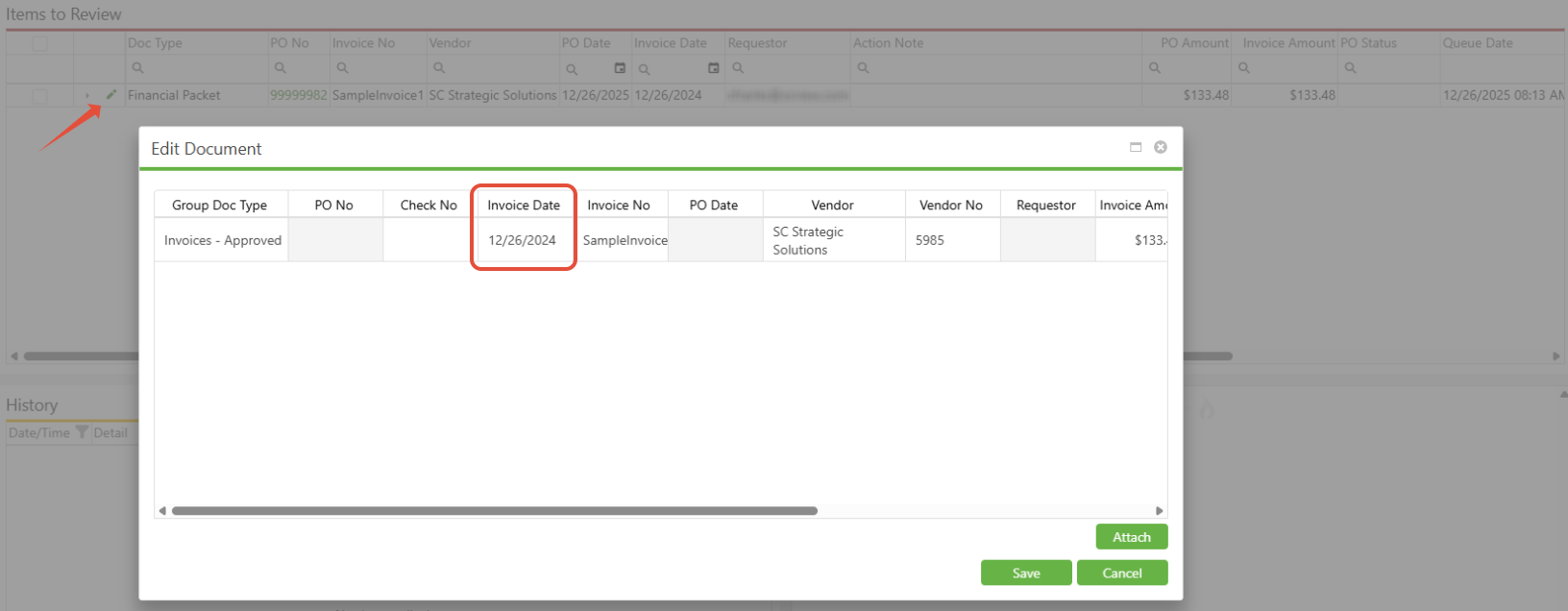
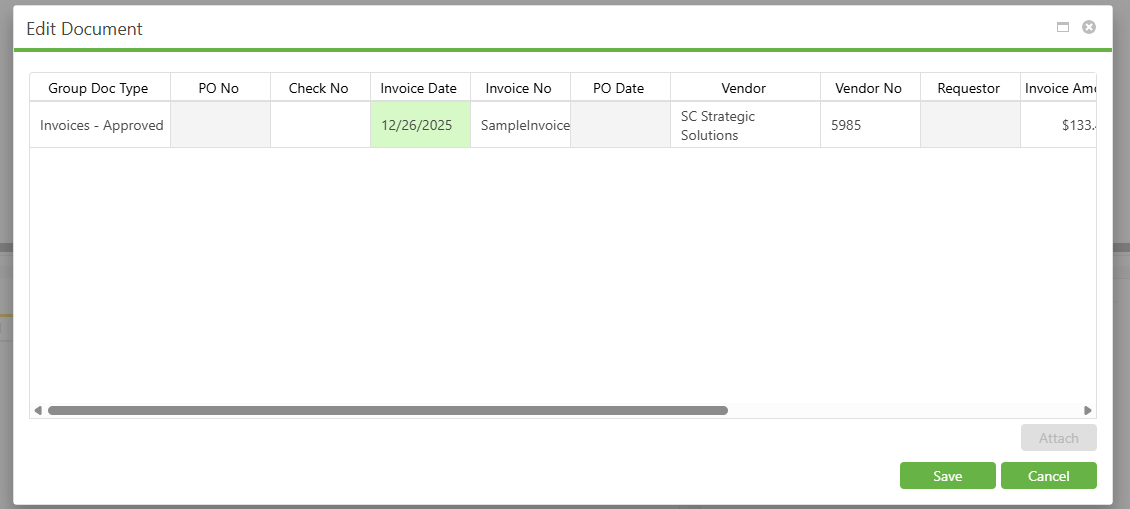
Click on the pencil icon on the upper line next to the checkbox to enter edit mode. Locate the "Invoice Date" column and double-click on the date field. Enter a date of July 1st (7/1) or later to ensure compliance with current fiscal year requirements. Click "Save" in the lower left corner to apply the changes.
Step 2: Access Invoice Line Items
Click the arrow to the left of the invoice row to expand and display the lower line items for that specific invoice. This reveals the detailed line item information that requires date corrections.

Step 3: Update Individual Line Item Dates
Click "Edit" on each lower line item that you're submitting an amount for. This enables editing mode for that specific line, and you'll notice the "Edit" button changes to show "Save" or "Cancel" once editing is activated.

Step 4: Enter Vendor Invoice Information
In the "Received Date" field for each line item being edited, enter the actual vendor invoice date. This maintains proper documentation while ensuring fiscal year compliance for system processing.

C. Best Practices
- Understand Fiscal Year Cycles: Familiarize yourself with your organization's fiscal year calendar to anticipate and prevent date-related issues
- Create Date Validation Checklists: Develop standard procedures for reviewing invoice dates before initial submission
- Double-Check All Changes: Review corrected dates for accuracy before final submission to prevent additional errors
- Update Only Necessary Fields: Focus corrections on line items with actual amounts being submitted to avoid unnecessary changes
D. Troubleshooting
- If an invoice is directed to the Failed queue, reference the audit history to understand the failure reason. Remediate issues according to the failure reasons and their solutions, which can typically be found in the support documentation or by contacting SC Support staff.
- If the warning "Invoice Amount does not equal the Line Item total." appears in the Confirm Action, this means that the sum of all non-cancel lower lines does not equal the invoice amount. (i.e. The Invoice Amount is $3 and the sum of all non-cancel line amounts is $1. Having $2 on a line with a status of "Partial_Cancel" does not count towards this total.)
E. Related Articles
Conclusion
Correcting invoice dates for USAS fiscal year compliance requires systematic updates to both main invoice dates and individual line item information. By following the step-by-step process of expanding line items, editing dates to current fiscal year compliance, and properly documenting vendor information, you can resolve submission errors and ensure smooth invoice processing. Implement these procedures whenever you encounter fiscal year restriction errors to maintain efficient payment workflows and proper accounting compliance.