 | ||
Introduction
Welcome to the user-friendly guide for accessing and printing your W-2 via the SCView platform. We understand that preparing for tax season may not be the most thrilling activity, but with SCView, locating and printing your W-2 can be both straightforward and hassle-free. Follow the instructions outlined below to effortlessly download and print your W-2 and swiftly check this task off your to-do list.
Instructions
- Login to www.myscview.com.
- If you are unsure of how to login, use this guide or contact your system administrator
- Navigate to the Home page if not already there.
- The Home page link is located at the top left of all screens in SCView
- Locate the My Pay widget.
- You may need to scroll down on the Home page to find it
- Depending on when your W-2 was imported, it may show with the default filters.
- If you do not see it and your administration has notified you it is available, follow these steps:
- Select Tax Docs in the Type dropdown menu
- Set the From field to This Year
- Your W-2 should now be displayed
- If you do not see it and your administration has notified you it is available, follow these steps:
If you still do not see your W-2, please contact your Fiscal Office.
- Click the View button.
- At the top right you will get a message to Open or Download your W-2.
- Click Open.
- This will open a new tab in your browser.
- From here you can Download and save or print your W-2.
Video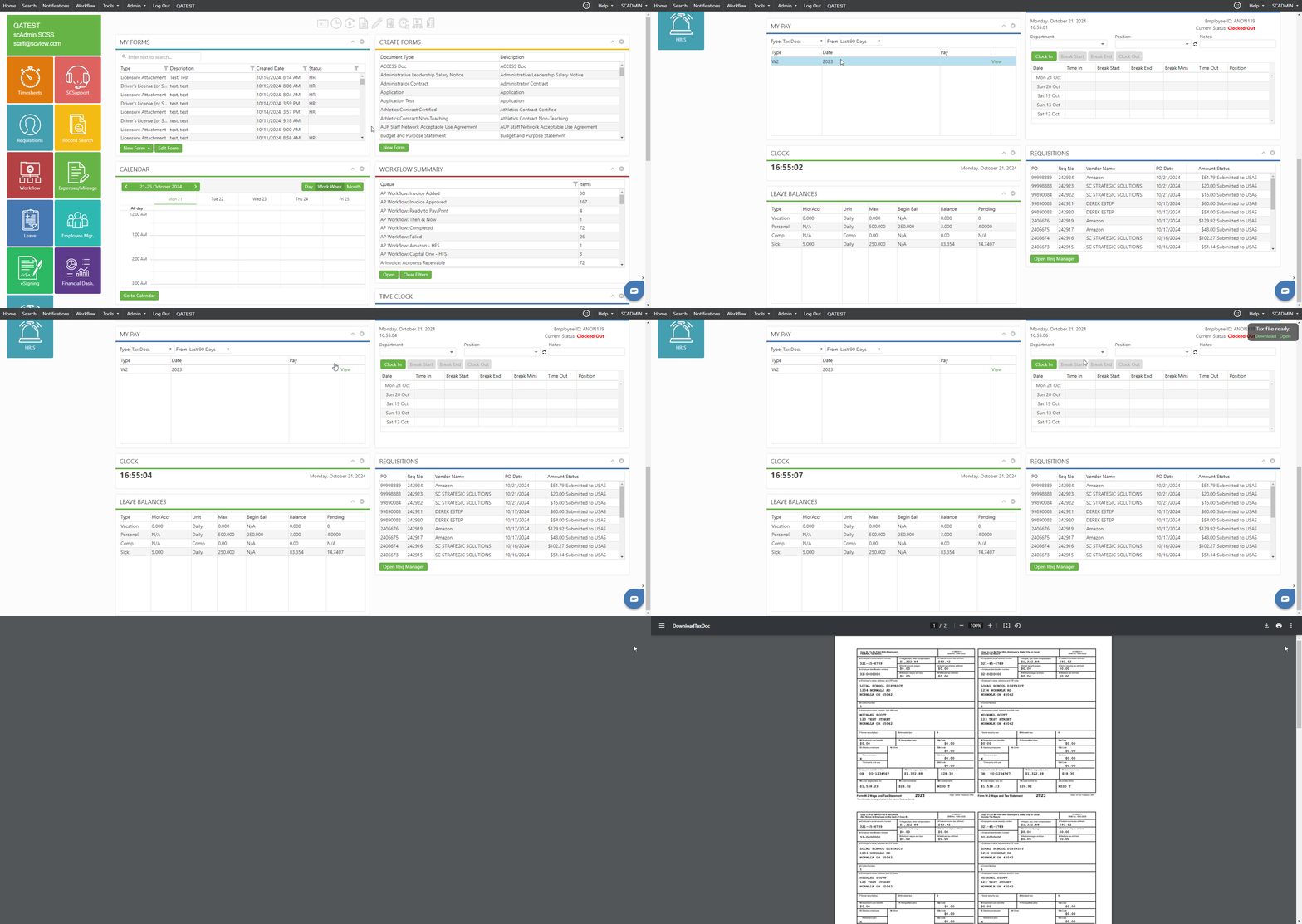
Click to Enlarge
Related Articles
Tax Docs: How to Upload and Print
Conclusion
With these simple steps, you should have successfully accessed and printed your W-2 document from SCView. Should you have any issues during this process or require further assistance, our Support team is always here to help. Having your W-2 printed means you're well on your way to being prepared for your tax submission. We appreciate your use of SCView and wish you a smooth tax season!
Was this article helpful?
That’s Great!
Thank you for your feedback
Sorry! We couldn't be helpful
Thank you for your feedback
Feedback sent
We appreciate your effort and will try to fix the article