
 | ||
Introduction
This article provides step-by-step instructions for uploading and printing tax documents within your system's Tax Docs module. You will learn how to efficiently import tax files from USAS/USPS, organize them by tax year and document type, and generate printable versions for your records. This streamlined process ensures accurate tax document management while maintaining proper organization and accessibility.
A. Problem Statement
Organizations need an efficient method to manage tax documents digitally without compromising accuracy or creating compliance issues. Manual handling of tax documents often leads to misplaced files, version control problems, and difficulty accessing historical records when needed. Without a systematic approach to uploading and printing tax documents, organizations risk errors that could impact tax preparation and regulatory compliance.
B. Solution
Follow these steps to upload and print tax documents effectively:
Step 1: Access Tax Documents Module
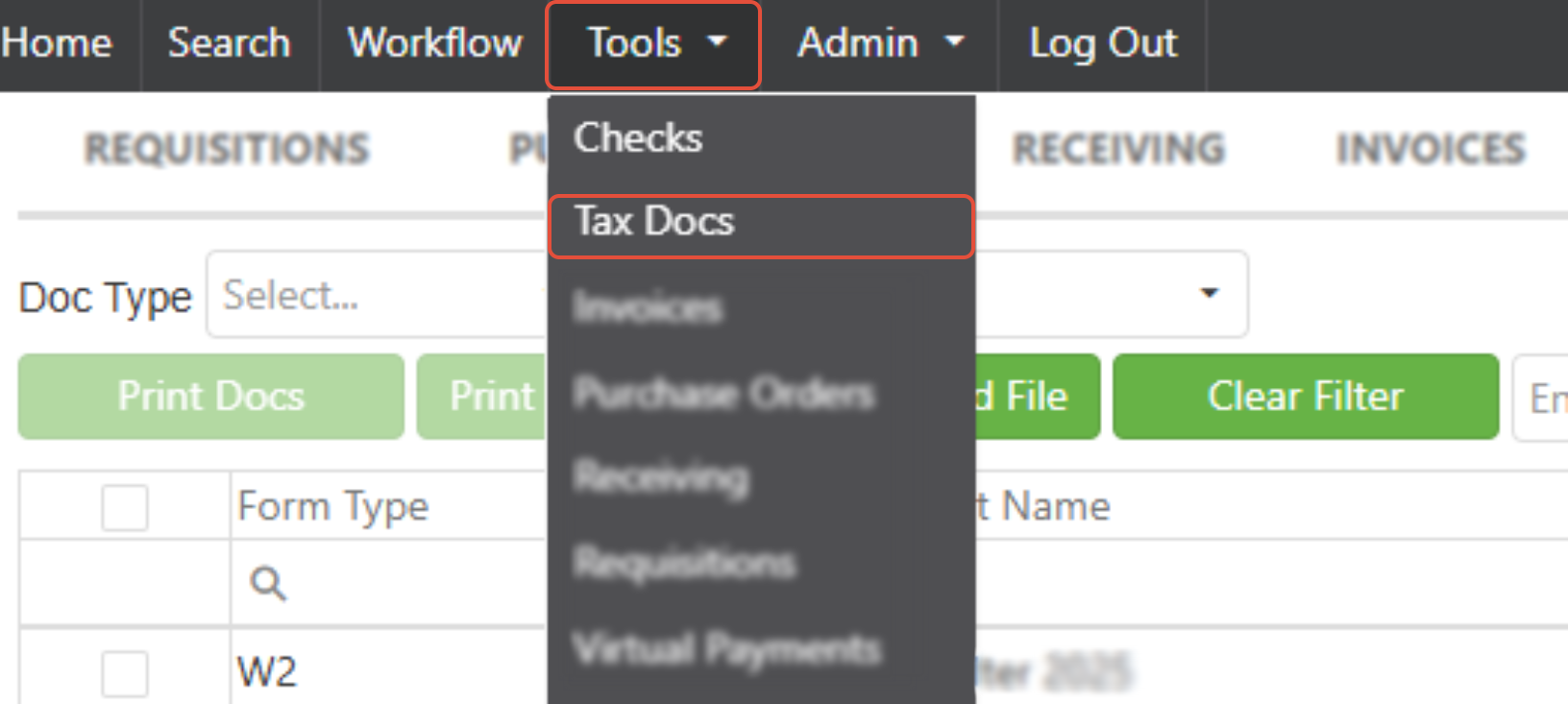
Navigate to the Tax Docs manager via the Tools menu.
Step 2: Initiate File Upload
To upload your tax documents, click the Upload File button.

Step 3: Select and Configure Document
Choose your document downloaded from USAS/USPS. Once the file is chosen, you will see the screen below. It will choose the Tax Document Type automatically based on the file. Then you will enter the Tax Year and to which template it applies. Then click Import.
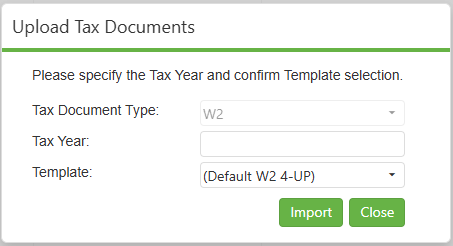
NOTE: A template must already be created before it can be used. Therefore, future years cannot be input and printed.
Upon successful import the number of tax documents imported will display and you can click close.
Step 4: Select Documents for Printing
Now that the file has been imported, you will see the tax documents that were just uploaded. Check the top-most checkbox to highlight all documents within the list or check individual boxes as needed. Then click the Print Docs button.

NOTE: User permissions for "View & Print" must be selected in order for the print button to be enabled.
Step 5: Download Generated File
The file will take a few seconds to generate. Once processing is complete, you will see a Download option in the middle of the page. Click that button and choose where to save the file on your computer.

C. Best Practices
- Make sure all your tax documents are saved as PDFs or in the correct file format.
- Keep your documents sorted by year and type.
- Back up your documents before you start.
- Learn how the software works and what it needs you to do.
- Keep your software updated.
D. Troubleshooting
- Future years cannot be printed.
- If you cannot see a specific Tax Doc, try clicking Clear Filter and researching to ensure no filters were previously set.
E. Related Articles
Conclusion
Effective tax document management requires a systematic approach to uploading, organizing, and printing files within your system. By following these step-by-step procedures and implementing the recommended best practices, you can ensure accurate and efficient handling of sensitive tax information while maintaining proper documentation and compliance standards. Take action now by reviewing your current tax document processes and implementing these guidelines to streamline your tax preparation workflow.