
 | ||
Introduction
This article provides step-by-step instructions for creating ACH payment files after ACH has been configured in your system. You will learn how to import files, sort and select ACH payments, generate the necessary files, and prepare them for bank submission.
If you do not have ACH configured, please see this article.
A. Problem Statement
After configuring ACH in your system, you need to create the appropriate files that your bank requires to process ACH payments. Without these properly formatted files, your ACH transactions cannot be submitted to the bank for processing.
B. Solution
Follow these detailed steps to create ACH payment files for bank submission:
Step 1: Import Your Payment File
Import the DAT or XML file like you would for a normal check by using either the drag and drop feature or the upload button. If you are unsure of this process, click here.
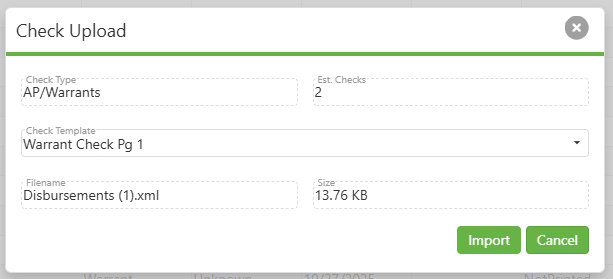
Step 2:
Once the files are imported, the check manager screen will show all of your checks from the DAT file, with both ACH and non-ACH mixed together. For easier printing, Sort by the ACH column so that all ACH "checks" are together.

Step 3:
Select the ACH checks you'd like to generate the file for.

Step 4:
Click Print Checks

Step 5:
Depending on the information from the DAT file, the CCD or PPD ACH File buttons will be enabled. Click the button to generate the file.
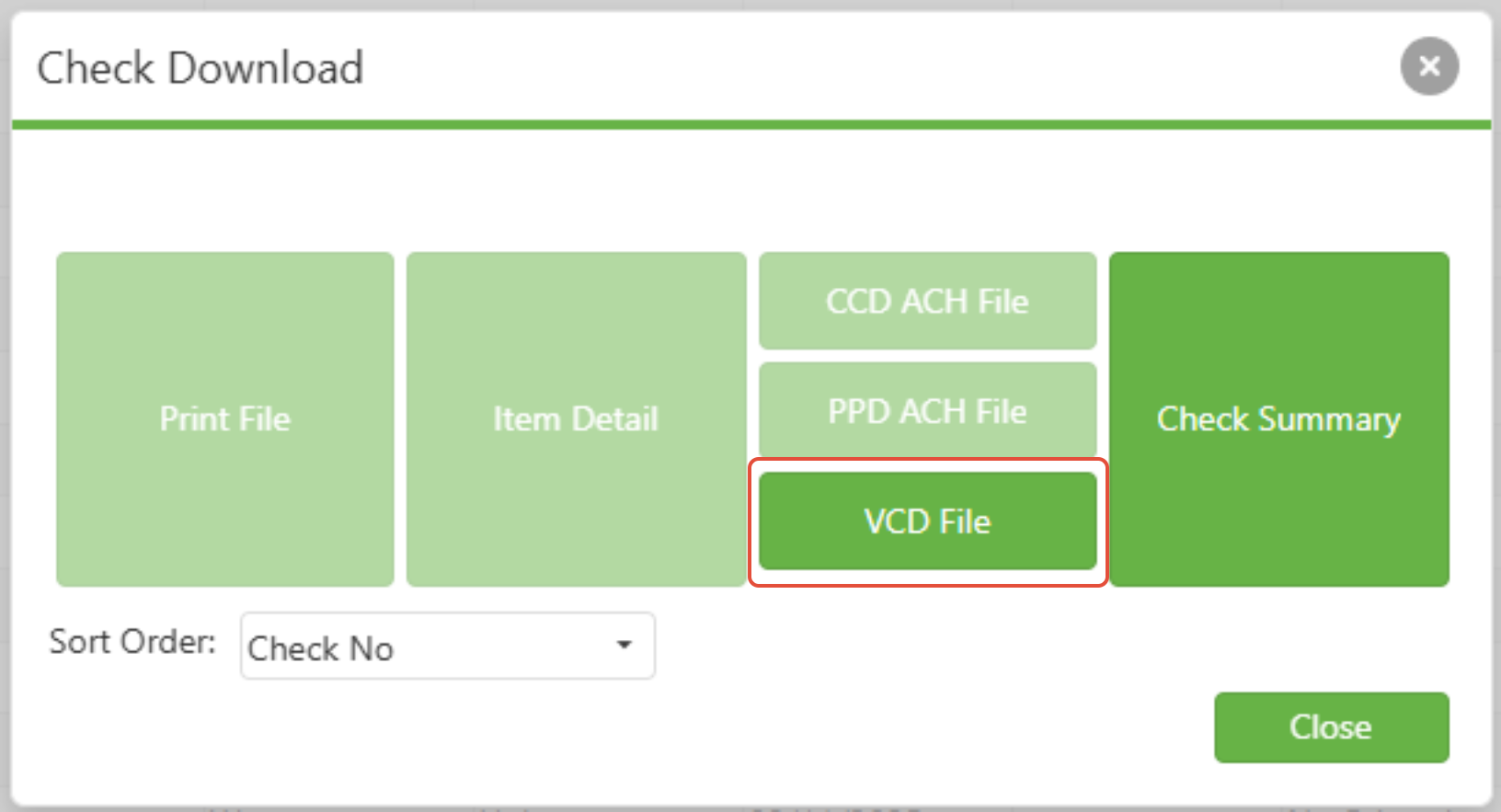
Step 6:
A link will appear as if you were printing a check.
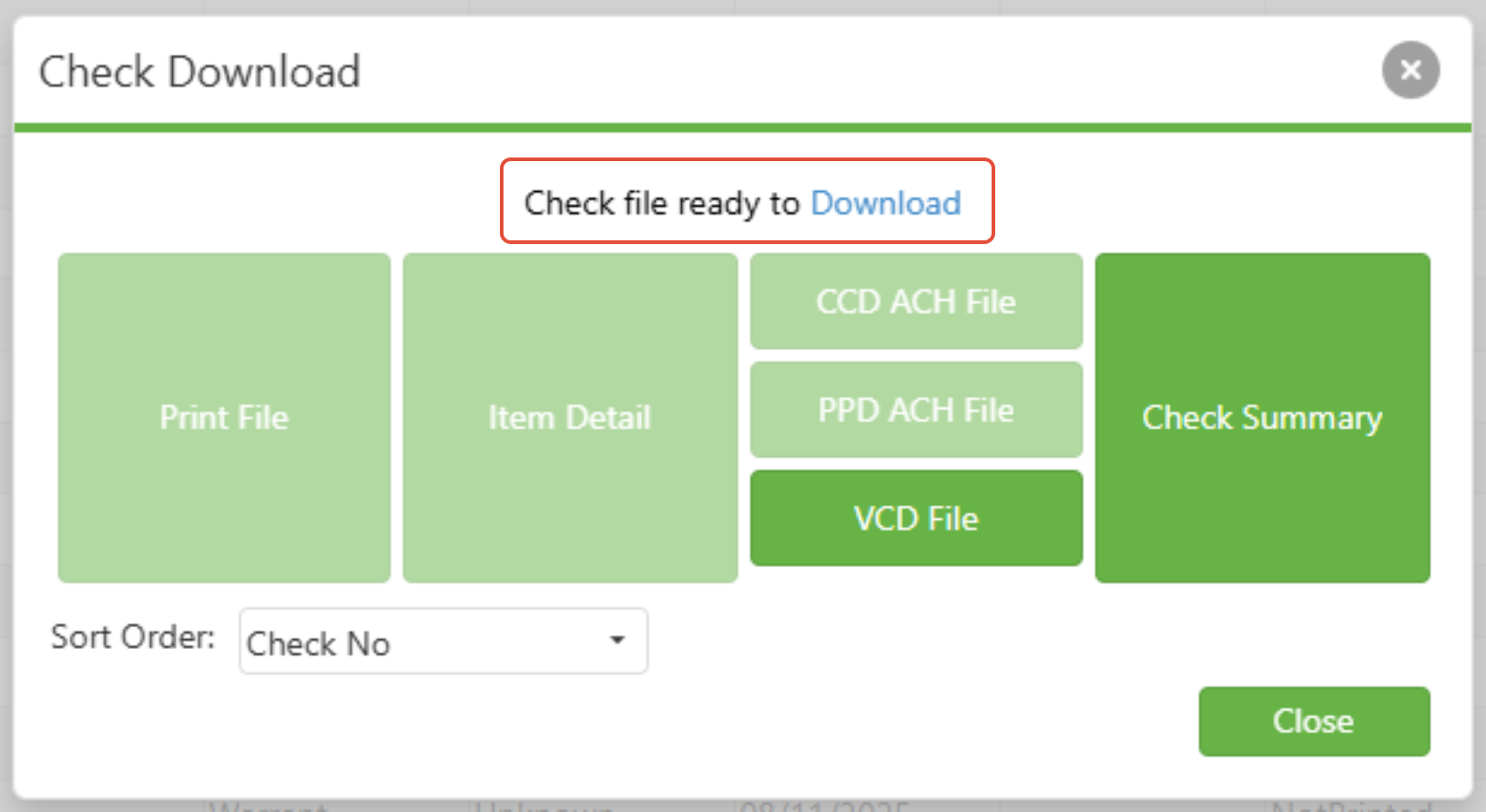
Step 7:
Once you have the file, you will need to send this to the bank to get the payment processed.
Note: ACH file generation in the Checks module has been updated for compliance with the Nacha Operating company entry description rule that becomes effective for applicable payroll ACH credits on March 20, 2026.
C. Best Practices
- Always verify ACH configuration is complete before attempting to create payment files
- Sort payments by ACH status for more efficient processing
- Double-check your selection of ACH payments before generating files
- Maintain organized file naming conventions for easy tracking
- Keep records of all generated ACH files for audit purposes
D. Troubleshooting
Even with a well-configured ACH setup, you may encounter issues when creating ACH payment files. Use the following troubleshooting steps to identify and resolve common problems that can arise during the process:
ACH File Option Not Available
Problem: The CCD or PPD ACH File buttons are not enabled after importing your payment file.
Solution: Confirm that the imported payment file (DAT/XML) contains ACH-designated payment records.
Double-check that ACH is fully configured in your system and that vendor records are set up for ACH payments.
If the issue persists, re-import the file or consult your system administrator.
Error Importing DAT or XML File
Problem: The system does not accept your DAT/XML file, or you receive an import error.
Solution: Verify that the file format is correct and that the file is not corrupted or incomplete.
Ensure you are importing the file using the correct procedure (drag-and-drop or upload button).
If the problem continues, generate the file again from your source system or contact technical support.
ACH Payments Not Showing in Check Manager
Problem: After importing, ACH payments are missing from the check manager screen.
Solution: Sort or filter the payments by the ACH column, as ACH payments may be mixed with non-ACH.
Confirm that ACH payments were included in the imported file and are set up properly in vendor records.
Unable to Download or Access Generated ACH File
Problem: After clicking the ACH File button, the link to download the file does not appear.
Solution: Refresh your browser or clear your cache and retry.
Ensure pop-up blockers are temporarily disabled.
Check your download folder for the file, as it may have downloaded automatically.
Bank Rejects ACH File
Problem: The bank does not accept the ACH file or reports formatting errors.
Solution: Reconfirm that your system is configured to match your bank’s required ACH file format (CCD or PPD).
Check for recent updates or formatting changes communicated by your bank.
If necessary, regenerate the ACH file and verify vendor bank account information.
Duplicate ACH Entries
Problem: Duplicate payments are included in the ACH file.
Solution: Carefully review and select only the intended ACH checks before file generation.
Avoid re-importing the same payment file unless necessary.
Always confirm selections before proceeding with file creation.
E. Related Articles
Conclusion
Creating ACH payment files involves a straightforward process: importing your payment file, sorting and selecting ACH payments, generating the appropriate file type, and downloading it for bank submission. By following these steps and implementing the recommended best practices, you can efficiently process ACH payments and ensure successful bank submissions. Take action now by gathering your DAT or XML files and beginning the ACH file creation process.