 | ||
Introduction
Pay rounding affects how employees are paid when their worked hours fall within administrator-defined thresholds, so it is important to understand how it works before using it. This article explains the basic behavior of pay rounding, shows how timing and submission format can affect the outcome, and helps employees and administrators avoid unintended results. For setup details, see the related articles on designing a Pay Configuration Grid and reviewing Site Settings.
A. Problem Statement
As pay rounding is an automatic process, it is important that employees subject to the policy understand what it is and how it works to prevent confusion. This guide covers the basics of how pay rounding looks and feels. For details on how to set up a pay rounding system, refer to the following articles:
- Time Sheets - How to Design a Pay Configuration Grid
- Time Sheets: Site Settings (includes an overview of Pay Configuration settings)
B. Solution
Think of Pay Rounding as the opposite of dock pay. If the number of hours an employee works in a day is between two thresholds defined by an Administrator, that employee's pay rounds up to the greater of the two thresholds. (Zero is understood to be a threshold in all pay rounding definitions.) An example of this in practice is that a school bus driver may be guaranteed 3 hours' pay for a particular bus route, and she will be paid for that predefined 3 hours if she takes fewer than 3 hours to complete the route. If she takes greater than 3 hours for whatever reason, she is paid for the amount of time it actually took.
Step 1: Manual Entry Time Sheet Users
Pay rounding calculations are applied each time you submit a time sheet, including submission as a draft. If your work is divided up with an unpaid period in the middle of the day, such as lunch or a long break, you should not fill out your time sheet twice, as this will give the pay rounding feature the opportunity to round your hours up twice.
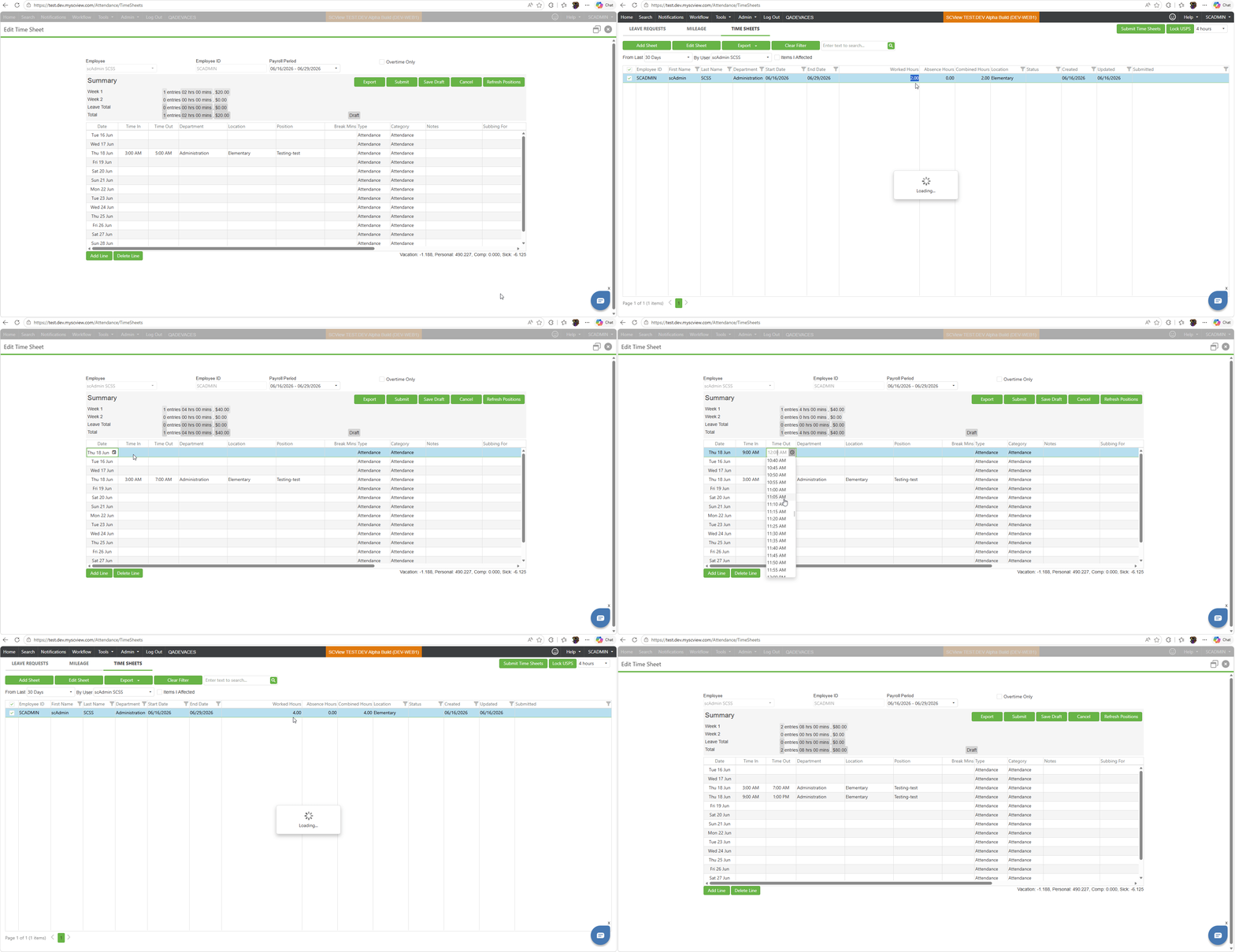
Let's show this in action. We have an employee who worked a pair of two-hour periods today. This employee's thresholds are set up such that he is guaranteed 4 hours' pay if he comes in to work, and that guarantee jumps to 8 hours' pay if he works more than 4 hours in a day.
In Video: Submit All Time at Once, the employee submits his two two-hour periods at the same time. As they add up to exactly four hours, he sits at the four-hour threshold in his pay rounding scheme and is paid for four hours of work.
In Video: Submit Separate Periods Individually, the employee submits his first two-hour period, then, later, he submits his second two-hour period. According to his pay rounding scheme, the employee's two hours round up to four hours; then, later, his rounded four hours plus the additional two hours worked, for a total of six hours, qualify him for a full eight hours' pay by rounding again. This effectively takes advantage of the system to award the employee with four hours of unwarranted pay and will likely lead to corrections.
Video: Submit All Time at Once (Correct!)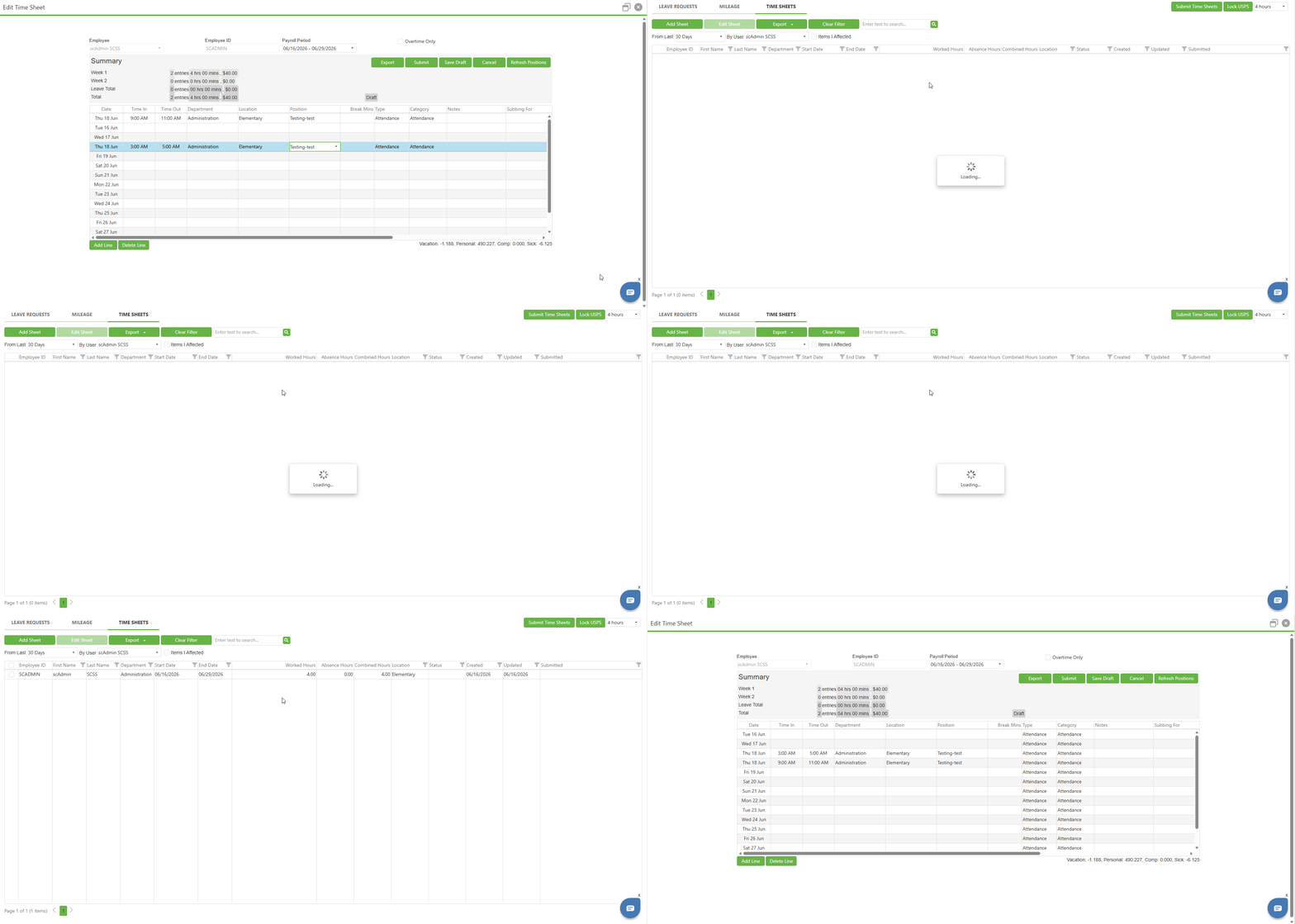
Video: Submit Separate Periods Individually (Incorrect!)
Step 2: Time Clock Users
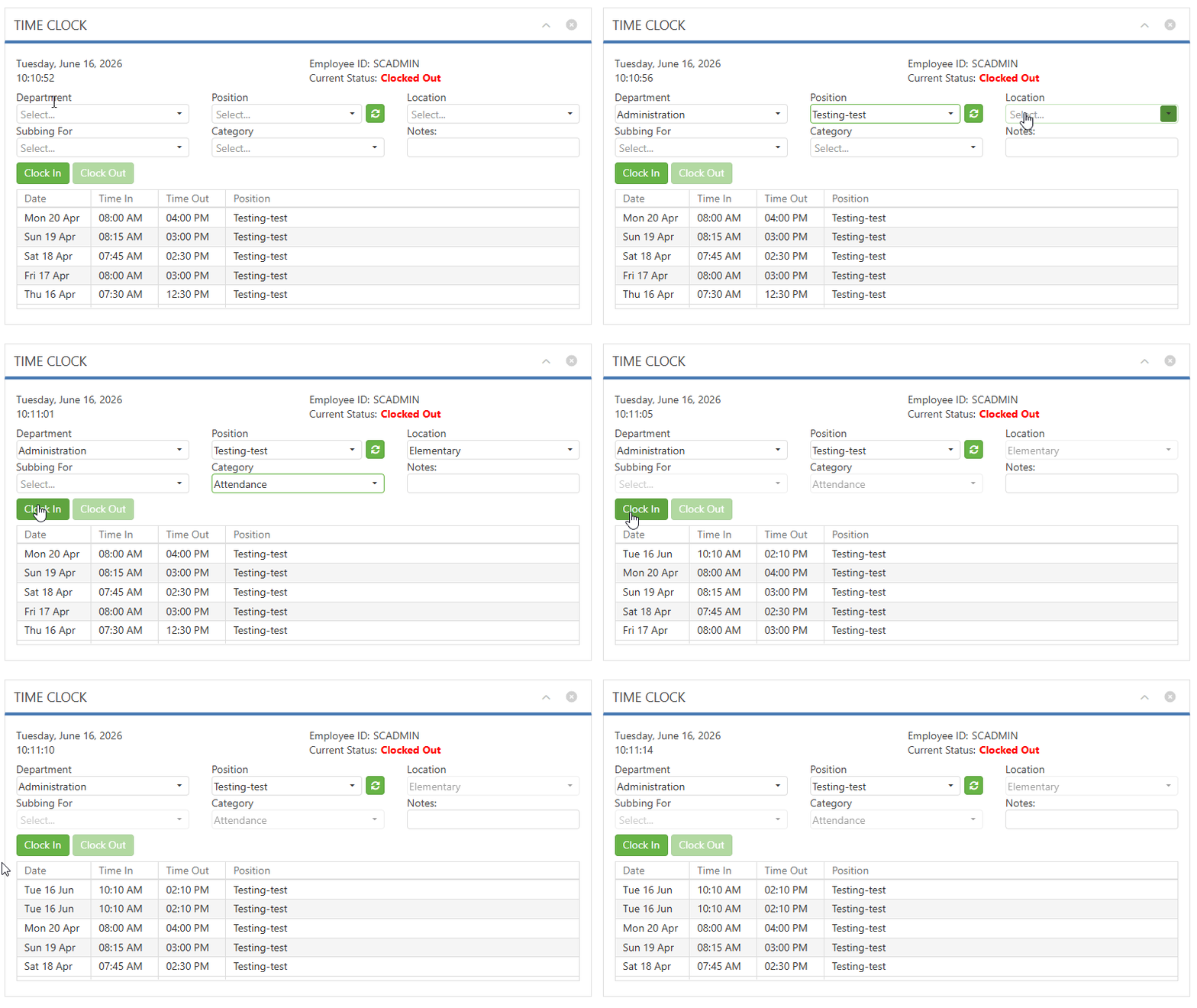
Pay rounding is applied each time an employee clicks the Clock Out button. This immediately raises concerns, as triggering the pay rounding feature multiple times in a single day can make time sheets inaccurate. To avoid triggering pay rounding multiple times, employees should make use of the Break feature whenever possible rather than clocking out.
Video: Pay Rounding Triggering Multiple Times
C. Best Practices
- One and done! - Fill out each individual day's hours worked all at once so the system doesn't get multiple opportunities to round your pay.
- In Case of Mistake, Start Over - If you need to add an additional shift to a day that has already been submitted, delete the other shifts for that day and re-add them to get rid of the pay rounding.
- Time Clock Employees Need Flexibility - As Time Clock employees trigger pay rounding each time they Clock Out, the Break feature should be enabled in Admin > Time Sheets > Form Features > Break Entry Mode. This gives your time clock employees the flexibility to use the break feature rather than simply clocking out (and triggering Pay Rounding) in the face of any work stoppage.
- Time Clock Employees Need Simplicity - Even with Break functionality enabled, Time Clock may be too primitive for a complicated Pay Rounding scheme. Consider upgrading groups of Time Clock employees to Manual Time Entry if their Pay Rounding is complex in nature.
D. Troubleshooting
- Breaks are Weird - Your pay rounding occurs before break time is taken out. This can cause unintuitive math near thresholds. Let's say we have an employee who is guaranteed 8 hours if she works more than 4 hours. If she works for 4 hours and 10 minutes with a 20-minute break, she will be awarded the 8-hour pay rounding, and then the 20-minute break will be taken from her, for a total of 7 hours and 40 minutes.
- Nothing is Rounding! - There is a little checkbox in the Admin > Time Sheets > Pay Configuration section that needs checked to turn all of this on. It's small and very easy to miss.
E. Related Articles
Time Sheets: Time Sheet Manager
Conclusion
Pay rounding is designed to make pay calculations predictable, but it only works correctly when time is entered and submitted with care.
Was this article helpful?
That’s Great!
Thank you for your feedback
Sorry! We couldn't be helpful
Thank you for your feedback
Feedback sent
We appreciate your effort and will try to fix the article