 | ||
Introduction
The Search Result Page Image area in SCView provides users with a comprehensive interface for viewing, managing, and manipulating document pages. Located on the right side of the Search tab, this area displays document thumbnails and the main image viewer when a document is selected. The thumbnail panel allows users to navigate through multi-page documents, while the right-click context menu provides quick access to essential page operations such as sending pages to workflow, printing, emailing, cutting, copying, pasting, and deleting pages. Understanding how to effectively use the page image area and its context menu options is crucial for efficient document management and processing. This article provides detailed instructions on navigating the page image area and utilizing all available right-click context menu options.
A. Problem Statement
Users working with document pages in SCView often encounter challenges that can hinder their productivity and document management efficiency. Common difficulties include:
- Uncertainty about how to navigate through multi-page documents using the thumbnail panel
- Not knowing how to select single or multiple pages for batch operations
- Confusion about how to send specific pages to workflow queues for approval processes
- Difficulty printing or emailing individual pages or selected pages from a document
- Not understanding how to cut, copy, and paste pages between documents
- Uncertainty about how to delete unwanted pages from documents
- Lack of knowledge about viewing page history and tracking document changes
- Confusion about the difference between Select All and Clear Selection options
- Not knowing how to access the right-click context menu on page thumbnails
Without proper knowledge of the page image area and context menu options, users may struggle to perform essential page operations, waste time with inefficient workflows, or fail to utilize powerful document management capabilities.
B. Solution
SCView's Search Result Page Image area provides a centralized location for viewing and managing document pages. The thumbnail panel displays all pages in a document, while the right-click context menu offers quick access to essential operations including workflow management, printing, emailing, page manipulation (cut, copy, paste, delete), selection tools, and page history tracking. By mastering these features, users can efficiently manage document pages, route documents through approval workflows, and maintain accurate records of page changes.
NOTE: When logged into SCView and looking at the Search tab, each user's view will be
slightly different depending on their permissions. Some context menu options may not
be available based on your assigned access level and system configuration.
Understanding the Page Image Area
Step 1:
Navigate to the Search tab in SCView by clicking on "Search" in the main navigation menu. The Search interface will load, displaying the search criteria fields on the left side and the image viewing area on the right side.
Step 2:
Perform a search by entering your search criteria and clicking the "Search" button. Select a document from the Search Result Grid by double-clicking on a row. Once the document images load, the page image area will display the document content.
Step 3:
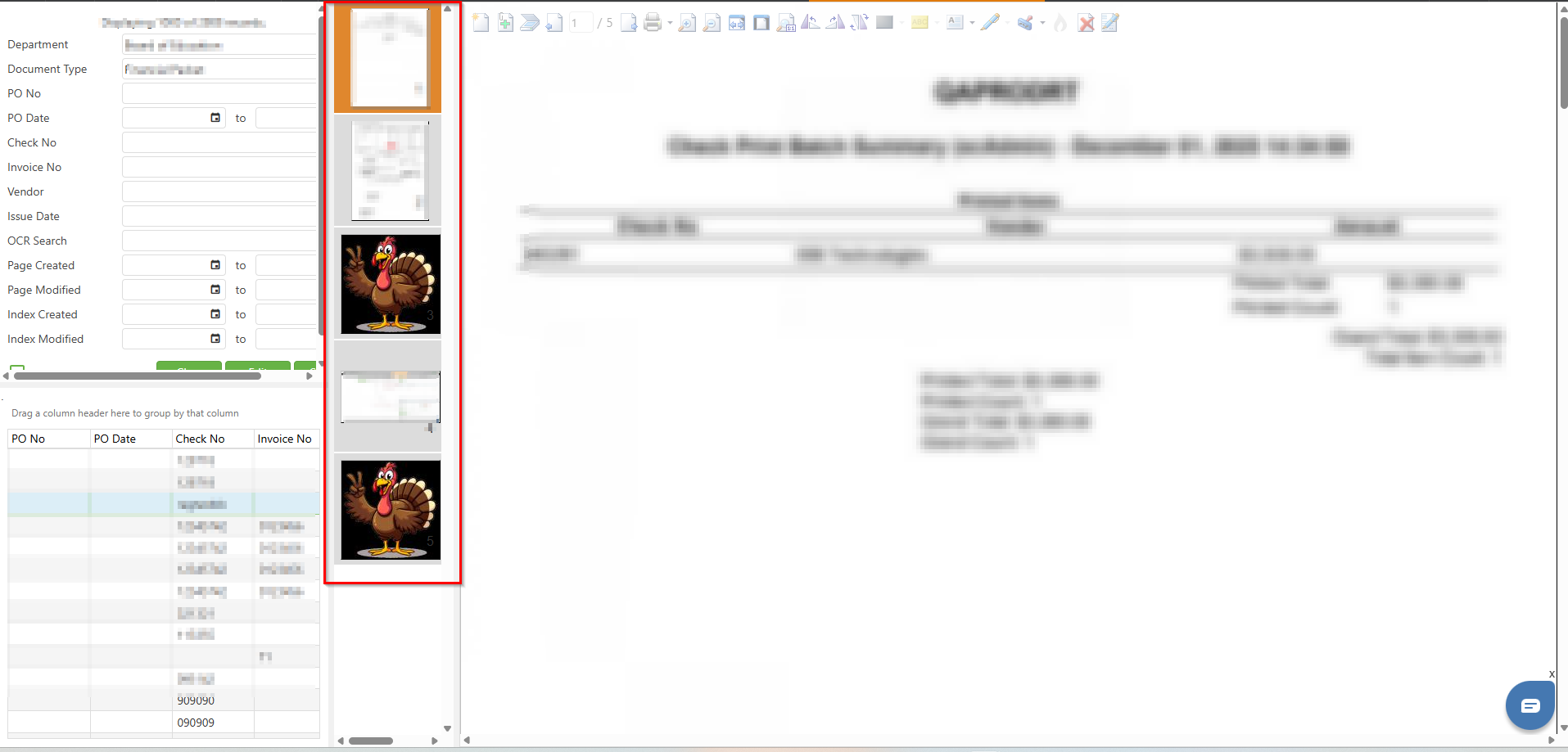
Observe the page image area layout which consists of three main components:
- Thumbnail Panel (Left): Displays small preview images of all pages in the document, numbered sequentially (1, 2, 3, etc.)
- Main Image Viewer (Right): Displays the currently selected page at a larger size for detailed viewing
Step 4:
The thumbnail panel shows all pages in the selected document. The currently selected page is highlighted with an orange border. Click on any thumbnail to navigate to that page, and the main image viewer will update to display the selected page.
Step 5:
To select multiple pages from the thumbnail panel:
- Single Page: Click on a thumbnail to select it
- Multiple Individual Pages: Hold Ctrl and click on each thumbnail you want to select
- Range of Pages: Click on the first page, hold Shift, and click on the last page in the range
- All Pages: Right-click and select "Select All" from the context menu
Accessing the Right-Click Context Menu
Step 1:
Select one or more pages from the thumbnail panel that you want to perform an action on.
Step 2:
Right-click on any selected thumbnail to display the context menu. The context menu will appear with the following options:
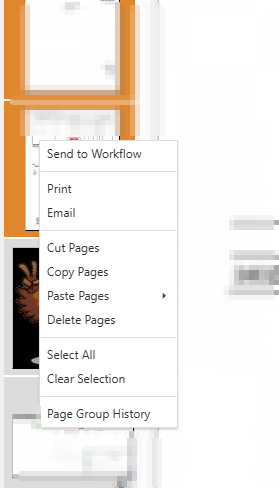
- Send to Workflow – Routes the selected page(s) to a workflow queue
- Print – Prints the selected page(s)
- Email – Emails the selected page(s)
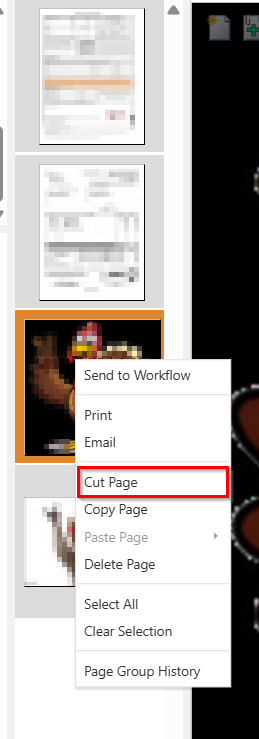
- Cut Page – Cuts the selected page(s) for moving to another document
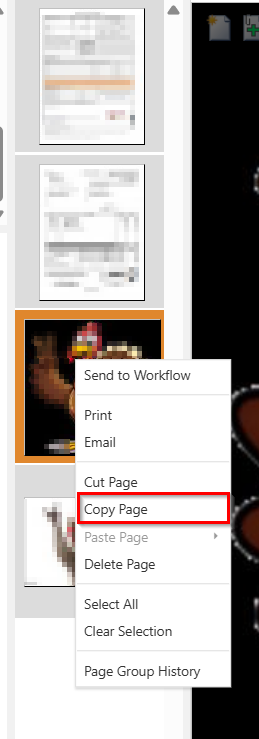
- Copy Page – Copies the selected page(s) for pasting to another document
- Paste Page – Pastes previously cut or copied page(s)
- Delete Page – Deletes the selected page(s) from the document
- Select All – Selects all pages in the document
- Clear Selection – Deselects all currently selected pages
- Page Group History – Displays the history of changes for the selected page
Send to Workflow
Step 1:
Select the page(s) you want to send to a workflow queue from the thumbnail panel.
Step 2:
Right-click on the selected thumbnail(s) and click "Send to Workflow" from the context menu.
Step 3:
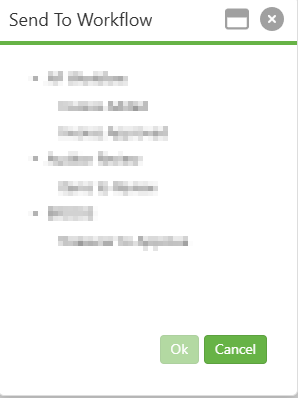
The "Send To Workflow" dialog will appear, displaying a list of available workflow queues organized by category.
Step 4:
Review the available workflow options and select the appropriate workflow queue for your document. The available workflows will depend on your system configuration and user permissions.
Step 5:
Click the "OK" button to send the selected page(s) to the chosen workflow queue. Click "Cancel" to abort the operation.
Step 6:
Once submitted, the document will be routed to the selected workflow queue for processing or approval. You can track the workflow status through the Page Group History or the Workflow module.
NOTE: The options that will appear on the popup after selecting this option will be
ependent on how document types are set up in the workflow.
Step 1:
Select the page(s) you want to print from the thumbnail panel.
Step 2:
Right-click on the selected thumbnail(s) and click "Print" from the context menu.
Step 3:
The Print Setup dialog will appear with options for printing:
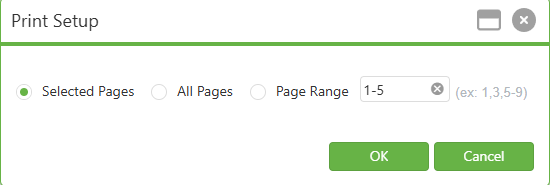
- Selected Page: Prints only the currently selected page(s)
- All Pages: Prints all pages in the document
- Page Range: Prints specific pages based on the range entered
Step 4:
Select your preferred print option and click "OK" to generate the printable PDF. The print job will be added to the Print Queue.
Step 1:
Select the page(s) you want to email from the thumbnail panel.
Step 2:
Right-click on the selected thumbnail(s) and click "Email" from the context menu.
Step 3:
The "Email" dialog window will appear with the following components:
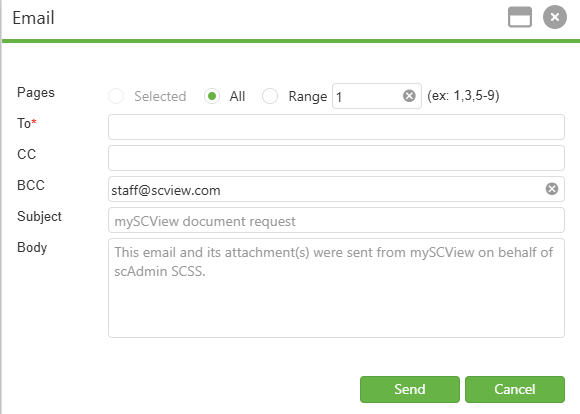
Pages Section:
- Selected: Emails only the currently selected page(s)
- All: Emails all pages in the document
- Range: Emails specific pages based on the range entered (e.g., 1,3,5-9)
Email Fields:
- To (Required):* Enter the primary recipient email address(es)
- CC: Enter email address(es) for carbon copy recipients
- BCC: Enter email address(es) for blind carbon copy recipients (may be pre-filled with a default address such as "staff@scview.com")
- Subject: Enter the email subject line (default: "mySCView document request")
- Body: Enter the email message body (default: "This email and its attachment(s) were sent from mySCView on behalf of [username].")
Step 4:
Enter the recipient information:
- Enter at least one email address in the To* field (required)
- Optionally add CC and BCC recipients for additional distribution
- Multiple email addresses can be separated by commas or semicolons
Step 5:
Review and modify the Subject and Body fields as needed. The default subject and body text can be edited to provide context-specific information for the recipient.
Step 6:
Click the "Send" button (green button) to send the email with the selected page(s) attached as a PDF file. Click "Cancel" (green button) to abort the operation and close the dialog.
NOTE: The BCC field may be pre-configured with a default email address based on your
system settings. The Body field automatically includes the sender's name for tracking
purposes.
Cut Page
Step 1:
Select the page(s) you want to cut (move) from the thumbnail panel.
Step 2:
Right-click on the selected thumbnail(s) and click "Cut Page" from the context menu.
Step 3:
The selected page(s) will be marked for cutting. The page(s) will remain visible but will be removed from the current document once pasted to another location.
Step 4:
Navigate to the destination document where you want to move the page(s), then use the "Paste Page" option to complete the move operation.
NOTE: Cut pages are held in a temporary clipboard until pasted. If you perform another
cut or copy operation, the previous clipboard contents will be replaced.
Copy Page
Step 1:
Select the page(s) you want to copy from the thumbnail panel.
Step 2:
Right-click on the selected thumbnail(s) and click "Copy Page" from the context menu.
Step 3:
The selected page(s) will be copied to the clipboard. Unlike Cut, the original page(s) will remain in the current document.
Step 4:
Navigate to the destination document where you want to paste the copied page(s), then use the "Paste Page" option to add the copies.
Paste Page
Step 1:
Ensure you have previously cut or copied page(s) using the Cut Page or Copy Page function.
Step 2:
Navigate to the destination document where you want to paste the page(s).
Step 3:
Select a page in the thumbnail panel to indicate where the pasted page(s) should be inserted. For example, if you select Page 4, the paste options will reference Page 4 as the insertion point.
Step 4:
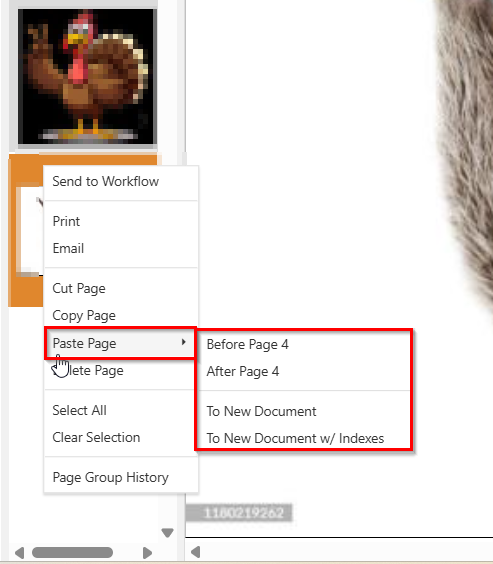
Right-click on the thumbnail panel and hover over "Paste Page" from the context menu. A submenu will appear with the following four positioning options:
- Before Page [X]: Inserts the cut/copied page(s) immediately before the currently selected page. For example, if Page 4 is selected, the pasted page(s) will be inserted before Page 4, becoming the new Page 4, and the original Page 4 will shift to Page 5.
- After Page [X]: Inserts the cut/copied page(s) immediately after the currently selected page. For example, if Page 4 is selected, the pasted page(s) will be inserted after Page 4, becoming Page 5.
- To New Document: Creates a new document containing only the cut/copied page(s). The original document remains unchanged (for Copy) or has the pages removed (for Cut). This option is useful when you need to separate pages into a standalone document.
- To New Document w/ Indexes: Creates a new document containing the cut/copied page(s) along with the index field values (metadata) from the source document. This ensures the new document retains the same searchable index information as the original.
Step 5:
Click on your preferred paste option from the submenu:
- For inserting within the same document: Select either "Before Page [X]" or "After Page [X]" based on where you want the page(s) positioned.
- For creating a separate document: Select "To New Document" if you only need the page images, or "To New Document w/ Indexes" if you need to preserve the document's index metadata.
Step 6:
The page(s) will be pasted according to your selection:
- If pasted within the current document, the thumbnail panel and page count indicator will update to reflect the added pages and their new positions.
- If pasted to a new document, the system will create a new document entry that can be accessed through a new search.
NOTE:
1. The Paste Page option will be grayed out if no pages have been cut or copied to
the clipboard.
2. The page number displayed in the submenu options (e.g., "Before Page 4", "After Page 4") is dynamic and corresponds to the currently selected page in the thumbnail panel.
3. When using "To New Document w/ Indexes", all index fields from the source document will be copied to the new document, maintaining data consistency for search and retrieval purposes.
Delete Page
Step 1:
Select the page(s) you want to delete from the thumbnail panel.
Step 2:
Right-click on the selected thumbnail(s) and click "Delete Page" from the context menu.
Step 3:
A confirmation dialog may appear asking you to confirm the deletion. Review the message to ensure you are deleting the correct page(s).
Step 4:
Click "Yes" or "Confirm" to proceed with the deletion. Click "No" or "Cancel" to abort the operation.
Step 5:
Once confirmed, the selected page(s) will be permanently removed from the document. The thumbnail panel will update to reflect the remaining pages, and the page count indicator will adjust accordingly.
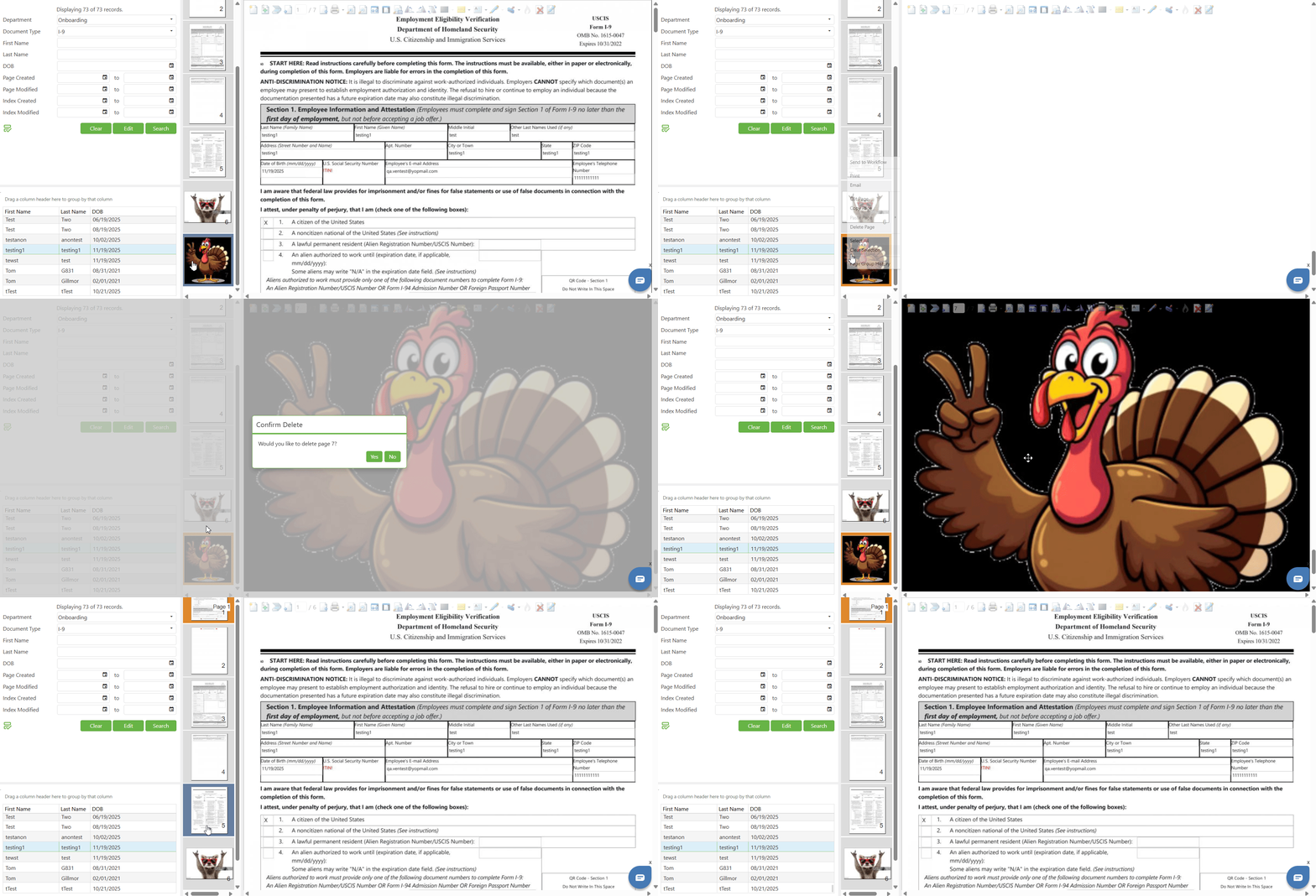
NOTE: The Delete Page function availability is based on assigned privileges. If you do
not have permission to delete pages, this option may be grayed out in the context menu.
Select All
Step 1:
Right-click anywhere on the thumbnail panel to display the context menu.
Step 2:
Click "Select All" from the context menu.
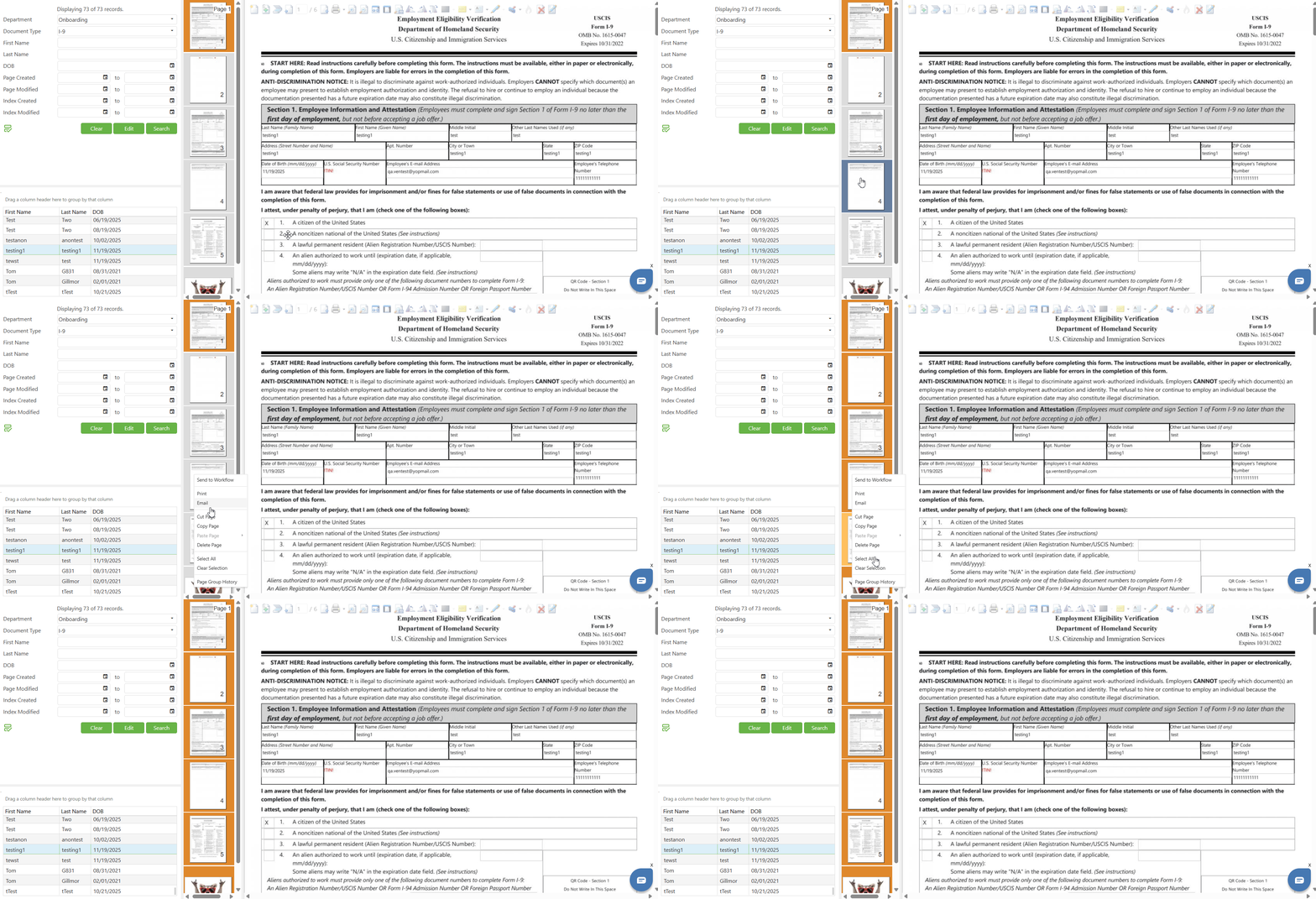
Step 3:
All pages in the document will be selected, indicated by highlighted borders on all thumbnails.
Step 4:
With all pages selected, you can perform batch operations such as Print, Email, Cut, Copy, or Delete on the entire document.
Clear Selection
Step 1:
After selecting one or more pages, right-click on the thumbnail panel to display the context menu.
Step 2:
Click "Clear Selection" from the context menu.
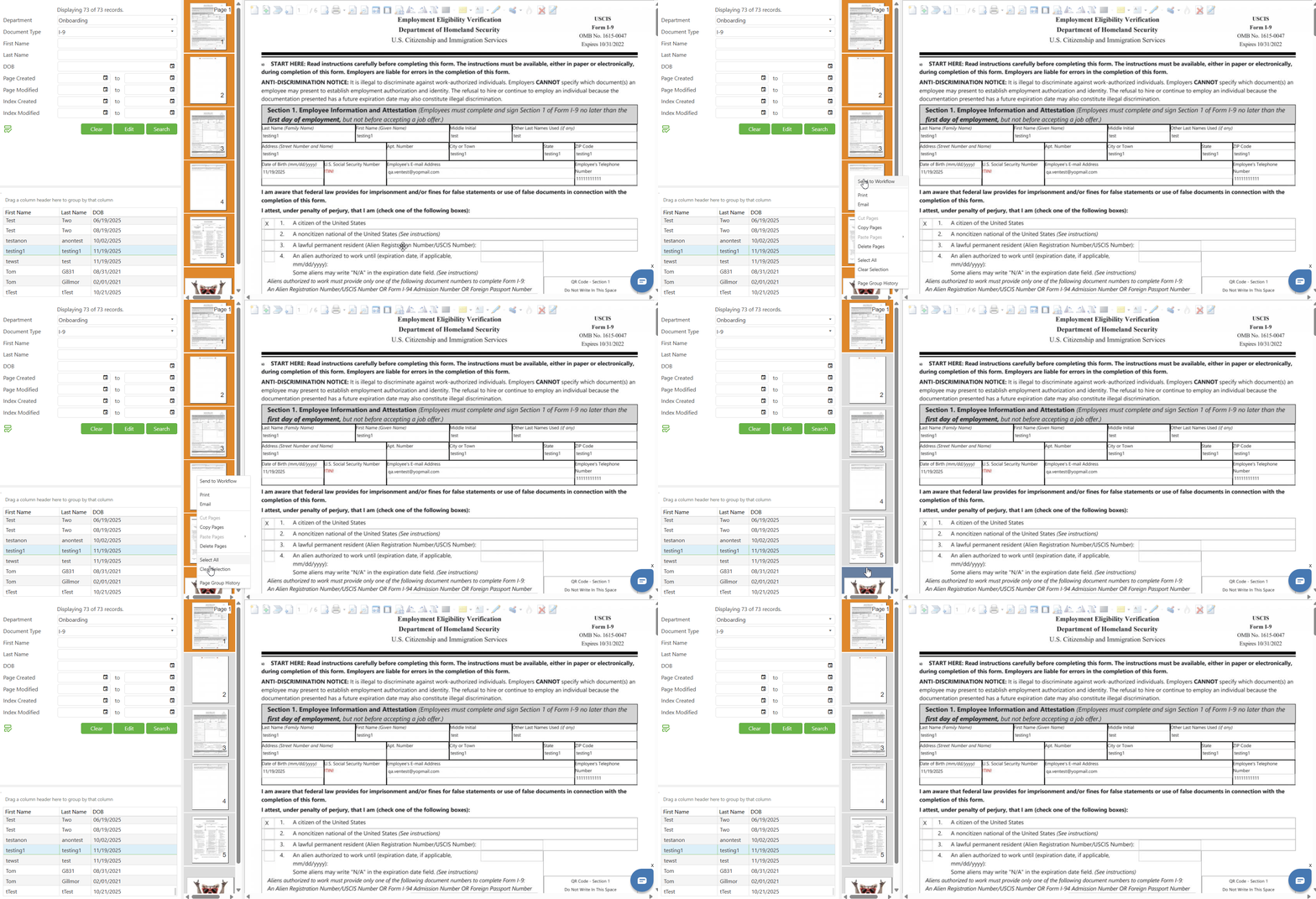
Step 3:
All currently selected pages will be deselected. The highlight borders will be removed from all thumbnails except the currently viewed page.
Page Group History
Step 1:
Select the page for which you want to view the history from the thumbnail panel.
Step 2:
Right-click on the selected thumbnail and click "Page Group History" from the context menu.
Step 3:
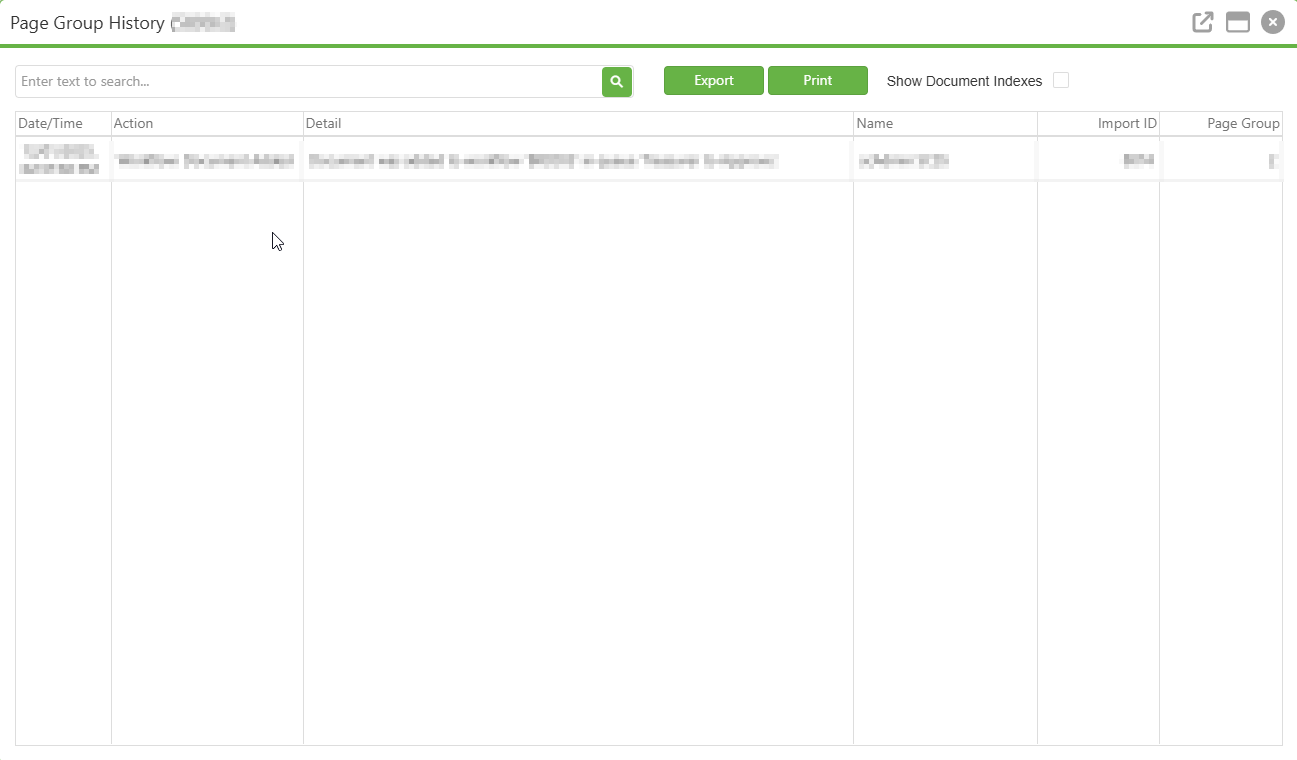
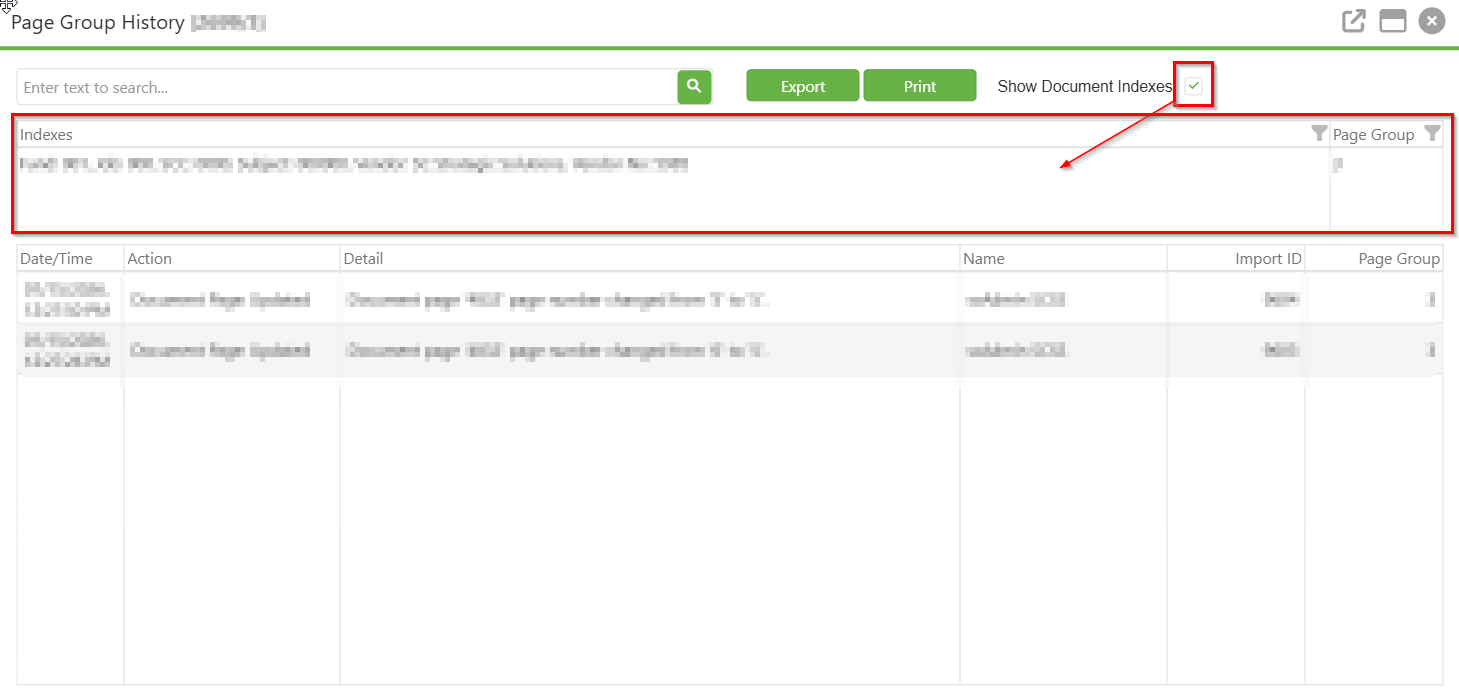
The "Page Group History" dialog will open, displaying a detailed history of all actions performed on the selected page.
Step 4:
Review the Page Group History dialog which displays the following information:
- Date/Time: The date and time when the action was performed
- Action: The type of action performed (e.g., "Workflow: Document Added")
- Detail: A detailed description of the action (e.g., "Document was added to workflow 'BRDDIS' in queue 'Treasurer to Approve'")
- Name: The name of the user who performed the action
- Import ID: The import identifier associated with the action
- Page Group: The page group number
Step 5:
Use the search field at the top of the dialog to search for specific history entries. Enter text and click the Search button (magnifying glass icon) to filter results.
Step 6:
Click the "Export" button (green button) to export the history data to a file for record-keeping or reporting purposes.
Step 7:
Click the "Print" button (green button) to print the page history report.
Step 8:
Check the "Show Document Indexes" checkbox to display additional document index information in the history view.
When "Show Document Indexes" is CHECKED:
- An Indexes panel appears between the toolbar and the history grid
- The panel displays all document index field values associated with the page group
- A Page Group filter column appears on the right side of the Indexes panel showing the current page group number
C. Best Practices
Page Selection Efficiency:
- Use keyboard shortcuts (Ctrl for multiple individual pages, Shift for ranges), verify selections by checking for orange borders before performing actions, and use Clear Selection after completing tasks to avoid accidental operations on unintended pages.
Workflow Management:
- Select the correct workflow queue for proper routing, verify submission success using Page Group History, and ensure all relevant pages are included before sending to avoid incomplete submissions.
Safe Page Manipulation:
- Use Copy instead of Cut when uncertain to preserve originals, verify the destination document and insertion point before pasting, and always review page content before deleting to prevent accidental loss of important documents.
History and Compliance:
- Regularly review Page Group History to track document changes and maintain audit trails, export history records for compliance documentation, and use the search function to quickly locate specific actions or date ranges in lengthy histories.
General Verification Practices:
- Check permissions before attempting grayed-out actions, confirm email recipients before sending document pages externally, use print preview to verify correct content, and ensure all annotations and changes are saved before performing major operations like cut, move, or delete.
D. Troubleshooting
Context Menu Issues:
- Right-click directly on page thumbnails (not empty space) with JavaScript enabled; if options are grayed out, verify permissions and ensure pages are selected (for Paste, confirm you've previously cut/copied pages).
Page Selection Problems:
- Hold Ctrl for individual pages or Shift for ranges while clicking on thumbnail images; if not highlighting, check for orange borders indicating selection, clear browser cache, or verify multi-select is enabled for your account.
Send to Workflow Issues:
- Verify workflow permissions and configuration for your department/document type; if documents don't appear in queues, use Page Group History to verify submission, check queue selection, and review system notifications.
Cut/Copy Not Working:
- Ensure pages are selected and you have permissions for these actions; refresh the page and reselect if needed.
Paste Page Grayed Out:
- Verify you've cut/copied pages, navigated to a valid destination document, have permission to add pages, and clipboard contents haven't expired.
Pages Pasted Incorrectly:
- Select the correct destination page before pasting, review paste position options in the submenu or use Cut/Paste to reposition.
Cannot Delete Pages:
- Verify deletion permissions for the document or check if pages are locked/protected; contact your administrator for deletion privileges.
Accidentally Deleted Pages:
- Contact your system administrator immediately as pages may be recoverable from backups or previous versions.
Print Issues:
- Check Print Queue for stuck jobs, verify browser allows pop-ups for PDFs, test with single pages, or clear browser cache.
Email Not Working:
- Verify email functionality is configured, check default email client setup, ensure external email permissions, and validate recipient addresses.
Page Group History Issues:
- If history won't load, wait for data, refresh the dialog, or check internet connection; for export/print problems, disable pop-up blockers and verify permissions.
E. Related Articles
Search: Paste Document to a New Document
Search: Adding a Signature/Annotations to Documents
Search: How to Print and Download
Conclusion
The Search Result Page Image area and right-click context menu in SCView provide a centralized interface for efficient document management through the thumbnail panel, which supports various selection methods (single click, Ctrl+click, or Shift+click for ranges). The context menu offers essential operations including Send to Workflow for approval routing, Print and Email functions for document sharing, Cut/Copy/Paste for page management between documents, Delete for page removal, and Page Group History for audit trails. By implementing best practices like verifying selections before actions, using keyboard shortcuts, and reviewing page history for compliance, users can significantly improve productivity while troubleshooting resources help resolve common issues with menu access, page selection, and workflow submissions. Users should explore all options and practice different selection methods to integrate these features effectively into their daily document management routines.
Was this article helpful?
That’s Great!
Thank you for your feedback
Sorry! We couldn't be helpful
Thank you for your feedback
Feedback sent
We appreciate your effort and will try to fix the article