 | ||
Introduction
This new feature addresses a critical workflow gap by enabling invoices (or other document types) that have been submitted to the approval workflow to be returned to Online Indexing for comprehensive editing.
A. Problem Statement
Previously, once invoices or other documents entered the workflow, approvers had limited options for handling documents that required corrections or modifications. While the Invoice Added notification could be used when returning Invoices, it only provided access to a template form that restricted edits to lower line items, preventing requesters from making necessary changes to key invoice fields.
B. Solution
The Send to Online Indexing feature resolves this limitation by allowing approvers to send invoices back to the original Online Indexing interface, where requesters can perform full index edits across all fields before resubmitting the corrected invoice to the workflow. This works by splitting the Financial Packet apart by page group and creating an unindexed document. This is then imported as a batch ready for indexing and resubmission.
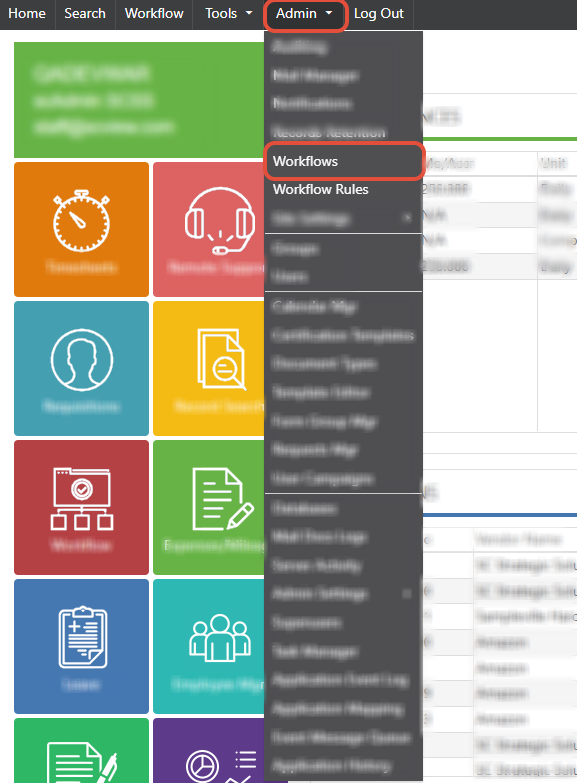
Step 1: Access the workflow manager from the admin tab
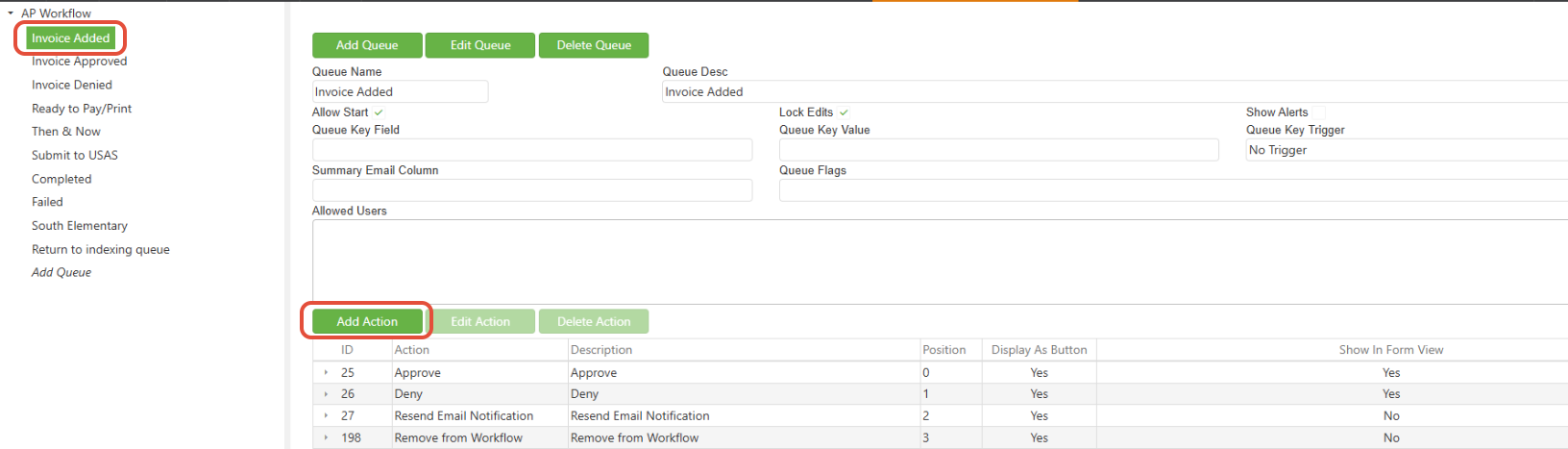
Step 2: Select the desired workflow queue (this example will use AP Workflow)
Step 3: Create and configure a new queue action
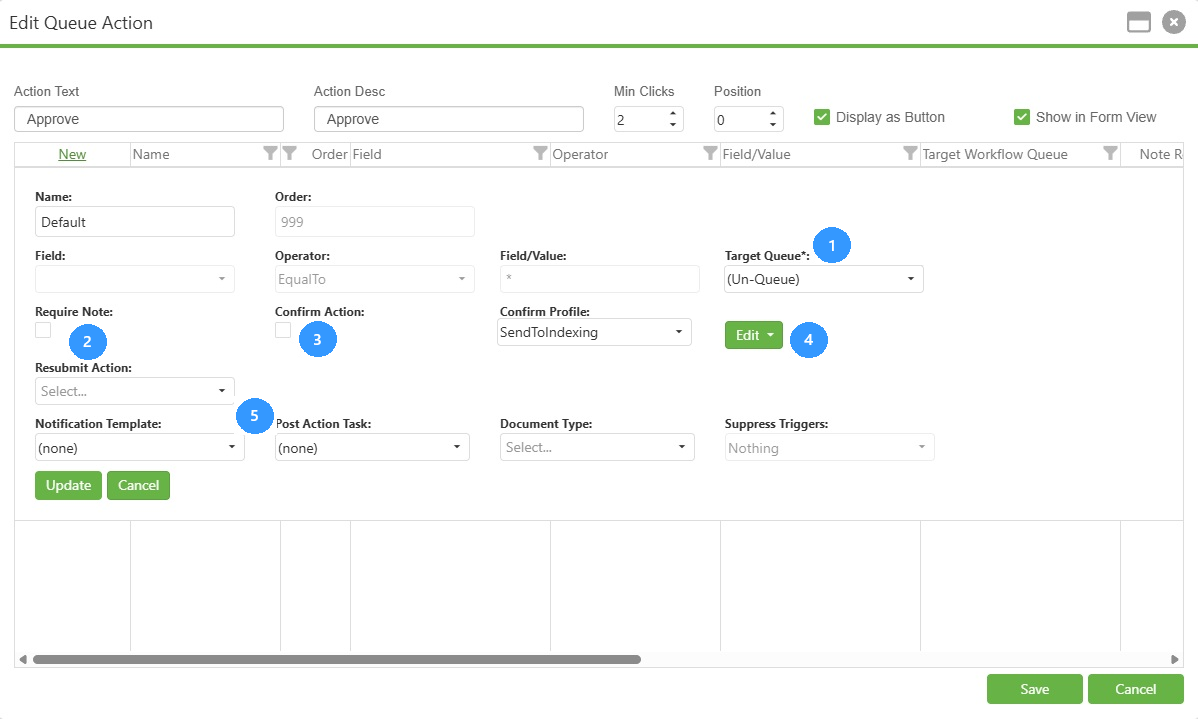
NOTE: The action button text and notification template name can be configured to what is most appropriate, "Return to Indexing", "Send to Indexing", etc. The Confirm Profile associated with it will always be "SendToIndexing".
1: Target Queue
With this dropdown being set to "(Un-Queue") this will un-queue the original document.
2: Require Note
This setting allows the returning party to include notes with the document they are returning to indexing. Notes can be optional or required per this configuration.
3: Confirm Action
This needs to be flagged to enable the confirm profile.
4: Confirm Profiles
A 'SendToIndexing' profile has been added to the drop down list and must be selected.
5: Notification Template
A notification template can be created in the Notification Manager to generate emails to the designated party and
selected.

Step 4: Select records to return to indexing
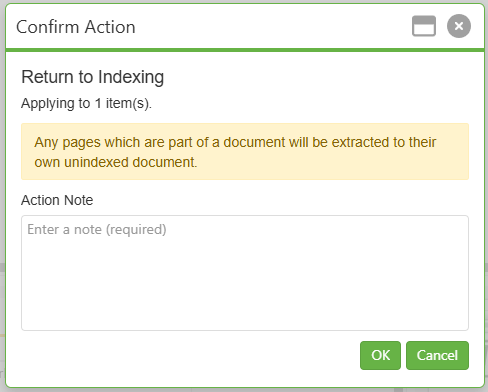
NOTE: In this example, notes are required for documents sent to indexing. This can be turned either on or off in Step 3 with the check box labeled "2".
Step 5: Select the batch
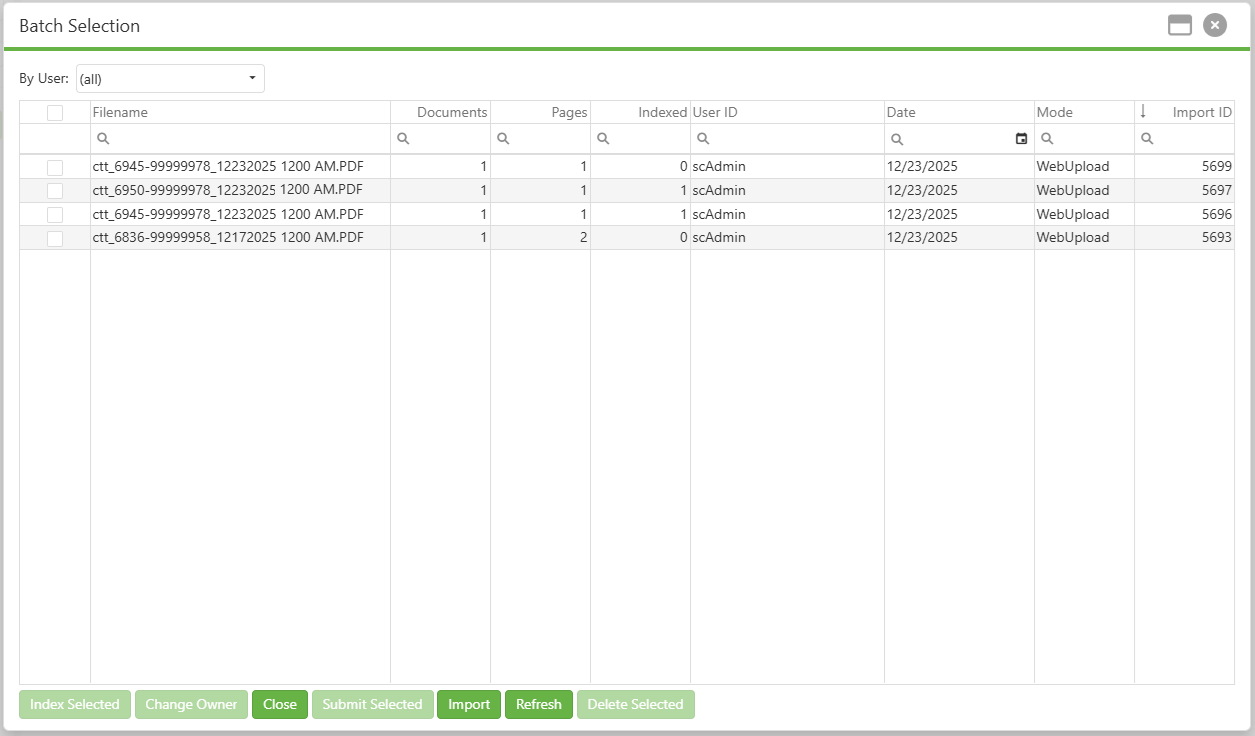
In the example above using invoices in the AP workflow, the batch generated from this process will have the PO# as well as a date stamp.
Step 6: Make revisions
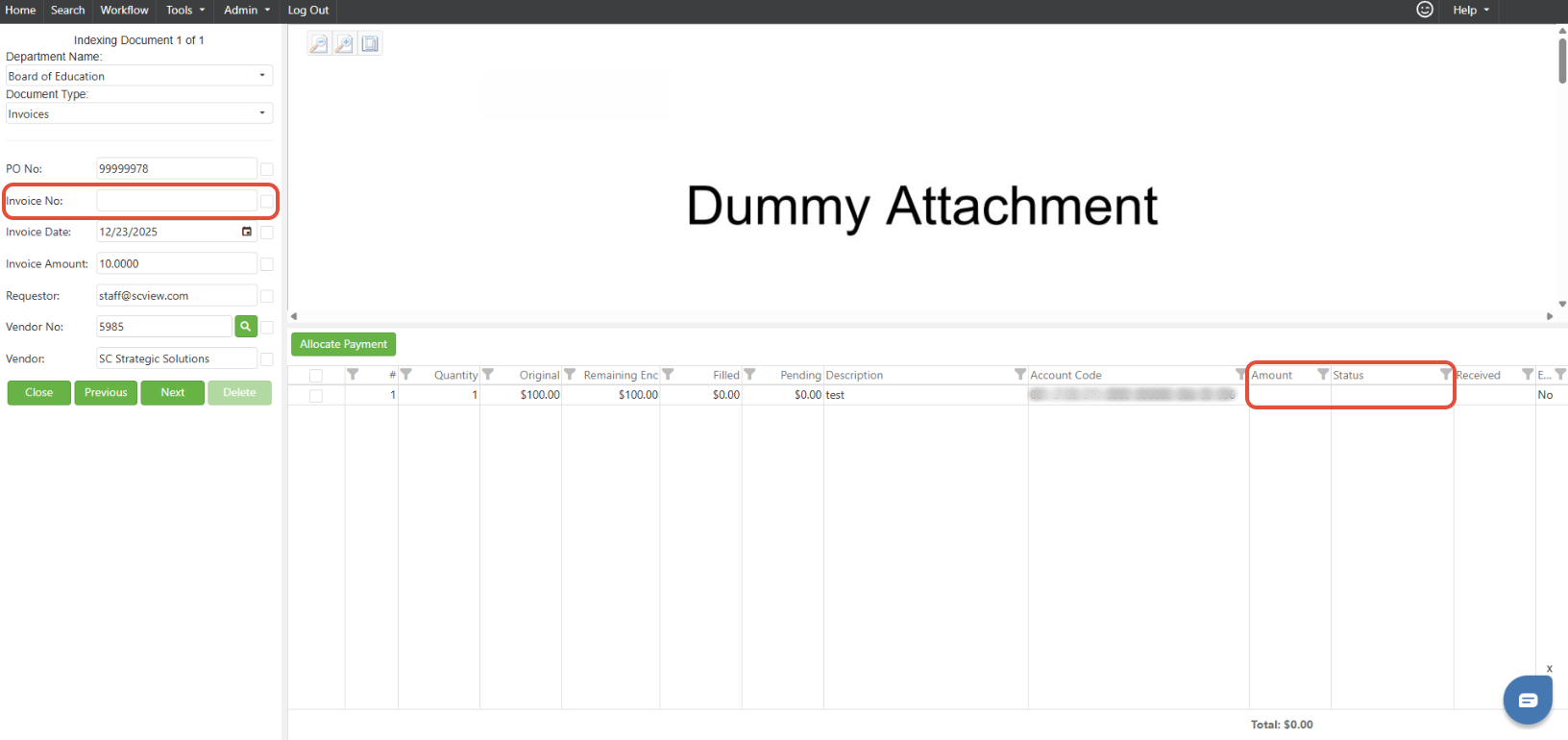
The PO invoice line(s) amount and status will be removed along with the invoice number. Other indexes will be retained.
C. Best Practices
- Configure Notification Templates: Ensure automated alerts are sent when documents are returned for editing.
E. Related Articles
Conclusion
The Send to Online Indexing feature represents a significant enhancement to document workflow management, transforming a previously restrictive process into a flexible, comprehensive editing solution. By enabling approvers to return documents to the Online Indexing interface where requesters can access all fields for editing, this feature eliminates the bottlenecks that previously forced approvers to work with limited correction options or reject documents entirely.
Was this article helpful?
That’s Great!
Thank you for your feedback
Sorry! We couldn't be helpful
Thank you for your feedback
Feedback sent
We appreciate your effort and will try to fix the article