 | ||
Introduction
Accidental removal of documents such as invoices from a workflow system can disrupt financial processing and require careful handling to rectify. This guideline discusses the procedures to identify and reinstate individual invoices that have been mistakenly removed from a workflow within a financial packet, ensuring they return to the appropriate processing sequence without needing to re-send the entire packet.
A. Problem Statement
When invoices are unintentionally removed from their designated workflow, reinstating them correctly without disrupting the entire financial packet presents a challenge. This disruption can lead to processing delays and potential data entry errors if not properly managed.
B. Solution
To address this issue, users should leverage the auditing features in SCScan to locate the specific invoices removed and utilize the application’s functionality to selectively restore these invoices back to their respective places in the workflow. This targeted approach allows for a more streamlined correction process, minimizing the disturbance to the rest of the financial packet.
If we accidentally remove an invoice from workflow, we would need to send back only the invoice page back to the workflow and not the entire Financial Packet.
First, if we removed many invoices at once and did not catch which invoices were removed, an Admin user can go to Admin > Auditing and look for the time frame the invoices were removed from workflow. There will be a number link that will take you to all pages for that Financial Packet. Each invoice that does not share the same PO number, will contain its own separate link in auditing.

Once we have found our Invoice within the Search screen of the Financial Packet, we can follow the steps to send it back into the workflow.
Note: This would need to be followed as a separate task for each invoice that was removed from the workflow.
1. Locate the invoice image by clicking into the small thumbnail in the middle of the screen.
2. Right click on the invoice page and choose Page Group History. This will help us confirm this is the invoice that was removed from workflow, as it shows the history tied to this invoice specifically and not the entire packet.
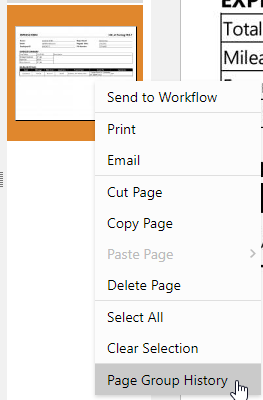
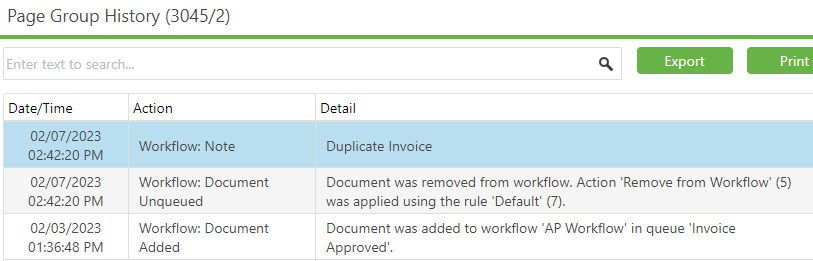
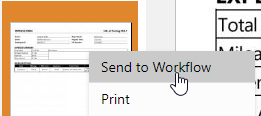
3. Now that we have confirmed the invoice needs to go back into the workflow, right click on that specific invoice page again, and this time choose Send to Workflow.
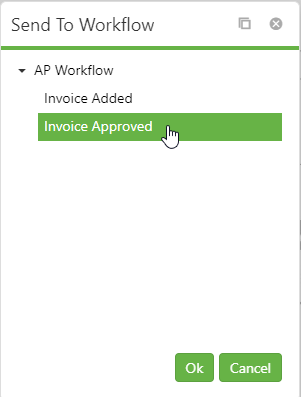
4. You will then choose an available starting queue for the AP Workflow. Once the queue is clicked on, click the Ok button and it will now be back in the workflow.
C. Best Practices
- Regular Audits: Frequently review the workflow logs and auditing tools available in SCScan to monitor document movements and promptly catch any errors in workflow modifications.
- Individual Transaction Handling: Approach each missing invoice as a separate case to ensure accurate restoration and avoid bulk handling mistakes.
- Documentation of Procedures: Maintain a detailed guide or checklist for handling workflow errors or document restoration to standardize response actions and enhance training for new users.
D. Troubleshooting
Identifying Removed Invoices:
- Utilize the ‘Auditing’ feature in SCScan to trace the actions taken with the invoices. If there is confusion or uncertainty about which invoices were affected, this tool should have a record of the changes along with timestamps.
Problems Restoring Invoices:
- If the ‘Send to Workflow’ function does not seem to work, verify you have the correct permissions set in your user profile as restrictions might prevent modifying workflow actions.
- Ensure you are selecting the correct queue when re-adding the invoice to the workflow. Choosing the wrong queue can lead to further processing errors.
E. Related Articles
Search: OCR Search Functionality
Search: Paste Document to a New Document
Search - Adding a Signature/Annotations to Documents
Conclusion
Properly managing and rectifying the accidental removal of invoices from a workflow system ensures the integrity and efficiency of financial operations. By following structured steps to identify, confirm, and return each affected invoice to the workflow, organizations can minimize disruptions and maintain a smooth operational pace. SCScan’s robust features support these tasks, providing the necessary tools to effectively manage such situations when they arise.
Was this article helpful?
That’s Great!
Thank you for your feedback
Sorry! We couldn't be helpful
Thank you for your feedback
Feedback sent
We appreciate your effort and will try to fix the article