
 | ||
Introduction
The Contacts Manager within the Forms Campaign module offers a streamlined method for maintaining and managing a contacts database in a systematic and organized manner. This guide provides an overview of the Contacts Manager and provides a foundation for articles that show how to add, edit, and manage contacts, groups, and contact categories, which can be crucial for executing form campaigns and ensuring efficient communication across user groups.
A. Problem Statement
Managing a large and diverse contacts list can be cumbersome, especially when it involves frequent updates or integration into form campaigns. The challenges include sorting contacts, updating details, and ensuring accurate distribution lists for various campaigns.
B. Solution
The Contacts Manager in SCView offers practical solutions to address these challenges by enabling users to add, import, group, and categorize contacts easily. It supports functionalities such as importing from CSV or Excel files, creating new contacts manually, and managing contact groups, all designed to optimize the organization and accessibility of contact information.
With Contacts Manager, you can easily notify a group of users with a form campaign. This guide will walk through how to add contacts, as well as how to view and make edits to any existing contact.
Go to Tools > Manage Contacts.
On the manager screen, you can filter, edit, and add new contacts.
Image: Manage Contacts Manager

1. Group: Sort by contact group
2. Category: Sort by contact type
3. Search: Search all contacts
4. Import Contacts: Import contacts by uploading a CSV or Excel file (Please contact Support for file if you wish to upload contacts)
5. Create New Contact: Manually create new contact
6. Add to Group: Add 1 or more contacts to a group
7. Group Manager: Add, edit, or delete groups
8. Contact Categories: Add, edit, or delete categories
9. Email: Send an email to any contact or contact group
10: Export: Download contacts as an excel file
Create/Edit New Contact
1. Click Create New Contact.
Image: New Contact Button

2. Fill in all required fields and click Save.
NOTE: To add a Contact Method or Secondary Contacts, click the +
 : Edit a contact
: Delete a contact
Image: Adding Contact Methods to Create Contact
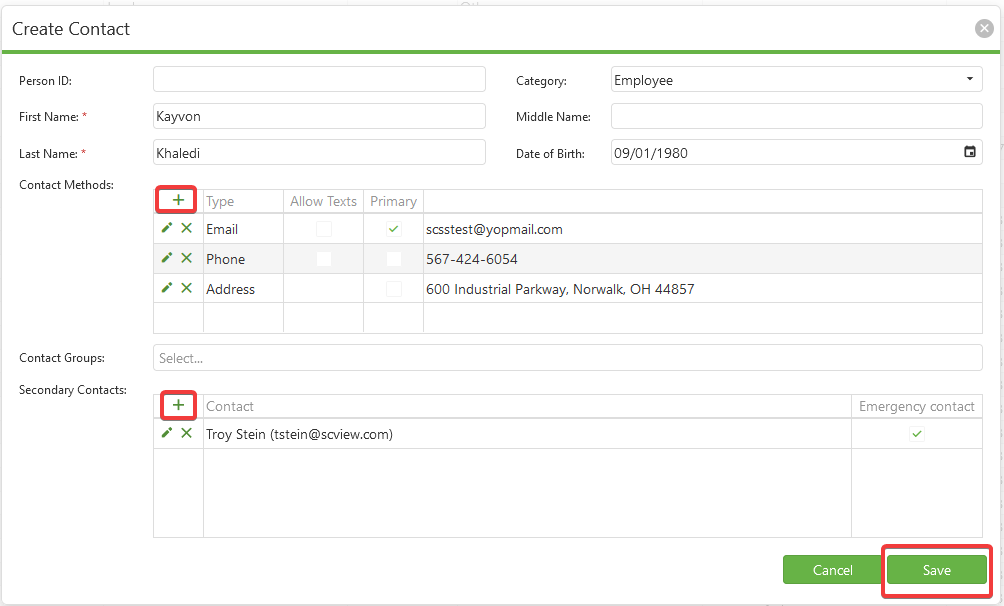
Person ID: If a contact has a local ID, enter it here
Category: Assign category type for contact
First Name: Contact's first name
Middle Name: Contact's middle name
Last Name: Contact's last name
Date of Birth: Contact's date of birth
Contact Methods: We can add multiple contact types such as email, phone, and address. A contact can have multiple entries for the same type
Contact Groups: We can add a contact to 1 or more groups
Secondary Contacts: We can add a secondary contact. The contact must already be in the system. We can add them as an emergency contact
To edit a contact, click the Edit (pencil) icon corresponding to the desired contact. This will bring up the same popup as creating a new contact, but with the existing contact's information prepopulated. Change information as though making a new contact, then click Save to finish.
C. Best Practices
- Regular Updates: Keep the contacts list current by regularly reviewing and updating contact details and groups.
- Clear Group Definitions: Define clear parameters for contact groups to ensure that form campaigns are targeted appropriately.
- Verify Import Data: Carefully verify the details in the import file before uploading to minimize errors such as duplicates or outdated information.
- Backup Data: Regularly backup the contacts database to prevent data loss due to unforeseen circumstances or system errors.
D. Troubleshooting
- When adding phone numbers, the option to "allow texts" appears only after first saving the phone number as a phone number.
E. Related Articles
Manage Contacts: Group Management
Manage Contacts: Contact Categories
Manage Contacts: Import Contacts
New Employees: Submit New Employee to USPS
Form Campaigns: Creating a Form Campaign
Conclusion
SCView's Contacts Manager provides an essential toolkit for effectively managing communication within different segments of an organization or user base through form campaigns. By following the outlined steps to manage contacts and groups efficiently, users can enhance their outreach efforts and ensure that the right contacts are engaged at the right time. Streamlining contact management not only saves time but also improves the effectiveness of communication campaigns deployed via SCView.