
 | ||
Introduction
This article provides a comprehensive guide to the invoice email approval process in SCView, specifically for users listed as requesters on invoices. You'll learn how email notifications work, understand the approval link functionality, and discover the differences between authenticated and anonymous approval methods. This guide ensures you can efficiently process invoice approvals through email notifications while maintaining proper audit trails and workflow compliance.
A. Problem Statement
When invoices are submitted to SCView, requesters receive email notifications for approval, but many users are unclear about the process that follows. Users often don't understand what happens when they click approval links, whether they need system login credentials, or how to navigate the approval interface effectively. This confusion can lead to delayed approvals, missed notifications, or incomplete approval processes that disrupt invoice processing workflows and delay vendor payments.
B. Solution
The email approval process provides a streamlined method for requesters to approve invoices directly from email notifications, with different pathways depending on user authentication status.
Step 1: Set Up Email Notifications
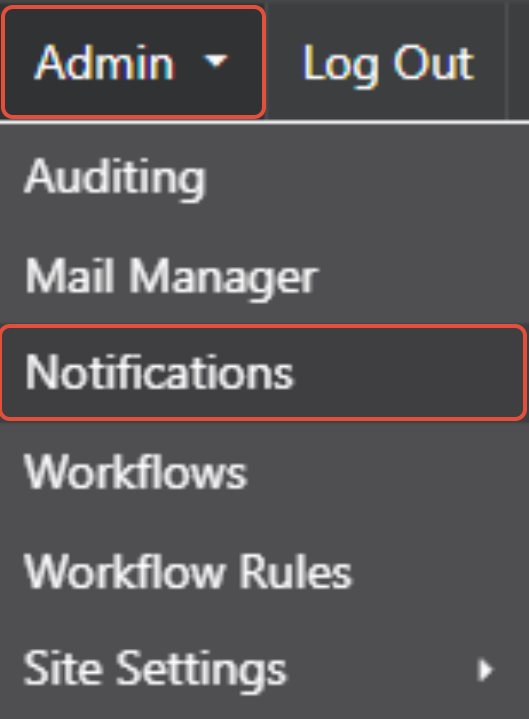
In order for requestors to receive emails, a notification for such must be configured through the Notifications Manager page under Admin > Notifications
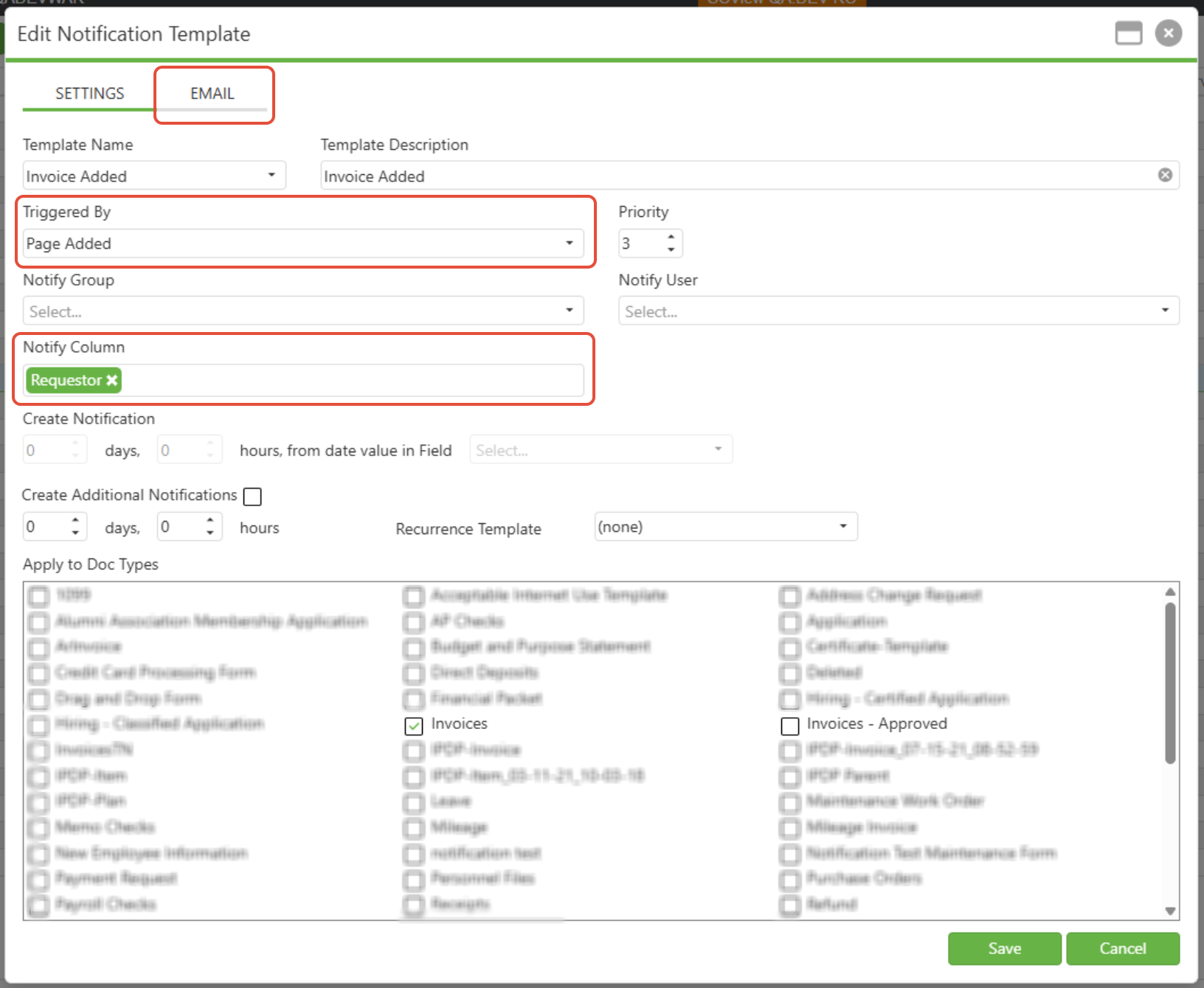
When fully configured, it will look similar to this. Please see related articles section for more details.
Step 2: Receive Email Notification
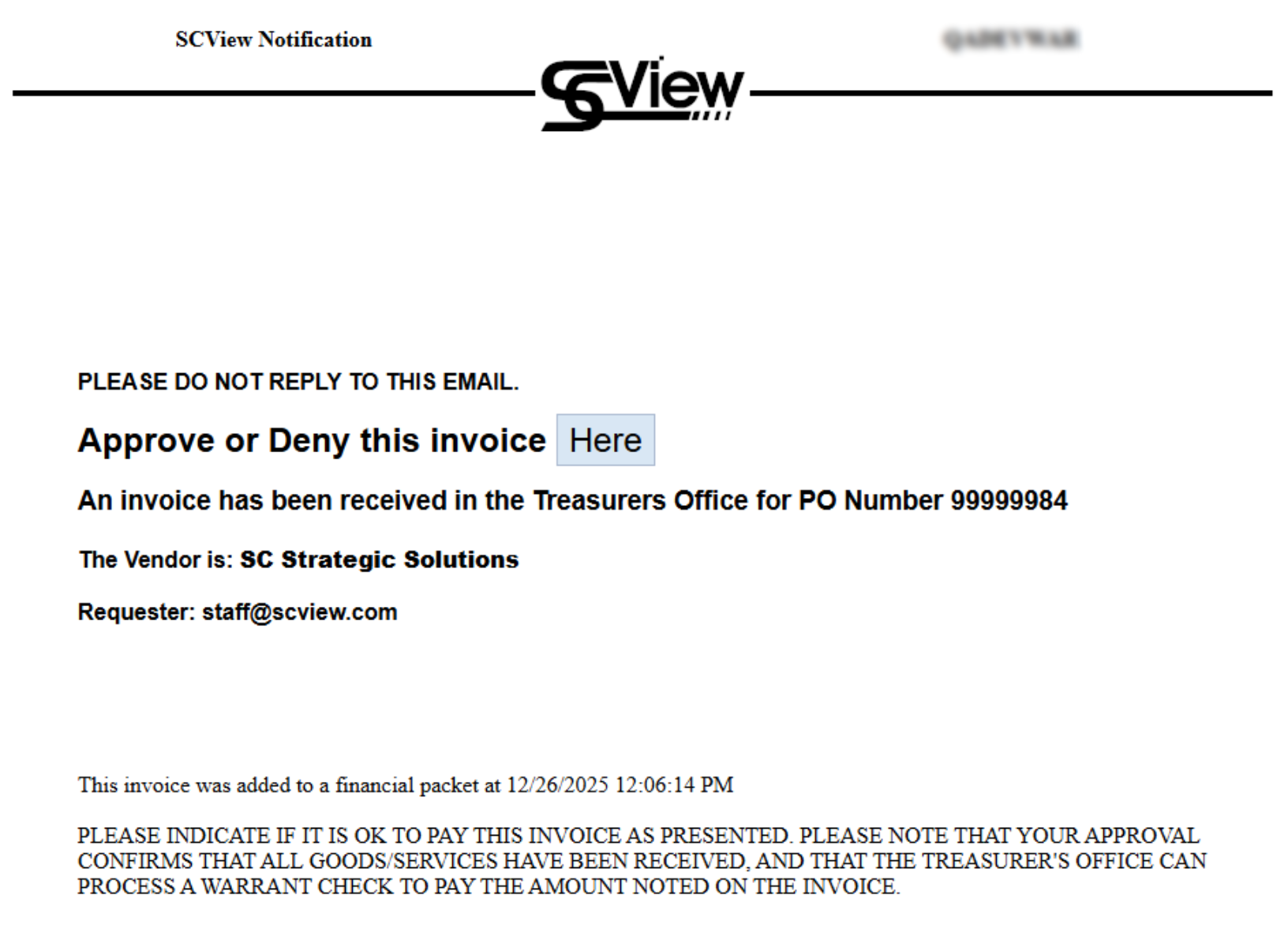
When an invoice is submitted with you listed as the requester, you'll automatically receive an email notification containing key invoice information such as vendor details, amount, and other relevant data, along with an approval link for taking action.
Step 3: Click the Approval Link
Click the approval link in the email (typically labeled as "Here" or similar). The exact appearance may vary by district, but all emails will contain this essential approval functionality.
Step 4: Navigate Authentication Process
After clicking the link, one of two authentication scenarios will occur:
If you have a system login account
- The system will prompt you to log in if you're not already authenticated
- If already logged in, you'll proceed directly to the approval interface
If you don't have a system login account
- You'll be able to proceed with anonymous approval
- Your email address will be recorded in the approval audit history instead of a username
Step 5: Access the Approval Interface
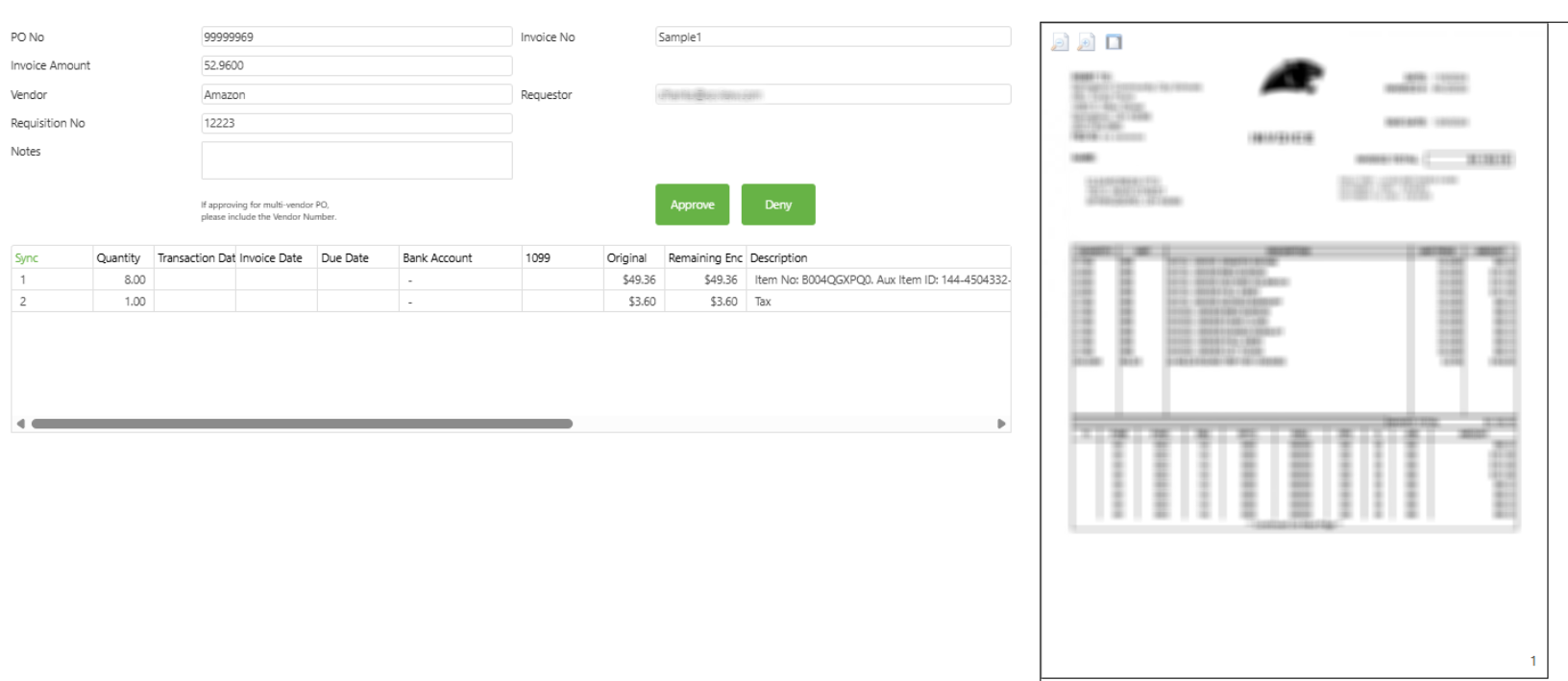
Once authenticated (or proceeding anonymously), you'll see the approval interface which may vary by district configuration but will include standard approval options and functionality.
Step 6: Enter Approval Details
In the approval interface, you can:
- Enter notes or comments explaining your approval decision
- Choose between partial or full approval amounts
- Select either approve or deny for the invoice
Step 7: Submit Your Decision
Complete your approval by clicking the appropriate approve or deny button. The system will record your decision, notes, and timestamp the action for audit trail purposes.
C. Best Practices
- Monitor Email Regularly: Check for invoice approval emails frequently to prevent processing delays
- Use Dedicated Email Filters: Set up email rules to ensure approval notifications don't get lost in your inbox
- Verify Invoice Details: Always review the invoice information in the email before clicking the approval link
D. Troubleshooting
- Email Not Received: Check spam folders, verify your email address is correctly listed as requester, and confirm email notifications are enabled
- Login Issues: Verify your credentials are correct, check if your account is active, or contact system administrators for password resets
E. Related Articles
Conclusion
The invoice email approval process provides an efficient method for requesters to approve invoices directly from email notifications, whether through authenticated login or anonymous approval methods. By understanding the authentication pathways, utilizing the approval interface effectively, and following proper documentation practices, you can ensure timely invoice processing while maintaining accurate audit trails. Implement these procedures to streamline your approval workflow and prevent delays in vendor payment processing.