 | ||
Introduction
The Search tab in SCView is the primary interface for locating, viewing, and managing documents within the document management system. This powerful feature allows users to find specific documents by entering search criteria based on various index fields, then view and interact with the results through a comprehensive set of tools. The Search tab is divided into three main areas: the search criteria section where users enter their search parameters, the Search Result Grid that displays matching documents, and the image viewing area where document pages are displayed for review and manipulation. Understanding how to effectively use the Search functionality is fundamental to working efficiently in SCView, as it serves as the gateway to accessing all stored documents. This article provides an overview of the Search tab, explaining how to perform searches, understand the result grid, and load documents into the image viewer.
A. Problem Statement
Users new to SCView or those unfamiliar with the Search functionality often encounter challenges that can hinder their ability to locate and work with documents efficiently. Common difficulties include:
- Not knowing how to access the Search tab or navigate its interface
- Uncertainty about which search criteria fields to use for finding specific documents
- Confusion about how Department and Document Type selections affect available search options
- Not understanding the relationship between search criteria and the results displayed in the grid
- Difficulty interpreting the Search Result Grid and understanding what the columns represent
- Not knowing how to load document images into the viewer for review
- Confusion about the difference between single-clicking and double-clicking on search results
- Uncertainty about the various tools available for working with documents once loaded
- Not understanding why certain features appear grayed out or unavailable
Without a clear understanding of the Search tab's layout and basic functionality, users may struggle to locate documents, waste time with inefficient search methods, or fail to utilize the full capabilities of SCView's document management features.
B. Solution
SCView's Search tab provides a centralized and intuitive interface for finding and accessing documents. By selecting the appropriate Department and Document Type, users can access relevant search fields tailored to their document category. Search results are displayed in a customizable grid format, and documents can be loaded into the image viewer with a simple double-click for detailed review and manipulation. The Search tab integrates seamlessly with the Image Bar tools and page management features, providing a complete document management experience.
NOTE: When logged into SCView and looking at the Search tab, each user's view will
be slightly different depending on their permissions. The available Departments,
Document Types, search fields, and features may vary based on your assigned access
level and system configuration.
Accessing the Search Tab
Step 1:
Log in to SCView using your credentials. After successful login, you will be directed to the main SCView interface.
Step 2:
Locate the main navigation menu at the top of the screen. Click on "Search" in the navigation menu to access the Search tab. The Search interface will load, displaying the complete search functionality.
Step 3:
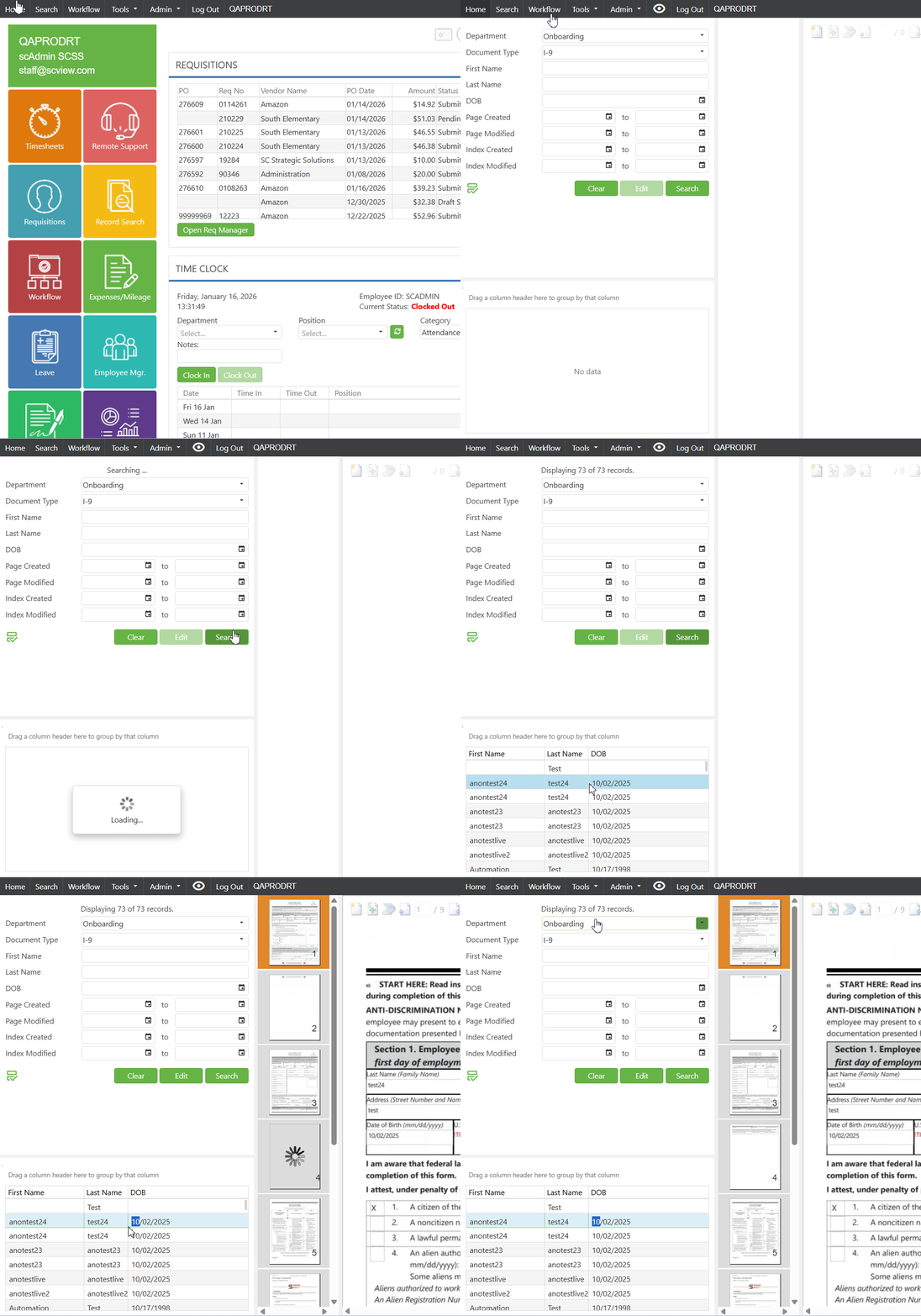
Observe the Search tab layout, which is divided into three main sections:
- Search Criteria Section (Upper Left): Contains dropdown menus and input fields for entering search parameters
- Search Result Grid (Lower Left): Displays documents matching your search criteria
- Image Viewing Area (Right Side): Shows document thumbnails and the main image viewer when a document is selected
Configuring Search Criteria
Step 1:
Locate the Department dropdown field at the top of the search criteria section. Click on the dropdown and select the appropriate department that contains the documents you are searching for. The Department selection determines which Document Types are available.
Step 2:
After selecting a Department, click on the Document Type dropdown field. Select the type of document you want to search for (e.g., "Financial Packet," "Invoice," "Application"). The Document Type selection determines which search fields and result grid columns are displayed.
Step 3:
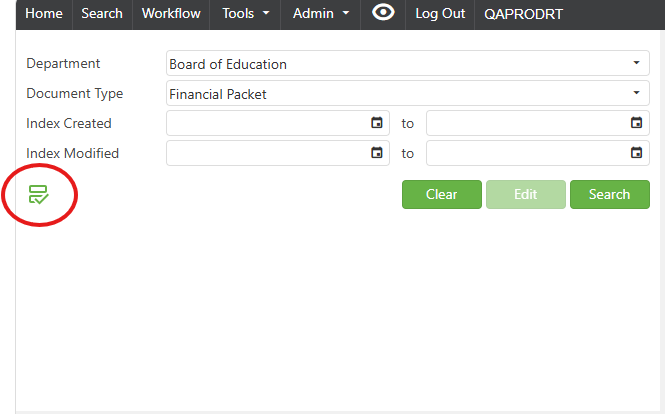
Observe that the search criteria fields update based on your Document Type selection. Different document types have different index fields available for searching. By default, all searchable indices are not displayed so as to reduce clutter on the screen. To populate the list, click the search field preference picker, circled in the image below.
Image: Default Search Fields with Search Field Preference Picker Circled
Step 4 (Optional):
If the search field preference picker is clicked, the Search Field Preferences popup appears. This is a list of all document indices that have been set as eligible search criteria by database admins. Click the checkboxes for all desired search criteria, then click the OK button. The selected indices will be added to those that can be searched.
Image: Search Field Preferences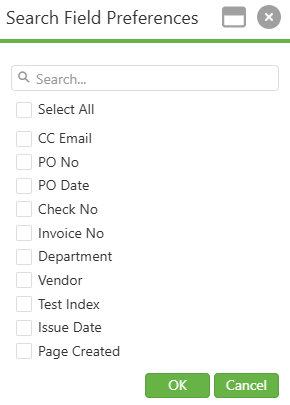
Image: Selected Preferences Added to Search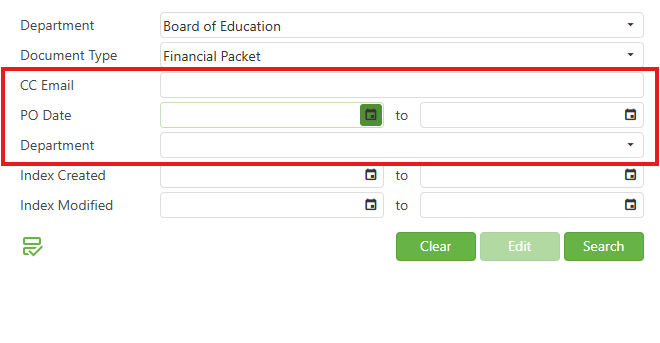
Step 5:
Locate and use the action buttons below the search criteria fields:
- Clear: Resets all search criteria fields to their default empty state
- Edit: Opens the edit mode for modifying document index values
- Search: Executes the search query based on your entered criteria
Performing a Search
Step 1:
After entering your search criteria, click the "Search" button to execute your search query. The system will process your request and retrieve matching documents from the database.
Step 2:
Observe the record count indicator at the top of the Search interface. This displays text such as:
- The first number shows how many records are currently loaded and displayed
- The second number represents the total number of records matching your search criteria
Step 3:
If the total number of matching records exceeds the display limit, consider refining your search criteria to narrow down the results. Add more specific values or use date ranges to reduce the result set to a manageable size.
Understanding the Search Result Grid
Step 1:
Review the Search Result Grid located in the lower left section of the Search tab. Each row in the grid represents a single document that matches your search criteria.
Step 2:
Observe the column headers in the grid. These columns correspond to the index fields associated with your selected Document Type and display relevant information for each document, such as:
- Document identifiers (PO No, Check No, Invoice No, etc.)
- Dates (PO Date, Invoice Date, Issue Date, etc.)
- Names and descriptions (Vendor, Requestor, Subject, etc.)
Note: column headers dynamically change when you switch between different Document
Types, ensuring that relevant information is always displayed for your selected
document category.
Step 3:
You can customize the Search Result Grid by:
- Grouping results: Drag a column header to the grouping area above the grid to organize results by that field
- Customizing visible fields: Use the Field Chooser to select which columns appear in the grid
Loading Documents into the Image Viewer
Step 1:
To select a document without loading its images, single-click on a row in the Search Result Grid. The row will become highlighted, indicating it is selected.
Step 2:
To view the document images, double-click on a row in the Search Result Grid. This action loads the document into the image viewing area on the right side of the screen.
Step 3:
Once a document is loaded, observe the image viewing area which displays:
- Thumbnail Panel (Left side of viewer): Shows small preview images of all pages in the document, numbered sequentially. The currently selected page is highlighted with an orange border.
- Main Image Viewer (Right side of viewer): Displays the currently selected page at full size for detailed viewing.
- Image Bar (Top of viewer): Contains tools for document manipulation, navigation, zoom controls, rotation, annotations, and more.
Note: Once a document is loaded, the Image Bar icons become active
C. Best Practices
Search Criteria Best Practices
- Select the correct Department and Document Type before searching, use specific criteria and date ranges to narrow results, and clear criteria before starting a new search
Search Result Grid Best Practices
- Review the record count indicator and refine criteria if results exceed the display limit, use the grouping feature for large result sets, and customize field visibility for relevant columns
Document Loading Best Practices
- Use single-click for grid-level operations and double-click to load document images, wait for images to fully load before using Image Bar tools, and use thumbnail navigation for multi-page documents
General Best Practices
- Familiarize yourself with available Document Types and useful index fields, explore Image Bar tools and context menu options, and contact your system administrator if certain features are unavailable
D. Troubleshooting
Search Tab Not Loading:
- Verify valid login credentials, check internet connection, refresh browser or clear cache. Contact system administrator if issue persists.
No Document Types Available:
- Ensure a Department is selected first from the dropdown. Verify permissions for the selected department or request additional access from your administrator.
Search Returns No Results:
- Check search criteria accuracy, avoid overly restrictive filters, and confirm correct Department and Document Type selection.
Search Results Limited:
- Display shows limited records for performance (e.g., "1000 of 2879 records"). Refine search with specific values or date ranges to manage result size.
Document Images Not Loading:
- Double-click (not single-click) rows to load images. Verify document contains uploaded images, check internet connection, and refresh browser if needed.
Image Bar Icons Grayed Out:
- Ensure document is loaded by double-clicking a Search Result Grid row. Wait for images to fully load and check user permissions for restricted features.
Thumbnail Panel Issues:
- Allow time for large documents to load thumbnails. Note that single-page documents show only one thumbnail. Refresh browser if thumbnails don't appear.
Search Criteria Fields Missing:
- Verify correct Document Type selection as different types display different fields. Use Field Chooser to customize visible fields or contact administrator for missing expected fields.
E. Related Articles
Search: Page Image and Right-Click Context Menu Options
Search: Paste Document to a New Document
Search: Adding a Signature/Annotations to Documents
Search: How to Print and Download
Conclusion
The Search tab in SCView serves as the central hub for locating and accessing documents within the document management system. By utilizing its three main components—the search criteria section, the Search Result Grid, and the image viewing area—users can efficiently locate, organize, and review documents to meet their document management needs.
Was this article helpful?
That’s Great!
Thank you for your feedback
Sorry! We couldn't be helpful
Thank you for your feedback
Feedback sent
We appreciate your effort and will try to fix the article