
 | ||
Introduction
In business operations, particularly in accounts payable, it is not uncommon to require the use of a single invoice across multiple purchase orders (POs). To enhance efficiency and reduce redundancy in document handling processes within systems like SCView, a feature allows for the duplication of documents. This capability simplifies the management of invoices that apply to multiple POs without the need for repeated scanning.
A. Problem Statement
Users often face the challenge of needing to associate a single invoice with multiple POs, which can lead to unnecessary repeated scanning of the same document. This not only wastes time and resources but also clutters the system with duplicate files.
B. Solution
To address this issue effectively, SCView offers a straightforward procedure to copy and paste documents. This feature allows users to duplicate an invoice within the system and associate it with different POs as needed, all without rescanning the physical document multiple times.
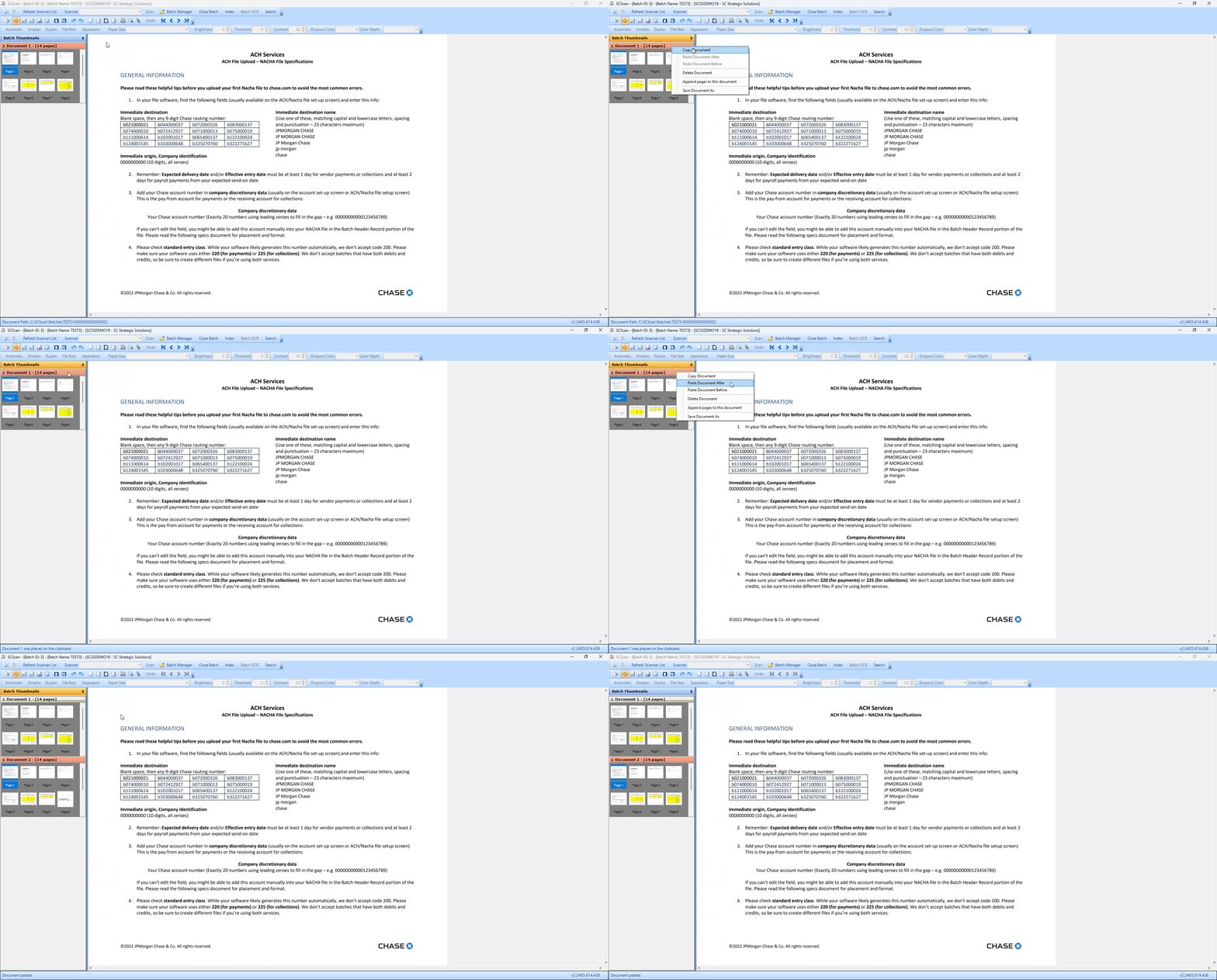
Occasionally, the situation will arise where the same invoice will need to be used for multiple POs. Rather than scanning the invoice multiple times, you can simply copy the document.
- Select the document header of the invoice you'd like to copy
- Right-click the document header
- Select Copy Document from the context menu
- Right-click the document next to where you'd like to add the copy
- Choose Paste Document Before/After depending on where you'd like the document placed
(Click to Enlarge)
C. Best Practices
- Document Management: Always ensure that the document you are copying is the correct and most updated version to prevent errors in your accounting records.
- Placement Precision: Carefully choose whether to paste the document before or after the target document to maintain an organized sequence in your document archives.
- Audit Trails: Keep a log of document copies made for tracking purposes and to ensure compliance with internal controls and audit standards.
D. Troubleshooting
Incorrect Document Placement:
- If a document is pasted in the wrong place, simply use the same copy and paste method to move it to the correct position.
- Be extra cautious and preview the placement before finalizing the paste action to avoid repeated adjustments.
E. Related Articles
SCScan: Changing your Index text size
SCScan: Adding a Document Type
Conclusion
The ability to copy and paste documents within SCView not only streamlines document management processes but also enhances productivity by eliminating the need for multiple scans of the same invoice. By following the simple steps outlined above, coupled with adherence to best practices and effective troubleshooting, users can efficiently manage invoices across multiple POs, ensuring accuracy and organization in financial documentation.