
 | ||
Introduction
Ever submitted a leave request only to get hit with a cryptic error message? If your organization uses Leave Blackout Dates, you may be running into date restrictions without even knowing it. In this guide, you'll learn how to identify whether your organization uses Blackout Dates, decode validation error messages, and navigate around restrictions to get the time off you need.
A. Problem Statement
You've filled out your leave request, but something is blocking your submission. A validation error stops you in your tracks. You're not sure why your request is being denied. The culprit may be Leave Blackout Dates, a behind-the-scenes feature that limits how many employees can take a specific type of leave on specific days.
B. Solution
To follow along with this guide, please navigate to Tools > Leave Requests.
Step 1: Does your Organization Use Blackout Dates?
Leave Blackout Dates are an optional feature of the SCView Leave module. Database administrators now have the power to set rules that limit the number of people who can take Leave of a specific type on specific days. As a requesting employee, the Blackout Dates feature is invisible to you until it announces itself.
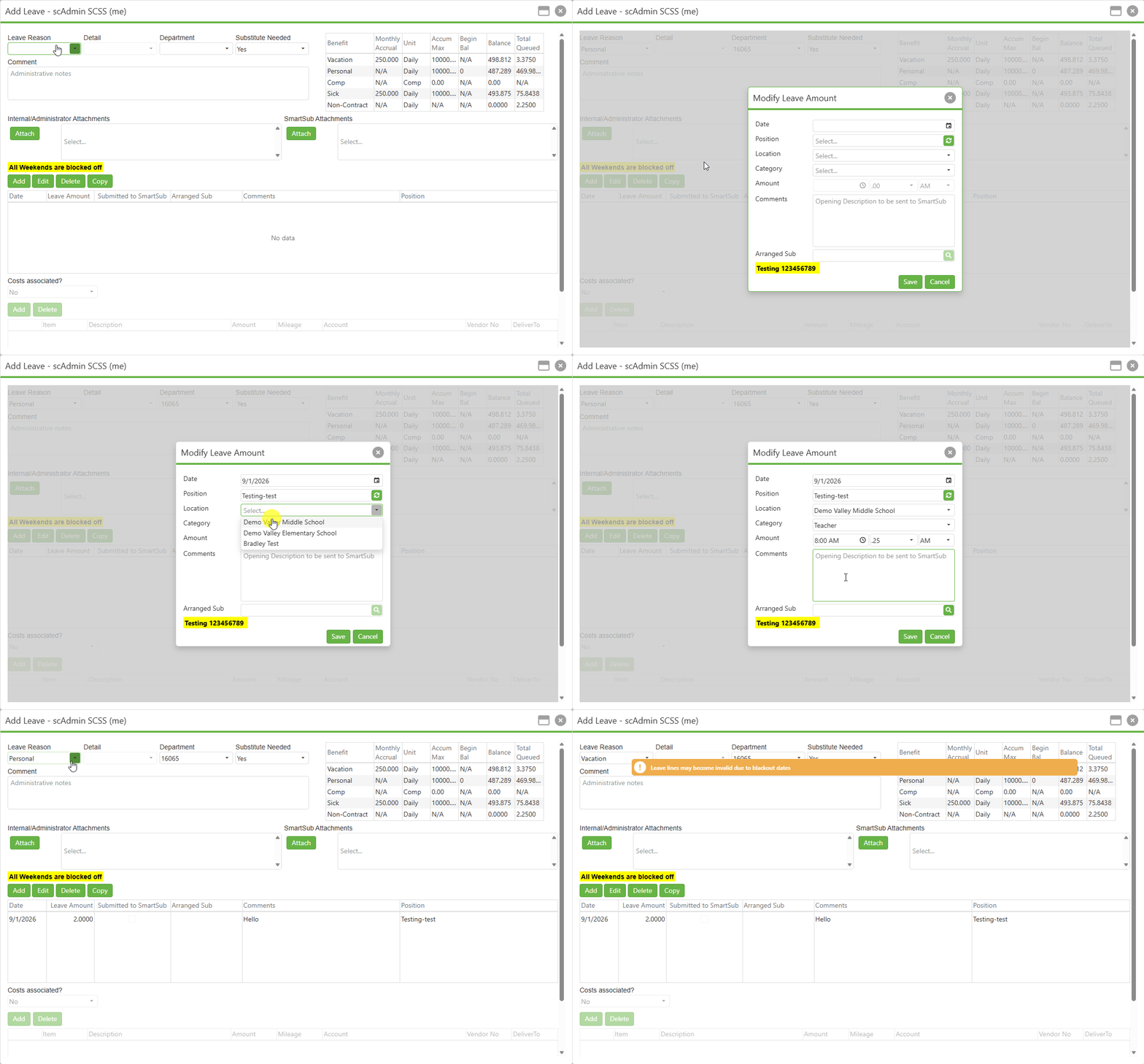
To check to see if your organization uses Leave Blackout Dates, fill out a Leave Request and add one or more Leave Lines to it. Once a Leave Line has been added, change the Reason for the leave. If your organization uses Leave Blackout Dates, the act of changing the Reason will generate a yellow toast message.
If no yellow toast message is generated, stop. Your organization does not use Leave Blackout Dates.
Video: Provoking the Yellow Toast Message
Step 2: Working with Blackout Dates
Now that we have confirmed that your organization uses the Blackout feature, let's discuss the blackout messages.
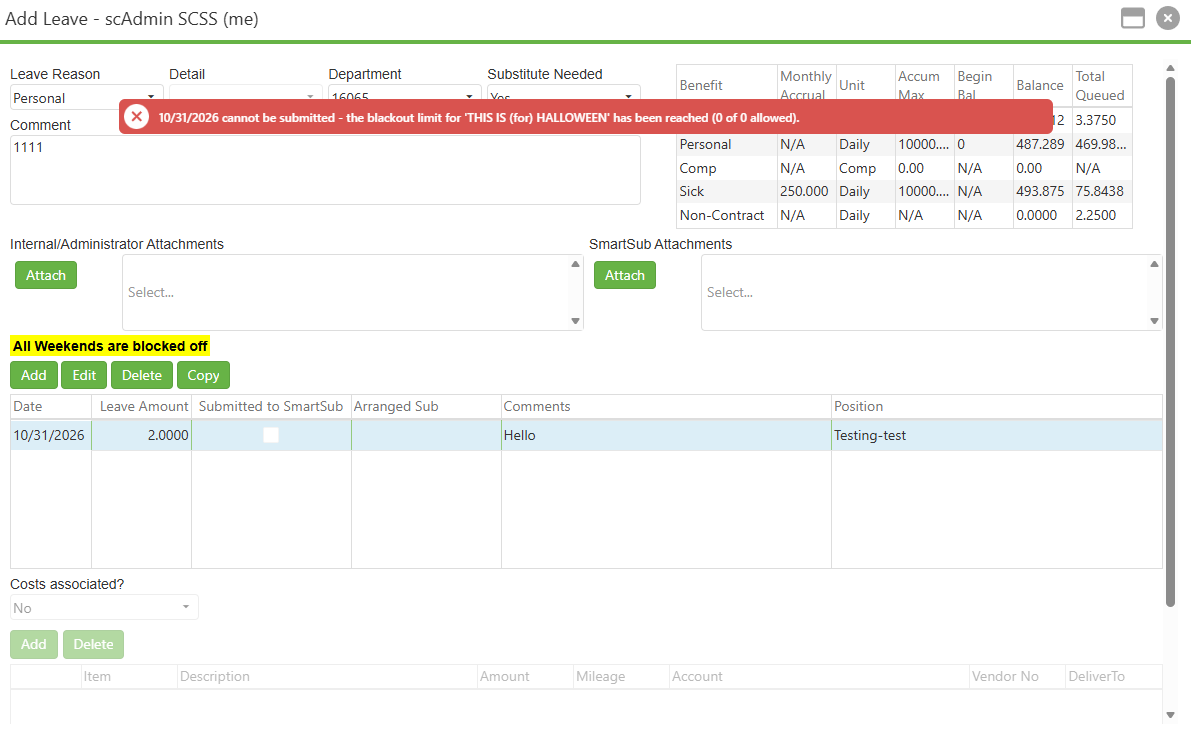
When attempting to submit a Leave Line that is blacked out, a validation error appears with the following structure:
'<DATE OF DENIED LEAVE> cannot be submitted - the blackout limit for "<NAME OF BLACKOUT RULE>" has been reached (# of # allowed).'
For our example in the image below, not a single individual is allowed to take Personal time off for Halloween. Since the Blackout Date rules are extremely specific- they black out a specific department, date, and Leave reason- the user can try varying their Leave Reason in an attempt to get the Leave Request to bypass established rules. Make sure that other Leave Reasons you try are acceptable to use in the moment!
Image: Leave Blackout Date Validation Message
C. Best Practices
- If your organization makes use of a complex Leave scheme, try to learn which types of Leave bypass which sorts of rules so you can take the time off you need when you need it.
- Sick days cannot be blacked out.
D. Troubleshooting
The yellow toast message isn't appearing. - Make sure you've added at least one Leave Line before changing the Reason field; the toast won't trigger without it. If you've confirmed a Leave Line is present and still see no message, your organization likely does not use Blackout Dates.
The toast message disappears before I can read it. - Non-red toast messages are temporary. Simply change the Reason field again to re-trigger it.
Every Leave Reason I try comes back with a validation error. - If no Leave Reason gets your request through for a specific date, your options on that day may be fully restricted. Consider requesting a different date, or reach out to your manager or HR department to discuss possible exceptions.
E. Related Articles
Leave: How to Use the Leave Form
Conclusion
Leave Blackout Dates don't have to be a mystery. Now that you know how to read validation errors and experiment with alternate Leave Reasons, you're equipped to work around restrictions and plan your time off with confidence.