 | ||
Introduction
AI-assisted indexing streamlines data entry while maintaining user control, helping reduce manual effort and improve consistency across document indexing tasks. By incorporating visual indicators and bounding overlays, the system allows users to quickly validate and or adjust extracted information. The AI-assisted indexing feature in your online indexing tool enhances the accuracy and efficiency of document processing by intelligently extracting and suggesting key values from incoming content. Designed to support users without disrupting established workflows, this functionality leverages configurable rules and confidence thresholds to determine when and how extracted data is applied.
A. Problem Statement
Organizations that rely on manual or semi-automated document indexing often face challenges with speed, consistency, and accuracy. Users are required to interpret and enter data from documents, which can lead to inefficiencies, human error, and variability in how information is captured—especially when processing large or mixed batches of documents.
Additionally, without clear indicators of system-generated data or confidence levels, users may struggle to trust or validate automated outputs, resulting in either over-reliance on potentially inaccurate data or unnecessary rework. As document volumes grow and processing requirements become more complex, there is a need for a more intelligent, transparent, and controlled approach to indexing that improves efficiency while maintaining data accuracy and user confidence.
B. Solution
The AI-assisted indexing feature addresses these challenges by introducing intelligent data extraction combined with configurable controls that ensure accuracy and reliability. By leveraging AI and OCR technologies, the system automatically identifies and suggests relevant values from documents, reducing the need for manual data entry and improving overall processing speed. To maintain data integrity, configurable confidence thresholds determine when extracted values are automatically applied, highlighted for review, or cleared, ensuring that only reliable data is used. Visual cues, such as bounding region overlays and field highlighting, provide transparency into how values were derived, enabling users to quickly validate and make informed decisions.
Step 1:
Verify that your doctype is setup to use AI Assistant. Please follow this article to set up AI if its not already.
Step 2:
Navigate to Online Indexing. Tools > Indexing.
Click the Import button in the Batch Selection screen.
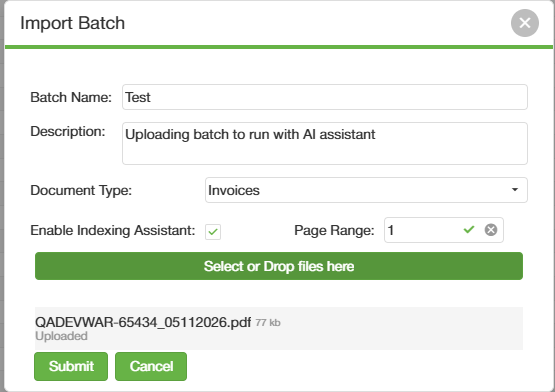
From within the Import Batch popup there will be a dropdown called "Document Type". This dropdown will populate with any document types that you have set up to use AI. Which can be set up by following this article here.
Make sure that the Index Assist checkbox is checked. If you do not want to run AI processing on the batch please uncheck the Index Assist. Page Range is for how many pages you want the AI task to be ran on. If no value is entered the default page range set in the document type settings will override.
Step 3:
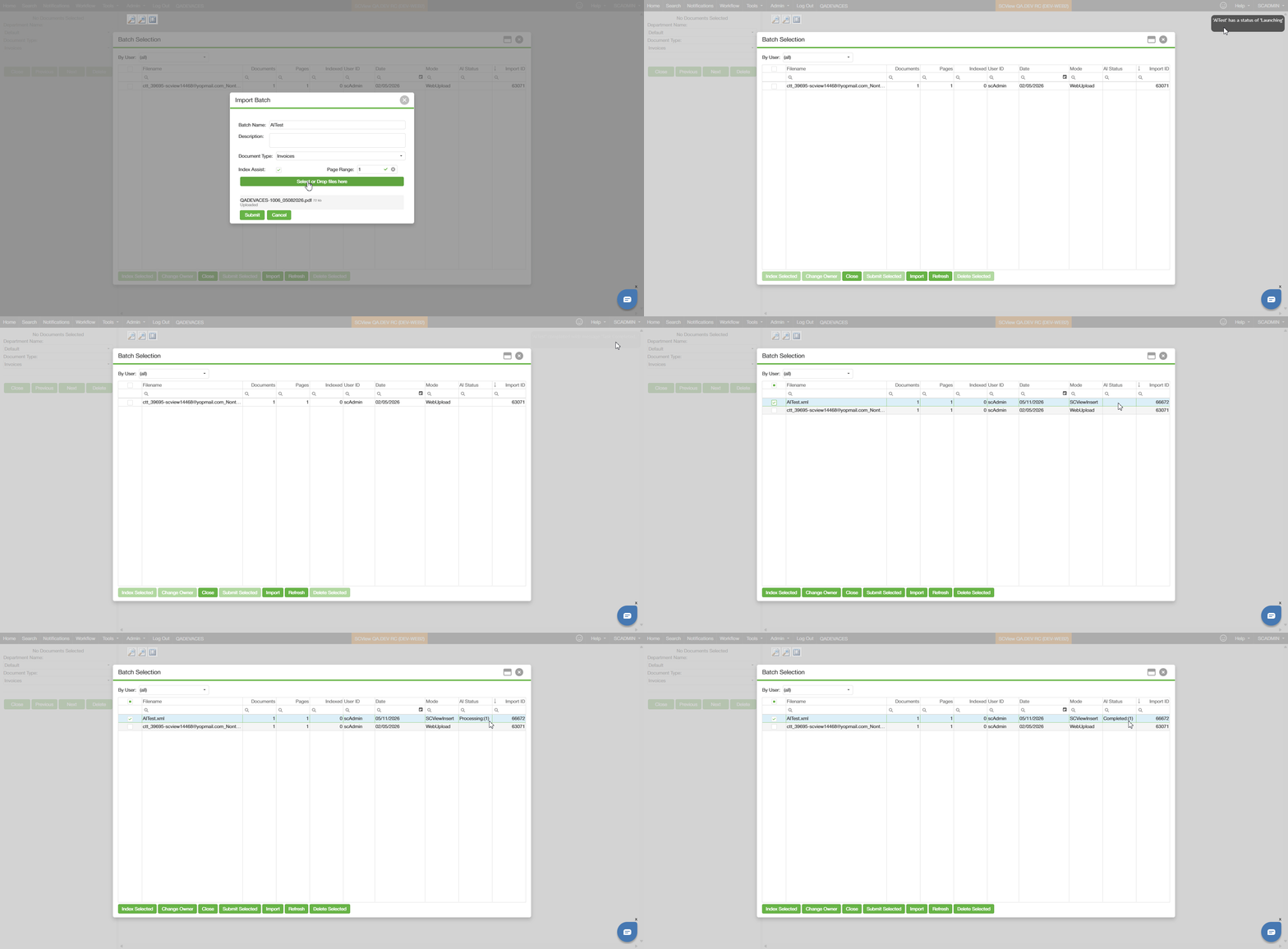
Once you click submit the import task will begin uploading your document and it will display in the grid. Once your file displays in the grid you can check on the AI status in the far right column called "AI Status". The status will be Processing > Completed or Processing > Failed. The AI task can take some time to start/finish especially for multiple pages/large batches.
If you select the batch and begin indexing before the AI task finishes you will be prompted with the this warning popup.
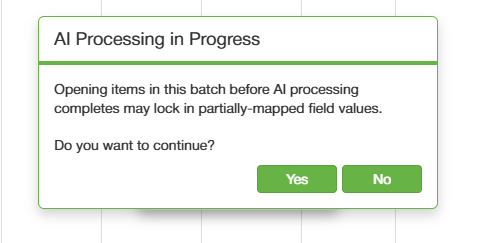
Clicking Yes will take you into the document to begin indexing as normal. Just note that with doing this some fields may have not finished being populated and or visual indicators may not display.
If you select No you will remain on the Batch selection screen where you can select and index again after the status is completed.
Step 4:
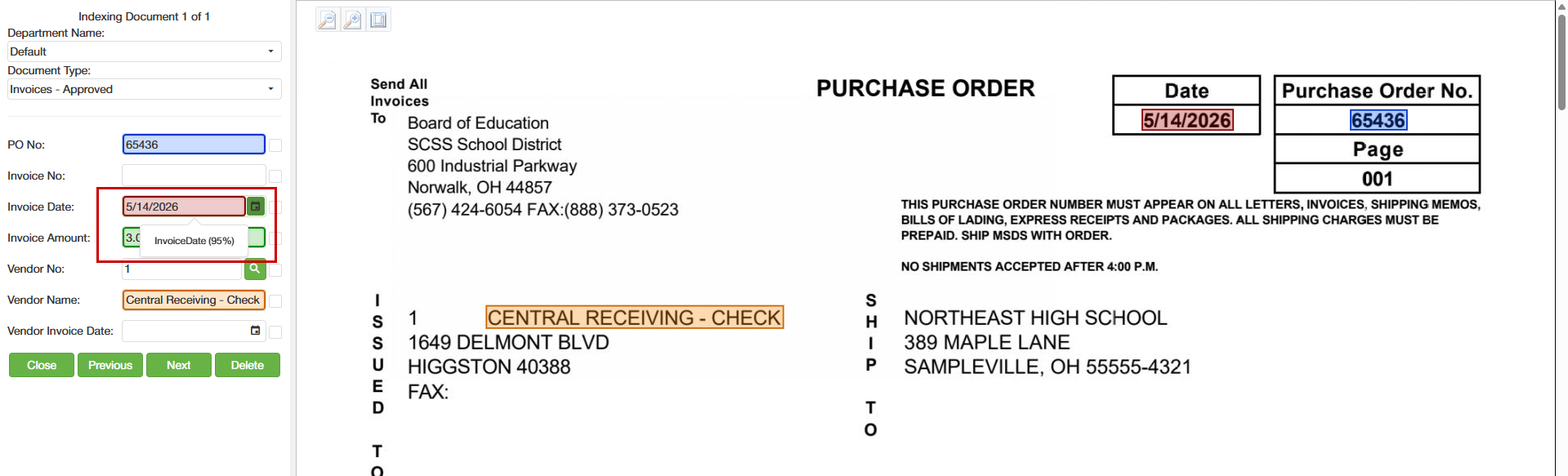
Once the AI Status completes click the Index selected. Upon entry of the batch all documents that were processed through AI will have all fields mapped out and color coded. This allows you to quickly glance to verify that the correct information was pulled into the correct field.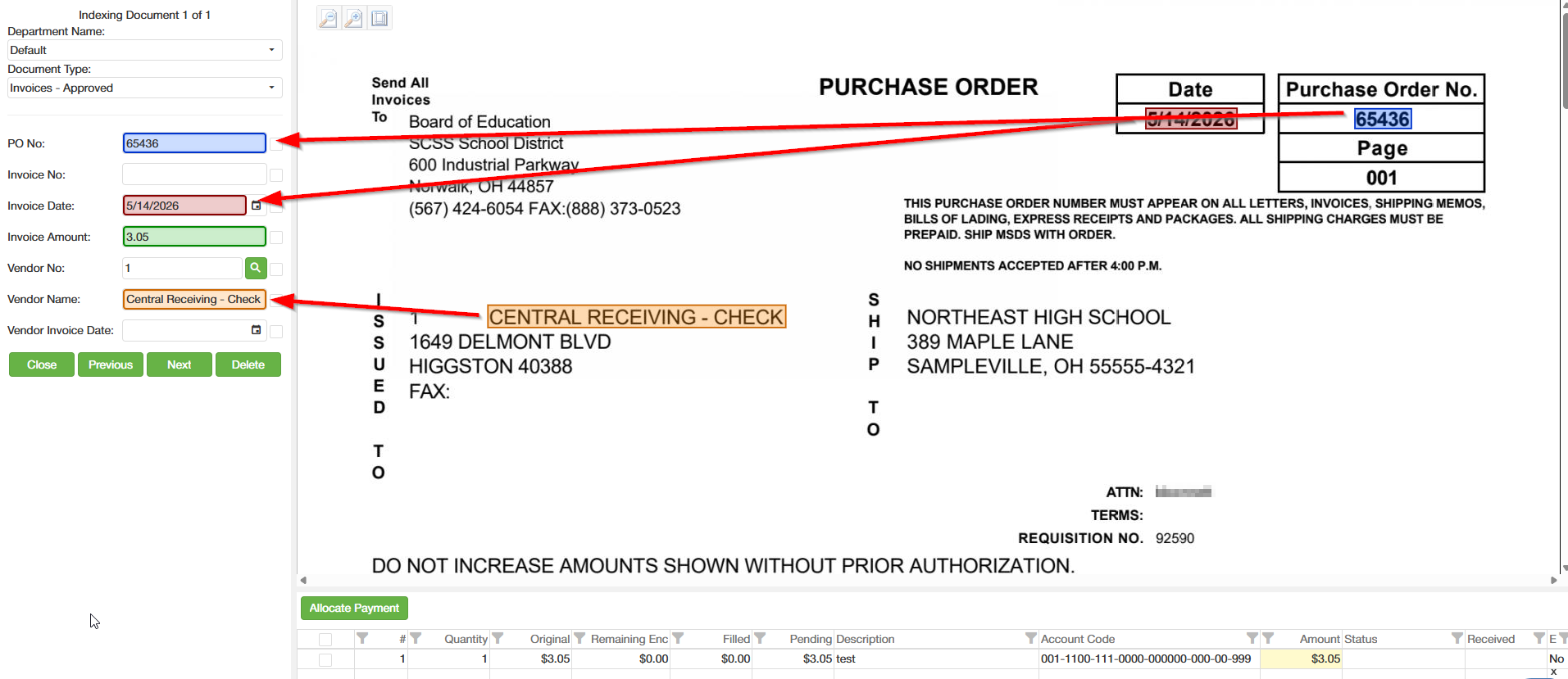
Hovering over the color coded values in either the image or the textbox will display the confidence percentage.
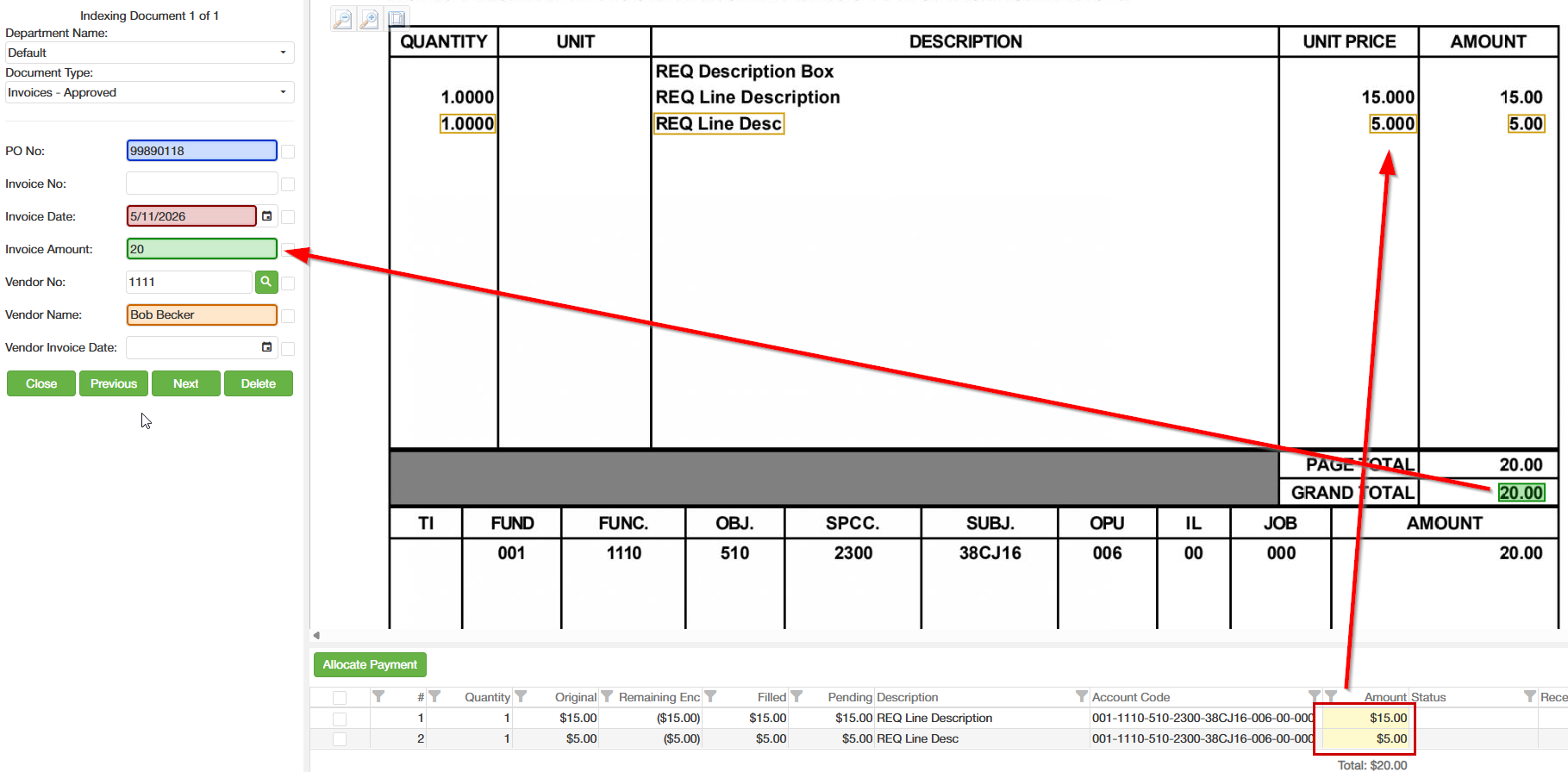
The AI assistance also works on line items. This will automatically pull in the amount on the image and fill in the lower lines.
The lower lines will have a yellow/orange box around the unit price and amount, the line items amount column will have a yellow background. The total will display in the Invoice Amount with its corresponding color.
Step 5:
Continue indexing as normal. Clicking Next will go to the next document. If there are no documents to go to next, it will prompt if you would like to submit that batch. Clicking Close will save and close the batch.
If you close a batch and reopen the same batch, since AI was already performed the highlights will no longer display.
C. Best Practices
Review highlighted values before submitting documents
AI-assisted indexing is designed to speed up processing, but users should still verify highlighted fields and confidence indicators to ensure information was extracted correctly.
Wait for the AI Status to display “Completed”
For the best experience, allow the AI task to finish processing before opening the batch for indexing. This ensures all available values, highlights, and visual indicators are fully populated.
Use clear and high-quality documents
Clean, properly aligned, and high-resolution documents improve AI extraction accuracy and reduce the need for manual corrections.
Verify line item values carefully
When working with invoices or documents containing line items, review unit prices, totals, and calculated amounts to confirm the extracted values match the source document.
Use confidence indicators as a guide
Confidence percentages can help identify fields that may require additional review. Lower confidence values should be validated more carefully before submitting the batch.
Process similar document types together
Keeping batches consistent with similar document layouts can improve overall indexing efficiency and make validation easier.
D. Troubleshooting
Why are AI values not appearing in my document?
The AI task may still be processing. Check the “AI Status” column in the Batch Selection screen and wait until the status changes to “Completed.”
Why am I seeing a warning popup before indexing?
This warning appears when AI processing has not yet completed for the selected batch. Choosing “Yes” allows you to continue indexing immediately, while choosing “No” returns you to the Batch Selection screen to wait for processing to finish.
Why are some fields highlighted?
Highlighted fields indicate values identified by AI that may require user review. Hovering over the highlighted area will display the confidence percentage for the extracted value.
Why are highlights no longer visible after reopening a batch?
AI highlights and visual indicators are only displayed during the initial indexing session after processing completes. If the batch is closed and reopened later, the extracted values remain, but the visual highlights will no longer display.
Why are some fields blank?
The AI may not have found a confident match for that field, or the value may not exist on the document. Review the source document and manually enter any missing information as needed.
Why are extracted values incorrect?
Poor scan quality, handwritten text, skewed pages, or inconsistent document formatting can impact extraction accuracy. Review all extracted values before submitting the batch.
Why is AI processing taking longer than expected?
Processing time can vary depending on document size, page count, and batch volume. Larger documents or batches with many pages may require additional processing time.
Why are line item totals or amounts highlighted differently?
Line item fields use separate visual indicators to help identify extracted amounts, totals, and unit prices. Review these values carefully to confirm they match the document.
What should I do if AI processing fails?
If the AI Status displays “Failed,” try reimporting the document or verifying that the selected document type supports AI-assisted indexing. If the issue continues, contact your administrator or support team for assistance.
E. Related Articles
Conclusion
AI-assisted indexing enhances document processing by combining intelligent automation with user-driven validation controls. By reducing manual data entry, improving consistency, and providing transparent confidence-based workflows, the feature helps organizations process documents more efficiently while maintaining high levels of accuracy and reliability.
Through configurable thresholds, visual verification tools, and flexible handling of low-confidence values, users remain in control of the indexing process without disrupting existing workflows. When properly configured and maintained using recommended best practices, AI-assisted indexing can significantly improve productivity, reduce processing time, and support scalable document management operations across a wide range of document types and business environments.
Was this article helpful?
That’s Great!
Thank you for your feedback
Sorry! We couldn't be helpful
Thank you for your feedback
Feedback sent
We appreciate your effort and will try to fix the article