 | ||
Introduction
This article explains how sensitivity levels configured in the Document Type Manager affect anonymous users when they submit and attempt to view form data in SCView. Learn how high and low sensitivity settings protect confidential information when organizations invite external users or employees to fill out forms through form groups, and understand the expected behavior when anonymous users click "View/Edit" after form submission.
A. Problem Statement
Organizations frequently invite external users, job applicants, or employees to fill out forms containing sensitive information such as Social Security numbers, salary details, or personal identifiers. After submitting these forms, anonymous users may attempt to view or edit their submitted data using the "View/Edit" functionality. Without proper security controls, confidential information entered by anonymous users could be exposed when they revisit their submission. Organizations need a mechanism that allows anonymous users to submit sensitive data while automatically restricting their ability to view high-sensitivity values after submission.
B. Solution
SCView implements a sensitivity level system that controls how anonymous users can interact with submitted form data. This feature is configured in the Document Type Manager and automatically applies protection based on the sensitivity level assigned to each index field. When anonymous users submit forms and attempt to view sensitive values, the system enforces restrictions based on the configured sensitivity levels.
Understanding Sensitivity Levels for Anonymous Users
Step 1: Navigate to the Document Type Manager and select the document type associated with your form group. Locate the Sensitivity column in the Document Type Indexes panel. You will see the following options:
- Not Sensitive (default)
- Low Sensitivity
- High Sensitivity
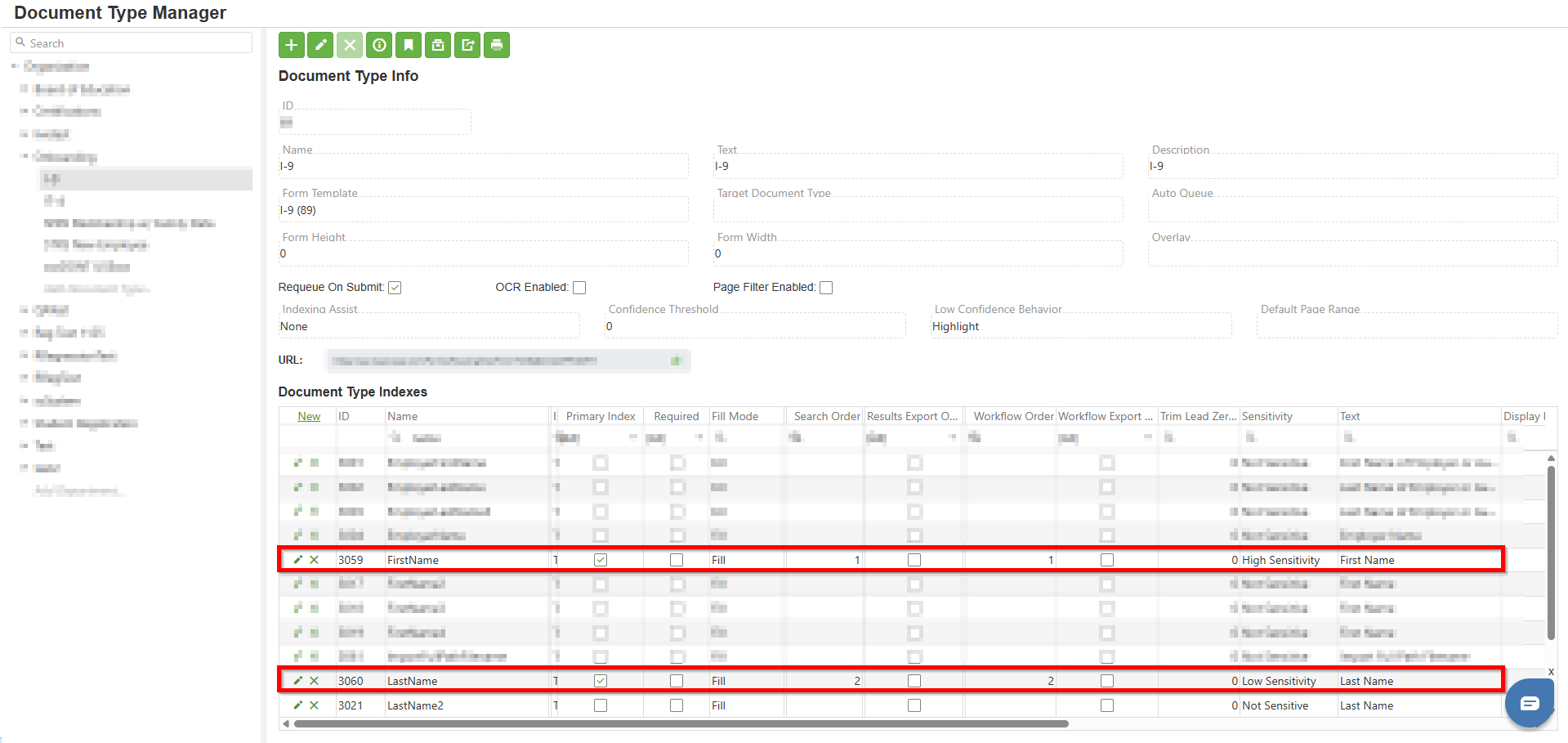
Step 2: For each index field in your document type that will be used in form groups:
- Select "Not Sensitive" for fields that anonymous users can view freely after submission
- Select "Low Sensitivity" for fields that anonymous users can view after submission by clicking "View/Edit"
- Select "High Sensitivity" for fields that anonymous users should never be able to view after submission
Click Save to apply the configuration.
Step 3: Create Form Group with Sensitive Index Fields
- Navigate to Custom Forms and create or edit a form
- Map the index fields that have sensitivity levels configured in Document Type Manager
- Add the form to a Form Group
- Generate the form group link to invite anonymous users (employees, applicants, external users)
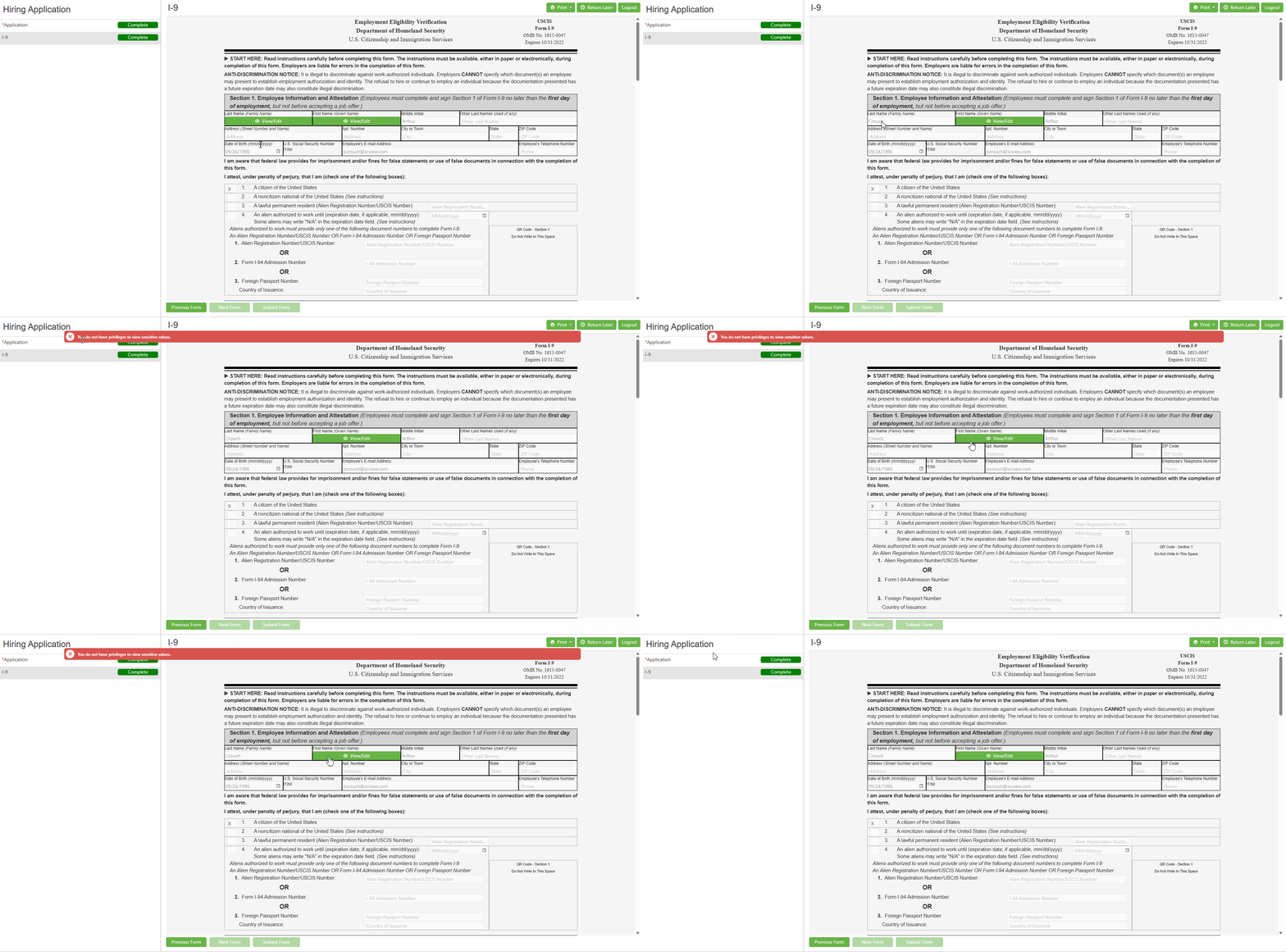
Step 4: When anonymous users submit a form and attempt to view their submitted data:
For High Sensitivity Fields:
- Anonymous user fills out the form including high-sensitivity fields
- Anonymous user clicks "Complete" to submit the form
- After submission, anonymous user clicks "View/Edit" button to the sensitive field
- System displays a toast notification: "You do not have privileges to view sensitive values."
- The sensitive value remains hidden from the anonymous user
For Low Sensitivity Fields:
- Anonymous user fills out the form including low-sensitivity fields
- Anonymous user clicks "Complete" to submit the form
- After submission, anonymous user clicks "View/Edit" button to the low-sensitivity field
- The value is revealed and displayed to the anonymous user
C. Best Practices
- Configure sensitivity levels in Document Type Manager before creating form groups to ensure consistent protection from the start
- Use High Sensitivity for data that anonymous users should never view after submission, such as SSN, financial account numbers, passwords, or confidential salary information
- Use Low Sensitivity for data that anonymous users may need to verify after submission, such as employee IDs, application reference numbers, or contact information
- Test form groups as an anonymous user before deploying to production to verify sensitivity restrictions work as expected
- Document which index fields have sensitivity levels applied for future reference and audit purposes
- Communicate to anonymous users that certain submitted information cannot be retrieved after submission for security purposes
- Regularly review and update sensitivity settings as compliance requirements (GDPR, HIPAA, SOC2) change
- Use form groups with mixed sensitivity levels strategically—allow users to verify non-sensitive data while protecting confidential information
D. Troubleshooting
- Check if the index field is configured with High Sensitivity in the Document Type Manager. Verify the configuration was saved properly and the correct document type is associated with the form.
- Review your Document Type Manager configuration. Ensure only intended fields are marked as High Sensitivity. Fields that should be viewable should be set to Low Sensitivity or Not Sensitive.
- Clear browser cache and refresh the page. Verify the field is correctly set to Low Sensitivity (not High Sensitivity) in Document Type Manager. Ensure Document Type Manager changes were saved properly.
- Clear browser cache and log out/log back in. Ensure the Document Type Manager configuration was saved. If using multiple forms in a form group, verify each form's associated document type has correct sensitivity settings.
- This may indicate the fields are configured as "Not Sensitive" and display normally without requiring the View/Edit functionality. Check your Document Type Manager configuration.
E. Related Articles
Custom Forms: Sensitivity Levels
Onboarding: Manage Employees New Invites
Form Campaigns: Creating a Form Campaign
Conclusion
The sensitivity levels feature in SCView provides a robust security layer for protecting confidential information when anonymous users submit forms through form groups. By configuring High Sensitivity levels in the Document Type Manager, organizations ensure that anonymous users can submit sensitive data while being automatically restricted from viewing that data after submission. When anonymous users click "View/Edit" on high-sensitivity fields, the system displays the toast message "You do not have privileges to view sensitive values," effectively protecting confidential information. Low Sensitivity fields allow anonymous users to reveal values when needed, providing flexibility for non-critical data. This feature automatically enforces data protection without requiring manual intervention, making it an essential tool for compliance, privacy, and secure document management workflows. Regularly test your form groups with anonymous user access and review sensitivity configurations to maintain both security and usability.
Was this article helpful?
That’s Great!
Thank you for your feedback
Sorry! We couldn't be helpful
Thank you for your feedback
Feedback sent
We appreciate your effort and will try to fix the article