
 | ||
Introduction
This article explains how to use Bulk Actions in Workflow queues to perform the same action on multiple documents simultaneously. You'll learn how to access the Document List, identify eligible queues, apply bulk actions, and interpret the resulting reports.
A. Problem Statement
Processing workflow items individually becomes inefficient when you need to perform the same queue action on dozens or hundreds of documents. Without a bulk processing option, administrators must manually open each item, apply the action, add notes, and confirm—resulting in repetitive work and wasted time.
B. Solution
To follow along with this article, the user should:
- Have access to one or more Workflow queues.
- Navigate to the Workflow page by clicking "Workflow" from the main navigation bar.
If the user is not have access to Workflow queues, this guide does not pertain to them.
Step 1: Access the Document List Popup
From the Workflow page, right click any visible queue in the Queue Tree and select "View Document List" from the context menu. This will call up the Document List popup.
Image: The "View Document List" Context Menu Option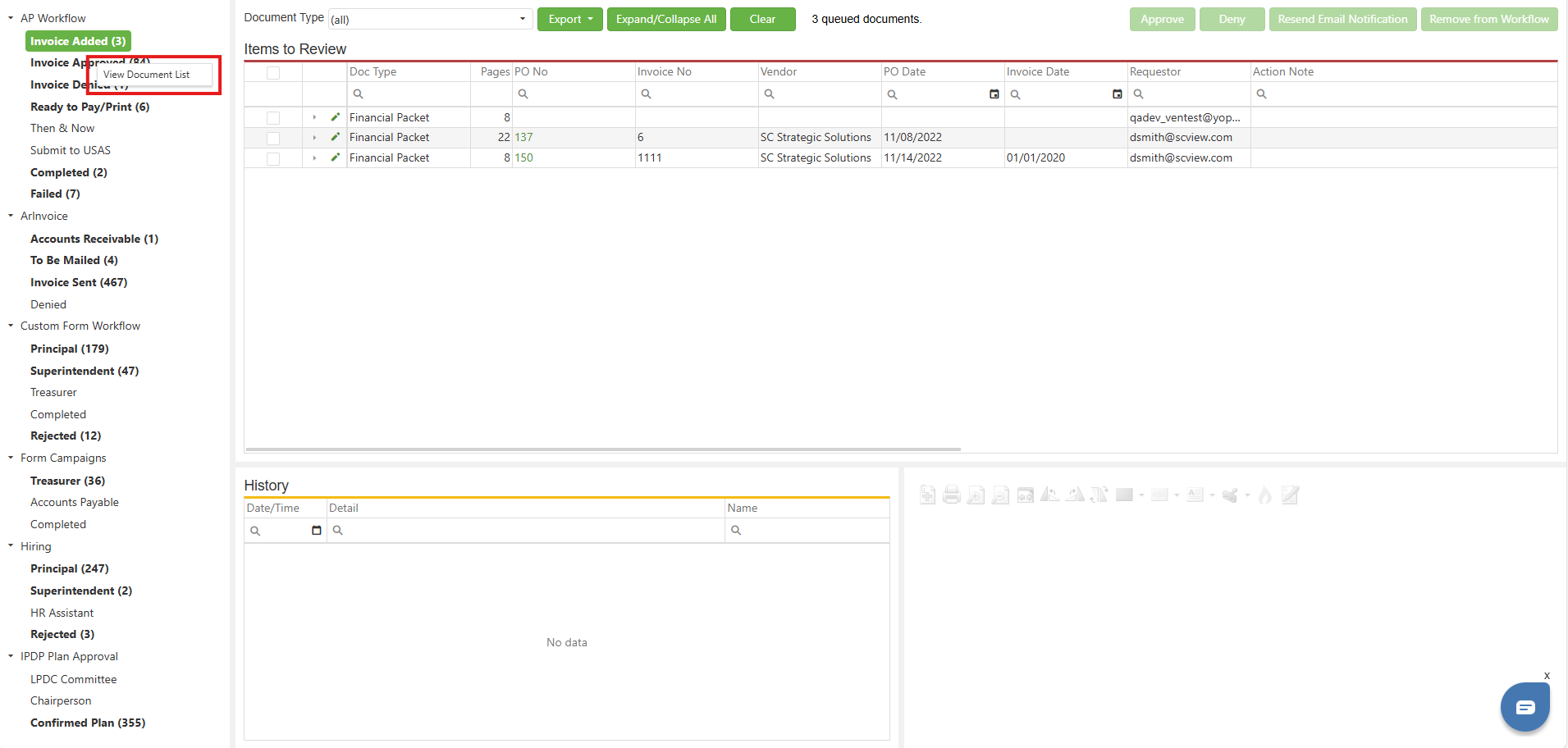
Step 2: Anatomy of the Document List Popup
The Document List popup initially loads without displaying any data. To load the data, hit the Apply button. The From Date and To Date fields can be populated to constrain the data grabbed by the Apply button. For example, if the user selects From of 12/1/25 and To of 12/31/25, hitting apply will only show those Workflow records that were added in the month of December, 2025.
When data is present in the Document List Grid, the Apply Bulk Action button will enable under the following conditions:
- The current queue is not marked as an "archive" queue.
- The current queue is not a "submission" queue.
- Submission queues are those that pass information off to third-party platforms. "Submit to USPS" queues are good examples of submission queues.
- The queue has one or more Queue Actions that are eligible to be Bulk Actions.
A Queue Action is eligible to be a Bulk Action under the following conditions:
- The action requires a note.
- The action requires confirmation.
- The action uses either the Default confirmation profile or no confirmation profile whatsoever.
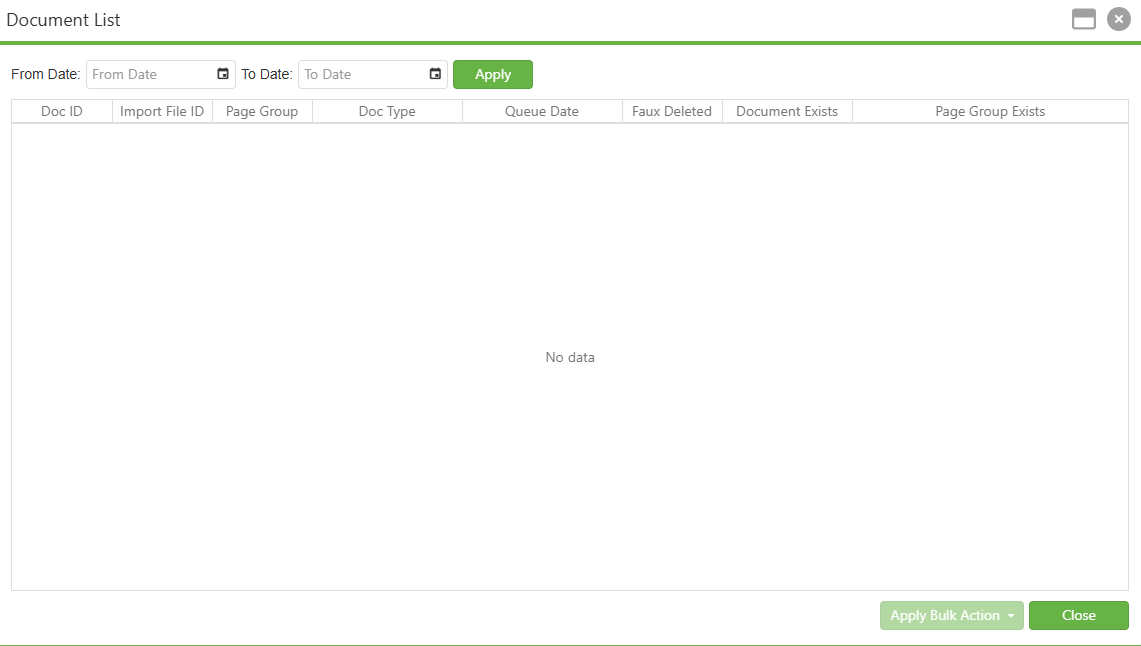
Finally, the Unqueue column, found on the far left of the grid, only appears for Administrators. This is a tool, unrelated to Bulk Actions, that allows an administrator to remove unwanted records from the Workflow queue simply by clicking the link for each individual row. Images will be provided for both the Admin and non-Admin views of Document List, though the Admin version will be used for all subsequent images in this article.
All criteria that make a Queue Action eligible to be a Bulk Action can be found in Workflow Configuration for that particular action. See Article Workflow: Queues & Queue Actions for more information.
Image: Document List Popup - Administrator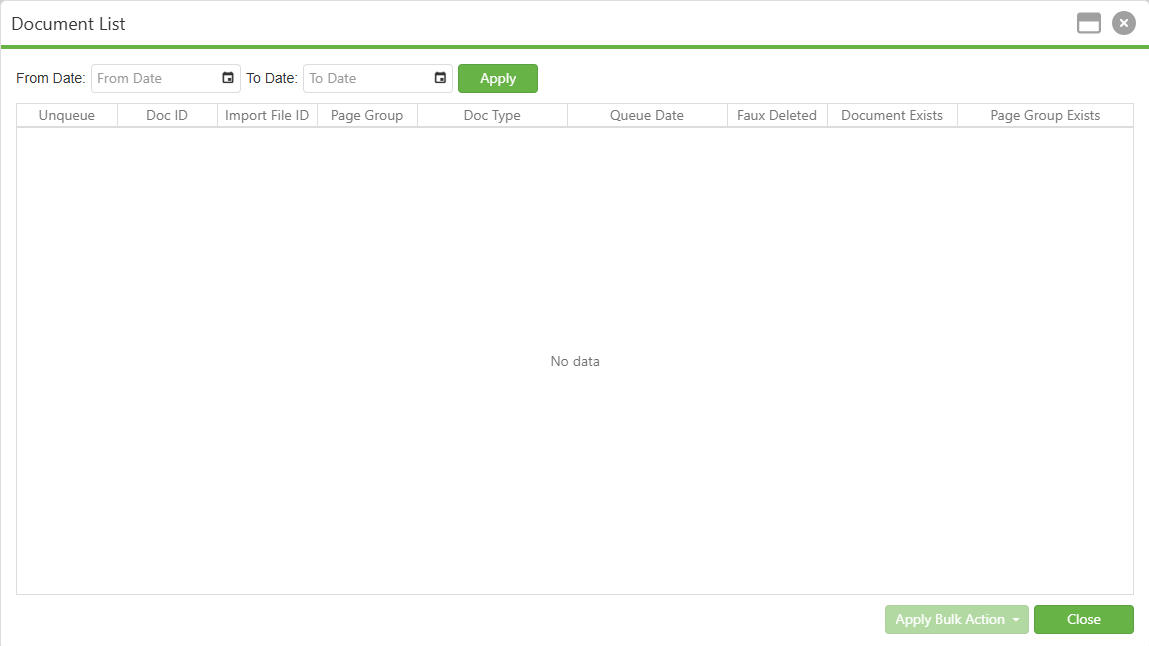
Image: Document List Popup - Non-Admin
Step 3: Choose and Confirm Bulk Action
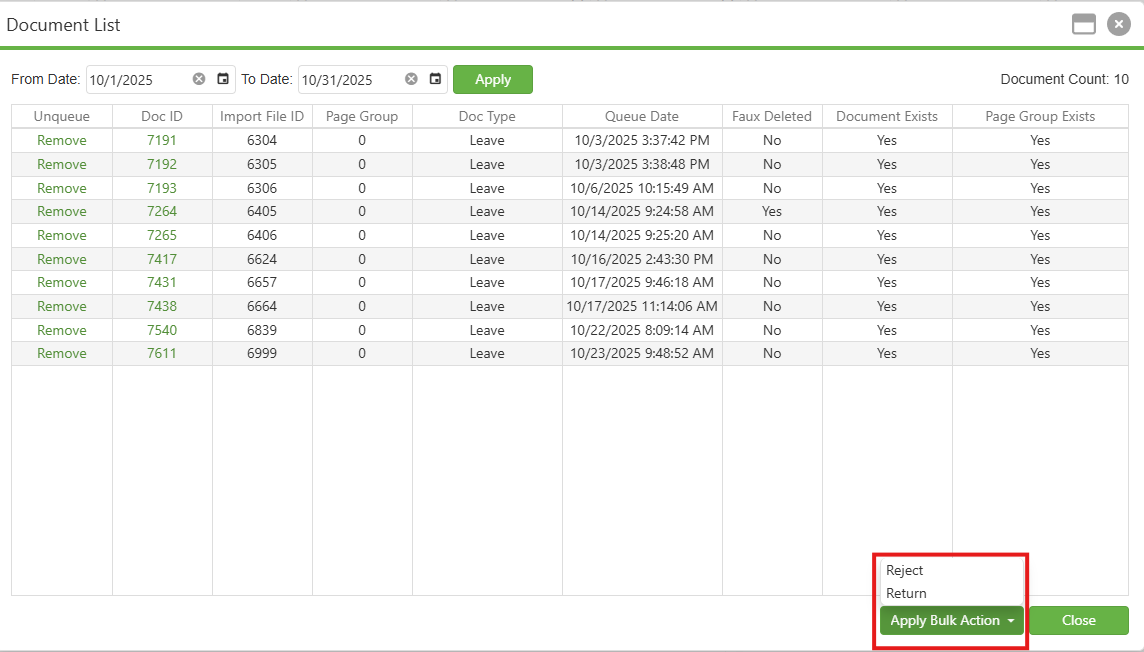
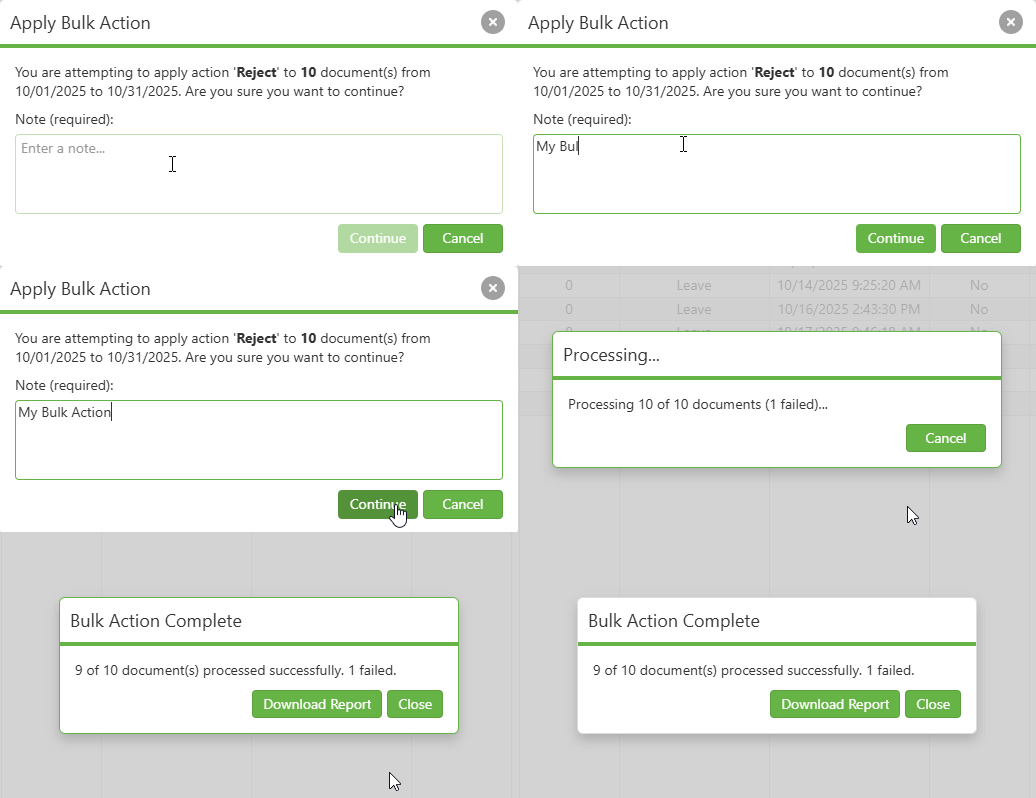
Now that the Document List grid contains data and we have confirmed that the Workflow Queue in question has eligible Bulk Actions, click the "Apply Bulk Action" button and select the name of the action to use in bulk. This will bring up the Apply Bulk Action Confirmation Screen, as shown below.
Type a note into the Note field. This enables the Continue button; when pressed, all workflow items currently in the Documents List grid will have the chosen Queue Action performed upon them.
Image: Apply Bulk Action Options
Video: Apply Bulk Action Confirmation
Step 4: Bulk Action Report
As shown in the video above, the user has the option to download a report showing what actions were taken by the requested Bulk Action. This report is a standard .CSV file. Reports are split into two sections. The first is a summary that shows how many records were affected and what the counts of various statuses are. The second is a details section showing the action performed on each individual document.
In our example report, we can see that the document that failed rejection did so because it had previously been faux deleted.
Image: Bulk Action Report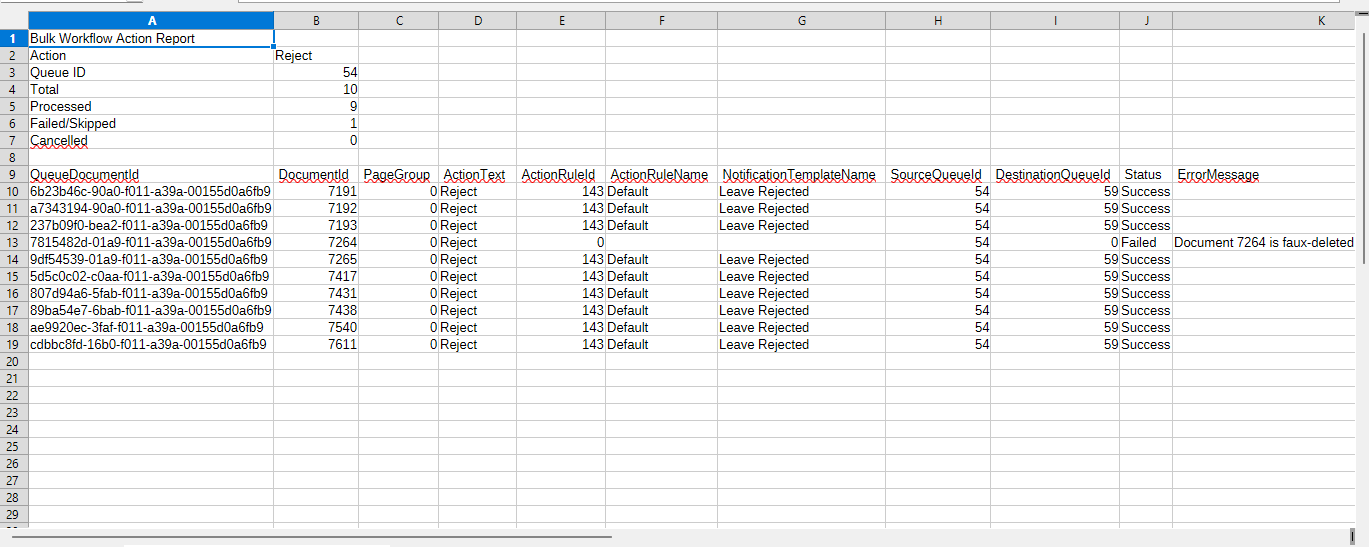
C. Best Practices
- The required Note needed to confirm a Bulk Action submission is applied to all affected documents. Make sure it is suitable for all of them while also descriptive enough for auditing purposes.
- Use date filters strategically. When performing a Bulk Action, ALL documents currently in the data grid will be affected.
- Accordingly, when first testing out the tool, use it on a small subset of documents to make sure it works as you expect.
- Be sure to download and retain Bulk Action reports for your records.
D. Troubleshooting
- Archive queues and third-party submission queues are ineligible for Bulk Action processing. It doesn't matter how many Bulk-eligible actions you have on hand if the queue itself has declared that Bulk Actions are illegal.
- If you are not in an archive queue or a submission queue, but you still do not see any available Bulk Actions, make sure that there are documents in your current queue. If there is, check Workflow Configuration to make sure that the action you want to use in bulk is eligible to be a Bulk Action.
- Remember, the criteria are that a Note is required, that Confirmation is required, and that the Confirmation Template is Default or (None).
- Bulk Action processing generates auditing logs. If you have neglected to download the Bulk Action report and something went wrong, this presents an alternative way to troubleshoot.
- If you can't see the Unqueue column, you are not on an administrator account. Log in as an Admin. If you are logged in as an Admin, contact Support for help.
E. Related Articles
Workflow: Queues & Queue Actions
Conclusion
This article covered how to apply Bulk Actions to multiple workflow documents using the Document List popup, then how to interpret the resulting CSV reports.