 | ||
Introduction
Tracking break time accurately ensures your hours are calculated correctly and your time sheets are approved without delays. SCView offers three break entry modes—None, Break Minutes, and Break Time—and your organization has configured one of these for your use. This guide will help you identify which mode applies to you and show you exactly how to use it.
A. Problem Statement
SCView offers three different break tracking methods, but employees may not know which method their organization has configured or how to identify it.
B. Solution
To follow along with this guide, please use the main navigation bar to navigate to Tools > Time Sheets, then click the "Add Sheet" button located on the Time Sheets Manager page.
Step 1: Break Entry Mode - None
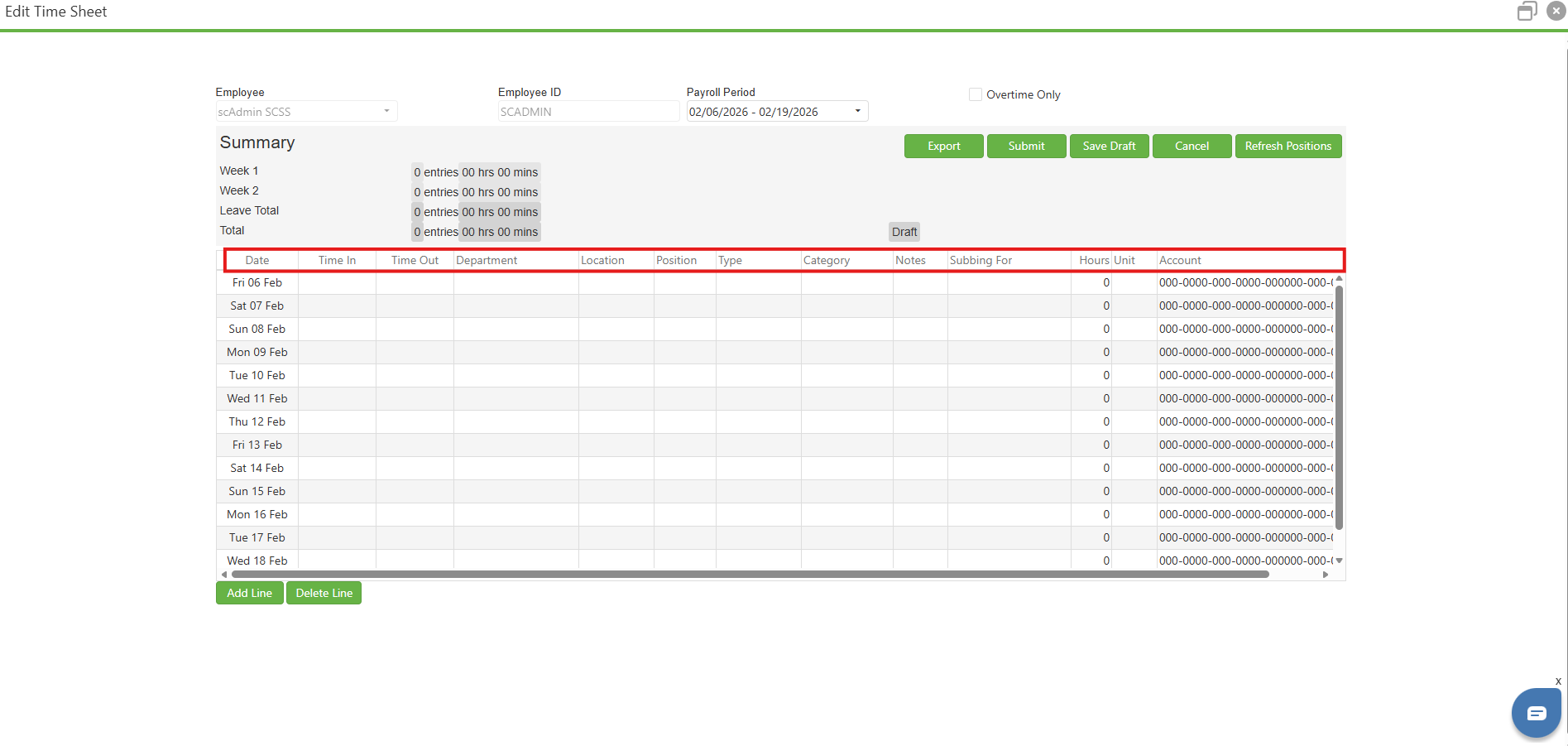
The simplest Break Entry Mode is None. An organization that chooses this mode does not track break time in SCView Time Sheets. To check for this Break Entry Mode, confirm that no Break-related column exists on your SCView Add/Edit Time Sheets form.
If your organization uses Break Entry Mode - None, you're done. You don't have to know anything past the fact that your organization doesn't track break time in SCView.
Image: A Break Entry Mode - None Time Sheet
Step 2: Break Entry Mode - Break Minutes
The middle Break Entry Mode is Break Minutes. To check for this Break Entry Mode, look for the presence of the "Break Mins" column AND the absence of the "Break Start" and "Break End" columns on your SCView Add/Edit Time Sheet.
To use break minutes, write however many minutes your break(s) for the day took in the "Break Mins" column. The Add/Edit Time Sheet form will automatically deduct that much time from the Hours column value calculated from your Time In and Time Out times.
Image: A Break Entry Mode - Break Minutes Time Sheet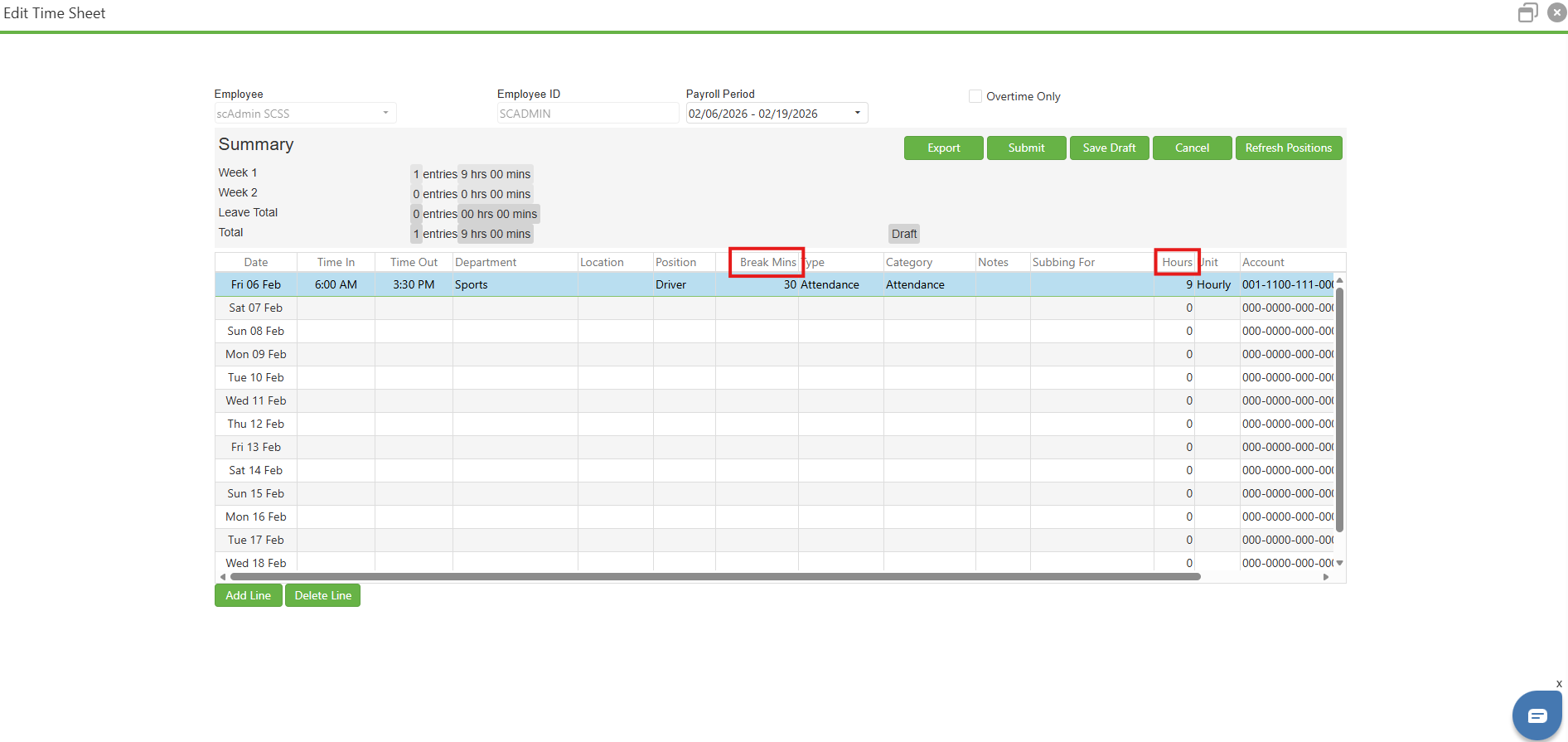
Step 3: Break Entry Mode - Break Time
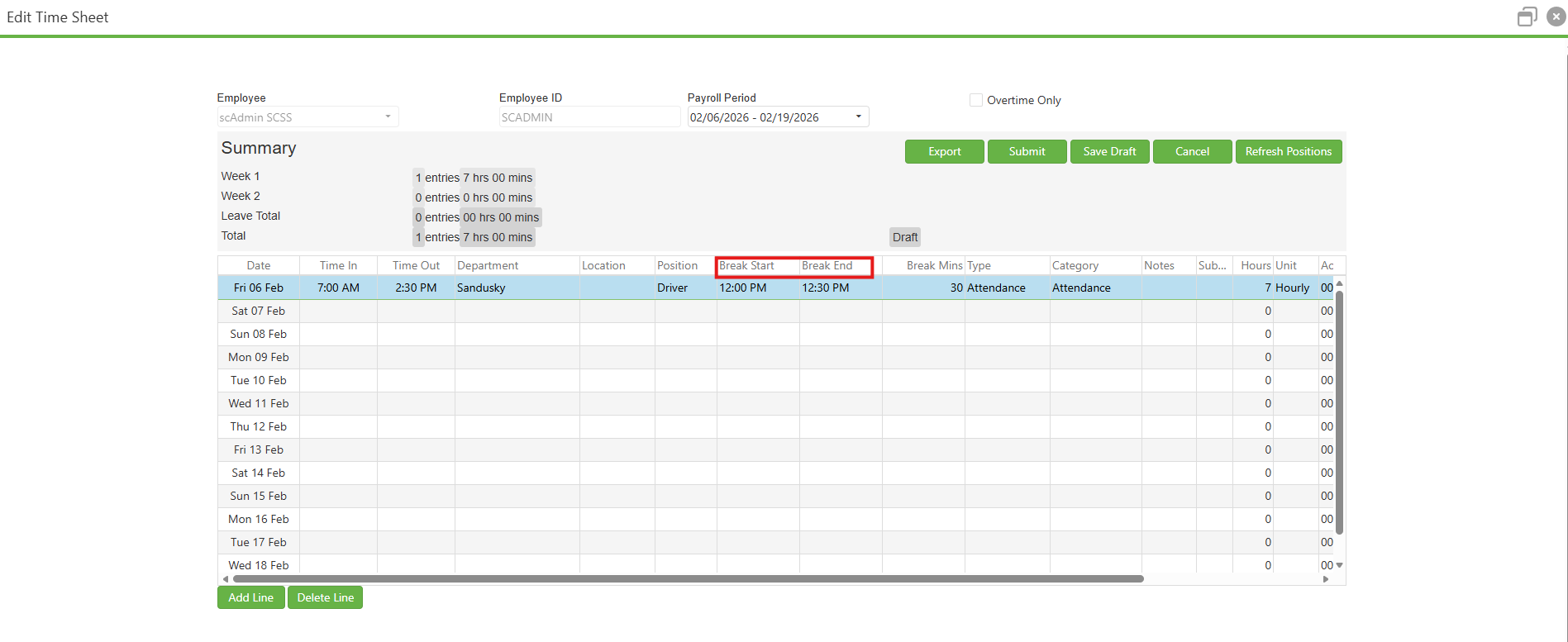
The most complicated Break Entry Mode is Break Time. To check for this Break Entry Mode, look for the "Break Start" and "Break End" columns on your SCView Add/Edit Time Sheet.
To use break time, input the start time of your break in the "Break Start" field, then input the end time of your break in the "Break End" field. The "Break Mins" field is calculated automatically based on "Break Start" and "Break End", and this amount is deducted from your "Hours" worked for that shift.
Image: A Break Entry Mode - Break Time Time Sheet
C. Best Practices
- Distinguish between modes: Both Break Time and Break Minutes display a "Break Mins" column. The key difference is that Break Time also includes "Break Start" and "Break End" columns, while Break Minutes does not.
- Enter breaks daily: Record your break time on each shift rather than estimating at the end of a pay period.
D. Troubleshooting
- If autocalculation is not happening, make sure that all of the base required fields- Time In, Time Out, Department, and Position- are populated. Some derived values will not calculate without everything available.
E. Related Articles
Time Sheets: Submitting Time Sheets for Approval
Time Sheets: Add/Edit Time Sheet Form Overview
Conclusion
Accurate break tracking prevents payroll errors and time sheet rejections. By understanding whether your organization uses None, Break Minutes, or Break Time mode, you can ensure every time sheet you submit has the correct break information in the proper format. Always double-check that your base fields are populated to enable automatic hour calculations, and your time entries will be processed without issues.
Was this article helpful?
That’s Great!
Thank you for your feedback
Sorry! We couldn't be helpful
Thank you for your feedback
Feedback sent
We appreciate your effort and will try to fix the article