
 | ||
Introduction
Records Retention includes built-in audit tracking to help districts maintain accountability and compliance when documents are expired, queued, and permanently purged. This article explains what is logged, where to find audit history, and how to use it for verification and reporting.
A. Problem Statement
Because retention actions involve permanently removing documents, districts need a reliable way to answer questions like:
Who enabled Records Retention?
Why was a retention setting changed?
When were documents purged?
What was removed and how many items were affected?
Without audit tracking, it becomes difficult to validate compliance expectations and investigate retention-related activity.
B. Solution
Records Retention provides audit coverage in two key areas:
Retention feature changes (enablement/config updates)
Retention activity history (purge tracking and outcomes)
This ensures retention management remains controlled, traceable, and reviewable.
Step 1: Understand what is audited
A) Retention setting changes (Feature Enablement / Updates)
When Records Retention is enabled or modified in Client Features:
A reason is required
The change is logged for audit tracking
This creates an audit trail showing what changed, who changed it, and why.
B) Purge actions (Permanent deletion tracking)
When documents are purged:
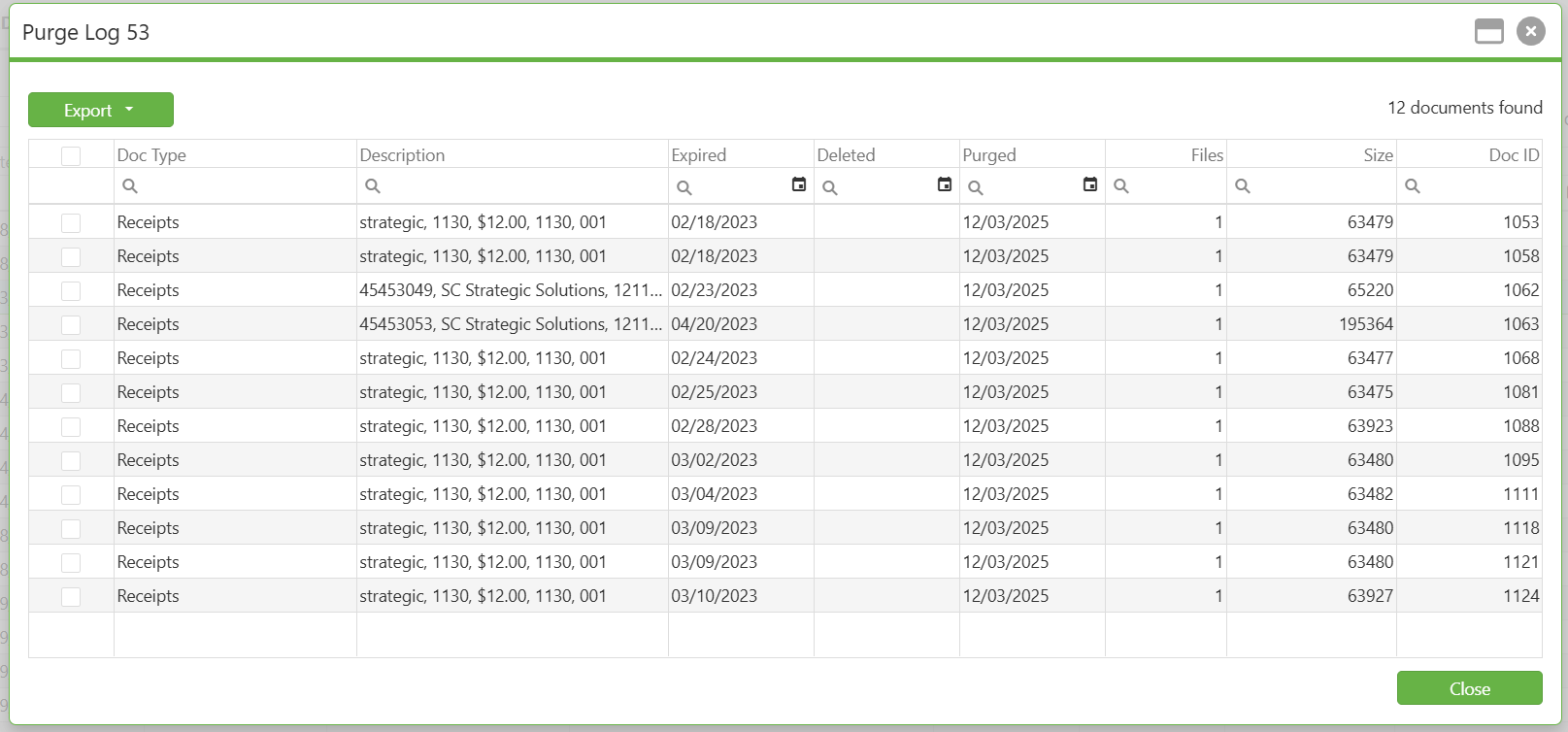
The purge action is captured in History
History includes outcome details and purge results.
This allows districts to confirm what was permanently removed and when.
Step 2: View purge results in the History tab
Navigate to Admin> Records Retention
Click the History tab
Review purge entries and result
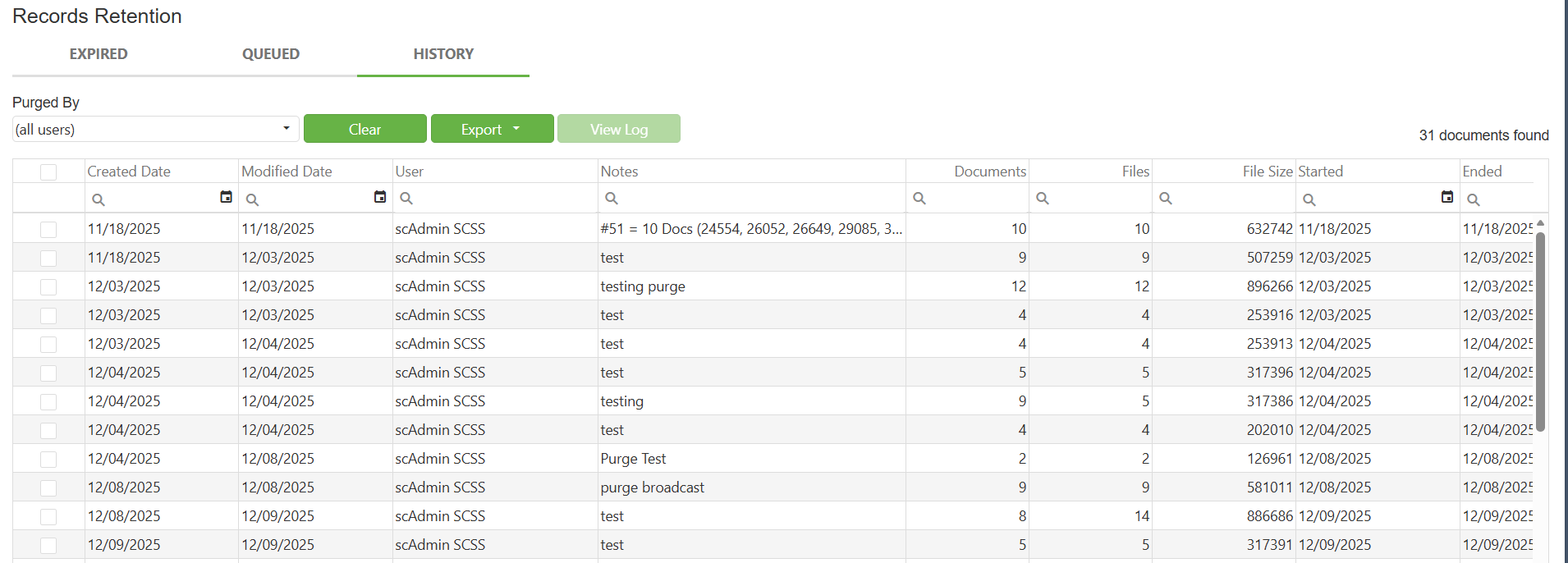
History is used to confirm:
purge completion
purge counts
purge details
Step 3: Use audit history to support compliance review
Audit history helps with questions such as:
“Did the purge actually happen?”
“How many documents were removed?”
“When did the removal occur?”
“Was the retention workflow followed properly?”
Because Records Retention is intentionally manual (scan, queue, purge), the audit trail acts as the verification source of record.
C. Best Practices
Always enter meaningful reasons when enabling or changing Records Retention settings (avoid “test” in live environments).
Use History after every purge to validate results and ensure the intended scope was purged.
Keep purge actions limited and intentional (queue first, purge second) to reduce risk and support audit defensibility.
Use manual processing as a safeguard: the manual steps exist to help prevent accidental deletion and provide accountability.
D. Troubleshooting
I can’t find proof that Records Retention was enabled/changed
Confirm the change was applied through Client Features
Confirm the user entered a reason (required for audit logging)
Purge occurred but History does not show it
Refresh / re-open the retention screen
Confirm the purge action was completed successfully
Verify the user was working in the Queued tab (purge can only occur from queued items)
- Client wants automated purge logs
- Current behavior is intentionally manual (scan/queue/purge) and History reflects those actions. If the client is requesting scheduled purge automation, document the request as an enhancement.
E. Related Articles
Conclusion
Records Retention includes audit tracking to support compliance and accountability. Feature-level retention changes require a reason and are logged, and purge actions are tracked in the History tab with result details. Retention audit history helps districts validate that retention workflows are followed correctly and that document removal is intentional and traceable.