
 | ||
Introduction
The Records Retention screen provides a controlled workflow for managing documents that have reached their expiration criteria. This article explains how to use the Expired, Queued, and History tabs to analyze eligible documents, queue them for review, permanently purge them, and review audit history.
A. Problem Statement
After retention policies are configured, districts still need a safe and auditable way to manage document cleanup. Without a structured process, users may not know which documents are eligible for deletion, may purge documents unintentionally, or may lack documentation to support compliance and auditing requirements.
B. Solution
The Records Retention workflow is designed to be intentional and manual, acting as a safeguard against accidental mass deletion. Users run the analysis for eligible documents, queue them for purge, confirm purge actions, and track results through History.
Step 1: Navigate to Records Retention
Go to Admin> Records Retention
Review the three main tabs:
Expired
Queued
History

Note: Only admins will have access
Step 2: Analyze Expired Documents (Expired Tab)
The Expired tab is where retention-eligible documents appear after an analysis is run.
Click the Expired tab
Select a Document Type
Click Analyze
Confirm the analyze task
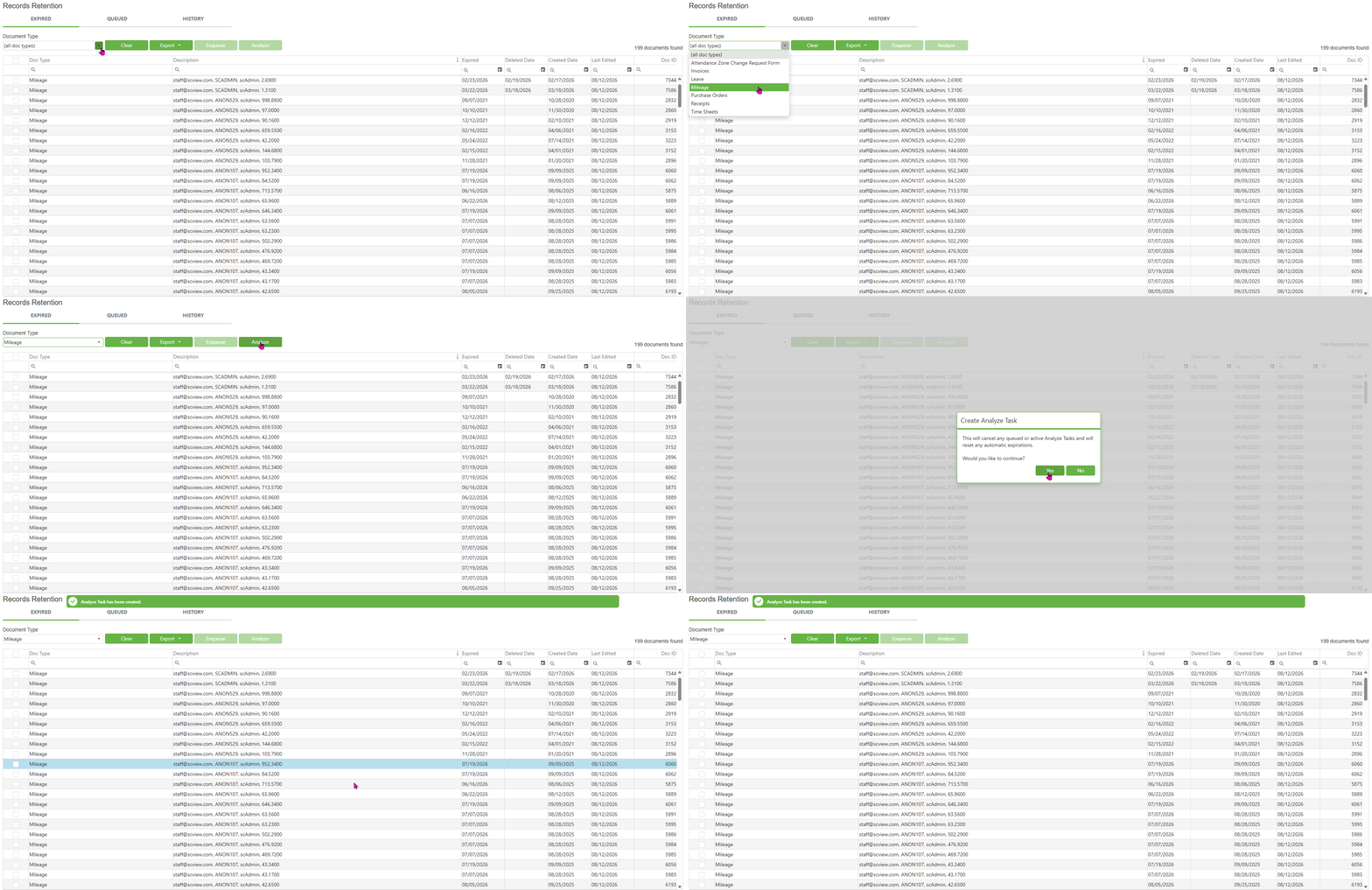
Notes: An analysis requires a specific Document Type to be selected (you cannot analyze using “All Document Types”). The grid updates automatically while tasks are running, so a manual refresh is typically not needed.
Step 3: Review Expired Results
Once the analysis completes, expired documents will appear in the grid.
Recommended review steps:
Use filtering and paging to spot-check results
Confirm the document type and indexing match expectations
Ensure users understand that “Expired” means eligible for action, not automatically deleted
Step 4: Queue Expired Documents (Expired Tab)
Queuing is the “staging step” that separates review from permanent deletion.
In the Expired tab, select one or more documents
Click Enqueue
Confirm the action if prompted
Once queued, the documents will move into the Queued tab for final review.
Step 5: Purge Queued Documents (Queued Tab)
The Queued tab contains documents that have been approved for permanent deletion.
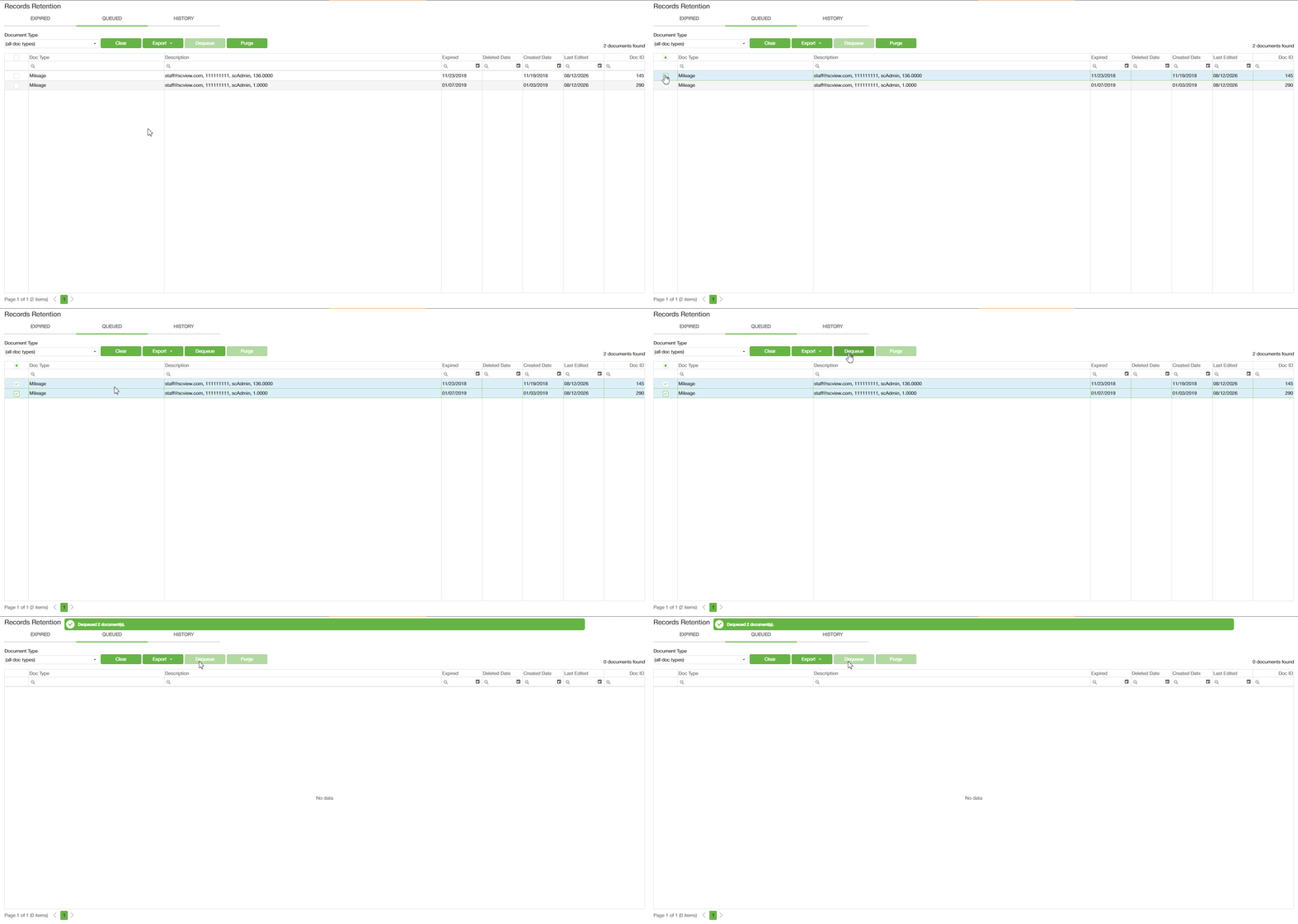
The Purge button will be enabled as long as no documents are selected. If any documents are selected the Purge button will become disabled and the Dequeue button will become enabled.
Click the Queued tab
Click Purge
Enter purge notes and confirm the acknowledgement
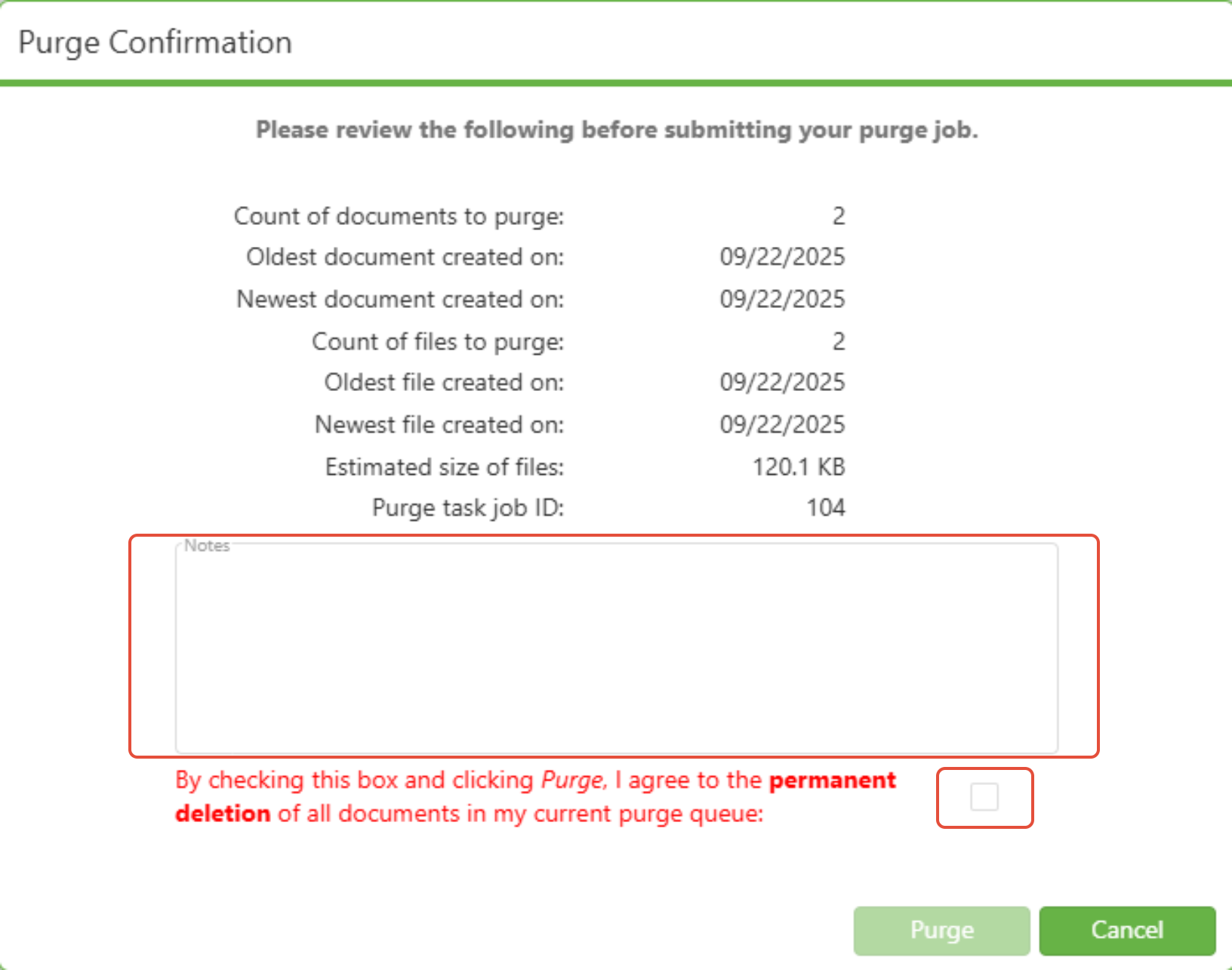
Important notes: Purging permanently deletes documents and cannot be undone. There is currently no auto-purge functionality. Purge is intentionally manual and requires user action.
Step 6: Dequeue Documents (Queued Tab)
If a document was queued by mistake or needs to be reviewed again, it can be removed from the queue.
In the Queued tab, select the document(s)
Click Dequeue
Confirm if prompted
The Dequeue button will be disabled until one or more documents are selected.
Dequeued items return to the expired workflow for review.
Step 7: Use Context Menu Actions (Right-Click)
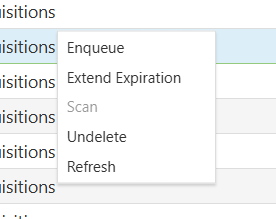
In certain areas of the Records Retention grid, users may have additional actions available through the right-click context menu, such as:
Extend Expiration (delays eligibility for purge)
Undelete (restores a deleted document, if applicable)
These options are typically used for special circumstances and should be used intentionally, since they impact retention timing and document availability.
Step 8: Review Purge History (History Tab)
The History tab is where users can view the audit trail of retention actions and purge results.
Click the History tab
Review purge records and outcomes
Use paging/filters to locate a specific purge event

History includes:
Summary results (counts)
Details about purged items
C. Best Practices
Analyze intentionally: The analysis task is manual by design, so this can be scheduled as part of a monthly/quarterly retention routine.
Use Queue as a safeguard: Treat Queued as a final review step before purge.
Start small: Begin with one Document Type and verify expected results before scaling to additional document types.
Use History for verification: Always confirm purge results using the History tab after a purge action.
D. Troubleshooting
No results appear in Expired after analysis
Confirm the Document Type has a retention policy configured
Confirm the document meets the expiration timing requirement based on its policy
Confirm an analysis was started for the correct Document Type
Purge is not available or does nothing
Confirm you are in the Queued tab
Confirm your user has retention access and permissions
Documents moved back to Expired after being queued
- Queued documents may return to Expired depending on task processing behavior and retention safeguards. If this occurs repeatedly, document the timing and steps taken and escalate for review.
Users are expecting this to run automatically
Current behavior requires manual user action:
Analyzing is manual
Queue is manual
Purge is manual
This workflow is intentionally controlled to prevent accidental mass deletion.
E. Related Articles
Conclusion
Records Retention uses a controlled three-step workflow to safely manage document cleanup: Analyze expired documents, Queue items for review, and Purge permanently when ready. The Expired, Queued, and History tabs work together to ensure users can manage retention responsibly while maintaining a clear audit trail for compliance and accountability.