 | ||
Introduction
Records Retention allows districts to define how long documents should be kept before they become eligible for purge. This article explains the two retention policy types available, what triggers each one, and how to configure them at the Document Type level.
A. Problem Statement
Clients often need to follow recordkeeping guidelines that require documents to be retained for a defined period of time. Without retention rules configured, documents will never enter an expired state for review. Additionally, selecting the wrong policy type can cause confusion because the document expiration date is calculated differently depending on the policy used.
B. Solution
Retention policies are configured at the Document Type level and determine what date the system uses to start the expiration timer. There are two main policy types:
Deletion Policy: This policy is based on the document’s Deleted Date. Once a document is deleted, the configured timeframe begins counting down from the deletion date. When that timeframe is reached, the document becomes eligible to be treated as expired.
Retention Policy: This policy is based on a date index value stored on the document (such as a Date of Birth, Request Date, or another date-based index). The configured timeframe begins counting down from that index value. When the retention window is met, the document becomes eligible to be treated as expired.
Note: These policies can be enabled independently or together, depending on how the Document Type should be governed.Step 1: Navigate to the Document Type Retention Policy settings
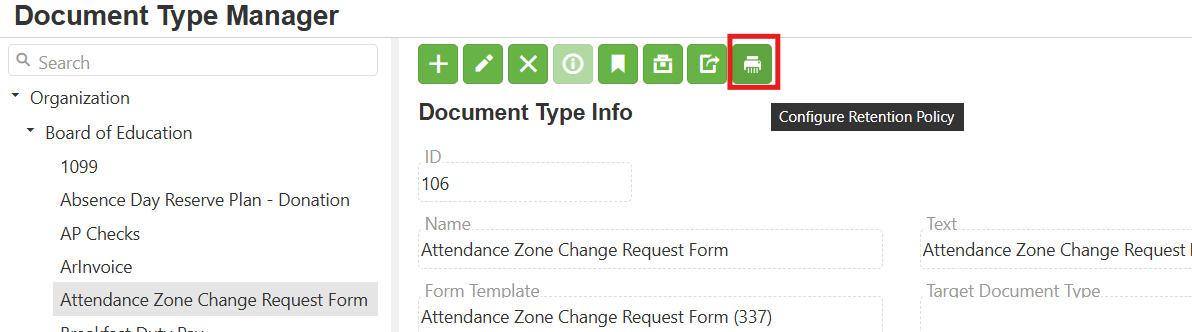
Go to Doc Type Manager
Select the Document Type you want to configure
Locate the Retention Policy section (paper shredder icon)
Step 2: Configure a Deletion Policy (based on Deleted Date)
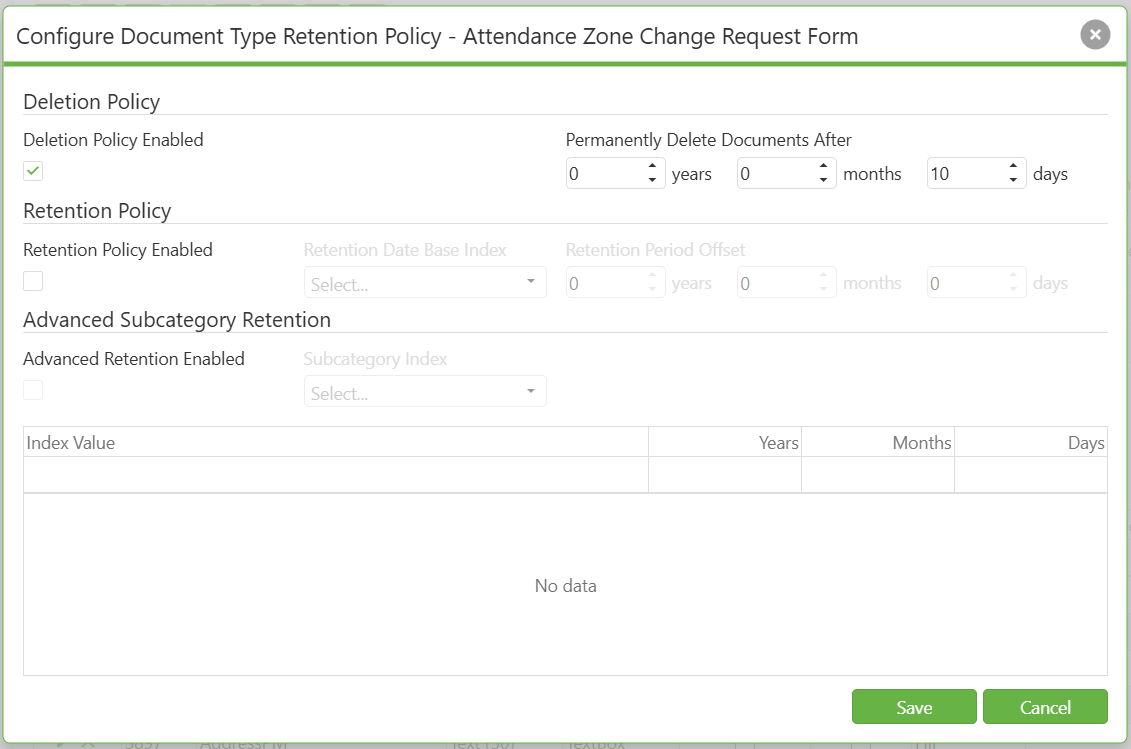
Use this policy when you want retention to begin after a user deletes the document.
In the Retention Policy section, enable Deletion Policy
Configure the expiration timeframe (example: “10 days after deletion”)
Save the Document Type
How it works:
The expiration timer starts from the document’s Deleted Date
This is commonly used when districts want a short “grace period” after deletion before a document is permanently removed
Step 3: Configure a Retention Policy (based on a Date Index)
Use this policy when documents must be retained until a specific date-based rule is met (example: DOB + X years).
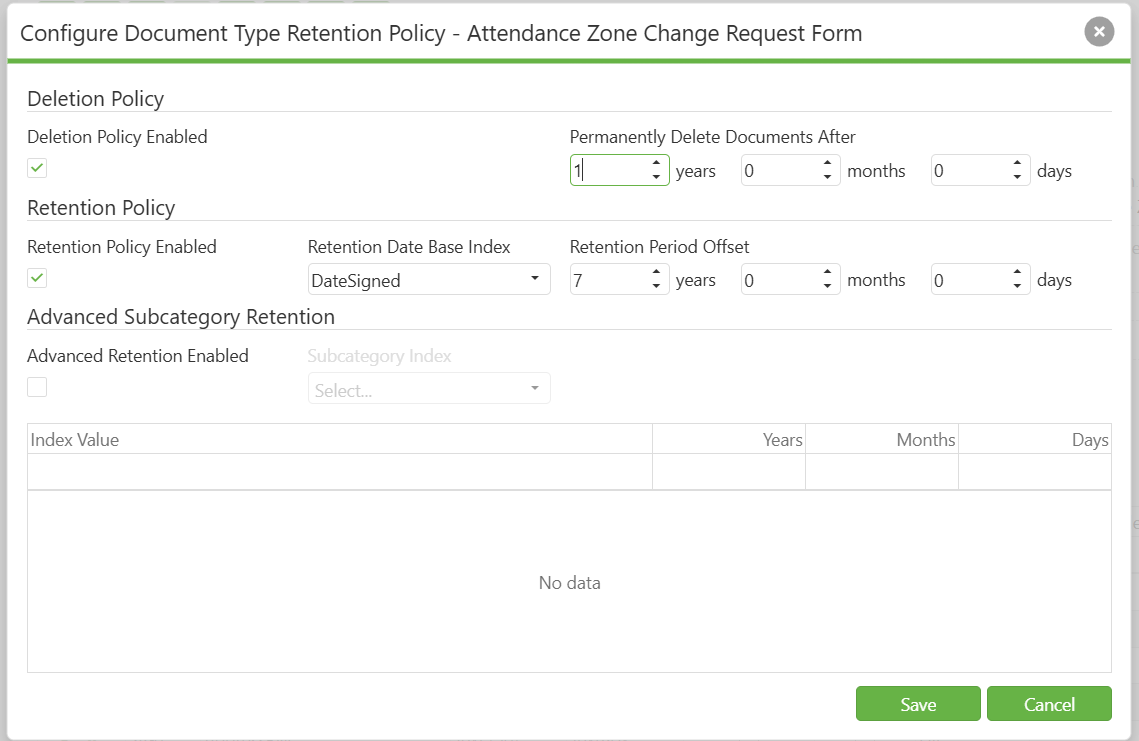
In the Retention Policy section, enable Retention Policy
Choose the Date Index that should drive expiration
Only date-based index values can be used
Configure the expiration timeframe (example: “7 years after Date Index”)
Save the Document Type

How it works:
Expiration is based on the value stored in the selected date index
This is typically used for compliance-driven retention rules (student records, finance docs, etc.)
Step 4: (Optional) Enable both policies together
If needed, both policies can be enabled on the same Document Type.
This can be useful when you want documents governed by:
A date-based retention rule and
A deletion-based grace period workflow
Step 5: Understand when “Advanced Retention” becomes available
Advanced Retention options require a Retention Policy to be enabled.
If only Deletion Policy is enabled, advanced retention options will not apply.

C. Best Practices
Pick the policy type based on your trigger:
Use Deletion Policy when the clock should start after deletion
Use Retention Policy when the clock should start from a document’s date index value
Validate the index field first: If you plan to use Retention Policy, confirm the Document Type has a reliable date index populated.
Start with one doc type: Configure one Document Type and test the full workflow before rolling out multiple.
Keep policy rules consistent: If multiple document types follow the same compliance rule (example: 7 years), align those values to reduce confusion.
D. Troubleshooting
Retention Policy option is present but I can’t select a valid index
The Document Type may not have a date-based index available
Only date indexes can be used for Retention Policy
Advanced Retention options are missing
Advanced retention requires a Retention Policy to be enabled (not Deletion Policy alone)
Documents aren’t appearing as expired after configuring a policy
Policy configuration alone does not automatically show expired documents.
A scan must be run through the Records Retention screen to pull documents into the Expired tab.
E. Related Articles
Conclusion
Retention policies are configured on each Document Type and determine when documents become eligible for retention review and purge. Deletion Policy uses the document’s Deleted Date, while Retention Policy uses a specific date index value. Selecting the correct policy type ensures documents expire at the right time and follow district compliance expectations.
Was this article helpful?
That’s Great!
Thank you for your feedback
Sorry! We couldn't be helpful
Thank you for your feedback
Feedback sent
We appreciate your effort and will try to fix the article