
 | ||
Introduction
This article provides step-by-step instructions for integrating SCView's Job Calendar feature with your organization's USPS application. By following these steps, the user will enable Job Calendar viewing for all employees in SCView without the need to access USPS.
A. Problem Statement
SCView offers Job Calendar integration with USPS to provide employees convenient access to their calendar information. However, due to limitations in the USPS application, this integration cannot be enabled automatically. A custom report must first be created and saved in USPS before SCView can retrieve and display Job Calendar data. This article guides users through the process of importing and configuring the required custom report to establish the connection between the two systems.
B. Solution
To follow along with this guide, please begin by navigating to your organization's SSDT USPS application instance.
Step 1: Download the Custom Report Definition File from This Article
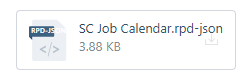
Setting up the Job Calendar in SCView requires a custom report whose definition is attached to this article. Please scroll down to the bottom of the article and download this custom report definition file.
Image: Custom Report Definition File Attachment
Step 2: Navigate to Custom Reports
With the custom report definition file in hand, please use USPS's main navigation bar to navigate to Reports > Custom Report Creator, as shown in the image below.
Image: Navigating to Custom Report Creator

Step 3: Import the SC Job Calendar Report
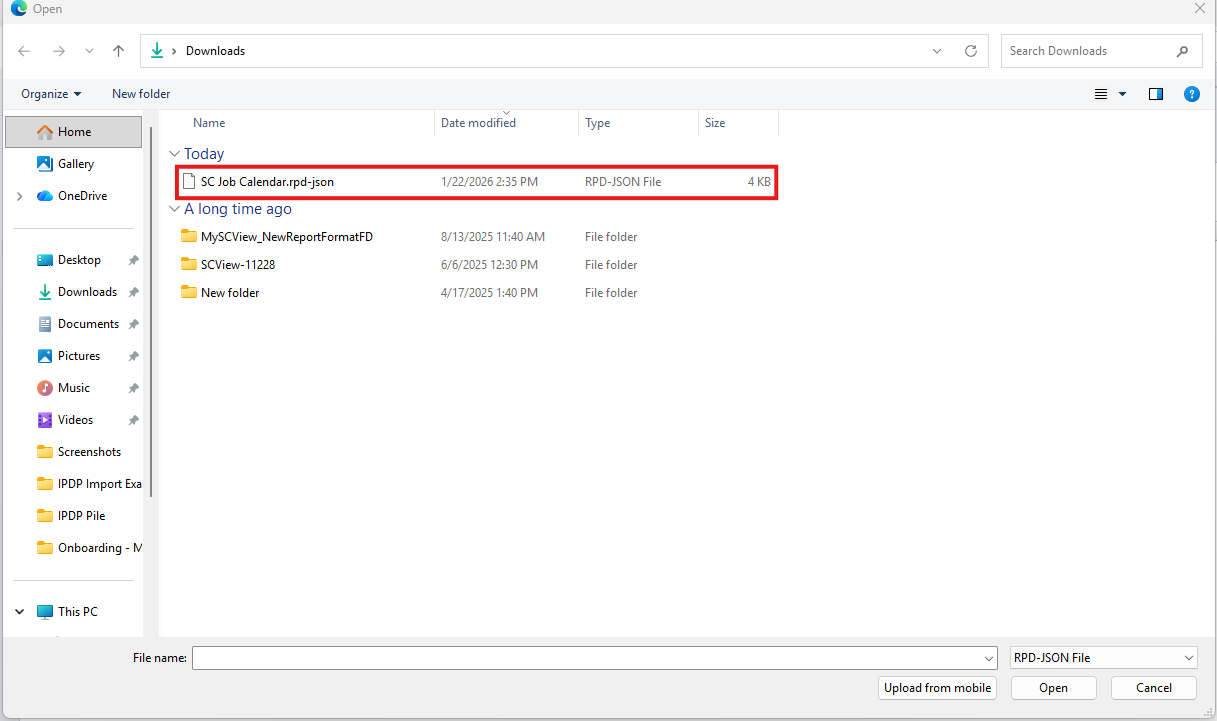
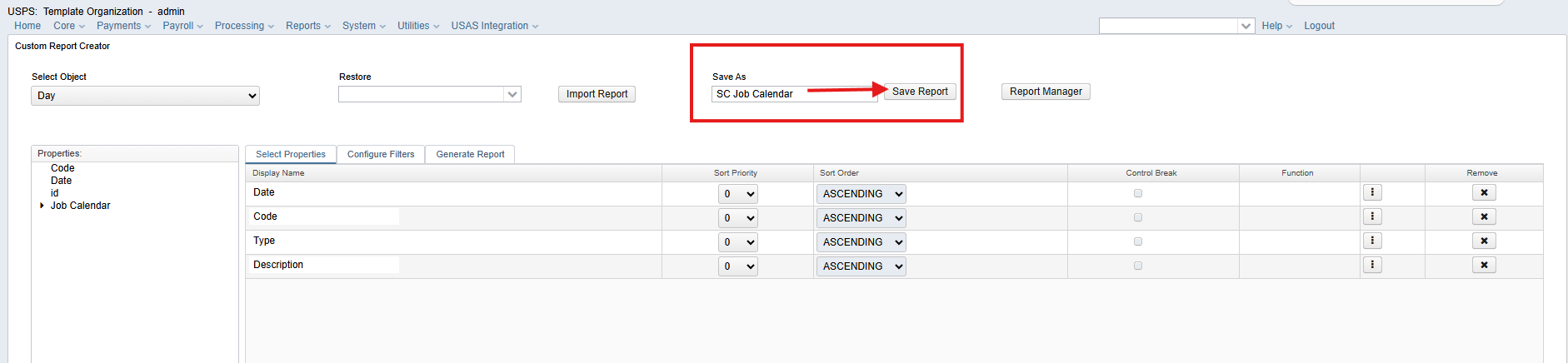
Once the Custom Report creator page loads in USPS, click the Import Report button and select the custom report definition file collected in Step 1. Once this is completed, the report will load in USPS and new windows will appear. If a grid with column Display Name and values Date, Code, Type, and Description become visible, then the process is successful.
Image: The Import Report Button

Image: Select the Custom Report Definition File
Step 4: Save the SC Job Calendar Report
Now that the custom report definition has been uploaded in USPS, please input "SC Job Calendar" in the text field labeled "Save As", then click the Save Report button. Everything SCView needs to interface with your organization's Job Calendar is now in place.
For help syncing the USPS Job Calendar with SCView, refer to Article Leave: Job Calendar.
Image: Input "SC Job Calendar" in Save As, Then Click Save Report
C. Best Practices
Take it slow and be sure of your next action before taking it. While this is not a particularly complicated process, it is exacting.
- Download the custom report definition file before beginning the import process to ensure a smooth workflow
- Verify that the report name is entered exactly as "SC Job Calendar" before saving to ensure proper integration with SCView
- Confirm successful import by checking that the grid displays the expected columns (Date, Code, Type, and Description) before proceeding to save
D. Troubleshooting
- If the import fails, verify that the custom report definition file downloaded correctly and attempt the import again
- If the expected grid columns do not appear after import, delete the imported report and restart the process from Step 1
- If the report is saved with an incorrect name, an unwanted custom report will be added to USPS; contact your system administrator to remove it and repeat Step 4 with the correct name
- For additional assistance, contact Support
E. Related Articles
Conclusion
With the SC Job Calendar custom report successfully added to USPS, your organization can now sync the Job Calendar data with SCView, enabling employees to view their Job Calendar directly within SCView without accessing USPS. For guidance on syncing the USPS Job Calendar with SCView, refer to Leave: Job Calendar.