
 | ||
Introduction
Creating an expense/mileage request as an anonymous user within an organization's financial management system can be a necessary process when specific individuals need to submit mileage claims without revealing their identity or when they have not been assigned a dedicated system account. This document provides a comprehensive guide on how to effectively use an Anonymous Mileage Link to enter expense and mileage details within a system that utilizes the SCView platform. The guidance provided ensures that all stakeholders understand the steps involved and that correct information is submitted to maintain a seamless and accurate expense processing workflow.
A. Problem Statement
The mileage submission process can be challenging for individuals who need to submit expense claims anonymously or without direct system access. Common issues include difficulties in accurately calculating mileage between destinations, uncertainty about how to properly complete the mileage form, and potential errors in vendor information or account codes that could lead to delays or denials in the processing workflow. Furthermore, if required fields are incomplete or incorrect details are submitted, the mileage request may not be processed, requiring additional time and effort to resolve the issue.
B. Solution
To resolve these common issues, this guide provides clear, step-by-step instructions that simplify the mileage submission process—from accessing the anonymous link to submitting a complete mileage request. Additionally, it includes troubleshooting tips and best practices to optimize the experience and ensure accurate submissions.
Reach out to your local admin for the Anonymous Mileage Link.
Step 1: Paste the link in the URL bar to access the mileage entry screen.
Step 2: Complete the Information Section
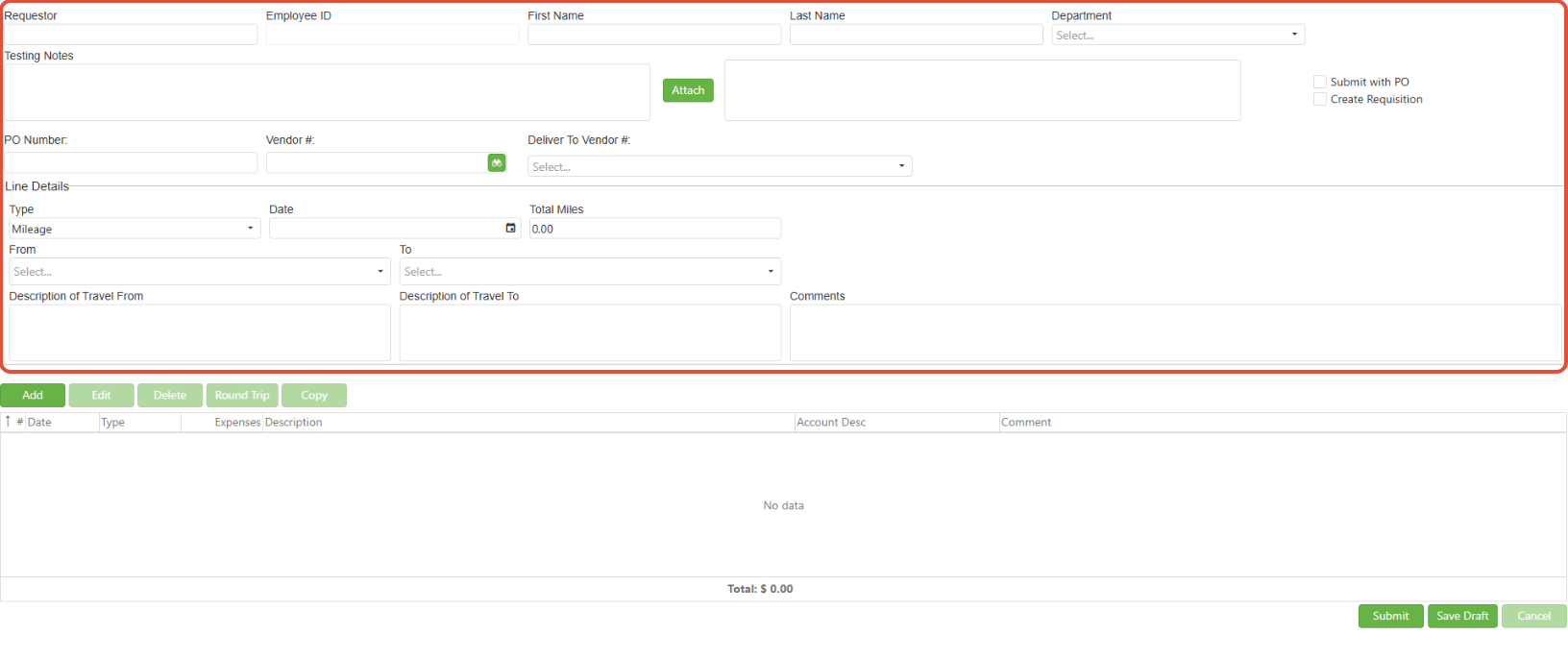
- Requestor: This field should be filled with the email address of the person requesting the mileage reimbursement.
- Employee ID: This field will automatically populate based on the email address entered in the Requestor Email field and will be locked to prevent modification. When not affiliated with a user email in SCView, the field will fill with N/A and remain disabled.
- First Name and Last Name: These fields can be manually filled or will fill based on the email address entered like Employee ID.
- Department: The department list is contingent upon departments listed in the 'anonymous' profile in the Users manager and will default to the most recently used department by the user unless view settings are cleared. This is a required field.
- Attach: You may attach relevant documentation by clicking the Attach button and selecting the desired file.
Step 3: Enter Trip Details
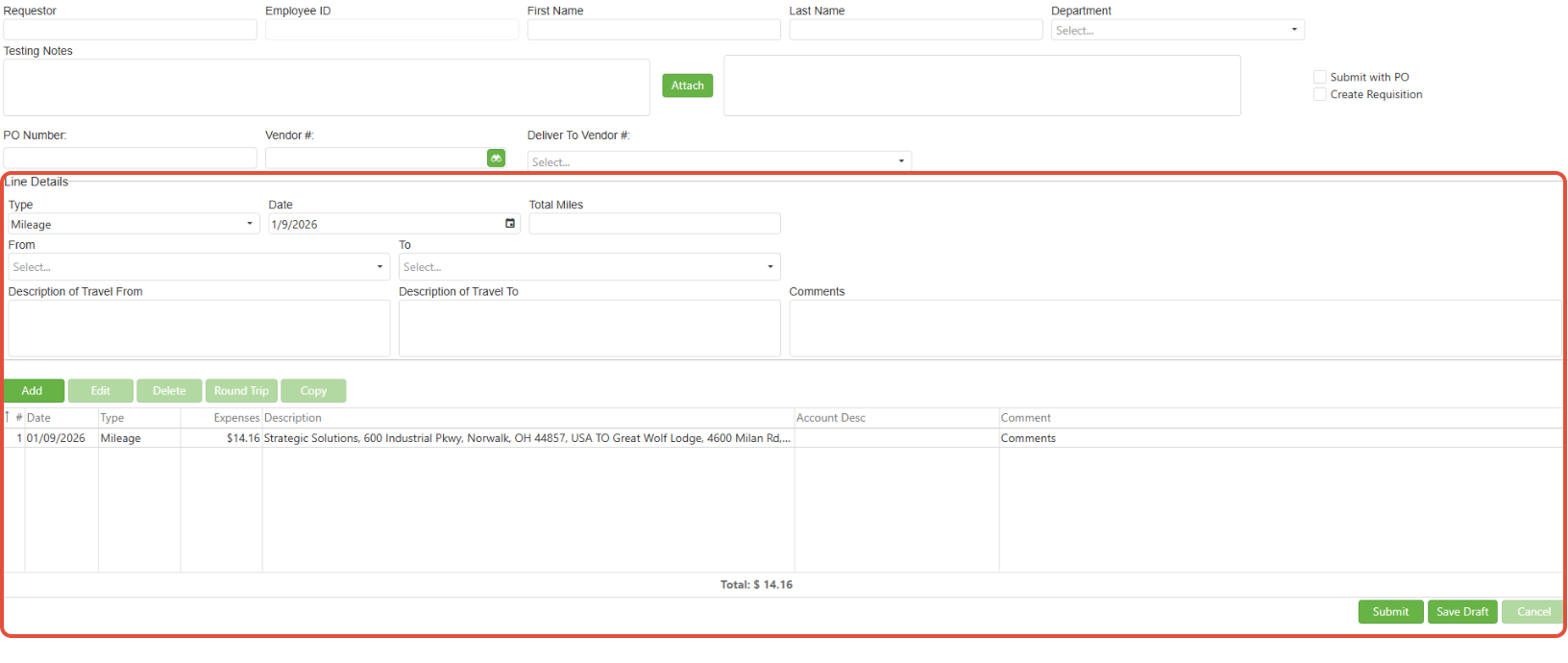
- Mileage Date: Enter the date of the mileage line item.
- From/To Destination: When clicking these options, a list of predetermined destinations will appear if the district has enabled this feature. If no predetermined locations are available, the list will be blank and you can manually enter addresses.
- Comment: Use this field to explain Other Expenses for this trip.
Step 4: Add Line Items
- Click Add Line once all relevant information has been filled out in the top section of the form. This creates a line item with the entered information.
- Use the Edit Line, Copy Line, Delete Line, and Round Trip buttons to modify line items as needed until all necessary lines are added correctly.
Step 5: Configure Additional Options (if available)
- Create Requisition: If enabled, check this box to generate a requisition. This requires completing:
- Vendor #: The vendor number for the person receiving mileage payment
- Deliver To Vendor #: The approval path for the requisition
- Submit with PO: If enabled, check this box to attach the mileage to an existing Purchase Order
- PO Number: Enter the valid PO number to which the invoice will be attached
Step 6: Review and Submit
When finished adding all lines, ensure all information appears correct, then click the Submit button at the bottom of the page.
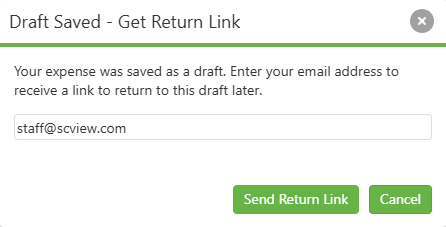
Alternatively, a draft can be saved and a link emailed to the requestor to modify the draft for submission at a later date.
C. Best Practices
- Double-check the Requestor Email to ensure that notices and confirmations reach the appropriate person.
- Verify all addresses and destinations for accuracy to ensure proper mileage calculations.
- Utilize predetermined destinations when available to maintain consistency and accuracy.
- Provide clear and detailed descriptions in the Comment fields to assist approvers and administrators in understanding the purpose of each trip.
D. Troubleshooting
- Verify that all mandatory fields have been correctly filled out, particularly the Department field.
- Ensure addresses are complete and accurate for proper mileage calculation.
- Contact your local admin if you encounter issues with the Anonymous Mileage Link or if expected features are not available.
E. Related Articles
Expenses/Mileage: How do I use the Mileage Manager?
Workflow: Submitting Mileage to Create Invoice/Requisition
Expenses/Mileage: User Permissions
Conclusion
The Anonymous Mileage Link provides a valuable tool for individuals to create mileage requests without disclosing their identity or having direct access to the SCView system. By following the outlined steps and best practices, users can complete the mileage submission process efficiently and accurately. It is crucial to pay close attention to details, particularly with address entry and mandatory field completion, to avoid common pitfalls and ensure smooth processing of mileage claims. The system's automatic mileage calculation and flexible line item management features facilitate accurate expense reporting while maintaining compliance with organizational policies. Always remember to reach out to your local admin for guidance if you encounter difficulties or have questions about the process.