
 | ||
Introduction
The SCView Job Calendar shows important job scheduling information drawn directly from USPS that can help users quickly ascertain their needs when about to submit a Leave request. The goal of this article is to familiarize the reader with this tool so that he can use it to obtain this information from SCView directly without needing to spend time digging into another system.
A. Problem Statement
Users need quick access to USPS job scheduling information when planning leave requests, but switching between SCView and USPS wastes time and disrupts workflow.
B. Solution
To follow along with this guide, please use the main navigation bar to navigate to Tools > Leave.
Step 1: Accessing the Job Calendar
The button to access the Job Calendar is found on the right side of the Leave page, just above the top edge of the Leave grid.
Image: Finding the Job Calendar

Step 2: Using the Job Calendar
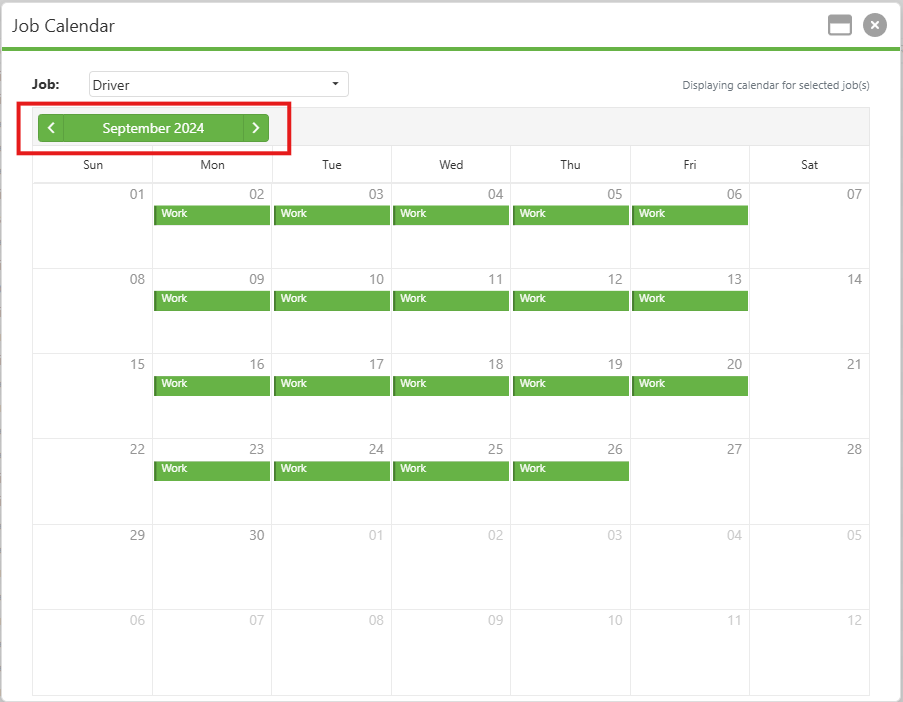
The Job Calendar displays the USPS job calendar for each position that the current user possesses. This acts as a reference tool situated right where it is needed, saving the user valuable time that was not spent digging into USPS. Let's break down the different parts of the Job Calendar.
Job - This dropdown allows the user to select any of his currently active positions. For users with multiple active positions, an "All Jobs" option is available to view the composite job calendar of all jobs at once. If the user only has one job, then this dropdown will be disabled and that job will be automatically selected.
Month Selector - Circled in Image: The Job Calendar, below, the month selector has little arrows on the left and right sides. When the left arrow is clicked, the calendar display beneath the selector will go backward one month; conversely, when the right arrow is clicked, the calendar will go forward one month.
Calendar Display - This calendar displays the job schedule for the currently selected job. This is a copy of USPS data imported into the system by your organization's administrators and will show all special day types that your organization uses in USPS.
Image: The Job Calendar
C. Best Practices
- Always review the Job Calendar before creating a leave request to ensure you're aware of any special day types or scheduling considerations for your position.
D. Troubleshooting
- To function, the Job Calendar must be deliberately imported from USPS by an administrator. If a portion of your calendar seems empty when you believe it should not be, contact a database administrator, or SCView Support.
- Only Active jobs can be selected in the Job Calendar. Historical, inactive positions will not be available for review.
E. Related Articles
Leave: Job Calendar Report Setup in USPS
Conclusion
The SCView Job Calendar streamlines leave planning by consolidating USPS scheduling information into a single, accessible location. This integration saves valuable time, reduces system-switching, and empowers users to make better-informed leave request decisions with confidence.